by community-syndication | May 6, 2010 | BizTalk Community Blogs via Syndication
Peter Ward and Wardy IT have launched some upcoming training courses: This is from there newsletter:
|
SQL Server Training Schedule
It is not too late to register for our Q2 training courses, including Australia’s first PowerPivot training courses. WARDY IT Solutions has developed the following exclusive SQL Server courses including the first PowerPivot training course to be delivered in Australia:
- Brisbane – 12th May – SQL Server Developer Essentials
- Brisbane – 14th May – SQL Server Business Intelligence Launchpad
- Brisbane – 18th May – SQL Server Reporting Services
- Brisbane – 21st May – Integrating SQL Server with SharePoint
- Brisbane – 25th May – SQL Server 2008 R2 Step-up
- Brisbane – 26th May – SQL Server 2008 R2 PowerPivot
- Sydney – 8th June – SQL Server 2008 R2 Step-up
- Sydney – 9th June – SQL Server 2008 R2 PowerPivot
- Melbourne – 15th June – SQL Server 2008 R2 Step-up
- Melbourne – 16th June – SQL Server 2008 R2 PowerPivot
For more details and to register for these courses email [email protected].
|
by community-syndication | May 6, 2010 | BizTalk Community Blogs via Syndication
[Source: http://geekswithblogs.net/EltonStoneman]
Yuck. But sometimes you have to, so here are a couple of things to bear in mind:
Schemas
Point a codegen tool at a WCF endpoint which exposes a DataSet and it will generate an XSD which describes the DataSet like this:
<xs:elementminOccurs=“0“name=“GetDataSetResult“nillable=“true“>
<xs:complexType>
<xs:annotation>
<xs:appinfo>
<ActualTypeName=“DataSet“
Namespace=“http://schemas.datacontract.org/2004/07/System.Data“
xmlns=“http://schemas.microsoft.com/2003/10/Serialization/“ />
</xs:appinfo>
</xs:annotation>
<xs:sequence>
<xs:elementref=“xs:schema“ />
<xs:any />
</xs:sequence>
</xs:complexType>
</xs:element>
In a serialized instance, the element of type xs:schema contains a full schema which describes the structure of the DataSet – tables, columns etc. The second element, of type xs:any, contains the actual content of the DataSet, expressed as DiffGrams:
<GetDataSetResult>
<xs:schemaid=“NewDataSet“xmlns:xs=“http://www.w3.org/2001/XMLSchema“xmlns=“”xmlns:msdata=“urn:schemas-microsoft-com:xml-msdata“>
<xs:elementname=“NewDataSet“msdata:IsDataSet=“true“msdata:UseCurrentLocale=“true“>
<xs:complexType>
<xs:choiceminOccurs=“0“maxOccurs=“unbounded“>
<xs:elementname=“Table1“>
<xs:complexType>
<xs:sequence>
<xs:elementname=“Id“type=“xs:string“minOccurs=“0“ />
<xs:elementname=“Name“type=“xs:string“minOccurs=“0“ />
<xs:elementname=“Date“type=“xs:string“minOccurs=“0“ />
</xs:sequence>
</xs:complexType>
</xs:element>
</xs:choice>
</xs:complexType>
</xs:element>
</xs:schema>
<diffgr:diffgramxmlns:diffgr=“urn:schemas-microsoft-com:xml-diffgram-v1“xmlns:msdata=“urn:schemas-microsoft-com:xml-msdata“>
<NewDataSetxmlns=“”>
<Table1diffgr:id=“Table11“msdata:rowOrder=“0“diffgr:hasChanges=“inserted“>
<Id>377fdf8d-cfd1-4975-a167-2ddb41265def</Id>
<Name>157bc287-f09b-435f-a81f-2a3b23aff8c4</Name>
<Date>a5d78d83-6c9a-46ca-8277-f2be8d4658bf</Date>
</Table1>
</NewDataSet>
</diffgr:diffgram>
</GetDataSetResult>
Put the XSD into a BizTalk schema and it will fail to compile, giving you error: The ‘http://www.w3.org/2001/XMLSchema:schema’ element is not declared. You should be able to work around that, but I’ve had no luck in BizTalk Server 2006 R2 – instead you can safely change that xs:schema element to be another xs:any type:
<xs:elementminOccurs=“0“name=“GetDataSetResult“nillable=“true“>
<xs:complexType>
<xs:sequence>
<xs:any />
<xs:any />
</xs:sequence>
</xs:complexType>
</xs:element>
(This snippet omits the annotation, but you can leave it in the schema).
For an XML instance to pass validation through the schema, you’ll also need to flag the any attributes so they can contain any namespace and skip validation:
<xs:elementminOccurs=“0“name=“GetDataSetResult“nillable=“true“>
<xs:complexType>
<xs:sequence>
<xs:anynamespace=“##any“processContents=“skip“ />
<xs:anynamespace=“##any“processContents=“skip“ />
</xs:sequence>
</xs:complexType>
</xs:element>
You should now have a compiling schema which can be successfully tested against a serialised DataSet.
Transforms
If you’re mapping a DataSet element between schemas, you’ll need to use the Mass Copy Functoid to populate the target node from the contents of both the xs:any type elements on the source node:
This should give you a compiled map which you can test against a serialized instance. And if you have a .NET consumer on the other side of the mapped BizTalk output, it will correctly deserialize the response into a DataSet.
by community-syndication | May 6, 2010 | BizTalk Community Blogs via Syndication
Whenever I download Visual Studio 2010 projects from the Internet and open the solution I am always prompted by the following message “Security Warning for [project name]. You should only open projects from a trustworthy source”. The warning makes sense because who knows what the code will do and we all run virus scanners for a good reason.
Its easy enough to suppress the warning for multiple projects in the same solution but next time you open the solution you get prompted with the same security warning.
Fixing this is quite easy, just select the project file in the Windows Explorer, right click and open the files properties and click the Unblock button to tell Windows, and Visual Studio, that you trust the file.
Of course you better be sure that you can trust the source code [:)]
Enjoy!
www.TheProblemSolver.nl
Wiki.WindowsWorkflowFoundation.eu

by community-syndication | May 5, 2010 | BizTalk Community Blogs via Syndication
Last week I attended the Microsoft Convergence conference in Atlanta, GA where I got a deeper dive into a technology that I’m spending a lot of time with right now. You could say that Microsoft Dynamics CRM and I are seriously dating and she’s keeping things in my medicine cabinet. While sitting in a tips-and-tricks […]
by community-syndication | May 5, 2010 | BizTalk Community Blogs via Syndication
Tellago ‘s SOA practice is rapidly growing and we are still hiring. In that sense, we are looking to for Connected Systems (WCF, BizTalk, WF) experts who are passionate about building game changing solutions with the latest Microsoft technologies. You…(read more)
by community-syndication | May 4, 2010 | BizTalk Community Blogs via Syndication
Yesterday I posted a long blog post explaining how to do duplex communications in a Workflow service. Its a long story but the most important points where that workflow services don’t support the same style duplex communication as WCF with the callback channel defined in the ServiceContract but rather something that is called durable duplex where the callback contract is independent and the client has to create a ServiceHost and act as a full-blown WCF service. Also the callback address had to be passed by the client using CallbackContextMessageProperty and the workflow service had to use a callback correlation handle to connect the Receive activity with the Send activity used for the callback.
So what is the problem with using the CallbackContextMessageProperty and CorrelationHandle?
There is no real problem per se except that it takes quite a bit of doing to set this up, both on the client and in the workflow service. Because standard WCF callbacks are not supported by workflow services using a ServiceHost to handle the callback on the client is unavoidable. This is unfortunate because this prevents several scenarios, most notably, using Silverlight for the client application. However all the complexity with the CallbackContextMessageProperty and CorrelationHandle is only there to pass a single string, the callback address. And the Send activity has the capability to set the callback address dynamically using the EndpointAddress property.
Would it not be much simpler in this case to pass the callback address as a parameter to our initial service call?
As it turns out it is! And in the rest of this post I will show how to do just that.
The starting point is the DuplexDemo solution from the previous post. You can download this code from here.
First thing is to add a string variable “callbackAddress” and update the Receive activity to accept this as a second parameter.
And we need to set the Send activity EndpointAddress to the passed address using “New Uri(callbackAddress)”
Next we can remove the callbackHandle we no longer need. Remove this from the variables, the Receive CorrelationInitializers and the Send activity CorrelatesWith. That is the service done. Next we need to remove some code from the client removing the OperationContextScope, CallbackContextMessageProperty and adding the callback address as the second parameter to the GetData() call. The code in the Main() function now looks like this:
static void Main(string[] args)
{
var address = "http://localhost:8080/ServiceCallback";
var serviceCallback = new ServiceCallback();
var host = new ServiceHost(serviceCallback, new Uri(address));
host.Open();
var proxy = new ServiceClient();
Console.WriteLine(proxy.GetData(42, address));
Console.ReadLine();
proxy.Close();
host.Close();
}
So much simpler [:)]
But besides being simpler there is another benefit. Because the callback address is being passed as a normal piece of data instead of some hidden context header we can check if it is passed. So we can have our workflow check if a callback address is passed and if not just skip the callback altogether. This way the workflow service is still usable from clients, like Silverlight, where creating a ServiceHost is not an option. Of course they don’t receive the data being passed in the callback so that is something to keep in mind when deigning your workflow.
Conclusion.
I like the simpler approach this offers. It doesn’t mean that durable duplex should never be used, it certainly has its place, but when this simpler approach is all that is needed so much the better.
Sample project SimpleDuplexDemo.zip
Enjoy!
www.TheProblemSolver.nl
Wiki.WindowsWorkflowFoundation.eu
by community-syndication | May 4, 2010 | BizTalk Community Blogs via Syndication
This is the twenty-third in a series of blog posts I’m doing on the VS 2010 and .NET 4 release.
Today’s blog post covers some of the extensibility improvements made in VS 2010 – as well as a cool new "PowerCommands for Visual Studio 2010” extension that Microsoft just released (and which can be downloaded and used for free).
[In addition to blogging, I am also now using Twitter for quick updates and to share links. Follow me at: twitter.com/scottgu]
Extensibility in VS 2010
VS 2010 provides a much richer extensibility model than previous releases. Anyone can build extensions that add, customize, and light-up the Visual Studio 2010 IDE, Code Editors, Project System and associated Designers.
VS 2010 Extensions can be created using the new MEF (Managed Extensibility Framework) which is built-into .NET 4. You can learn more about how to create VS 2010 extensions from this this blog post from the Visual Studio Team Blog.
VS 2010 Extension Manager
Developers building extensions can distribute them on their own (via their own web-sites or by selling them).
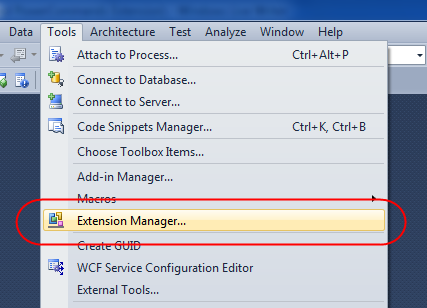
Visual Studio 2010 also now includes a built-in “Extension Manager” within the IDE that makes it much easier for developers to find, download, and enable extensions online. You can launch the “Extension Manager” by selecting the Tools->Extension Manager menu option:
This loads an “Extension Manager” dialog which accesses an “online gallery” at Microsoft, and then populates a list of available extensions that you can optionally download and enable within your copy of Visual Studio:
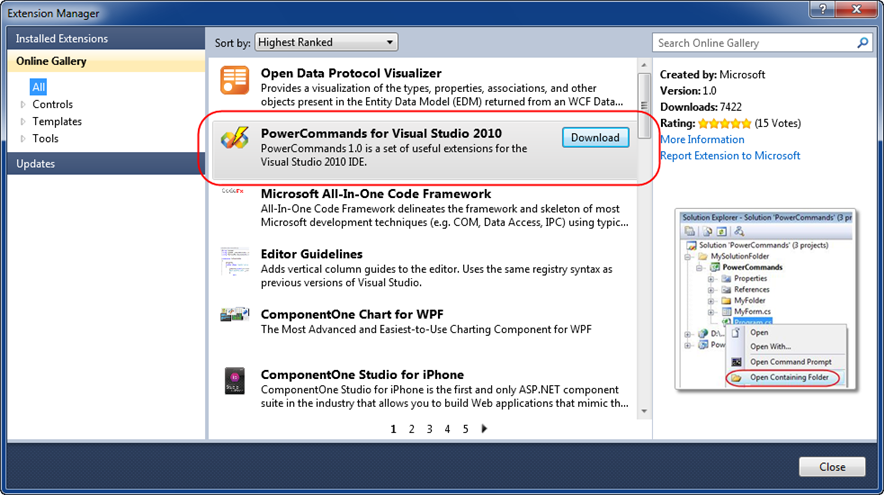
There are already hundreds of cool extensions populated within the online gallery. You can browse them by category (use the tree-view on the top-left to filter them). Clicking “download” on any of the extensions will download, install, and enable it.
PowerCommands for Visual Studio 2010
This weekend Microsoft released the free PowerCommands for Visual Studio 2010 extension to the online gallery. You can learn more about it here, and download and install it via the “Extension Manager” above (search for PowerCommands to find it).
The PowerCommands download adds dozens of useful commands to Visual Studio 2010. Below is a screen-shot of just a few of the useful commands that it adds to the Solution Explorer context menus:

Below is a list of all the commands included with this weekend’s PowerCommands for Visual Studio 2010 release:
-
Enable/Disable PowerCommands in Options dialog
This feature allows you to select which commands to enable in the Visual Studio IDE. Point to the Tools menu, then click Options. Expand the PowerCommands options, then click Commands. Check the commands you would like to enable.
Note: All power commands are initially defaulted Enabled.
- Format document on save / Remove and Sort Usings on save
The Format document on save option formats the tabs, spaces, and so on of the document being saved. It is equivalent to pointing to the Edit menu, clicking Advanced, and then clicking Format Document. The Remove and sort usings option removes unused using statements and sorts the remaining using statements in the document being saved.
Note: The Remove and sort usings option is only available for C# documents. Format document on save and Remove and sort usings both are initially defaulted OFF.
- Clear All Panes
This command clears all output panes. It can be executed from the button on the toolbar of the Output window.
- Copy Path
This command copies the full path of the currently selected item to the clipboard. It can be executed by right-clicking one of these nodes in the Solution Explorer:
The solution node; A project node; Any project item node; Any folder.
- Email CodeSnippet
To email the lines of text you select in the code editor, right-click anywhere in the editor and then click Email CodeSnippet.
- Insert Guid Attribute
This command adds a Guid attribute to a selected class. From the code editor, right-click anywhere within the class definition, then click Insert Guid Attribute.
- Show All Files
This command shows the hidden files in all projects displayed in the Solution Explorer when the solution node is selected. It enhances the Show All Files button, which normally shows only the hidden files in the selected project node.
- Undo Close
This command reopens a closed document , returning the cursor to its last position. To reopen the most recently closed document, point to the Edit menu, then click Undo Close. Alternately, you can use the CtrlShiftZ shortcut.
To reopen any other recently closed document, point to the View menu, click Other Windows, and then click Undo Close Window. The Undo Close window appears, typically next to the Output window. Double-click any document in the list to reopen it.
- Collapse Projects
This command collapses a project or projects in the Solution Explorer starting from the root selected node. Collapsing a project can increase the readability of the solution. This command can be executed from three different places: solution, solution folders and project nodes respectively.
- Copy Class
This command copies a selected class entire content to the clipboard, renaming the class. This command is normally followed by a Paste Class command, which renames the class to avoid a compilation error. It can be executed from a single project item or a project item with dependent sub items.
- Paste Class
This command pastes a class entire content from the clipboard, renaming the class to avoid a compilation error. This command is normally preceded by a Copy Class command. It can be executed from a project or folder node.
- Copy References
This command copies a reference or set of references to the clipboard. It can be executed from the references node, a single reference node or set of reference nodes.
- Paste References
This command pastes a reference or set of references from the clipboard. It can be executed from different places depending on the type of project. For CSharp projects it can be executed from the references node. For Visual Basic and Website projects it can be executed from the project node.
- Copy As Project Reference
This command copies a project as a project reference to the clipboard. It can be executed from a project node.
- Edit Project File
This command opens the MSBuild project file for a selected project inside Visual Studio. It combines the existing Unload Project and Edit Project commands.
- Open Containing Folder
This command opens a Windows Explorer window pointing to the physical path of a selected item. It can be executed from a project item node
- Open Command Prompt
This command opens a Visual Studio command prompt pointing to the physical path of a selected item. It can be executed from four different places: solution, project, folder and project item nodes respectively.
- Unload Projects
This command unloads all projects in a solution. This can be useful in MSBuild scenarios when multiple projects are being edited. This command can be executed from the solution node.
- Reload Projects
This command reloads all unloaded projects in a solution. It can be executed from the solution node.
- Remove and Sort Usings
This command removes and sort using statements for all classes given a project. It is useful, for example, in removing or organizing the using statements generated by a wizard. This command can be executed from a solution node or a single project node.
- Extract Constant
This command creates a constant definition statement for a selected text. Extracting a constant effectively names a literal value, which can improve readability. This command can be executed from the code editor by right-clicking selected text.
- Clear Recent File List
This command clears the Visual Studio recent file list. The Clear Recent File List command brings up a Clear File dialog which allows any or all recent files to be selected.
- Clear Recent Project List
This command clears the Visual Studio recent project list. The Clear Recent Project List command brings up a Clear File dialog which allows any or all recent projects to be selected.
- Transform Templates
This command executes a custom tool with associated text templates items. It can be executed from a DSL project node or a DSL folder node.
- Close All
This command closes all documents. It can be executed from a document tab.
How to temporarily disable extensions
Extensions provide a great way to make Visual Studio even more powerful, and can help improve your overall productivity. One thing to keep in mind, though, is that extensions run within the Visual Studio process (DevEnv.exe) and so a bug within an extension can impact both the stability and performance of Visual Studio.
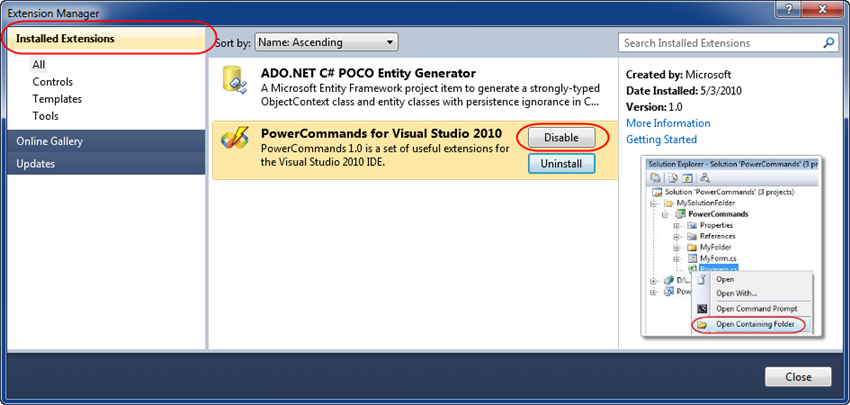
If you ever run into a situation where things seem slower than they should, or if you crash repeatedly, please temporarily disable any installed extensions and see if that fixes the problem. You can do this for extensions that were installed via the online gallery by re-running the extension manager (using the Tools->Extension Manager menu option) and by selecting the “Installed Extensions” node on the top-left of the dialog – and then by clicking “Disable” on any of the extensions within your installed list:
Hope this helps,
Scott

by community-syndication | May 3, 2010 | BizTalk Community Blogs via Syndication
Although BizTalk is in many respects ‘contract driven’ (with the emphasis on first setting up the XSDs for the messages etc), WSDL First development has, IMO, always been a bit’iffy’. The purpose of this post is two-fold. One is to (re) start the discussion around Contract First development with BizTalk and the other is , […]

by community-syndication | May 3, 2010 | BizTalk Community Blogs via Syndication
I’m doing a little groundwork for the team that is now developing and maintaining the BizTalk LoadGen tool. The team is planning for vNext and we would like to know from BizTalk developers what your thoughts are on features/functionality that could be added on. This will be added to the planning list and depending on […]

by community-syndication | May 3, 2010 | BizTalk Community Blogs via Syndication
The WF team has released samples and source code for a state machine (with designer) and some ADO.NET activities. These are not fully supported code, but do provide you with a glimpse of what Microsoft is planning in these areas, and provide you the ability to give feedback on the implementation. I’m interested to check these out as I’ve got my own runtime, but not design-time state machine implementation that I like. It will be fun to see how it compares.
http://wf.codeplex.com/




