by community-syndication | May 13, 2010 | BizTalk Community Blogs via Syndication
Two weeks ago I blogged about a cool new site that allows you to download and customize the Visual Studio code editor background and text colors (for both VS 2008 and VS 2010 version). The site also allows you to submit and share your own Visual Studio color schemes with others.
Another new community site has recently launched that allows you to download Visual Studio 2010 themed images that you can use for your Windows desktop background. You can visit the site here: http://vs2010wallpapers.com/ In addition to browsing and downloading Visual Studio themed wallpapers, you can also submit your own into the gallery to share with others.
[In addition to blogging, I am also now using Twitter for quick updates and to share links. Follow me at: twitter.com/scottgu]
Browsing Wallpaper Images
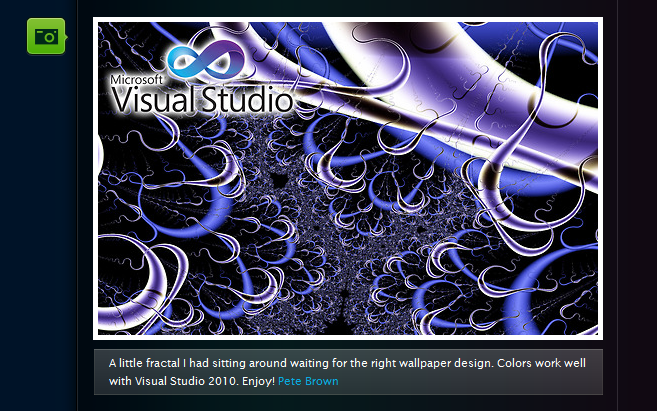
The site has dozens of wallpaper images that you can browse through and choose from. They range from the cool and abstract:
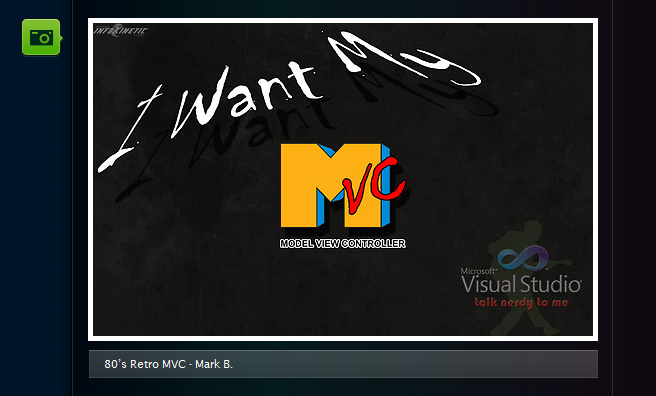
To the fun and silly:


Enabling the Wallpaper Images as your Windows Desktop
You can zoom in on any image (hover over the image and then click the “zoom” button that appears over it) and then download it to be your Windows desktop image. If you visit the site using Internet Explorer, you can also zoom in on the image, then right click on the image and choose the “Set as Background” context menu item to enable it as your Windows desktop.
Note: you want to make sure you download the zoomed-in/high resolution version of the wallpaper to make sure it looks good as the wallpaper on your desktop.
Hope this helps,
Scott
by community-syndication | May 12, 2010 | BizTalk Community Blogs via Syndication
Alright I have been working on a remote server connected via VPN on Cisco’s VPN client.
I noticed early on that I couldn’t browse to any page when connected to the VPN. I would always get something like the following:
This was usually preceded by a login for the proxy server.
After banging my head against a wall for way too long I went into IE LAN settings and unchecked “Automatically detect settings.”
And I can now browse to anything I want. Nothing like a stupid VPN to ruin the internet for you.
by community-syndication | May 12, 2010 | BizTalk Community Blogs via Syndication
Wow! I’m finally through the other side… what a quest and I thought I’d share some
of the details with you.
RFC_READ_TABLE rfc can be used to call into SAP and retrieve table
data – *sort of* (and that’s a big sort of) like a ‘DataSet’.
Using it requires a little work and understanding.
In your either BizTalk project or other project from VS.NET:
-
Add the SAP bits to your VS.NET project – ready for action
-
select ‘Add Adapter Service Reference’ (for BTS projects -> Add New Generated
Item->Consume Service Adapter…)
-
On the Binding Wizard Screen select sapBinding and configure the
appropriate connection string details such as:
string
sapUri = “sap://CLIENT=800;LANG=EN;@A/sapsrv/00?GWHOST=sapsrv&GWSERV=sapgw00&RfcSdkTrace=true”;
<You need to stick your own sapURI above – that is more or less a sample>>
-
Click on the Connect and under RFC->OTHER , select RFC_READ_TABLE (or
you can type it in the box to search)
-
Click Ok to generate the proxy and other details.
-
Either your BizTalk Project or your non-BTS project has now all the relevant details
to communicate to SAP.
I tend to build out all this functionality first in a Console App just
so I know what is needed within the BTS environment, also I find it much quicker to
test/debug etc. here.
-
Ok – onto the code. I’ve got 2 routines for you, one that uses the Proxy Classes built
by the wizard in the last step, and a routine from ‘first principles’.
One of the things that I really like about the BTS Adapter Pack and
certainly in this case, is that depending on the shape of the XML you pass to the
adapter, it determines the table and type of operation that it is to do.
Both of these examples below you could wrap into a functoid/helper/whatever and use
directly from code.
-
Proxy Code – version 1 – here I define some parameters and make a straight call to
the table CSKS.
NOTE: Use FieldNames not Field Labels (took me a
few hrs on that one 😉
using
LOBTYPES = microsoft.lobservices.sap._2007._03.Types.Rfc;>
private
static void GetDataFromSAP()
{
RfcClient clnt
= new RfcClient();
//myproxy client
string[]
data = GetAppDetailsForCurrentUser(“SAP”);
clnt.ClientCredentials.UserName.UserName = data[0];
clnt.ClientCredentials.UserName.Password = data[1];
LOBTYPES.TAB512[]
rfcData = new microsoft.lobservices.sap._2007._03.Types.Rfc.TAB512[0];
LOBTYPES.RFC_DB_OPT[]
rfcOps = new microsoft.lobservices.sap._2007._03.Types.Rfc.RFC_DB_OPT[0];
LOBTYPES.RFC_DB_FLD[]
rfcFlds = new microsoft.lobservices.sap._2007._03.Types.Rfc.RFC_DB_FLD[]
{
new LOBTYPES.RFC_DB_FLD()
{
FIELDNAME = “KOSTL”,
LENGTH=10
},
new LOBTYPES.RFC_DB_FLD()
{
FIELDNAME = “DATBI”,
LENGTH=8
},
new LOBTYPES.RFC_DB_FLD()
{
FIELDNAME = “DATAB”,
LENGTH=8
}
};
try
{
clnt.Open();
clnt.RFC_READ_TABLE(“;”, string.Empty, “CSKS”,
50, 0,ref rfcData, ref rfcFlds, ref rfcOps);
Console.WriteLine(“RFC
RESPONSE\r\n\r\nData:” + rfcData.Length.ToString());
}
catch (Exception ex)
{
Console.WriteLine(“ERROR:
“ + ex.Message);
}
}>
-
More from first principles so this is to give you more of a BTS picture.
NOTE: The use of the ‘%’ sign to get a wildcard match on a KOSTL
field, despite in the SAP Client UI the users enter a ‘*’
private
static void GetDataFromSAPV1()
{
string[]
data = GetAppDetailsForCurrentUser(“SAP”);
SAPBinding binding
= new SAPBinding();
//A reference to Microsoft.Adapters.Sap is needed.
//set
up an endpoint address
string sapUri
= “sap://CLIENT=800;LANG=EN;@A/sapsrv/00?GWHOST=sapsrv&GWSERV=sapgw00&RfcSdkTrace=true”;
EndpointAddress address
= new EndpointAddress(sapUri);
try
{
ChannelFactory<IRequestChannel>
fact = new ChannelFactory<IRequestChannel>(binding as Binding,
address);
// add credentials
fact.Credentials.UserName.UserName
= data[0];
fact.Credentials.UserName.Password = data[1];
// Open client
fact.Open();
//get a channel from the factory
IRequestChannel irc = fact.CreateChannel();
//open the channel
irc.Open();
string inputXml = “<RFC_READ_TABLE
xmlns=’http://Microsoft.LobServices.Sap/2007/03/Rfc/’ xmlns:ns1=’http://Microsoft.LobServices.Sap/2007/03/Types/Rfc/’>”
+ “<DELIMITER>|</DELIMITER>”
+ “<QUERY_TABLE>CSKS</QUERY_TABLE>”
+ “<ROWCOUNT>10</ROWCOUNT><ROWSKIPS>0</ROWSKIPS>”
+ “<DATA
/><FIELDS>”
+ “<ns1:RFC_DB_FLD><ns1:FIELDNAME>KOSTL</ns1:FIELDNAME></ns1:RFC_DB_FLD>”
+ “<ns1:RFC_DB_FLD><ns1:FIELDNAME>DATAB</ns1:FIELDNAME></ns1:RFC_DB_FLD>”
+ “<ns1:RFC_DB_FLD><ns1:FIELDNAME>DATBI</ns1:FIELDNAME></ns1:RFC_DB_FLD>”
+ “</FIELDS>”
+ “<OPTIONS>”
+ “<ns1:RFC_DB_OPT><ns1:TEXT>KOSTL
LIKE ‘1234%’ AND BUKRS EQ ’63’ AND KOKRS EQ ‘APPL'</ns1:TEXT></ns1:RFC_DB_OPT>”
+ “</OPTIONS>”
+ “</RFC_READ_TABLE>”;
//create an XML reader from the input XML
XmlReader reader = XmlReader.Create(new MemoryStream(Encoding.Default.GetBytes(inputXml)));
//create a WCF message from our XML reader
Message inputMessge = Message.CreateMessage(
MessageVersion.Soap11,
http://Microsoft.LobServices.Sap/2007/03/Rfc/RFC_READ_TABLE,
reader);
//send the message to SAP and obtain a reply
Message replyMessage = irc.Request(inputMessge);
//create a new XML document
XmlDocument xdoc = new XmlDocument();
//load the XML document with the XML reader from the output message received from
SAP
xdoc.Load(replyMessage.GetReaderAtBodyContents());
XmlNodeList nds = xdoc.DocumentElement.SelectNodes(“//*[local-name()=’WA’]”);
foreach (XmlNode nd in nds)
{
string[] parts = nd.InnerText.Split(‘|’);
Console.WriteLine(“CC={0}
From: {1} To: {2}”, parts[0], parts[1], parts[2]);
}
xdoc.Save(@”d:\sapout.xml”);
irc.Close();
fact.Close();
}>
catch (Exception ex)
{
Console.WriteLine(“ERROR:
“ + ex.Message);
}
}>
by community-syndication | May 11, 2010 | BizTalk Community Blogs via Syndication
This Thursday (May 13th) I’m going to be doing another online LIDNUG chat session. The chat will be from 10:00am to 11:30am Pacific Time. You can learn more about it here and join the chat at the appropriate time with this link.
I do these chats a few times a year and they tend to be pretty fun. Attendees can listen to me talk live via LiveMeeting, and can submit any questions they want to me. I then answer as many of them as I can in the 90 minutes.
We’ll probably talk a lot about the new features in VS 2010, .NET 4, Silverlight 4, Windows Phone 7, ASP.NET 4 and ASP.NET MVC 2 this week.
Hope to get a chance to chat with some of you there!
Scott
P.S. In addition to blogging, I am also now using Twitter for quick updates and to share links. Follow me at: twitter.com/scottgu
by community-syndication | May 11, 2010 | BizTalk Community Blogs via Syndication
During a recent setup of BizTalk setup, I was getting a failure that the setup could not connect to the SSODB.
I thought it was odd, because the SSODB had not been created.
It appears that the SSOSQL.dll was properly registered during the install.
To register the SSOSQL.dll, open up the Visual Studio Command prompt and path to the SSOSQL.dll directory (C:\Program Files\Common Files\Enterprise Single Sign-On) and key in regasm SSOSQL.dll
by community-syndication | May 10, 2010 | BizTalk Community Blogs via Syndication
This is the twenty-fourth in a series of blog posts I’m doing on the VS 2010 and .NET 4 release.
Today’s blog post covers a very small, but still useful, feature of VS 2010 – the ability to “pin” projects and solutions to both the Windows 7 taskbar as well VS 2010 Start Page. This makes it easier to quickly find and open projects in the IDE.
[In addition to blogging, I am also now using Twitter for quick updates and to share links. Follow me at: twitter.com/scottgu]
VS 2010 Jump List on Windows 7 Taskbar
Windows 7 added support for customizing the taskbar at the bottom of your screen. You can “pin” and re-arrange your application icons on it however you want.
Most developers using Visual Studio 2010 on Windows 7 probably already know that they can “pin” the Visual Studio icon to the Windows 7 taskbar – making it always present. What you might not yet have discovered, though, is that Visual Studio 2010 also exposes a Taskbar “jump list” that you can use to quickly find and load your most recently used projects as well.
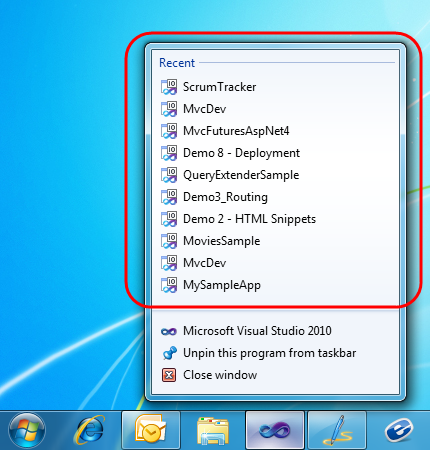
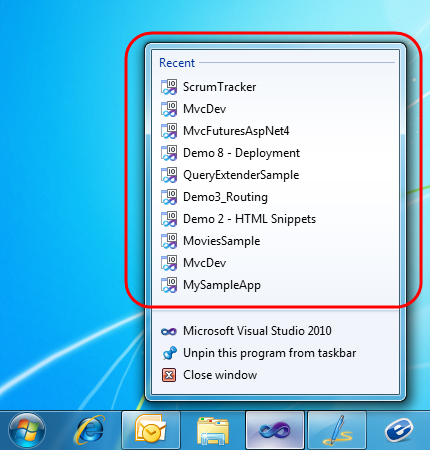
To activate this, simply right-click on the VS 2010 icon in the task bar and you’ll see a list of your most recent projects. Clicking one will load it within Visual Studio 2010:
Pinning Projects on the VS 2010 Jump List with Windows 7
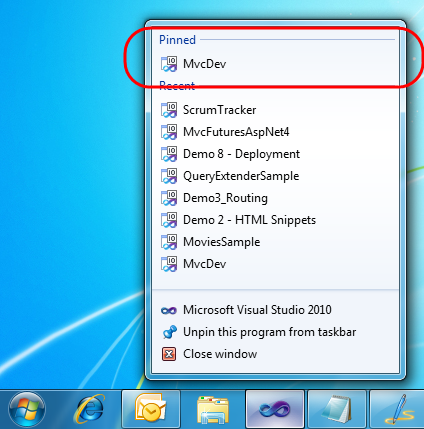
One nice feature also supported by VS 2010 is the ability to optionally “pin” projects to the jump-list as well – which makes them always listed at the top. To enable this, simply hover over the project you want to pin and then click the “pin” icon that appears on the right of it:

When you click the pin the project will be added to a new “Pinned” list at the top of the jumplist:
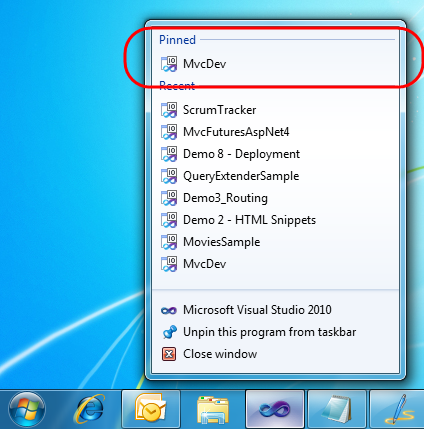
This enables you to always display your own list of projects at the top of the list. You can optionally click and drag them to display in any order you want.
Cool Keyboard Trick with Windows 7 Jump Lists
A cool trick that Scott Cate taught me about is the ability to activate Windows 7 jumplists from the keyboard without having to use a mouse.
Simply press the Windows key + the Alt key + [task tray icon index] and the jump list will appear. For example, above VS 2010 is the 4th program icon from the left on my machine – so if I press the Windows Key + Alt + 4 at the same time then the VS jumplist will appear. You can then use the up and down arrows on your keyboard to select the project you want to load from the jumplist.
VS 2010 Start Page and Project Pinning
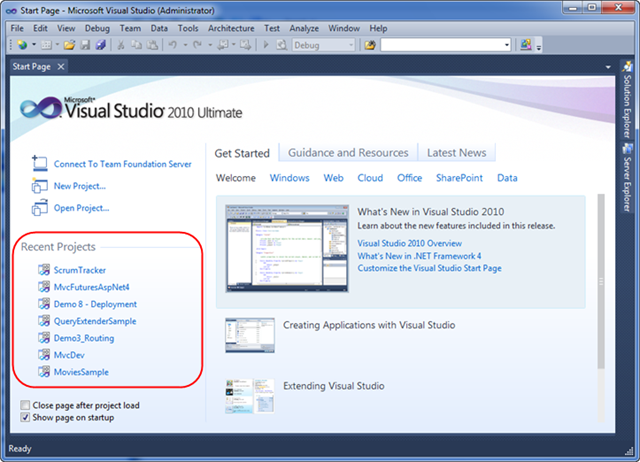
VS 2010 has a new “start page” that displays by default each time you launch a new instance of Visual Studio. In addition to displaying learning and help resources, it also includes a “Recent Projects” section that you can use to quickly load previous projects that you have recently worked on:

The “Recent Projects” section of the start page also supports the concept of “pinning” a link to projects you want to always keep in the list – regardless of how recently they’ve been accessed.
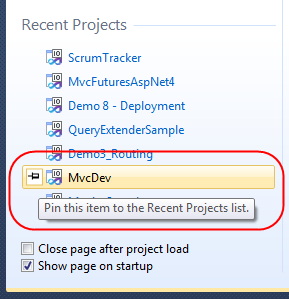
To “pin” a project to the list you simply select the “pin” icon that appears when you hover over an item within the list:
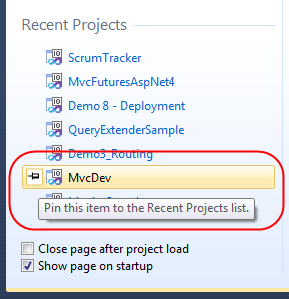
Once you’ve pinned a project to the start page list it will always show up in it (at least until you “unpin” it).
Summary
This project pinning support is a small but nice usability improvement with VS 2010 and can make it easier to quickly find and load projects/solutions. If you work with a lot of projects at the same time it offers a nice shortcut to load them.
Hope this helps,
Scott
by community-syndication | May 9, 2010 | BizTalk Community Blogs via Syndication
It is my honor and privilege to host my friend Michele Leroux-Bustamante at this week’s special combined meeting of the San Diego .NET user group Connected Systems and Architecture SIGs.
If you’re doing anything with WCF (and if you read my blog odds are you must be!) and are in San Diego, then this is a not-to-be-missed event.
See you there!
Combined Connected Systems & Architecture SIG Meeting
Tuesday, May 11th
Michele Bustamante
on
WCF Made Easy with Microsoft .NET Framework 4
and Windows Server AppFabric
Topic
WCF is a flexible and powerful platform for building service-oriented applications, and with that flexibility comes some complexity. As of .NET 4 – configuring, securing, hosting and managing WCF services has never been easier! WCF 4 and Windows Server AppFabric come together to help developers and IT administrators overcome the complexity. Come find out how much easier it is to configure WCF services in .NET 4 including alignment with the ASP.NET configuration model and a reduced configuration footprint. Also learn Windows Server AppFabric features for the IT administrator, finally making it easier for IT administrators to easily access settings they care about such as security and throttling features; providing control over the hosting lifecycle of WCF services; and giving new visibility into faults, exceptions and tracing and diagnostics features to help you manage your service deployments in production un-intrusively.
Speaker
Michele Leroux Bustamante is Chief Architect at IDesign (architecture consulting and training, www.idesign.net) and Chief Security Architect at BiTKOO (providing authorization and identity management software, www.bitkoo.com ). She is also Microsoft Regional Director for San Diego, and a Microsoft MVP for Connected Systems. Michele specializes in scalable and secure architecture design, federated identity, and cloud computing. Michele is a frequent conference presenter at technology conferences such as Tech Ed, PDC, Dev Connections, and NDC; and regularly publishes in several technology journals. Michele wrote the best-selling book Learning WCF – O’Reilly 2007 ( www.learningwcf.com) and is currently working on the second edition to be published in 2010. Visit her blog at www.michelelerouxbustamante.com , or follow her tweets @michelebusta.
by community-syndication | May 9, 2010 | BizTalk Community Blogs via Syndication
Im just sitting on the train to work and had a funny experience with word 2010 that I thought id share.
Im writing a document and all of a sudden like usually happens the train gets a little bit bumpy. Word decides it doesnt like this (maybe it prefers to fly?). Anyway to show its dissatisfaction with the journey it starts adding new rows to my table in the document all by itself.
5 pages of rows later I still cant workout how to stop itso have to kill word.
Thank you autosave
by community-syndication | May 7, 2010 | BizTalk Community Blogs via Syndication
We have been doing some work with NServiceBus recently and observed some unusual behaviour which was caused by our mistake and seemed worthy of a small post.
The Scenario
In our solution we were doing some standard NServiceBus stuff by pushing a message to a queue using NServiceBus. We had a direct send/receive scenario rather than a publish/subscribe one.
The background process which was meant to collect the message and then process it was a normal NServiceBus message handler. We would run the NServiceBus.Host.exe which would find the handler and then do the usual NServiceBus magic.
The Problem
In this solution we were creating some automated tests around this module of the integration process to ensure that it would work well. We had two tests.
Test 1
This test would start NServiceBus.Host.exe using the Process object, then seed a message to the queue via our web service fa%u00e7ade sitting above the queue which wrapped NServiceBus. The background process would then process the message and the test would check the message had been processed fine.
If all was well then the NServiceBus.Host.exe process was stopped.
Test 2
In test 2 we would do a very similar thing except that instead of starting the process the test would install NServiceBus.Host.exe as a windows service and then start the service before the test and once the test was executed it would stop the test.
The Results of the Tests
Test 1 worked really well, however in test 2 we found that it didn’t really work at all, instead of doing the background process we were finding that between mqsvc.exe and NServiceBus.Host.exe the CPU on the machine was maxed and nothing was really happening.
The Solution
After trying a few things we found it was the permissions on the queue were not set correctly. Once this was resolved it all worked fine and CPU was not excessive and ran just like the console application.
I think the couple of take aways from this are:
- Make sure you set the windows service for NserviceBus Generic Host to the right credentials
- Make sure you have the queue set with the right permissions
- Make sure you turn on the right logging configuration in NServiceBus
Thanks to Ahmed Hashmi on my team who got this working in the end.

by community-syndication | May 7, 2010 | BizTalk Community Blogs via Syndication
As promised to those who attended the user group last night, here is a link to the demonstration code I used in my talk on WF 4. There was a great crowd at the event and I appreciate all the great questions during and after the presentation. If anyone would like a copy of the slides, use the Contact link to the right to send me email and I’ll send them along. Thanks for attending and congratulations to the first winner in the drawing who took home a 1 year subscription to Pluralsight On Demand!