by community-syndication | May 8, 2009 | BizTalk Community Blogs via Syndication
Well after a few hardware failures at work and many hours rebuilding servers that
are *supposed* to have RAID 5 on them, I’m back online.
(They had RAID enabled at the BIOS level, and there’s a BIOS boot based tool that
let’s you create/delete stripes etc. BUT you need to use the ’Windows’ version of
their tool to ’REPAIR’ the volume. Now if you can’t boot to an O/S.here in lies my
problem I want to plug the new drive in and ’boom’ rebuild done but no!)
I wanted to share a tip which came out of all of this – Creating a Windows
7 Boot WinPE USB Key.
You know the 20 odd things you have lying around and are wondering what you could
do with 1GB, 512MB etc keys.
You can make a boot disk out of themcool (provided your machine supports booting
from USB, unlike my mac_mini at home running Windows 7 🙂
You could make an x86 boot and on another create a x64 AND you can still store your
data.
It’s not too tough really – couple of things you need upfront
-
USB Key, drive or whatever
-
Windows
Application Installation Kit for Windows 7 RC (WAIK) – free download with the
WinPE ’image’ in it and all the tools (a WIM file)
-
Some of your favourite recovery tools to add to your usb key
Ok good to go.
Let’s start
-
Install the WAIK on your local machine – it installs folders for x86, amd64 and i64cool
-
From the Start Menu->All Programs->Microsoft Windows AIK->Deployment Tools
Command Prompt
-
Execute the command copype x86 c:\PEBuild (replace x86 for amd64 if
you want 64bit. This will create the directory c:\PEBuild and copy the required files
to get started.
-
You’ll notice now that you should be in the C:\PEBuild folder – this
is our ’working space’ and there will be a couple of sub-directories here.
-
Let’s mount the Image so we can manipulate files, and then later
save them back into the Image for deployment, as follows:
-
run the command imagex /mountrw
winpe.wim 1 mount (this will mount the vanilla winpe.wim and create a ’mount’ directory
for us to use)
- this didn’t work for me on 2 machines that I tried as follows (I was pretty happy)

if this works for you - then great, it’s meant to. :-) (there maybe open files etc)
Fortunately I had a PLAN B that works regardless (alot of the documentation
use ImageX)
Issue the command from the C:\PEBuild dir:
dism
/mount-wim /wimfile:winpe.wim /index:1 /mountdir:c:\PEBuild\Mount

-
Go to the Mount Directory to see several folders – if you used my
PlanB approach you can store the files in Program files if you like, or wherever.
If you need access to the Startup folder it’s hidden in the same
dir as Program Files.
Copy your Win32/64 tools and utilities here to the mount dir (once fully booted up
with WinPE, you will be in a RamDisk with the drive letter of X: – good idea to always
use environment vars to get special folders if you need to)
You can add other support like scripting, powershell etc – check out the packages
-
Once done – commit the changes to the WinPE.wim with the command
-
ImageX Cmd: imagex /unmount /commit /c:\pebuild\mount
-
dism Cmd: dism /unmount-wim /moundir:c:\pebuild\mount /commit
-
Almost done 🙂
-
Copy the now *modified* WinPe.Wim image file to the correct directory (and we rename)
so it runs smoothly in the boot sequence. Run copy /y winpe.wim iso/sources/boot.wim
-
(optional step) To create an ISO of your work, issue the following command:
ocsdimg -n -b”c:\Program Files\Windows AIK\Tools\x86\boot\etfsboot.com” c:\PEBuild\ISO
c:\PEBuild\WinPE.iso
-
Next let’s add our good work to our USB key and we’re done (WE WILL ERASE YOUR KEY
– back it up if needed. you can copy your stuff back on when we’ve finished)
-
Plug your USB key in and we’re going to ntfs format it, create an active primary partition
and assign a drive letter to it.
-
From your command prompt use diskpart as follows:
-
c:\PEBuild\diskpart
-
list disk (you should see your USB drive come up in the list – this
is the drive # to work with e.g. 1)
-
sel disk 1 (double check from the previous command on what disk number
your USB is on – mine is 1)
-
clean
-
create part primary
-
sel part 1
-
format fs=NTFS QUICK
-
assign
-
exit
-
viola! your usb is now prepared.
>
-
We need to do 2 final steps – copy everything within the ISO directory
straight to your USB key. e.g. c:\PEBuild\ISO (from Explorer you’ll
be able to get to your USB Key easily through the SendTo right mouse menu)
Take note of your USB Key’s DRIVE letter
-
Write the ’bootsector’ as follows:
-
c:\program files\Windows AIK\Tools\PETools\x86\bootsect /nt60 <drive
letter of your USB Key>
>
>
Hopefully I’ve saved you some time and pain.. happy booting.

by community-syndication | May 7, 2009 | BizTalk Community Blogs via Syndication
Whew! I’ve finally managed to get the first beta release of MockingBird out the door, almost 3 months after the alpha. The past 3 months have gone by in a blur with my first major project in MCS and the associated tight deadlines and long hours. Technically its been a good learning experience, but it […]
by community-syndication | May 7, 2009 | BizTalk Community Blogs via Syndication
As I mentioned in my post last week covering the changes in WF 4 since the CTP release, I promised that I would cover the WCF changes this week. As I sit down to write this post, this will have a different feel from the prior post – where the last post dealt with telling the story of why changes were made, I apologize in advance if this one reads more like a release notes document. That being said, let’s dive in to the changes
In the upcoming Beta 1 release of .NET 4, Windows Communication Foundation (WCF) is receiving a series of enhancements aimed at expanding its usefulness and capabilities for connecting applications together using the .NET Framework. In this post, I would like to attempt to give you a quick tour of these improvements, to help guide you through items of interest as you think about evaluating the upcoming beta of Visual Studio 2010.
Workflow Services
I’m going to start with Workflow because it is a topic that is close to my heart, and WCF Workflow Services is a primary focus for WCF 4 improvements: to provide hosting and messaging capabilities to workflow-enabled services. In Beta 1, the team has worked with the Windows Workflow Foundation (WF) team to provide new messaging activities, made adding service references easier, and added a new workflow service host to make hosting a WCF workflow service even easier in .NET 4.
- New messaging activities: With Beta 1, several messaging activities are being added to WF 4 that makes use of WCF underneath to receive and send messages. Messaging activities features include:
- A Serialization programming model for messaging activities has been added to support both typed and untyped content for WCF code services
- Contract settings have been moved to individual messaging activities to simplify the service modeling of complex messaging activities. In these cases, the WSDL is inferred from the contract settings on the individual messaging activities.
- Transactions support for messaging activities that allow you to now flow transactions into workflows.
- Correlation in WF now supports long-running conversations using protocol-based and content-based correlation. This allows you to route messages to workflow instances based on either content or protocol parameters, allowing for correlation of messages from multiple clients.
- Durable Duplex: Beta 1 provides first-class support for long-running, two-way conversations between workflow services using the enhancements in correlation.
- Add Service Reference in WF: Add Service Reference has been augmented to support generating typed client-side activities based on the WSDL, which makes it easier to create workflows that consume other services.
- Declarative Service Authoring: To enable XAML authoring of workflows that send and receive messages, we support representing WCF constructs in XAML. In particular one can author a WCF workflow Service in XAML.
- Workflow Service Host (a subclass of WCF ServiceHostBase) provides WF programs with support for
- Adds the WCF plumbing for messaging activities
- Integrated configuration
- Activation of workflows authored in XAML as well code. For workflow programs and workflow services authored in XAML, we introduced a .xamlx extension together with a corresponding registered IIS handler
- Instance management via a system provided control endpoint, so you can start, pause and resume
- Durable delay to allow you to put your workflows to sleep and resume later
For those who read my post last week covering the WF 4 changes, these changes plug into the changes to the out of the box activities, and this continues a story that demonstrates the complementary story of using services and processes together. The integration of WCF and WF started with .NET 3.5, as the teams started implementing extensions within each technology to take advantage of the two technologies together, and this story will get even better as the Windows application server technology extensions (codenamed ’Dublin’) are released, which makes it even easier to host workflow services within Windows Process Activation Service (WAS) and IIS 7. As has been covered in PDC in October and will be discussed at TechEd next week, ’Dublin’ provides a pre-built host environment that includes a database for workflow persistence and monitoring, along with management tooling built upon IIS Manager and PowerShell to allow you to manage and control WCF and WF instances.
Config Simplification
WCF Configuration simplification also receives a good number of enhancements in .NET 4 to address a common concern around getting started with WCF. This was most acutely felt by developers coming over from the ASP.NET world, where they are used to working with ASMX services.
To help reduce the complexities that .NET developers currently experience while getting simple services set up, the team has made the following investments in Beta 1:
- <service> tags not required: An explicit <service> tag is no longer required to configure a service. As a result, many deployments won’t need a “per service” configuration; instead, the service will infer a default configuration, allowing you to deploy a .svc file onto your IIS instance without the need of creating or configuring a web.config file in order for the service to be callable. This behavior should be quite analogous to the creation and deployment of ASMX files in ASP.NET.
- Default bindings and behaviors: In Beta 1, you can add behaviors to a config file without using a behavior name. Within the context of that config file, those behaviors become the default behavior, and they will be used for endpoints that don’t specify a behavior.
- Standard endpoints: With Beta 1, the team is providing reusable system-provided endpoint configurations to facilitate scenarios where similarly configured endpoints are used across many services.
- Support for .svc-less activation: When applications have many services to them, it results in an application that has a single folder with a large number of .svc files, where each .svc file is a one-line file to represent each service. The result is often a challenge in file management. As an alternative to having these .svc one-line files, WCF 4 enables you to list all of your services in a single web.config.
If we think about at deploying one or more WCF services into an activated environment (i.e., Internet Information Server (IIS) or Windows Process Activation Service (WAS)), this allows for the ability to deploy services into an environment without having to do explicit configuration. By default, WCF in .NET 4 will make assumptions for a web environment; but WCF 4 allows for these defaults to be specified at standard configuration levels available to the .NET programmer using the standard configuration options (i.e., app.config, web.config, machine.config, etc). This should make it easier for WCF services to be managed and moved between environments as the service progresses from development to production.
Messaging Improvements
WCF Beta 1 also introduces a series of messaging improvements that improve the discoverability, performance, and scalability of systems that build upon WCF.
- Service Discovery: Beta 1 adds service discovery using WS-Discovery
- Ad-hoc discovery: Services are able to publish their own services on a local subnet using a UDP multi-cast channel that is specific to the discovery feature
- Proxy-managed discovery: WCF also allows for the use of a WS-Discovery proxy to use discovery over a larger network or to reduce UDP multi-cast traffic
- Interoperable with Windows Vista’s WS-Discovery support
- Router Service: With Beta 1, WCF now includes a configurable WCF-based router service that supports content-based routing and protocol bridging.
- The new content based routing capability allows for WCF to perform message filtering based on content contained in either the SOAP headers or within the message body (using a specified XPATH). Protocol bridging in WCF 4 enables the creation of bridge system bindings; for example, you may have a WCF service that uses WS-* SOAP endpoint to communicate with business partners outside the firewall and with non-.NET systems, but to use NetNamedPipes or TCP inside the firewall to communication with your other .NET services.
- Error handling routing is implemented to allow increased flexibility. With Beta 1, WCF 4 allows for the definition of alternative send destinations. If the routing service encounters a CommunicationException or Timeout while routing your message, it will automatically resend the message to the next destination endpoint your configured.
- Support Queues with competing consumers: In .NET 3.5, it is difficult to implement long-running processes that worked with queues without having to make extensive use of the “poison queue” – particularly when a developer wanted to have multiple processes/machines working a single queue.
As an example, imagine a system that uses queues with WCF Workflow Services. In this example, WCF needs to be able to peek into the queue and lock the message so that it can try to dispatch it to a corresponding WF instance for work. If it is not yet possible to process the message (due to the WF instance already being locked), WCF needs to put the message back into the queue – which is problematic in .NET 3.5. In .NET 4 Beta 1, WCF 4 adds support for a “peek / lock” mechanism to the WCF MSMQ channel that now allows WCF to solve this issue.
- BLOB encoder: Beta 1 provides an encoder that is optimized for sending opaque binary content as a message. In this implementation, it’s simply a write-through wrapping encoder that takes what you give it and pushes it across the wire. While it may not be as full-featured as many might want, this was something that we needed for our internal needs, and we’re exposing it for others to use if they find it useful.
In addition to the above, the team made Serialization improvements in Beta 1 that adds extensibility around dynamic “known types” resolution to improve serialization in WCF on the wire. In .NET 3.5, the DataContractSerializer class requires developers to explicitly specify a white list of “known types” that can occur in the object graph. With .NET 4 Beta 1, the team adds a new DataContractResolver class that allows the .NET developer to override this “white list” constraint by overriding what type name gets serialized and what type gets deserialized. While a lower-level and more complicated feature, it’s functionality that has been long-promised for those wanting increased control over how data is serialized and deserialized. Examples of scenarios that can be accomplished using the new feature: removing the “known types” constraint for tightly coupled scenarios; making entire assembly “known” to serializer; etc
REST Improvements
We also continue to augment WCF REST support with features that have already been made available as part of the WCF REST Starter Kit preview releases. For the Beta 1 release, the team has added a couple of the Starter Kit features into WCF 4: (a) the capability for WCF REST services to make use of the ASP.NET caching infrastructure; and (b) automatically generated help pages that allow WCF REST services describe themselves through an automatically generated help web page – detailing which URLs to call, schemas, and examples of the request and response messages (both XML and JSON).
Tracing and Diagnostics
Last but not least, tracing and diagnostics in WCF 4 reduces the noise and the performance overhead of tracing WCF events by making use of Event Tracing for Windows (ETW) and to improving the performance of using performance counters. With Beta 1, the team has refactored diagnostic events and WCF is now sending a few high-value events via ETW. This change also surfaced in my posting on new features in WF 4 Beta 1; and, as with WF, there will be SDK samples to help folks understand better this and take advantage of this high-performance tracing option. These improvements should yield significant improvements to folks debugging a live system in production.
Features in the Beta 1 that Won’t Make RTM
Lastly, as with any beta release, it represents an evolving codebase as it moves toward a releasable product, and the features and functionality can [and typically do] shift. Within the Beta 1, there are two features that are unlikely to appear in .NET 4 that I’d like to quickly touch upon:
- Local Channel: We won’t be able to deliver the high-performant in-AppDomain channel in time for .NET 4. The beginning of a local (on in-proc) channel shows up in the Beta 1, but it’s in its early stages and unfinished; given resources and timing, the local channel capability will be removed in .NET 4 and won’t be present in the RTM bits.
- Durable Service Host Extensions: WorkflowServiceHost provides an extensibility mechanism called DurableServiceHostExtension that allows host application developers to receive notifications for state changes of the service instance and perform control operations specific to the service instance. This general extensibility mechanism will likely go away in .NET 4 RTM in exchange for a more scoped, but robust, functionality.
And it’s off to TechEd!
I’m off to TechEd for the next week, and I’ll try to give some word from the ground, but I’m likely to disappear again for a couple weeks. When we get back from TechEd, I’m going to try and work my way back another step – discussing what WCF 4 and WF 4 mean for the .NET 3.5 developer, and how those developers should approach the technologies.
I hope that this (and the prior) post is useful and informative. At least a few customers that I’ve spoken with over the past year have expressed a desire to get information out in this fashion. If you’re at the event next week, I’m a huge fan of feedback.
by community-syndication | May 7, 2009 | BizTalk Community Blogs via Syndication
I dealt with an interesting, if arcane, issue today at a client’s site.The client is in the process of deploying an early version of a BizTalk application to their test environment for the first time. The test environment is hosted by another company, and BizTalk Server 2006 R2 had been installed and configured by that company.They are using the 64 bit version on Windows 2003 R2 with SP2. The BizTalk application publishes a WCF endpoint, hosted in IIS6.
The hosting company has quite correctly created a set of domain accounts and groups and configured BizTalk to use these. Unfortunately, when doing the initial deployment yesterday, we didn’t have, and couldn’t get, the password for the configured BizTalk Isolated Host user account. We did, however, have the password for another domain account, and we were able to add that account to the BizTalk Isolated Host Users domain group. So, having done that, we configured this second account as the identity of the app pool.
To begin with, nothing worked. Every time we tried to access the WCF endpoint, IIS returned a 404 – Service unavailable message. However, at some point, the whole thing started working OK. I forget, now, the exact sequence of steps, but that is not important.
At some point yesterday, the BizTalk developer created a local account called ‘BizTalk Isolated Host Users’.I can’t remember, now, why we thought this would be a good idea. Our BizTalk Server is configured to use a domain group of the same name, and is not aware of the local group. The important point, though, is that this group was not deleted.
Roll forward to today. Everything was working nicely until the BizTalk developer decided, very sensibly, to tidy things up by removing the unneeded local group. Shortly after removing this group, we noticed that the dreaded 404 response had returned.The only change we had made was the removal of the local group, so we recreated it. We didn’t add any accounts to it. After an IIS restart, the endpoint sprang back into life. We deleted the group, and everything stopped working. We recreated it again, checked that the endpoint was working, renamed the group and tested. Sure enough, we got a 404.We changed the name back, and the endpoint worked.
At this point, I felt very confused at several levels. We checked the configuration of BizTalk carefully, and satisfied ourselves that it had indeed been configured to use only domain accounts and groups.The only thing that was unusual about our environment was that, while the BizTalk isolated host instance we were using was configured to use one domain account for its logon credentials, the IIS app pool was configured to use another, set up with equivalent group membership and permissions.
I have always, as a natural path of least resistance, configured app pools to use the same identity as the corresponding isolated host instance. I realised that I have never consciously asked the question about what happens if you use different accounts.I phoned a colleague who has far more practical experience of deploying BizTalk than I do, and discussed this with him. He confirmed that he also always uses the same account, and like me, he had never stopped to wonder what happens if you use different accounts. So, I turned to the Internet and did some searching. Eventually, I discovered, embedded half-way through a BizTalk help page on MSDN (see http://65.55.11.235/en-us/library/aa561505.aspx), an explicit statement that the app pool should always be configured with the same account as the isolated host instance. In the grand tradition of BizTalk documentation there was, of course, absolutely no effort expended on explaining why. However, the help page also stated mysteriously that if you change the password on the account in the app pool configuration, there is no need to make a corresponding change to the credentials configured on BizTalk’s isolated host instance. Bizarre. This seems to imply that the credentials you configure in BizTalk are not actually used for any kind of authentication.
We talked to the hosting company, and managed to get the password we needed. We re-configured the IIS app pool to use the same account configured for the BizTalk isolated host instance. Having deleted the local group, we restarted IIS and…success…everything worked OK.
So, the moral of the story is that you really need to ensure that your app pool identity is the same as the account you configure on the BizTalk isolated host instance. Don’t worry about keeping the password up to date in BizTalk. I strongly recommend you always use this approach. If you really, really , really have to live with different accounts, create an empty local group on you BizTalk box with an identical name to the domain group you are using as BizTalk isolated host users group, and by some magic, everything will work. Avoid this weird ‘work-around’ at all costs in production.
Maybe this is some strange side-effect of Windows pass-through authentication (I don’t really think that is the case), or maybe it is the result of some undocumented logic deep in the message agent or transport layer. I can’t say. I do remember that when BTS 2004 first shipped, there was a suggestion that MS might at some point extend the isolated host feature to support additional hosts, and not just IIS. This has never happened, but it may be the explanation for what you configure an account and password on your isolated host instances even if, in the case of IIS, it is the app pool configuration which is all-important.

by community-syndication | May 7, 2009 | BizTalk Community Blogs via Syndication
My company has been evaluating (and in some cases, selecting) SaaS offerings and one of the projects that I’m currently on has us considering such an option as well. So, I started considering the technology-specific evaluation criteria (e.g. not hosting provider’s financial viability) that I would use to determine our organizational fit to a particular […]
by community-syndication | May 7, 2009 | BizTalk Community Blogs via Syndication
Since it is using OLE, you can connect to whatever data source you want.
Below is a brief list of sources to connect to:
| Data Source |
Sample Connection String |
| UDL |
File Name={path.udl} |
| Sybase |
Provider=Sybase.ASEOLEDBProvider;Server Name=thisservername,5000;Initial Catalog=thisdb;User Id=thisusername;Password=thispassword |
| SQL Server |
Provider=sqloledb;Data Source=thisservername;Initial Catalog=thisdb;User Id=thisusername;Password=thispassword;
Provider=sqloledb;Data Source=thisservername;Initial Catalog=thisdb;Integrated Security=SSPI; |
| Oracle |
Provider=msdaora;Data Source=thisdb;User Id=thisusername;Password=thispassword;
Provider=msdaora;Data Source=thisdb;Persist Security Info=False;Integrated Security=Yes; |
| MySQL |
Provider=MySQLProv;Data Source=thisdb;User Id=thisusername;Password=thispassword; |
| Informix |
Provider=Ifxoledbc.2;User ID=thisusername;password=thispassword;Data Source=thisdb@thisservername;Persist Security Info=true |
| FoxPro |
Provider=vfpoledb.1;Data Source=c:\directory\thisdb.dbc;Collating Sequence=machine |
| Firebird |
User=SYSDBA;Password=thispassword;Database=thisdb.fdb;DataSource=localhost;Port=3050;Dialect=3;Charset=NONE;Role=;Connection lifetime=15;Pooling=true;MinPoolSize=0;MaxPoolSize=50;Packet Size=8192;ServerType=0 |
| Exchange |
oConn.Provider = “EXOLEDB.DataSource” oConn.Open = “http://thisservername/myVirtualRootName” |
| Excel |
Provider=Microsoft.Jet.OLEDB.4.0;Data Source=C:\thisspreadsheet.xls;Extended Properties='”Excel 8.0;HDR=Yes;IMEX=1″‘ |
| DBase |
Provider=Microsoft.Jet.OLEDB.4.0;Data Source=c:\directory;Extended Properties=dBASE IV;User ID=Admin;Password= |
| DB2 |
Provider=IBMDADB2;Database=thisdb;HOSTNAME=thisservername;PROTOCOL=TCPIP;PORT=50000;uid=thisusername;pwd=thispassword; |
| Access |
Provider=Microsoft.Jet.OLEDB.4.0;Data Source=\directory\thisdb.mdb;User Id=admin;Password=; |
You can access a lot more sources. Here is a list of sources you can check against:
Connection Strings
Another thing is that if you wanted to put a where clause in your statement to limit the data that is being returned, the forth argument in the Database Lookup functiod is the place to put it. BEWARE, you need to make sure that the column that you are matching with the first argument is correct.
by community-syndication | May 6, 2009 | BizTalk Community Blogs via Syndication
I have just submitted my chapters for the new Pro BizTalk 2009 book from APress. You can also find information about the book on Amazon.
I am co-authoring along with George Dunphy, Harold Campos, Peter Kelcey, Sergei Moukhnitski and David Peterson.
The book will be available this summer.
by community-syndication | May 6, 2009 | BizTalk Community Blogs via Syndication
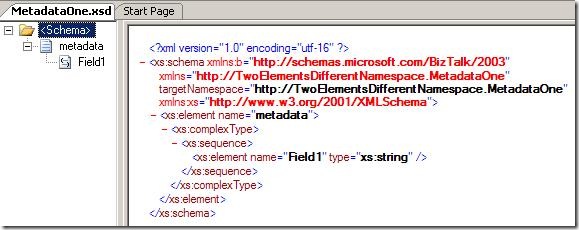
In my previous post I explained how you can make use of the Lists.asmx web service of SharePoint, to load list items by using the jQuery Javascript library. The example discussed in that post is simple and easy to understand, but very, very boring. Let’s try to do something useful with that technique: display fancy, unobtrusive notifications for open tasks, when a user visits a SharePoint site. The screenshot below shows the result, but it’s static. In real life the user would see the yellow boxes popping up, and after a couple of seconds they would disappear again (they don’t block the user interface at all).
To display these notifications I’ll use the excellent jGrowl extension for jQuery. So to make use of this demo, you’ll need to upload both the jquery.jgrowl_minimized.js and jquery.jgrowl.css files to SharePoint (check the download at the end of this post to get the files). The code below assumes that those two files, and the jQuery library itself, are uploaded to a document library called Shared Documents (which is created by default in a Team Site).
<script type=”text/javascript” src=”Shared Documents/jquery-1.3.2.min.js”></script>
<script type=”text/javascript” src=”Shared Documents/jquery.jgrowl_minimized.js”></script>
<link href=”Shared Documents/jquery.jgrowl.css” rel=”Stylesheet”></link>
<script type=”text/javascript”>
$(document).ready(function() {
var soapEnv =
“<soapenv:Envelope xmlns:soapenv=’http://schemas.xmlsoap.org/soap/envelope/’> \
<soapenv:Body> \
<GetListItems xmlns=’http://schemas.microsoft.com/sharepoint/soap/’> \
<listName>Tasks</listName> \
<viewFields> \
<ViewFields> \
<FieldRef Name=’Title’ /> \
<FieldRef Name=’Body’ /> \
</ViewFields> \
</viewFields> \
<query> \
<Query><Where> \
<And> \
<Eq> \
<FieldRef Name=’AssignedTo’ /> \
<Value Type=’Integer’><UserID Type=’Integer’ /></Value> \
</Eq> \
<Neq> \
<FieldRef Name=’Status’ /> \
<Value Type=’Choice’>Completed</Value> \
</Neq> \
</And> \
</Where> \
</Query>\
</query> \
</GetListItems> \
</soapenv:Body> \
</soapenv:Envelope>”;
$.ajax({
url: “_vti_bin/lists.asmx”,
type: “POST”,
dataType: “xml”,
data: soapEnv,
complete: processResult,
contentType: “text/xml; charset=\”utf-8\””
});
});
function processResult(xData, status) {
$.jGrowl.defaults.position = “bottom-right”;
$.jGrowl.defaults.life = 10000;
var firstMessage = true;
$(xData.responseXML).find(“z\\:row”).each(function() {
if(firstMessage)
{
firstMessage = false;
$.jGrowl(“<div class=’ms-vb’><b>You have open tasks on this site.</b><div>”,
{
life: 5000
}
);
}
var messageHtml =
“<div class=’ms-vb’>” +
“<a href=’Lists/Tasks/DispForm.aspx?ID=” + $(this).attr(“ows_ID”)
+ “&Source=” + window.location + “‘>” +
“<img src=’/_layouts/images/ITTASK.GIF’ border=’0′ align=’middle’> ” +
$(this).attr(“ows_Title”) + “</a>” +
“<br/>” + $(this).attr(“ows_Body”) +
“</div>”;
$.jGrowl(messageHtml);
});
}
</script>
Since we’d like to display those notifications when a user visits the site, we need to put a Content Editor Web Part of the home page (typically /default.aspx). In this content editor web part, copy and paste the Javascript code from above. In this code once again, first the SOAP envelope message is constructed. Notice that both the Title and Description fields are requested (the internal name of the Description field is Body). In the query element two conditions are set; the AssignedTo field should be equal to the currently logged on user, and the Status field can’t be equal to Completed. The message is POST-ed to the Lists.asmx web service by using jQuery’s ajax function.
The response of the web service call is processed in the processResult function. For every row element in the result, the jGrowl function is called to display a notification. The contents of such a notification are a small HTLM string containing a link to the task, and the body of the task. So that’s the story of how a small piece of Javascript code can have a pretty nice result in SharePoint! 🙂
You can download the source code for this demo here. The zip file contains the necessary libraries and CSS files (which you have to upload to the Shared Documents document library for example) and the code you have to copy/past in a Content Editor Web Part (using the Source Editor button!). Additionally you can also find an exported web part (.dwp file) in the zip file, which you can very easily import or add to the web part gallery of a site (so you don’t have to copy/past the code yourself).
by community-syndication | May 6, 2009 | BizTalk Community Blogs via Syndication
Hi all
Today I encountered something I have never seen before, when creating a map.
The issue occurs because my customer had a schema that imports two other schemas,
both of which have an element called “metadata” – but naturally the two schemas have
different target namespaces.
The main schema imports both, and has two records just below the root, and these two
records reference each of the two metadata elements in the two imported schemas.
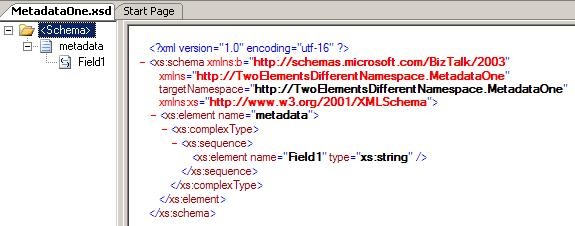
So the first schema could look like this:
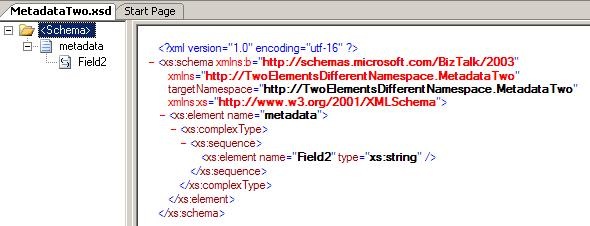
And the second schema could look like this:
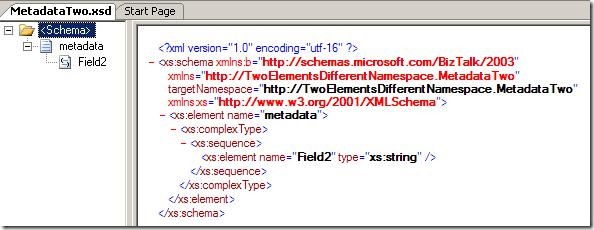
So both have an element named “metadata” but one is in the namespace “http://TwoElementsDifferentNamespace.MetadataOne”
and the other is in the namespace “http://TwoElementsDifferentNamespace.MetadataTwo”.
After that, I create the schema that impors both:
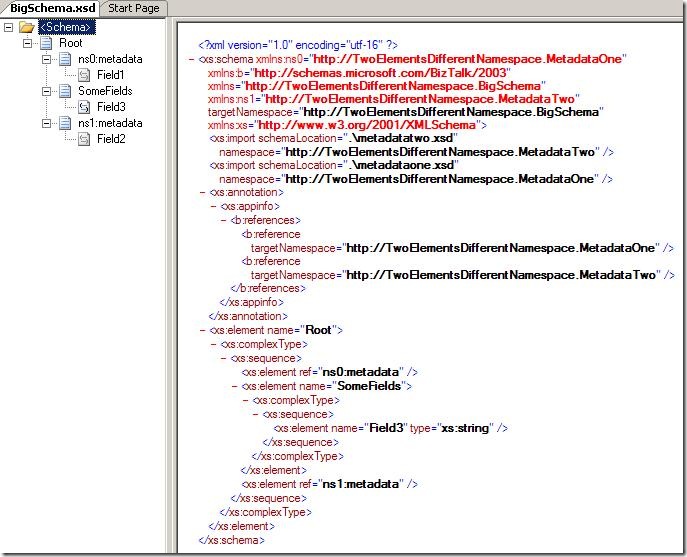
As you can see it imports the first two schemas, and has to elements that reference
each of the metadata elements form the two first schemas.
Also, I crated an output schema that just has three elements and then I created this
map:
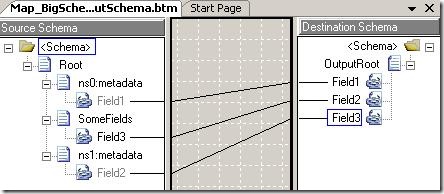
Pretty simple. Now, the issue comes when compiling, because I get this error:
Exception Caught: The map contains a reference to a schema node that is not valid.
Perhaps the schema has changed. Try reloading the map in the BizTalk Mapper.
The XSD XPath of the node is: /*[local-name()='<Schema>’]/*[local-name()=’Root’]/*[local-name()=’metadata’]/*[local-name()=’Field2′]
o the first try was to reload the schema – but that didn’t help – it just broke one
of my links.
In he end I found out, that the issue is that the links are stored like this in the
.BTM file:
<Link LinkID="1" LinkFrom="/*[local-name()=’<Schema>’]/*[local-name()=’Root’]/*[local-name()=’metadata’]/*[local-name()=’Field1′]"
LinkTo="/*[local-name()=’<Schema>’]/*[local-name()=’OutputRoot’]/*[local-name()=’Field1′]"
Label="" />
<Link LinkID="2" LinkFrom="/*[local-name()=’<Schema>’]/*[local-name()=’Root’]/*[local-name()=’SomeFields’]/*[local-name()=’Field3′]"
LinkTo="/*[local-name()=’<Schema>’]/*[local-name()=’OutputRoot’]/*[local-name()=’Field2′]"
Label="" />
<Link LinkID="3" LinkFrom="/*[local-name()=’<Schema>’]/*[local-name()=’Root’]/*[local-name()=’metadata’]/*[local-name()=’Field2′]"
LinkTo="/*[local-name()=’<Schema>’]/*[local-name()=’OutputRoot’]/*[local-name()=’Field3′]"
Label="" />
So. basically, the .BTM file saves links as XPath expressions WITHOUT the namespaces.
So naturally, this has to go wrong, when there are two “metadata” elements on the
same level in the schema.
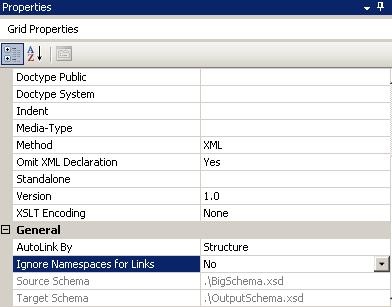
The way to solve this is to choose the properties of the map and disable the “Ignore
Namespaces for Links” like this:
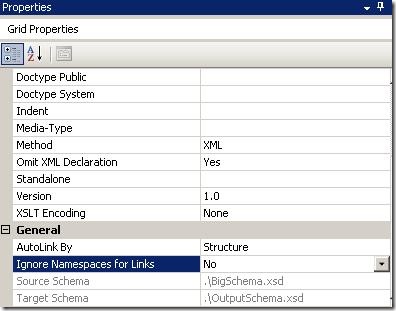
After setting this property, the links change having namespaces inside the .BTM file
and everything is just fine.
One might wonder why the namespaces are not enabled as the default, since they do
make the solution more robust. Well, the reason is simple; If the namespaces are in
all the links, and you change for instance the namespace of the root node, then ALL
links in the map gets broken. So actually, not having the namespaces in the links
make the solution more robust.
So I hope this can help someone.
You can download the solution here:
—
eliasen
by community-syndication | May 6, 2009 | BizTalk Community Blogs via Syndication
Great news folks with the Adapter pack now released.
This is a WCF .NET based set of ’adapters’ that can be used within BizTalk or in any
.NET process – such as SharePoint.
(The visual studio extensions allows you to rapidly create a WCF based Service to
host your adapters)
The Adapter pack has:
– SQL Adapter (faster, newer, improved bionic adapter)
– Siebel
– SAP
– Oracle DB
– Oracle ES
Here’s the links that you’ll need – enjoy!
|
Item
|
Link
|
|
Product
|
|
|
WCF
LOB Adapter SDK SP2(pre-req for BAP 2.0)
|
http://go.microsoft.com/fwlink/?LinkId=147367
|
|
Adapter
Pack 2.0 120 day Evaluation Version
|
120
day eval
|
|
SQL
Adapter SKU Download(For BizTalk branch edition customers)
|
http://go.microsoft.com/fwlink/?LinkId=147379
|
|
Documentation
and Samples
|
|
|
MSDN
Location of Adapter Pack 2.0 docs
|
http://go.microsoft.com/fwlink/?LinkId=149364
|
|
Download
location for individual CHMs in Adapter Pack 2.0
|
http://go.microsoft.com/fwlink/?LinkId=147355
|
|
Download
location for Adapter Pack 2.0 Installation Guide
|
http://go.microsoft.com/fwlink/?LinkId=147364
|
|
Download
location for SQL Adapter Installation Guide and CHM
|
http://go.microsoft.com/fwlink/?LinkId=147377
|
|
Download
location for all the samples for Adapter Pack 2.0
|
http://go.microsoft.com/fwlink/?LinkID=145144
|