

Code Optimized Web Development Profile (VS 2010 and .NET 4.0 Series)
This is the fifth in a series of blog posts I’m doing on the upcoming VS 2010 and .NET 4 release.
Today’s post covers a new “Web Development (Code Optimized)” profile option we are introducing with VS 2010 that allows you to optionally configure Visual Studio to run in an IDE layout mode that hides the WYSIWYG web designer and instead optimizes around a rich “source editing focused” tooling experience.
VS 2010 Web Profiles
When you first run VS 2010 it prompts you to select an IDE profile to use. The profile you select will configure how tool windows are displayed/docked in the IDE by default and set the default keyboard shortcuts. You can then customize any of these settings by using the Tools->Options menu within the IDE and then override/change them. You can also later reset your profile and pick a different one by choosing the Tools->Import and Export Settings menu command.
One of the things you’ll notice when you run VS 2010 Beta2 for the first time is the inclusion of two “Web Development” profiles in the list of options:
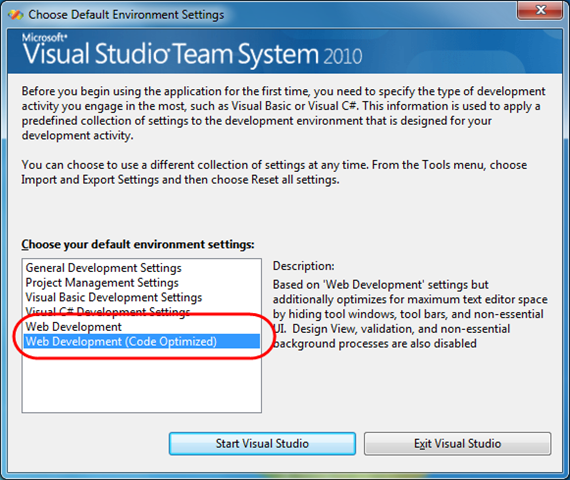
The first “Web Development” profile option is an evolution of the existing web development profile option from VS 2008 (with some nice improvements that help improve screen real estate usage with VS 2010). It also allows you to take advantage of all the great WYSIWYG HTML and ASP.NET Page designer improvements we’ve done with the VS 2010 release (I’ll cover these in more detail in later blog posts in this series).
The second “Web Development (Code Optimized)” profile option is a new profile we are introducing with VS 2010 that is optimized for web developers who do not want to use a WYSIWYG designer when doing their web development, and who prefer a “source only” editing experience when working on pages. This IDE profile option hides the WYWISYG page designer tabs, and configures a default IDE layout that maximizes the amount of code that is displayed on the screen (with a minimum of toolbars and tool windows). It still provides a full intellisense/debugging and source editor experience for pages.
Comparing the VS 2010 Web Development Profiles
You can get a sense of the difference between the two profiles by comparing screen-shots of the Visual Studio IDE layout immediately after the two different “Web Development” profiles are applied:
Screenshot of the “Web Development” Profile:
The layout below demonstrates the default IDE layout (at a 750×650 monitor resolution) when the standard “Web Development” profile is applied. This profile is an evolution of the existing “Web Development” profile in VS 2008 and exposes design/split/source tabs within the document window of any HTML or ASP.NET page:

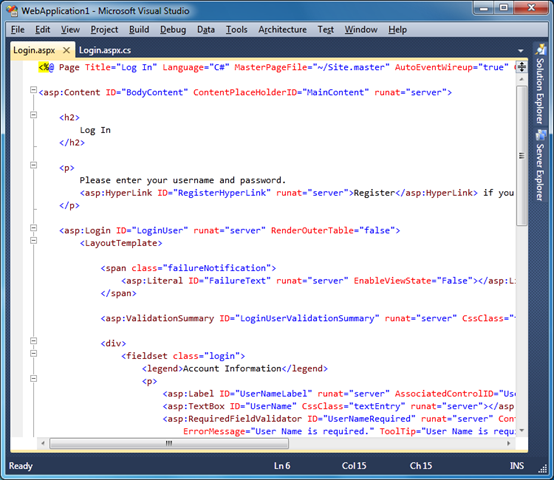
Screenshot of the “Web Development (Code Optimized)” Profile:
The screen-shot below demonstrates the default IDE layout (at a 750×650 monitor resolution) when the new “Web Development (Code Optimized)” profile is applied. As you can see, the profile optimizes the screen real estate around displaying and editing code on the screen, hides all toolbars by default, and disables and hides the designer tabs within the document windows of HTML and ASP.NET pages:
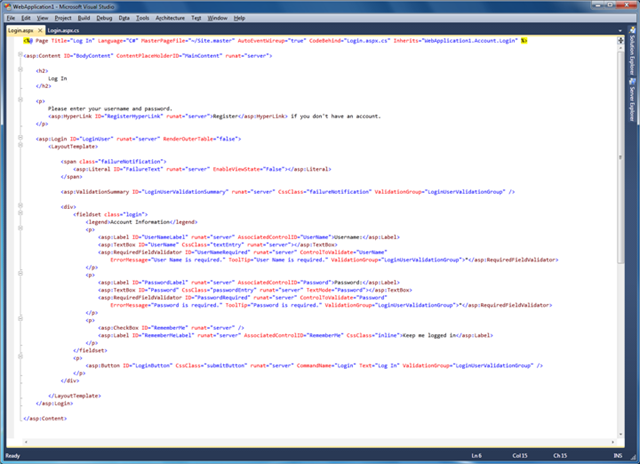
Below is a screen-shot of the “code optimized” profile at a larger monitor resolution:
Mixing and Matching Features
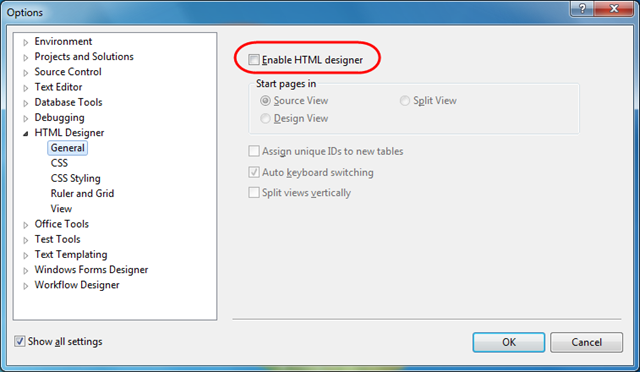
All of the different features used in both the standard “Web Development” profile and the “Web Development (code optimized)” profile are exposed via Visual Studio’s Tools->Options configuration dialog. This means that you can start with any of the VS profiles (including the General, VB and C# profiles) and turn on or off individual features to customize the IDE layout and editing experience however you want it to be.
For example: below you can see the Tools->Options dialog checkbox to enable or disable the HTML designer (which will configure whether the Design/Split/Source tabs are shown at the bottom of each page):
This gives you the flexibility to customize your development experience however you want and create a personalized tooling experience optimized for you and your preferred way of doing development.
The two web development profiles that ship in the box provide two good preconfigured starting points that we think offer a nice set of defaults for a large set of the web developers out there. You can easily choose to start with whichever one feels best to you, and optionally configure them further however you want.
Summary
We are offering the new profile simply as an option for those who prefer a source-focused web development experience. The WYSIWYG HTML/ASP.NET designer continues to be enabled by default with all the other VS 2010 profiles (just like it does with VS 2008), and we have also made a lot of improvements to it with the VS 2010 release (I’ll blog more details about these in later posts). So don’t worry – the WYSIWYG designer definitely isn’t going away, and will continue to be enhanced and improved with each release.
We think the new “Web Development (Code Optimized)” profile, though, is a nice new option for developers who prefer a “source editing focused” web development experience, and who do not use the WYSIWYG designer. The profile option provides an easy way for them to hide the designer (along with its associated tool windows and toolbars) from the IDE layout and instead use a source-focused web development experience.
Hope this helps,
Scott
P.S. In addition to blogging, I have been using Twitter more recently to-do quick posts and share links. You can follow me on Twitter at: http://www.twitter.com/scottgu (@scottgu is my twitter name)
Could not load file or assembly ’AjaxControlToolkit’ or one of its dependencies. Access is denied.
Problem: Recently i came across this problem while switching to a new Windows 7 64 bit m/c. The web site at hand was working fine on my previous m/c Windows 7 64 bit RC1. The error and the event log were basically not very helpful either.
Resolution:
So here is what I did to fix the issue […]
Announcing the Availability of the Microsoft BizTalk Server Management Pack for Operations Manager 2007
We are pleased to announce the immediate availability of the Microsoft BizTalk Server Management Pack for System Center Operations Manager 2007 on the Microsoft Download Center.
This SCOM Management Pack includes the following:
- Platform updates to support BizTalk Server 2009
- Maintained support for BizTalk Server 2006 R2
- Support for upgrade scenarios
- Fixed a high CPU utilization bug.
The Management Pack has already been downloaded and tested by 11 customers through our Technology Adoption Program (TAP) .
With this Management Pack you can deploy mission critical integration solutions on BizTalk Server 2009 and provide high quality monitoring through System Center Operation Manager.
You can now move forward with migration plans or new deployments for BizTalk Server 2009.
Good luck,
Ofer.
Technorati Tags: BizTalk,BizTalk Server 2009,SCOM,Management Pack,Monitoring

WSCF.blue Beta-2
Beta-2 of WSCF.blue is now available.
The big feature of this new beta is the standalone Data Contract Generation and we have also put in some other fixes and addressed some outstanding issues (as well as rolling up fixes since the last beta).
The feature list is as follows. The “More Information” links point to posts on […]
SCOM Management Pack for BizTalk 2009 is Available.
To all you folks who have been waiting for the new Management Pack for BizTalk 2009 to be released, it is finally here. You can download it at
http://www.microsoft.com/downloads/details.aspx?FamilyId=389FCB89-F4CF-46D7-BC6E-57830D234F91&displaylang=en&displaylang=en
Cheers and keep on BizTalking
Peter
Office 2010 Development – Outlook main window ribbon ID
I’m currently writing an Outlook add-in and I’m looking into getting this compatible with both Office 2007 and Office 2010. One of the new features in Outlook 2010 is the main window Ribbon.
Using VSTO, you can create your own Ribbon, which can be automatically merged with default Ribbons by setting the correct OfficeId property for your Ribbon. Office 2007 has the list of available OfficeId values available here, but I has some trouble locating a list for the Office 2010 Technical Preview.
After some trial and error, I figures out there’s an easy way to find out what the different IDs for a specific Ribbon and it’s tabs is.
Office 2010 let’s users customize the Ribbon from within Office.
Clicking ’Customize the Ribbon’ brings up the customization dialog:
On the right-hand side of the dialog, right-click the ’RSS’ tab within the expanded ’Home’ tab and choose ’Rename’. Name it e.g. ’testRSS’. After customizing, press OK on the dialog and re-open the customization dialog once more (if you don’t close and re-open the dialog, the following steps will not lead to the desired result).
Now press the ’Import/Export’ button and select ’Export all Ribbon and Quick Access Toolbar customizations’. Save the file.
The exported Office UI file has a .exportedUI extension. Rename this to .xml and open up the file. You’ll see something like this:
<mso:cmd app="MSOutlook" dt="0" />
<mso:customUI xmlns:mso="http://schemas.microsoft.com/office/2007/10/customui">
<mso:ribbon>
<mso:qat/>
<mso:tabs>
<mso:tab idQ="mso:TabMail">
<mso:group idQ="mso:GroupRss" label="testRSS"/>
</mso:tab>
</mso:tabs>
</mso:ribbon>
</mso:customUI>
Note the ’TabMail’ ID. This is the current (it’s a technical preview, things will probably change in the future) identifier for the Ribbon Tab you’ve just modified.
OK, we’ve got the Tab OfficeID. However, for a Ribbon to show up, you also need to specify RibbonType property. Normally, using VSTO, you get a drop down with all possible values for this property within Visual Studio. However, the main window Ribbon in Outlook is new, so there’s no value for this Ribbon within the list. Luckily, you can also type in your own value. Now all that’s left is finding out the name of the main Ribbon and we’d be set.
I looked around, but the value for the main Ribbon was a mystery to me. Finally, I decided Outlook probably had the string in memory during runtime, so I could use Process Explorer to find the correct value. As you probably know, Process Explorer has a tab called ’strings’ on the properties dialog of a process. This tab enumerates all strings within the image of the process and lists them here.
I searched for ’Microsoft.Outlook.’ (all values in the regular drop down start with this) and found ’Microsoft.Outlook.Explorer’. Searching further, the other values we all know and love came up. However, ’Microsoft.Outlook.Explorer’ was the only truly new value.
I tried using this value for the RibbonType and low and behold, my add-in appeared on the ’RSS’ tab of the main Ribbon.
Key take-away: Using a RibbonType of ’Microsoft.Outlook.Explorer’ and ’TabMail’ as your ControlId, you can place your add-in on the main ribbon of the Outlook window.
Disclaimer: This has been tested on the Technical Preview of Office 2010. There are no guarantees whether these IDs will be stable as we move forward with the product.
Webcast: BizTalk Server 2009 Performance on Hyper-V and Physical Deployments
Just released: SCOM pack for BizTalk Server 2009
If you’re using System Center Operations Manager, then you’ll be happy to know that the new management pack for BizTalk Server 2009 was made available today.
You can get it right now at the download center.

Multi-Monitor Support (VS 2010 and .NET 4 Series)
This is the fourth in a series of blog posts I’m doing on the upcoming VS 2010 and .NET 4 release.
Today’s post covers one of the general IDE improvements that I know a lot of people are already eagerly looking forward to with VS 2010 – multiple-monitor support.
Using Multiple Monitors
VS 2008 hosts all documents/files/designers within a single top-level window – which unfortunately means that you can’t partition the IDE across multiple monitors.
VS 2010 addresses this by now allowing editors, designers and tool-windows to be moved outside the top-level window and positioned anywhere you want, and on any monitor on your system. This allows you to significantly improve your use of screen real-estate, and optimize your overall development workflow.
Taking advantage of the multi-monitor feature is really easy to-do. Simply click on a document tab or tool-window and drag it to either a new location within the top-level IDE window – or outside of the IDE to any location on any monitor you want:

You can later drag the document/window back into the main window if you want to re-dock it (or right click and choose the re-dock option).
Visual Studio remembers the last screen position of documents when saved – which means that you can close projects and re-open them and have the layout automatically startup where you last saved it.
Some Multi-Monitor Scenarios
Below are some screen-shots of a few of the scenarios multi-monitor enables (obviously there are many more I’m not covering). Pretend each window in the screenshots below is on a different monitor to get the full idea
Code source file support:
Demonstrates how code files can be split up across multiple monitors. Below I’ve kept a .aspx file in the main IDE window and then moved a code-behind file and a separate class file to a separate screen:

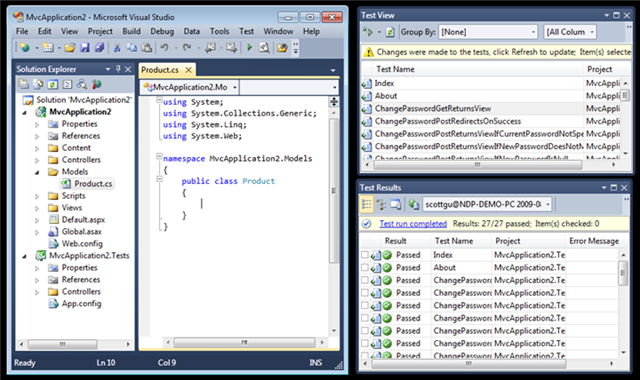
Tool window support:
Demonstrates how any tool window/pane within VS10 can be split across multiple monitors. Below I’ve moved the test runner tool windows to a separate screen:
Designer support:
Demonstrates how a designer within VS can be split across multiple monitors. Below I’ve moved the WPF/Silverlight WYSWIYG designer and the property grid to a separate screen (the code behind file is still in the main window). Note how the VS10 property grid now supports inline color editors, databinding, styles, brushes, and a whole bunch more for WPF and Silverlight applications (I’ll cover this in later blog posts):

Summary
If you work on a system that has multiple monitors connected to it, I think you are going to find the new multi-monitor support within VS10 a big productivity boost.
If you don’t already have multiple monitors connected to your computer, this might be a good excuse to get some 🙂
Hope this helps,
Scott
P.S. In addition to blogging, I have been using Twitter more recently to-do quick posts and share links. You can follow me on Twitter at: http://www.twitter.com/scottgu (@scottgu is my twitter name)