by community-syndication | Oct 16, 2009 | BizTalk Community Blogs via Syndication
Late in the summer we have released WCF sources publically in the reference source. You can now browse and debug WCF source code through Visual Studio. We are working to get the WF in reference source later this year. I will provide an update when WF is also available.
Please note that this is version-dependent and we currently support this for 3.5 SP1 RTM only. Any support QFE or GDR upgrades for the assemblies aren’t currently part of the package. New updates will be available in future. Here are the options to browse or debug thorugh WCF sources:
Option 1 – Install & Local Debugging
- Download Reference Source Code Center.
Install Reference Source WCF MSI in your local machine say under: ‘C:\ReferenceSource’.
- Launch Visual Studio 2008.
- From the Tools menu, choose Options.
- In the Options dialog box, open the Debugging node and select General
- Uncheck “Enable Just My Code (Managed only)”
- Check “Enable source server support”
- Uncheck “Require source files to exactly match the original version”
- Select Symbols under Debugging.
- In the Symbol File Locations box, validate the location where the installed symbol files (.pdb) are present. If not, then add originally downloaded symbols location: C:\ReferenceSource\Symbols
- Build you app, set breakpoints and F5 to debug..
Option 2 – Remote Debugging
You will need to make sure that the version of the framework is 3.5 SP1 RTM (no GDR update for now) as the project assemblies’ versions and symbols must match. With this option you can debug and step through WCF framework code remotly through the reference source server.
Reference instructions under: http://referencesource.microsoft.com/serversetup.aspx
( Same as above, just set your .pdb location to: http://referencesource.microsoft.com/symbols )
by community-syndication | Oct 16, 2009 | BizTalk Community Blogs via Syndication
We’ve just published the first chapter of the WCF Extensibility Guidance series.
One of the powerful things about WCF is its extensible architecture. However, the degree of extensibility can also be daunting. It’s not something you do every day, so you might not know which is the best extensibility option to use to achieve your goal.
Jesus Rodriguez was the lead author on this guidance. If I am ever on “Who wants to be a Millionaire?” and I expect hard WCF questions, Jesus will be my lifeline. I’ve needed his help many times and I haven’t been able to stump him yet. Pablo Cibraro, an expert in WCF security, also contributed significantly.
We’ll be rolling the other chapters out over the next few weeks. Please let us know how this guidance is useful to you and if there are other extensibility topics you would be interested in.
by community-syndication | Oct 16, 2009 | BizTalk Community Blogs via Syndication
Christian Weyer has published a great article on the topic of Schema-based Development with Windows Communication Foundation.
Few would argue with the value of Contract First programming when building large systems. However when programming web services, the choice comes down to Code-based Contract First or Schema-based Contract First.
The WCF tools provide great support for the Code-based model – you define an interface using normal code constructs as you would for any .NET class or component, and then apply the ServiceModel attributes. Then the WCF plumbing automatically handles things like WSDL generation, and serialization issues. For most developers this is a very convenient model.
However, there are reasons, especially when interoperability with other web service stacks is a priority, why many prefer the Schema-based model. For them, the WSDL is the contract. WCF does support this with tools like SvcUtil, but manipulating WSDL by hand can be a daunting task.
Christian has long been a proponent of Schema-based Contract First and has developed tools to plug into Visual Studio to better support this model. In this article he explores the reasons you may want to consider the Schema-based approach, how WCF supports it, and how the latest version of the Web Service Contract First tool, WSCFBlue (a free tool hosted on CodePlex), makes it even easier.

by community-syndication | Oct 16, 2009 | BizTalk Community Blogs via Syndication
Yesterday I attended the first of a set of roving sessions from Amazon.com to explain their cloud offering, Amazon Web Services (AWS). I’ve been tinkering with their stuff for a while now, but I was amped to hear a bit more from the horse’s mouth. I went with a couple colleagues and greatly enjoyed the […]
by community-syndication | Oct 16, 2009 | BizTalk Community Blogs via Syndication
Hi all
Today I discovered something I was not expecting while documenting something else,
which I have just described here.
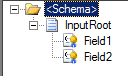
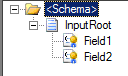
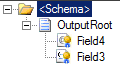
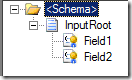
I had a solution that involved this input schema:
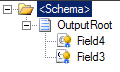
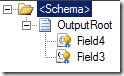
and this output schema:
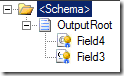
Field1 from the input schema and Field3 form the output schema are promoted to the
same property and Field2 form the input schema and Field4 from the output schema are
also promoted to the same property. Note, that Field4 is an attribute, whereas Field1,
Field2 and Field3 are elements.
I then have a map that does not map anything from the input to the output. It just
creates empty elements/attributes in the output schema.
I added a receive port and receive location to read in the input and used the XMLReceive
pipeline, because I needed the messagetype and I needed the property promotion. I
added my map to the receive port. I then created a send port that basically just took
everything that came in on the receive port and sent it out to a file. The send port
uses the XMLTransmit pipeline.
The output from this was, as I expected. Given this input:

I got this output:

What happens is, that demotion is not supported for attributes, which really seems
like a silly restriction, but that is just how it is.
When, however, I implemented my solution using an orchestration, it worked! The value
of Field2 in the input was demoted into the value of Field4 in the output.
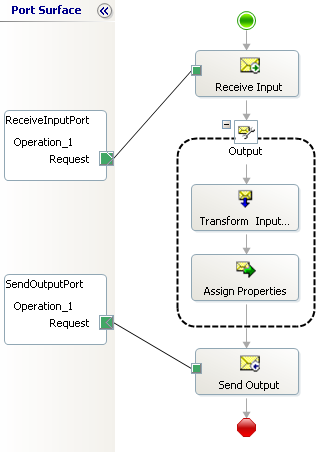
My orchestration is very simple:
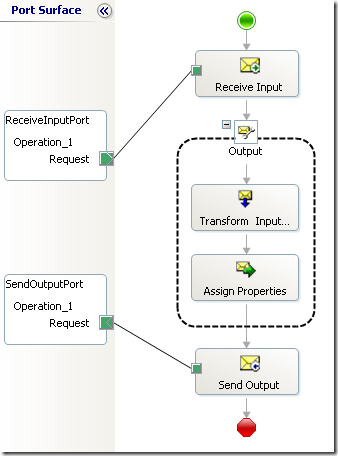
Basically, I receive the input, transform it using the same map as was on the receive
port, copy over all the properties:
 1: OutputMessage(*)
= InputMessage(*);
 2: OutputMessage(DemotionTest.Property1)
= InputMessage(DemotionTest.Property1);
 3: OutputMessage(DemotionTest.Property2)
= InputMessage(DemotionTest.Property2);
The reason that I copy over Property1 and Property2 manually is, that they are marked
as MessageDataContextProperty in the property schema, and therefore, they are not
automatically copied over using the OutputMessage(*) = InputMessage(*) statement.
After doing this, I just send out the message. The result is this:

Now, this confused me and what confused me more is, that I can actually do it with
the passthrough pipeline on the send port. This means, that the demotion is happening
as the orchestration publishes the message into the MessageBox for sending out the
message.
So the upside to this is, that demotion for attributes DOES work – but only when the
demotion occurs inside an orchestration upon sending out the message.
The downside is, that the product team have managed to do things differently depending
on where in the process it happens, which really sounds like bad design. Hopefully
they will fix this at some point in time.
Hope this helps someone
—
eliasen
by community-syndication | Oct 16, 2009 | BizTalk Community Blogs via Syndication
Hi all
It is pretty common that developers want to assign one message to another inside and
orchestration. And as we all know, this must happen inside a “Construct Message” shape.
Inside the “Construct Message” shape, you can have several shapes, but they must all
be either a “Transform” shape or a “Message Assignment” shape. The “Transform” shape
is used to execute a map, that will generate the message(s) that is/are to be constructed.
The “Message Assignment” shape on the other hand uses the expression editor to let
you specify how to assign a value to the message(s) that is/are to be constructed.
Often, there is a need to basically copy a message and then change just a couple of
values in the copied message. This can’t be done by changing the values of the existing
message, as messages in an orchestration are immutable.
Creating the copy is pretty simple; You just assign one message to another like this:
 1: OutputMessage
= InputMessage;
Now, what many people realize after doing this and something does not work, like routing,
correlation or other is, that this assignment only copies the content of InputMessage
to OutputMessage. The context is not copied at all. So what you can do is to add another
line of code to your “Message Assignment” shape like this:
 1: OutputMessage
= InputMessage;
 2: OutputMessage(*)
= InputMessage(*);
This will copy the context of a message from one message to another but not the entire
context, as it turns out.
I was trying out a demo for property demotion, and for this I let my orchestration
receive an input message, transform it to an output message and send this out.
So what I did was that I created two schemas:
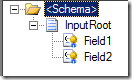 and
and 
I let Field1 and Field3 be promoted into the same promoted property from a custom
property schema, and I let Field2 and Field 4 be promoted into another property in
a custom property schema.
and a map that does not map anything – it just created empty fields for Field3 and
Field4.
In my “Construct Message” shape, I then added a “Transform” shape to do the transformation
and a “Message Assignment” shape that would copy the properties. I then wanted to
make sure the output of the send port had the demoted values inside it.
What I expected to happen was this:
-
The XMLReceive pipeline would receive the input, promote the two properties and publish
the message to the MessageBox.
-
The Orchestration would pick it up, perform the transformation, copy the context and
send the message out.
-
The XMLTransmit pipeline would demote the two values from context (that I had copied
from the input message) into Field3 and Field4
This didn’t happen, though. No values were demoted at all. Now, not demoting into
Field4 was expected, since demotion doesn’t work for attributes (or does it? See my
blog post coming up in a very short time 🙂 ), but I really expected something to
turn up in Field3.
It turns out, that this statement from my code:
 1: OutputMessage(*)
= InputMessage(*);
does not copy ALL the context, but only the promoted properties that are marked as
MessageContextPropertyBase. The ones that are marked as MessageDataPropertyBase (which
is the default) do not get copied over. Now, this actually makes sense, all though
it baffled me at first, since properties marked as MessageDataPropertyBase are based
on values inside the message, so they cannot just be copied to another message type,
since BizTalk cannot guarantee that this property exists on this message type and
that the element that points to the promoted property actually exists in the message.
Well, I guess BizTalk COULD guarantee that, but Microsoft have chosen not to implement
that.
Also, distinguished fields, which are also in the context of the message are not copied
over – again, this makes sense, since these are tightly bound to the schema they come
from (This doesn’t stop the mapping engine of copying them over in maps on receive
ports, though, which is really silly – see here).
SO, in order to get ALL the context copied form my input schema to the output schema,
I needed three lines of code:
 1: OutputMessage(*)
= InputMessage(*);
 2: OutputMessage(DemotionTest.Property1)
= InputMessage(DemotionTest.Property1);
 3: OutputMessage(DemotionTest.Property2)
= InputMessage(DemotionTest.Property2);
or I could mark the properties as MessageContextPropertyBase.
Yes, indeed So remember this from now on:
-
Assigning one message to another does NOT copy over the context
-
Copying over context using M2(*) = M1(*) does NOT copy over custom properties that
are marked as the default (MessageDataContextBase)
-
In order to get the rest of the properties copied over, do it manually or change the
type of the properties, if applicable.
I hope this helps someone
—
eliasen
by community-syndication | Oct 16, 2009 | BizTalk Community Blogs via Syndication
So, I haven’t really been doing much with BizTalk for a while now, spending more time on traditional development activities and working on some WCF specific solutions. However, I have recently been investigating SOA implementations in more detail, in particular the ESB (Enterprise Service Bus) along with how and why you would want one of these in your organisation.
This has led me neatly back into the BizTalk space. I had actively perused opportunities away from BizTalk, not necessarily due to the fact that I didn’t like working with the product, but more for the desire to get back into pure development like I used to. Hey, it’s nice to have a change every now and again. Now this particular task I am undertaking at the moment is purely focused on Microsoft technologies; I know there are numerous ESB offerings out there from various vendors. So this has led me to the BizTalk 2009 ESB Toolkit 2.0 from a product perspective and looking into some of the enabling future technologies such as WCF/WF 4.0 and the Microsoft Application Server Extensions codenamed “Dublin”.
Well, without going into the details of an ESB as there is a wealth of conflicting information out there already, I decided that simply reading about BizTalk 2009 ESB Toolkit would not be sufficient so with a little trepidation I decided to install BizTalk 2009 and the ESB Toolkit onto a VM for testing. I say with trepidation, as I have spent a huge amount of time in the past installing, configuring and generally thumping my head against a heavy object in frustration at the difficulties of getting BizTalk working as expected. However, being a local development install and therefore not having the security locked down that is often the biggest inhibitor to an easy deployment, I was somewhat more optimistic.
Anyway, before I decided to plough away at the install I thought it would be prudent to check whether anyone has had experienced difficulties and/or provided some steps to get going quickly; I didn’t want to spend too much time on this activity. So it was with gratitude that I came across this great post by Preetham Reddy. By following these steps I was up and running pretty pain free. I say “pretty” pain free, as I did have one issue that I thought I would make a note of here in case anyone else comes across the same problem.
Now, during the configuration steps there is a part where you need to run ESBConfigurationTool.exe to configure the settings for exception management, the ESB core components and configuration nodes. While trying to apply the configuration to any of the databases I would receive an error relating to not being able to create the database. I was logged in as an administrator and I thought this odd, so decided to simply create the databases via SQL Server Management Studio. I ran the configuration again and everything seemed to work fine.
I completed the rest of the installation and when i went to browse the ESB Management Console I was presented with the following error: “An unhandled exception has occurred”. “Great” I thought, here we go again, difficulties getting things installed and configured with BizTalk. Looking at the Windows Event Viewer I saw the following entries:
Event code: 3005
Event message: An unhandled exception has occurred.
Event time: 15/10/2009 18:35:20
Event time (UTC): 15/10/2009 17:35:20
Event ID: 77d00134a17e42519d7c6a11e26ce9d2
Event sequence: 13
Event occurrence: 4
Event detail code: 0
Application information:
Application domain: /LM/W3SVC/1/ROOT/ESB.Portal-1-129001012513866430
Trust level: Full
Application Virtual Path: /ESB.Portal
Application Path: C:\Program Files\Microsoft BizTalk ESB Toolkit 2.0\ESBSource\Source\Samples\Management Portal\ESB.Portal\
Machine name: MyMachine
Process information:
Process ID: 4584
Process name: w3wp.exe
Account name: MyMachine\Administrator
Exception information:
Exception type: WebException
Exception message: The remote server returned an error: (400) Bad Request.
Request information:
Request URL: http://localhost/ESB.Portal/Default.aspx
Request path: /ESB.Portal/Default.aspx
User host address: ::1
User: MyMachine\Administrator
Is authenticated: True
Authentication Type: NTLM
Thread account name: MyMachine\Administrator
Thread information:
Thread ID: 12
Thread account name: MyMachine\Administrator
Is impersonating: False
Stack trace: at System.Net.HttpWebRequest.GetResponse()
at System.ServiceModel.Channels.HttpChannelFactory.HttpRequestChannel.HttpChannelRequest.WaitForReply(TimeSpan timeout)
Nothing particularly useful there I thought. So I eventually ended up attaching a debugger to the web application and noticed the code was having trouble retrieving data. This is when I remembered the oddity from the configuration so checked the database to see there were no tables, views, stored procedures or anything within them. So I ran through the configuration with ESBConfigurationTool.exe again, but still nothing. I then deleted the databases it had created to see if it would actually create them this time, which it did. I then went back to the ESB Management Console site and viola, there it was.
So, I am a little confused why the tool could not create the database the first time, but did the second time. Anyway, this may be useful to someone out there. My thoughts on the whole install and configure process so far is that it is too laborious and error prone, as I half-expected. I want to be able to do one-click deployment, is that too much to ask these days? Perhaps this is the remnants of it being developed externally from the product, but nevertheless it isn’t a great experience for those considering using this on an enterprise-scale project is it?
Anyway, back to my investigations

by community-syndication | Oct 16, 2009 | BizTalk Community Blogs via Syndication
The ASP.NET team today released a significant new update of the Microsoft Ajax Library (Preview 6). This update includes a bunch of new capabilities and improvements to our client-side AJAX library, and can be used with any version of ASP.NET (including ASP.NET 2.0, 3.5 and 4.0), and can be used in both ASP.NET Web Forms and ASP.NET MVC projects. Today’s release includes the following feature improvements:
- Better Imperative Syntax: A new, simplified, code syntax for creating client controls.
- Client Script Loader: A new client-side script loader that can dynamically load all of the JavaScript files required by a client control or library automatically, and executes the scripts in the right order.
- Better jQuery Integration: All Microsoft Ajax controls are now automatically exposed as jQuery plug-ins.
In addition to the client library improvements, we also today released a new (free) Microsoft AJAX Minifier tool. This tool allows you to substantially improve the performance of your websites by reducing the size of your JavaScript files. It can be run both as a command-line tool, and also ships as a Visual Studio MSBuild task that you can integrate into your VS projects to automatically minify your JavaScript files whenever you do a build.
Using the Microsoft AJAX Library (Preview 6)
There are two ways that you can start building applications with the Microsoft Ajax (Preview 6) release:
1) You can visit the ASP.NET CodePlex website and download the Preview 6 release (which also includes a large set of samples with it).
2) Alternatively, you can access the Microsoft Ajax Library scripts directly from the Microsoft Ajax Content Delivery Network (CDN). You can do this by just adding the following script tag to either an .aspx or .html page:
<script src=”http://ajax.microsoft.com/ajax/beta/0910/Start.js” type=”text/javascript”></script>
You read my blog post from last month to learn more about the Microsoft AJAX CDN (or visit http://www.asp.net/ajax/cdn).
Better Imperative Code Syntax with this release
The ASP.NET team heard feedback from the community that many developers preferred an imperative code approach (as opposed to a declarative syntax approach) when creating client controls. With today’s release we are introducing a simple imperative code syntax for creating client controls and binding them to HTML elements within a page. This syntax is fully supported by the JavaScript Intellisense in both VS 2008 and VS 2010.
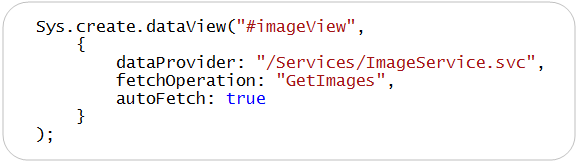
Below is an example of the imperative code you can now write to programmatically create a client-side DataView control that displays data from a WCF web service:
The above code instantiates a new Microsoft Ajax DataView control and attaches the control to an HTML <div> element with the id “imageView”. The URL of the WCF service is specified with the “dataProvider” property, and the name of the method to call on the service is specified with the “fetchOperation” property. The “autoFetch” property indicates that the control should automatically bind against the WCF service when it loads.
Below is what the “imageView” HTML <div> element that the DataView control is attached to looks like. This <div> contains a template that will be used for displaying each data item retrieved from the service (note: templates were a feature we introduced with an earlier Microsoft Ajax Preview release):

The {{ Uri }} and {{ Name }} expressions within the template above are replaced with the Name and Uri properties of the images retrieved from the service. The attribute namespace prefix “sys:src” on the <img> element is used to prevent browsers from attempting to load an image at the actual path {Uri}. The value of the sys:src attribute gets plugged into the src attribute when the template is loaded.
When the page is rendered in the browser, we then get a simple photo gallery like below:

Alternatively, if you don’t want to use a declarative binding syntax within a template, you can modify the template to be pure HTML markup like below (no more {{ }} expressions):

You can then wire-up and specify a itemRendered event handler when you create the DataView control like below:

You can then implement the “imageRendered” event handler using the JavaScript below, and use the Sys.bind() method to programmatically assign values to the <img> and <span> tags within the template:

This allows you to maintain your template as pure HTML markup, while still displaying the same photo gallery experience at runtime.
Using the Microsoft Ajax Client Script Loader
The Microsoft AJAX Client-side library is now split up across multiple JavaScript files – allowing you to download and use only those script files that you actually need (reducing download sizes).
Manually adding all of the script files required to use Ajax controls can be tedious though (and error prone). To make it easier to use both client controls as well individual client library components, we are introducing a new client script loader with today’s release. This client script loader helps you automatically load all of the scripts required by a control and execute the scripts in the right order when a page loads.
For example, the following page uses the client script loader to load all of the scripts required by the “watermark” control, and then wires up the watermark control to an <input> textbox:

Notice the call to the Sys.require() method above. When you call Sys.require(), you supply the name of a client component (or an array of client components) that you want to load. The sys.require() client loader then automatically downloads all of the required script files in parallel (allowing your scripts to load faster and also allow you to avoid blocking the page from rendering). When all of the scripts required by the components requested are loaded, the Sys.onReady() method is called and the watermark is created.
Above we are binding the “watermark” control to a <input> textbox with an id of “name”. At runtime the watermark control will cause the textbox to have a watermark (that automatically disappears when a user sets the focus on the textbox and starts typing):

The client script loader supports many advanced features including automatic script combining and lazy loading. It can also be smart about downloading either debug or release versions of libraries. It also allows you to register your own libraries and have them automatically be loaded as well using the Sys.require() syntax.
Using Microsoft Ajax Library Controls with jQuery
Microsoft ships jQuery as a standard part of the ASP.NET MVC framework, and also adds it by default to new ASP.NET Web Forms projects created with Visual Studio 2010.
With today’s preview we are making it easy to integrate jQuery and Microsoft Ajax controls, and enable developers using jQuery to use the Microsoft Ajax controls with a familiar jQuery plug-in API syntax. Specifically, we are now exposing all Microsoft Ajax controls as jQuery plug-ins automatically. In other words, when you add jQuery to a page, you can use Microsoft Ajax controls just like jQuery plug-ins.
For example, the following script demonstrates how you can use jQuery to create a DataView that displays data from a WCF service (using a jQuery plugin like code syntax):

Notice above that I’m loading jQuery by calling the Sys.require() client-side loader API. You can load jQuery using the new client script loader, or alternatively you can just include the jQuery library in the page using a standard <script> tag.
Once jQuery is added to the page, Microsoft Ajax Library controls are automatically exposed as jQuery plug-ins. This means you can create and attach Microsoft Ajax controls using a standard jQuery plugin syntax (like above), and fully integrate with the jQuery selector syntax.
Reducing the Size of JavaScript Files with the Microsoft Ajax Minifier
There are two common ways that people use to reduce the download size of a JavaScript file: compression and minification.
When you host your website on a Windows Server using IIS 7.0, you can configure IIS to automatically compress your JavaScript files using GZIP compression – which can provide a significant improvement on performance and the download size of files. However, you can get additional performance benefits by both compressing and minifying your JavaScript files. Steve Sounders describes these additional benefits in his excellent book High Performance Web Sites.
In addition to releasing Microsoft Ajax Library (Preview 6), we are today also releasing a new (free) Microsoft Ajax Minifier utility that can help reduce the size of your JavaScript files considerably. It was created by Ron Logon who works on the MSN team. You can download the Microsoft Ajax Minifier from the ASP.NET CodePlex website for free.
The following screenshot demonstrates the results of minifying the standard jQuery library using various minification tools such as Douglas Crockford’s JSMin, Dean Edward’s Packer, and the YUI Compressor. The bottom two files were minified using the Microsoft Ajax Minifier utility. Notice that the Microsoft Ajax Minifier has reduced jQuery from 125 KB to only 53 KB.

The Microsoft Ajax Minifier supports two levels of minification: normal and hypercrunched. When you use normal minification, the Microsoft Ajax Minifier removes all unnecessary whitespace, comments, curly braces, and semi-colons. When you enable hypercrunching, the Microsoft Ajax Minifier becomes more aggressive in reducing the size of a JavaScript file, and it minifies local variable names and removes unreachable code.
Here’s a sample of a JavaScript file:

Here’s what the JavaScript file looks like after it has been minified with the Microsoft Ajax Minifier (with hypercrunching enabled):

Notice that all unnecessary whitespace has been removed. Notice also that the function parameters firstValue and secondValue have been renamed to b and a.
The Microsoft Ajax Minifier download includes the following components:
- ajaxmin.exe – A command-line tool for minifying JavaScript files.
- ajaxmintask.dll – A MSBuild task for minifying JavaScript files in a Visual Studio project.
- ajaxmin.dll – A component that you can use in your C# or VB.NET applications to minify JavaScript files.
After you install the Microsoft Ajax Minifier, you can use the Microsoft Ajax Minifier command-line tool to minify a JavaScript file from a command-prompt.
You also have the option of adding the Microsoft Ajax Minifier as a custom MSBuild task to Visual Studio. Adding the Microsoft Ajax Minifier MSBuild task to your Visual Studio project file allows you to automatically minify all of the JavaScript files in your project whenever you perform a build, and enables you to perform minification in an automated way.
Summary
Today’s release of the Microsoft Ajax Library has several exciting new features for client-side developers. The new simplified imperative syntax should appeal to JavaScript developers. The client script loader makes it much easier to create client controls and optimize the download of files. And, the jQuery integration enables developers using jQuery to take advantage of the client controls, templating, and data access features of the Microsoft Ajax Library without changing their programming style.
Finally, the new Microsoft Ajax Minifier enables you to significantly improve the performance of your Ajax applications by reducing the size of your JavaScript files. You can use the minifier from a command prompt or you can use the minifier when building a project in Visual Studio.
Read Bertrand Le Roy’s Blog Post about Preview 6 to learn even more about the release. Click here to download both the Microsoft Ajax Library (Preview 6) release and the new Microsoft Ajax Minifier release.
Hope this helps,
Scott
P.S. In addition to blogging, I have recently been using Twitter to-do quick posts and share links. You can follow me on Twitter at: www.twitter.com/scottgu (@scottgu is my twitter name)
by community-syndication | Oct 15, 2009 | BizTalk Community Blogs via Syndication
Hi all
When developing BizTalk 2009 solutions using Visual Studio .NET 2008 on Windows Server
2008, you run into issues when deploying from within Visual Studio .NET.
Now, first of all, as long as there are issues
with BizTalk 2009 on Visual Studio .NET 2008, you should refrain from deploying
from within Visual Studio .NET.
Secondly, when deploying on Windows Server 2008, you might run into this series of
errors:
First error:
Access is denied. (Exception from HRESULT: 0x80070005 (E_ACCESSDENIED)), followed
by
Second error:
at Microsoft.BizTalk.Gac.Fusion.IAssemblyCache.InstallAssembly(AssemblyCacheInstallFlag
flags, String manifestFilePath, FusionInstallReference referenceData)
at Microsoft.BizTalk.Gac.Gac.InstallAssembly(String assemblyPathname,
Boolean force)
at Microsoft.BizTalk.Deployment.BizTalkAssembly.GacInstall(String assemblyLocation)
at Microsoft.BizTalk.Deployment.BizTalkAssembly.PrivateDeploy(String
server, String database, String assemblyPathname, String applicationName)
at Microsoft.BizTalk.Deployment.BizTalkAssembly.Deploy(Boolean redeploy,
String server, String database, String assemblyPathname, String group, String applicationName,
ApplicationLog log)
Third error:
Unspecified exception: "
Access is denied. (Exception from HRESULT: 0x80070005 (E_ACCESSDENIED))"
Access is denied. (Exception from HRESULT: 0x80070005 (E_ACCESSDENIED))
Fourth error:
Access is denied. (Exception from HRESULT: 0x80070005 (E_ACCESSDENIED))
Fifth error:
Failed to add resource(s). Change requests failed for some resources. BizTalkAssemblyResourceManager
failed to complete end type change request. Access is denied. (Exception from HRESULT:
0x80070005 (E_ACCESSDENIED))
Now, usually, I must confess that my developer machines are usually virtual PCs, where
I just login as the local administrator. If you do that, everything works fine. But
in Windows Server 2008, Microsoft have introduced a new security system, where you
need to approve it every time you start up some program that requires administrator
rights – even if you are a member of the local administrators group.
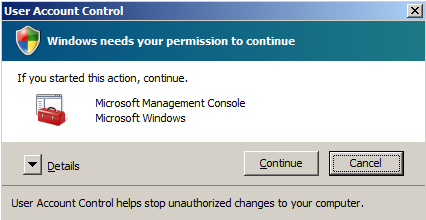
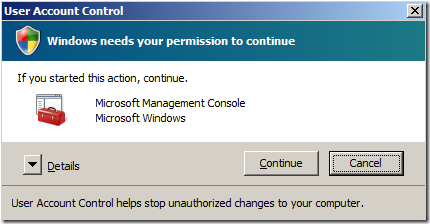
So for instance, starting up BizTalk Server Administration console will cause this
to appear:
And you have to click “Continue” to start it up.
The error above is because suddenly, even if you are a member of the local administrators
group, you cannot add assemblies to the GAC.
You have three choices to fix it:
-
Login with your username, but run Visual Studio .NET as an administrator. This is
done by right clicking on the short cut for VS.NET and choosing “Run as administrator”.
-
Login as administrator
-
Turn off the “User Account Control”. This is done by entering “Control Panel” =>
“User Accounts”. Click on “Turn User Account Control on or off” – and in here you
can turn it off. Now, when logged in as a user that i not the administrator, but who
is a member of the local administrators group, you get the rights you usually have.
Hope this helps someone
—
eliasen
by community-syndication | Oct 15, 2009 | BizTalk Community Blogs via Syndication
Recently we experienced an issue with a service where the first call took a long time to complete. Subsequent calls would complete fine and fast, but the first call took a long time. Using Service Trace Viewer told us that the problem lay at constructing ChannelFactory.
The detailed trace of this activity didn’t give us any more hints to what was causing the problem.
All we could see was that the time appeared to all disappear when WCF tries to get the configuration for service.
The code for this (I’m just using the automatically generated Service1 template to illustrate) was as follows:
proxy = new Service1Client();

Console.WriteLine(proxy.GetData(22));
This is strange indeeded. Since loading the config seemed to be the issue, we changed the code to do this programmatically instead.
EndpointAddress address = new EndpointAddress("net.tcp://localhost/SimpleService/Service1");

proxy = ChannelFactory<IService1>.CreateChannel(new NetTcpBinding(), address);
Running this and looking at the trace for this revealed that this was a much more performant way of doing this.

For the scenario we had this solution was fine – but it’s not really a solution, it’s a workaround.
I’m still at a loss to describe why this happened on these servers, since the same thing worked quite differently on other servers. There, both solutions performed the same. So this is obviously something connected to some setting or circumstance that differs on those servers when compared to others.
If anyone has insight into this, or suggestions, please share.