by community-syndication | Oct 22, 2009 | BizTalk Community Blogs via Syndication
I have meant to write a blog post about client certificates in a development environment for a while now, as every time I come to implement it I forget a step somewhere. There are resources online for a number of the steps below, but I wanted to consolidate that information along with my own steps into a single place that I can use as a reference. This may also be useful to others, hence why I am making a blog post rather than file it away in my mesh repository somewhere.
So, what am I trying to do here? Well, I would like to create a WCF service that utilises SSL and requires that clients use a certificate for authentication in a development environment where I do not have any certificates supplied to me. I am setting this up in a Windows 2008 environment (so IIS 7) with .NET 3.5. The whole process will involve the following steps:
- Create certificate to act as a root certificate authority
- Install root certificate
- Install service certificate on server
- Configure site to use SSL certificate
- Export client certificate
- Import certificate on client
- Configure WCF Service
- Configure client(s)
Step 1 – Create Certificate to act as Root Certificate Authority
To use chain trust validation during development you need to create a self-signed root CA and place it in the Trusted Root Certification Authority store. The certificate used by WCF is then created and signed by the root self-signed certificate and installed in the LocalMachine store.
- Open the Visual Studio command prompt and browse to the location where you want to save the certificate files.
- Enter the following command:
Makecert -n “CN=MyRootCA” -r -sv MyRootCA.pvk mYRootCA.cer
- In the Create Private Key Password dialog box, enter a password, confirm the password, and then click OK
- In the Enter Private Key Password dialog box, enter the password again and then click OK.
- You should now have two files MyRootCA.cer and MyRootCA.pvk
Step 2 – Install Root Certificate Authority
The certificate that will be created using this certificate authority will need to have the CA installed on both the client and the server, as it will be used to verify the certificate.
- Follow these steps on both the server and client(s)
- Run MMC
- Add certificates snap-in
- Choose computer account, as this certificate needs to be made available for all users
- Choose local computer
- Browse certificates snap-in and go to certificates node under trusted root certification authorities
- Right-click this and select import from the popup menu
- Browse to the folder where you created the root CA certificate
- Accept defaults for rest of import wizard
- You can double-click the certificate entry to view and validate it installed correctly
Step 3 – Install Service Certificate on Server
You now want to create the certificate for the service on the server and the following steps will do this. Once completed you will see the certificate via the certificates snap-in of MMC and browsing to the following location: Certificates (Local Computer) -> Personal -> Certificates
- Open the Visual Studio command prompt and browse to the location where you saved the Root CA certificate files
- Run the following command
makecert -sk <KeyName> -iv MyRootCA.pvk -n “CN=<MachineName>” -ic MyRootCA.cer -sr localmachine -ss my -sky exchange -pe
- Where <KeyName> is the subject’s key container name (which should be unique) and <MachineName> is name of the server which must match the DNS or NetBIOS name
- Enter the password you defined previously
Step 4 – Configure Site to use SSL Certificate
We now want to configure the website that is to host the WCF service to use the SSL certificate we just created. This step assumes you have already created a website for HTTPS.
- Open IIS Manager
- Browse to “Sites”
- Right-click on your site and select “bindings” from popup menu
- Click edit and from the SSL certificate drop-down choose the certificate you have just installed
Step 5 – Export Client Certificate
Now we want to export the certificate that will be used on the client(s). At the end of this step you should have a new file created with a pfx extension.
- Open MMC
- Add the certificates snap-in and select “Computer Account”
- Browse to Certificates (Local Computer) -> Personal -> Certificates
- Right-click on the certificate you created (should be name of server), select “all tasks” and then “export”
- In the wizard select that you want to export the private key
- From the next screen select the defaults
- Enter a password to protect the private key
- Select where you want to export the certificate and complete the wizard
Step 6 – Import Certificate on Client
Now we need to import the certificate we just exported onto the client(s). You should have already imported the certificate authority in step 2, but if not make sure you do so at this point. Note that we are using the current user here, it just happens to be the way we have things configured later on. You may have a different setup here.
- In MMC, add certificate snap-in for “current user”
- Browse to Certificates (Current User) -> Personal -> Certificates
- Right click this node and select All Tasks and Import from the popup menu
- Follow the steps in the wizard, selecting the pfx file you exported in the previous step
Step 7 – Configure WCF Service
This is the WCF service that we are hosting and requiring authentication for. We happen to be using basicHttpBinding here, but it could be something else
- Make the following entries in your web.config
<services>
<service behaviorConfiguration=”MyBehaviour” name=”MyService”>
<endpoint name=”MyEndPoint” address=”” binding=”basicHttpBinding” bindingConfiguration=”ClientCertificateTransportSecurity” contract=”MyContract” />
<!–<endpoint address=”mex” binding=”mexHttpsBinding” contract=”IMetadataExchange” />–>
</service>
</services>
<behaviors>
<serviceBehaviors>
<behavior name=”MyBehaviour”>
<serviceMetadata httpsGetEnabled=”true” />
<serviceDebug includeExceptionDetailInFaults=”true” />
</behavior>
</serviceBehaviors>
</behaviors>
<bindings>
<basicHttpBinding>
<binding name=”ClientCertificateTransportSecurity”>
<security mode=”Transport”>
<transport clientCredentialType=”Certificate” />
</security>
</binding>
</basicHttpBinding>
</bindings>
- Note that if you do not have the mex commented out like above you will receive the error “The SSL settings for the service ‘None’ does not match those of the IIS ‘Ssl, SslNegotiateCert, SslRequireCert, SslMapCert’”.
Step 8 – Configure Client(s)
If using custom app
Make sure you have the following in your configuration file.
<system.serviceModel>
<client>
<endpoint address=”https://myServer/myService.svc”
binding=”basicHttpBinding”
bindingConfiguration=”ClientCertificateTransportSecurity”
contract=”MyContract”
name=”MyEndPoint”
behaviorConfiguration=”ClientCertificateCredential” />
</client>
<bindings>
<basicHttpBinding>
<binding name=” ClientCertificateTransportSecurity”>
<security mode=”Transport”>
<transport clientCredentialType=”Certificate” />
</security>
</binding>
</basicHttpBinding>
</bindings>
<behaviors>
<endpointBehaviors>
<behavior name=”ClientCertificateCredential”>
<clientCredentials>
<clientCertificate findValue=”myThumbprint”
storeLocation=”CurrentUser”
x509FindType=”FindByThumbprint” />
</clientCredentials>
</behavior>
</endpointBehaviors>
</behaviors>
</system.serviceModel>
Where myThumbprint is available from the certificate
If using a browser to view the service
Internet Explorer
Should just work, a popup should appear that asks you to specify the certificate to pass
FireFox
- You will get an error that says “HTTP Error 403.7 – Forbidden” “The page you are attempting to access requires your browser to have a Secure Sockets Layer (SSL) client certificate that the Web server recognizes.”
- In FireFox go to Tools -> Options -> Advanced -> Encryption -> View Certificates
- Click import and select the certificate with private key file you exported earlier (the .pfx file)
- You will need to clear history now or restart browser
Fiddler
You may want to use fiddler to examine what is going on. When you have fiddler open you will receive a message saying “The server [your server] requires a client certificate. Please save a client certificate in the following location”. Pretty self explanatory. You will need to export your certificate from MMC certificates snap-in, certificates -> personal -> certificates but this time do not export the private key, just export as a DER encoded certificate, copy and rename to the folder/name that fiddler wanted you to.
Issues
“There was an error downloading ‘https://MachineName/servicefolder/Service.svc’. The underlying connection was closed: Could not establish trust relationship for the SSL/TLS secure channel”
- If CA not installed on client then a trust relationship cannot be established and the above error can occur
“The SSL settings for the service ‘None’ does not match those of the IIS ‘Ssl, SslNegotiateCert, SslRequireCert, SslMapCert’”
- You will get this error if you do not make sure the clientCredentialType is not set to certificate in the service configuration
- If the mex is not commented out in the configuration of the service
- If the binding of the website isn’t set properly (as shown in step 4)
by community-syndication | Oct 21, 2009 | BizTalk Community Blogs via Syndication
I’ve now fixed all remaining issues with my Current Line Highlighting extension for Visual Studio 2010. Besides fixing all build issues, I started running into issues where IWpfTextViewLineCollection.GetMarkerGeometry() was returning null when the text snapshot was empty (like an empty line).
I reworked the code to avoid this call and instead manually create a new geometry […]
by community-syndication | Oct 21, 2009 | BizTalk Community Blogs via Syndication
If you redistribute or require .NET 4 for your applications, you now have the option of installing .NET 4 Client Profile – a subset of the Framework intended for client applications.
Even better, Client Profile includes almost all pieces of Windows Workflow Foundation and Windows Communication Foundation! The few exceptions are assemblies oriented around web-hosting and WF3 components; I’ll get to these limitations later in this post. First, I’ll describe how you can start taking advantage of the Client Profile right away, and explain what’s included from the perspective of WF and WCF. For more details about other parts of the Client Profile, refer to this introductory post by Jossef Goldberg.
An overriding theme of our efforts has been to ensure that applications running in .NET 3 or 3.5 remain unaffected when switched over to running in .NET 4. Also, developers with projects building in .NET 3 or .NET 3.5 looking to move to .NET 4 are also not affected (and in some cases, only minimally affected) when rolling their projects forward.
So if Client Profile doesn’t interest you, relax – it’s a choice. Also, note that if you install .NET 4 Full, .NET 4 Client Profile is a fully contained subset of .NET 4 Full – so anything that’s a part of .NET 4 Client Profile is a part of .NET 4 Full.
To enable your application to target the Client Profile, you just need to change the “Target Framework” setting in your project like so:
Applications built and targeted this way will be able to run on machines that have the .NET 4 Client Profile installed, as well as those with .NET 4 Full. These projects will not let you build successfully when referencing classes that exist in only .NET 4 Full. On the other hand, applications targeted at .NET 4 Full will be unable to run on machines that only have the .NET 4 Client Profile installed on them, and you’ll get an error message directing you to download and install the Full framework:
To maximize what you could exploit in the Client Profile, we have refactored two assemblies. Each of these assemblies is now effectively split into two, one existing in the Client Profile and another that can be referenced from only .NET Full projects:
1. We’ve moved the JSON serialization classes from System.ServiceModel.Web.dll to System.Runtime.Serialization.dll. These serialization classes are being type-forwarded, so if you have any existing applications, they’ll continue to run just fine. System.Runtime.Serialization.dll will be installed with.NET 4 Client Profile, while System.ServiceModel.Web.dll will come with only .NET 4 Full.
2. We’ve moved and type-forwarded some classes related to hosting and activation from System.ServiceModel.dll to a new assembly, System.ServiceModel.Activation.dll. The former assembly is a part of .NET 4 Client Profile, while the latter is in .NET 4 Full.
Like I mentioned earlier, almost all assemblies we shipped with .NET 3 and .NET 3.5 are a part of the new .NET 4 Client Profile. In addition, almost all assemblies we are shipping for the first time in .NET 4 – including all WF4 assemblies – are a part of .NET 4 Client Profile. A comprehensive list of what’s in the Client Profile and what’s not will be published on MSDN.
So what’s not included in .NET 4 Client Profile? Here is a list of the main pieces, but this is not meant to be exhaustive. If your applications depend on anything from this set of assemblies, your projects should target .NET 4 Full:
– WF3 in .NET 4: This includes System.Workflow.Runtime.dll, System.Workflow.Activities.dll, System.Workflow.ComponentModel.dll, System.WorkflowServices.dll, and other related SQL files, performance counters, and tools.
– WF4 and WCF Hosting assemblies: System.Xaml.Hosting.dll, System.ServiceModel.WasHosting.dll, System.ServiceModel.Web.dll, System.ServiceModel.Activation.dll, WsatConfig.exe, and related tools
by community-syndication | Oct 21, 2009 | BizTalk Community Blogs via Syndication
v\:* {behavior:url(#default#VML);}
o\:* {behavior:url(#default#VML);}
w\:* {behavior:url(#default#VML);}
.shape {behavior:url(#default#VML);}
Normal
0
false
false
false
false
EN-GB
X-NONE
X-NONE
/* Style Definitions */
table.MsoNormalTable
{mso-style-name:”Table Normal”;
mso-tstyle-rowband-size:0;
mso-tstyle-colband-size:0;
mso-style-noshow:yes;
mso-style-priority:99;
mso-style-qformat:yes;
mso-style-parent:””;
mso-padding-alt:0cm 5.4pt 0cm 5.4pt;
mso-para-margin-top:0cm;
mso-para-margin-right:0cm;
mso-para-margin-bottom:10.0pt;
mso-para-margin-left:0cm;
mso-pagination:widow-orphan;
font-size:11.0pt;
font-family:”Calibri”,”sans-serif”;
mso-ascii-font-family:Calibri;
mso-ascii-theme-font:minor-latin;
mso-hansi-font-family:Calibri;
mso-hansi-theme-font:minor-latin;}
[Source: http://geekswithblogs.net/EltonStoneman]
David Meyer has a neat duck typing library for .NET which I’ve been looking at as I had a requirement to treat objects of various types in the same way. They all expose a “Value” property, but don’t implement an interface.
The library does more than I needed so I put together a quick duck typing implementation which just lets me treat an instance of an object which tacitly implements an interface, as a true implementation of the interface. In this example I can access BespokeDateTime and BespokeInt as IHasValue:
Using Castle’s Dynamic Proxy, this is simple to do – just requiring you to generate an interface proxy with a custom interceptor. The interceptor invokes the interface method on the real object, so you effectively wrap an instance in an interface it doesn’t explicitly implement:
BespokeDateTime bespoke = new BespokeDateTime(new DateTime(2000, 1, 1));
IHasValue duck = DuckType.As<IHasValue>(bespoke);
Console.WriteLine(duck.Value);
– or using an object extension to hide the implementation:
bespoke.As<IHasValue>().Value;
Iterating over collections is much cleaner with duck typing – if I have a collection that contains both BespokeDateTime and BespokeInt objects, to get all their values I can use:
foreach (object obj in GetObjects())
{
Assert.IsNotNull(DuckType.As<IHasValue>(obj).Value);
}
– compared to casting each object:
foreach (object obj in GetObjects())
{
BespokeDateTime bespokeDateTime = obj as BespokeDateTime;
if (bespokeDateTime != null)
{
Assert.IsNotNull(bespokeDateTime.Value);
}
else
{
BespokeInt bespokeInt = (BespokeInt) obj;
Assert.IsNotNull(bespokeInt.Value);
}
}
Use with caution over large collections, as there is a noticeable performance hit in using the duck type. Over 500,000 items the duck-typed code takes 40-50 times as long as the casting code, averaging 8 seconds to 0.2 seconds, with duck-typing by extension taking marginally longer again:
The full code (all 34 lines – including validation that the type to duck does tacitly implement the interface) is on MSDN Code Gallery here: Duck Typing with Castle.
by community-syndication | Oct 21, 2009 | BizTalk Community Blogs via Syndication
This is the ninth in a series of blog posts I’m doing on the upcoming VS 2010 and .NET 4 release. In today’s blog post I’m going to cover some of the new code searching and navigation features that are now built-into VS 2010.
Searching and Navigating code
Developers need to be able to easily navigate, search and understand the code-base they are working on. In usability studies we’ve done, we typically find that developers spend more time reading, reviewing and searching existing code than actually writing new code.
The VS 2010 code editor adds some nice new features that allow you to more productively search and navigate a code-base, and enable you to more easily understand how code is being used within a solution.
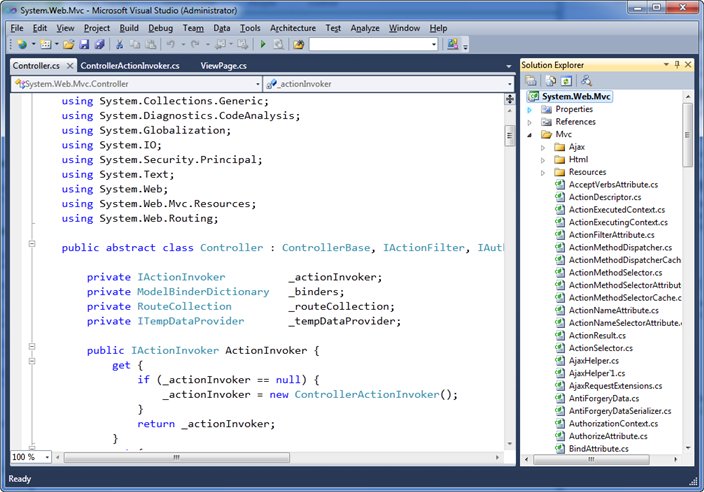
Searching and Navigating the ASP.NET MVC Source Code
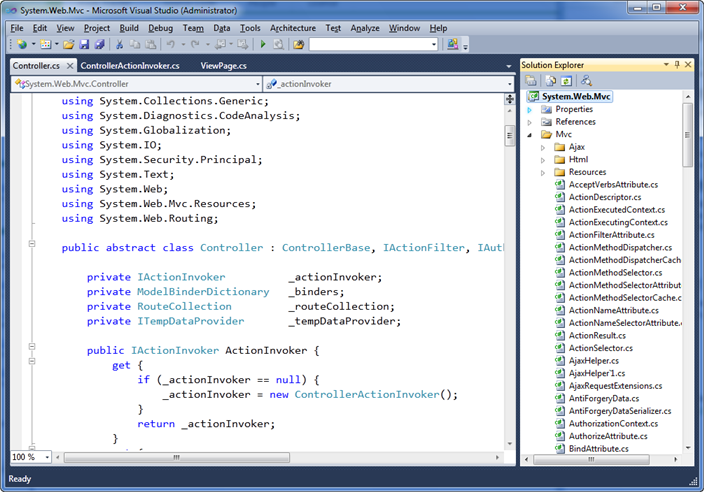
For this blog post I’m going to use the ASP.NET MVC framework code-base (which has many thousand lines of code) to help demonstrate some of the new VS 2010 searching and navigation features. If you have VS 2010 Beta 2 installed, you can follow along by downloading and opening the ASP.NET MVC framework source code from here.
You should find that the performance of the below features is really fast with this project – despite it being many thousands of lines of code in size. All of the features I’m demonstrating below are also now built-into VS 2010 (and work for all project types and for both VB and C#).
VS 2010 “Navigate To” Support
Being able to quickly find and navigate code is important with both big and small solutions.
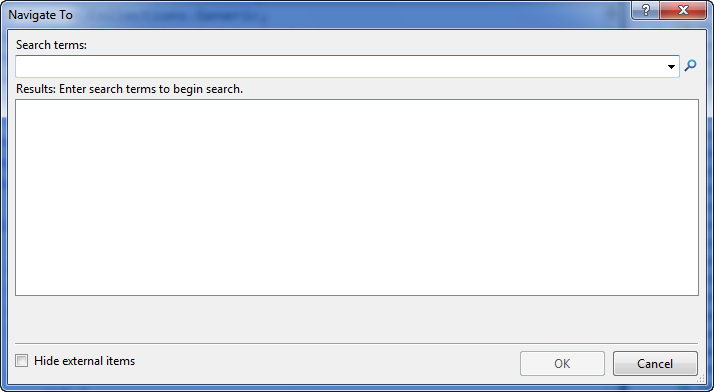
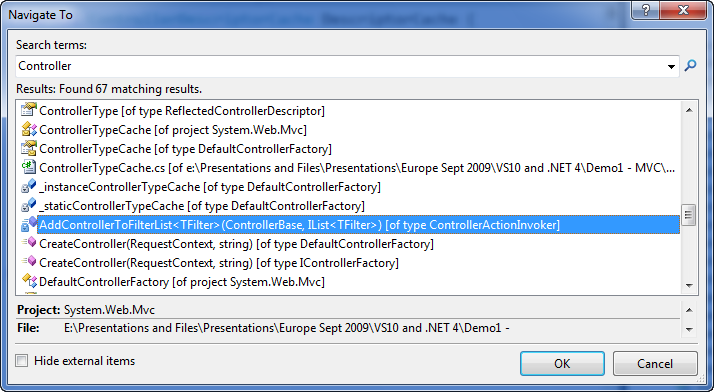
Visual Studio 2010 now supports a new (Ctrl+comma) keyboard shortcut (meaning the control key is held down together with the comma key). When you press the (Ctrl+comma) combination, a new VS 2010 “Navigate To” dialog will appear that allows you to quickly search for types, files, variables and members within your solution – and then open and navigate to them:
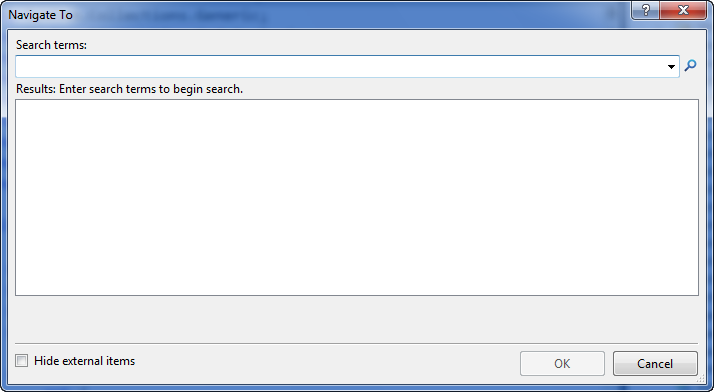
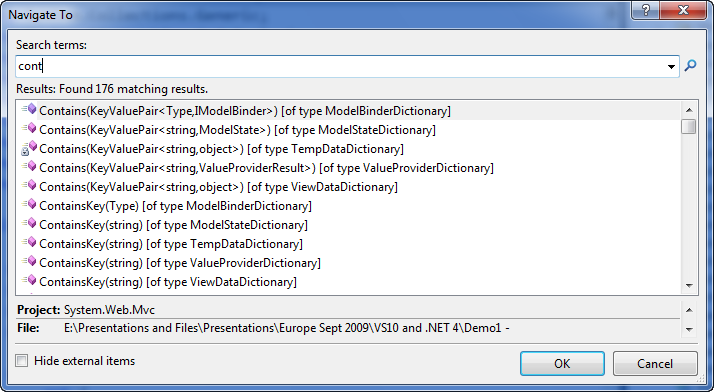
The “Navigate To” dialog provides an fast incremental search UI – with results immediately populating as soon as you start typing search terms. For example, type “cont” (without pressing enter) and you’ll see that 176 results immediately show up within the results list as you start to type:
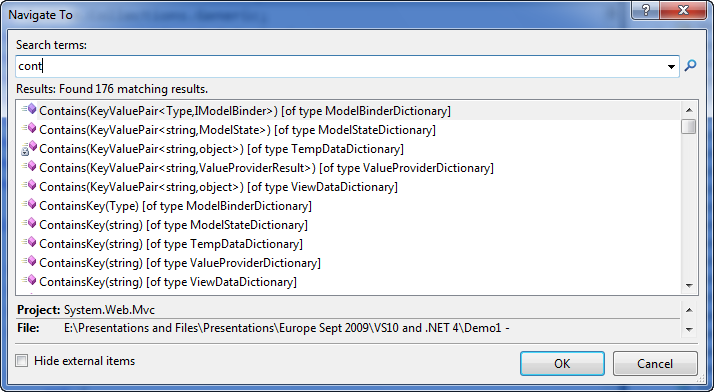
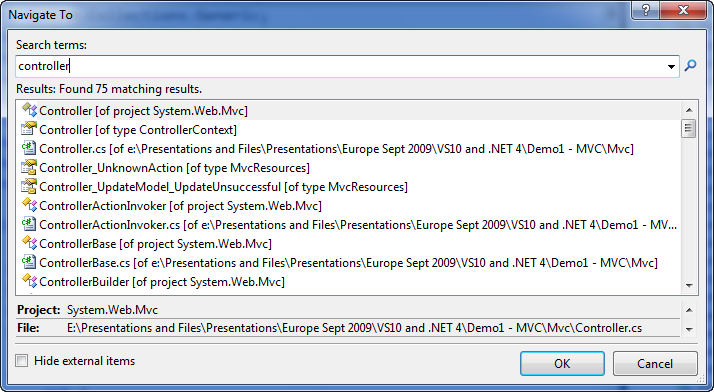
Type a few more characters and you’ll see the list automatically filters to just those results that match “controller”:
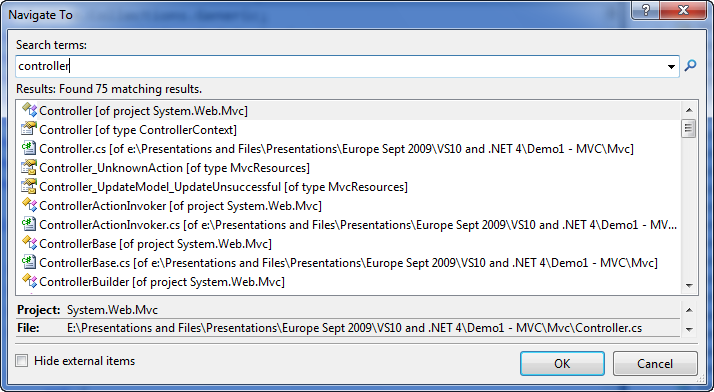
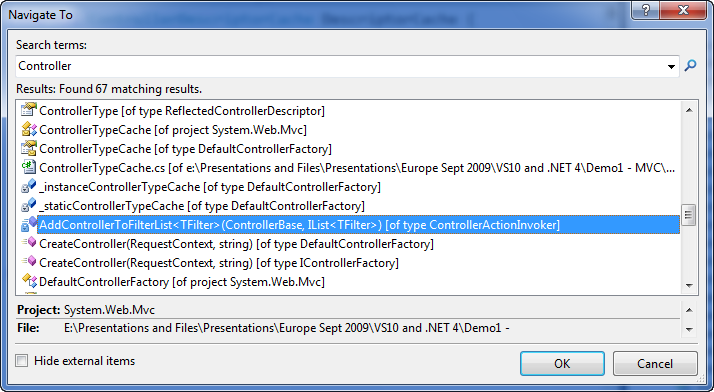
You can use the scroll bar to scroll through the results – or alternatively press the tab key and then use the cursor arrows if you don’t want to take your hands off the keyboard. You’ll find that the “Navigate To” window lists all types of results that match your search term – including Type names, Method/Property names, Field declarations, and file names:
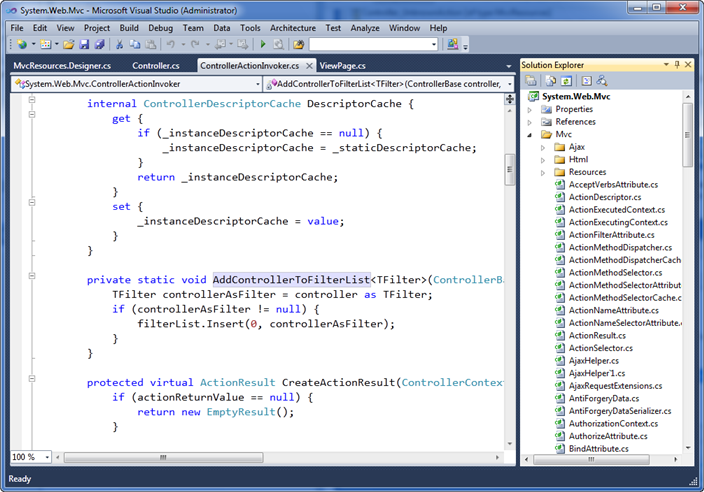
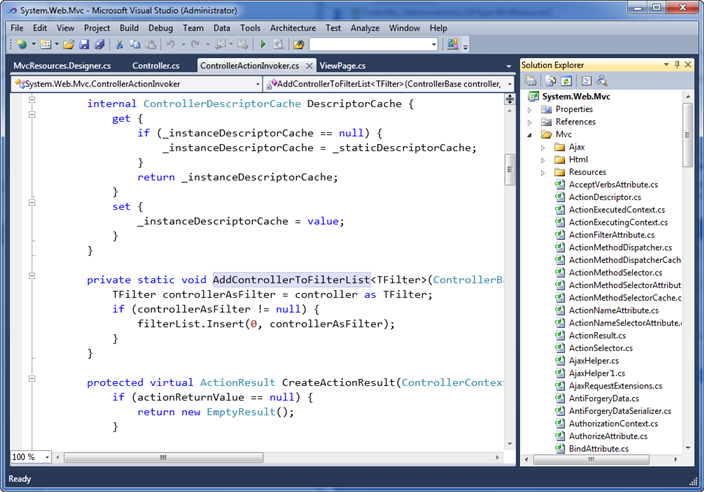
Selecting any of the results in the results list will open the relevant source file within VS 2010 (if it isn’t already open) and take you immediately to the relevant source location (and highlight the relevant name within it):
Nice Fuzzy Search Capabilities
The “Navigate To” search box supports some nice “fuzzy search” capabilities that allow you to perform smart filters and searches without having to know exactly the name of the thing you are looking for. These work well with the incremental/immediate search UI of the dialog – and allow you to refine your searches and get real-time results as you type.
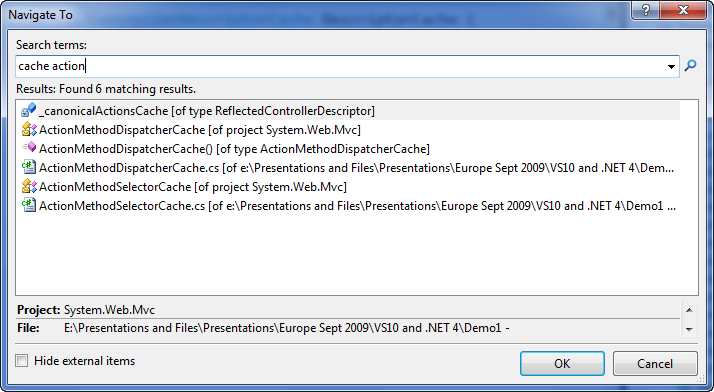
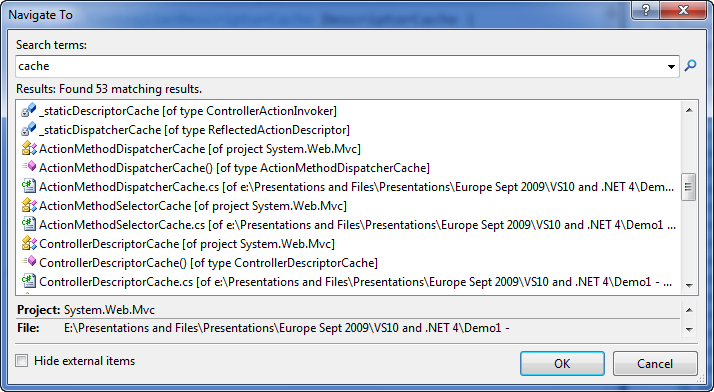
To try this out let’s first search on the word “cache”. Notice how the search results include not just items that start with the word “cache” – but also display any results that have the word “cache” in it:
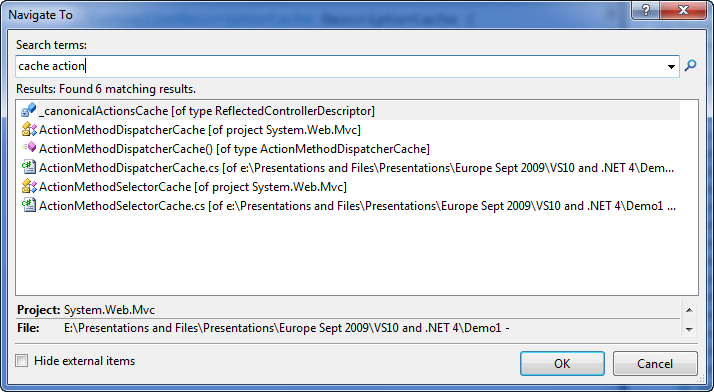
We can add multiple words to the search textbox to further filter the results. For example, below I am filtering the list to only include those that have both “cache” and “action” in the name:
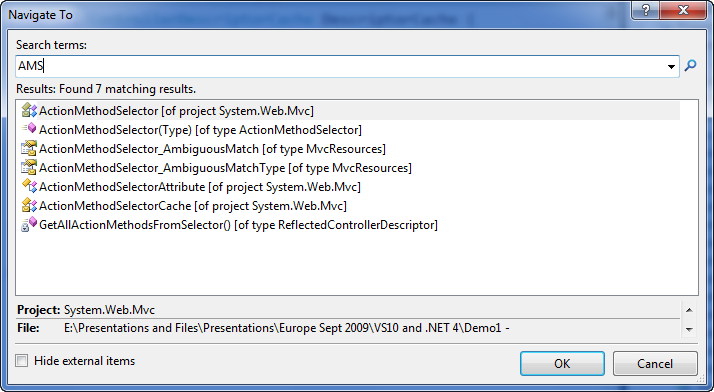
Types and members within the .NET Framework using a naming design-guideline pattern called “Pascal Casing” – which means that the first letter of each word in a Type or Member name is capitalized. The “Navigate To” dialog allows you to optionally use this “Pascal Casing” convention to quickly filter types. Just type the uppercase first letter of names in a type/member and it will automatically filter for results that match the uppercase pascal naming convention.
For example, typing “AMS” will filter to the below results (just those types and members that have words in them that start with A then M then S):
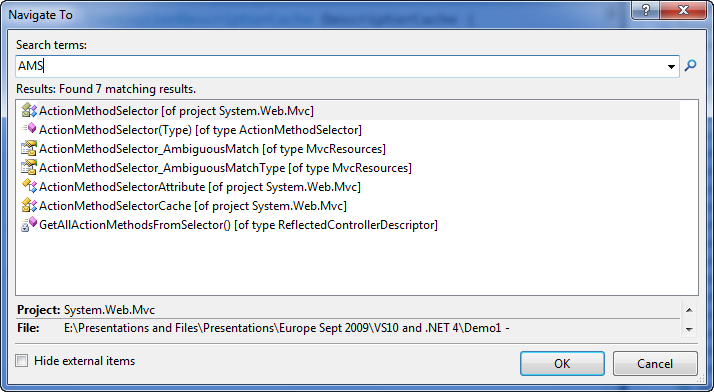
The “Navigate To” dialog allows you to quickly filter and locate code with a minimum of keystrokes – and avoid you ever having to use the mouse, open the solution explorer, and click on a file directly.
View Call Hierarchy
Having the ability to quickly search and navigate to code is great. Being able to also quickly discover how that code is being used is even better. VS 2010 introduces a new “View Call Hierarchy” feature that allows you to quickly discover where a particular method or property within your code-base is being called from, and allows you to quickly traverse the call tree graph throughout the code-base (without having to run or debug the solution).
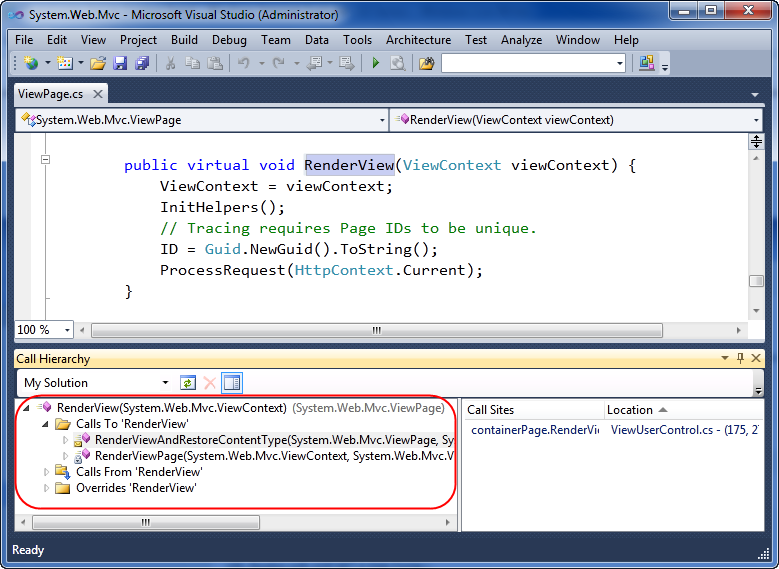
To use this feature, simply select a method or property name within your code-base, and then either type the (Ctrl+K,Ctrl+T) keyboard shortcut combination, or right-click and select the “View Call Hierarchy” context menu command:
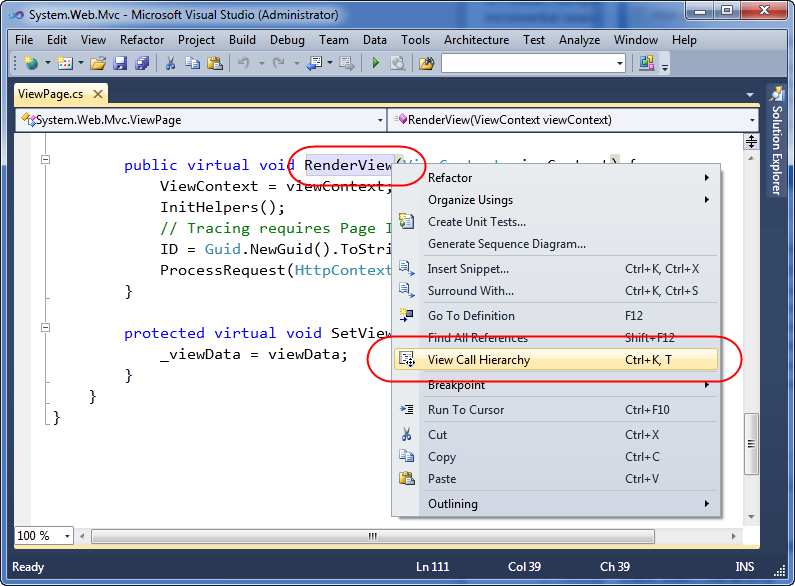
This will bring up a new “Call Hierarchy” tool window that by default shows up under the code editor. Below you can see how the “Call Hierarchy” window is displaying the two methods within our solution that invoke the ViewPage.RenderView() method we selected above.

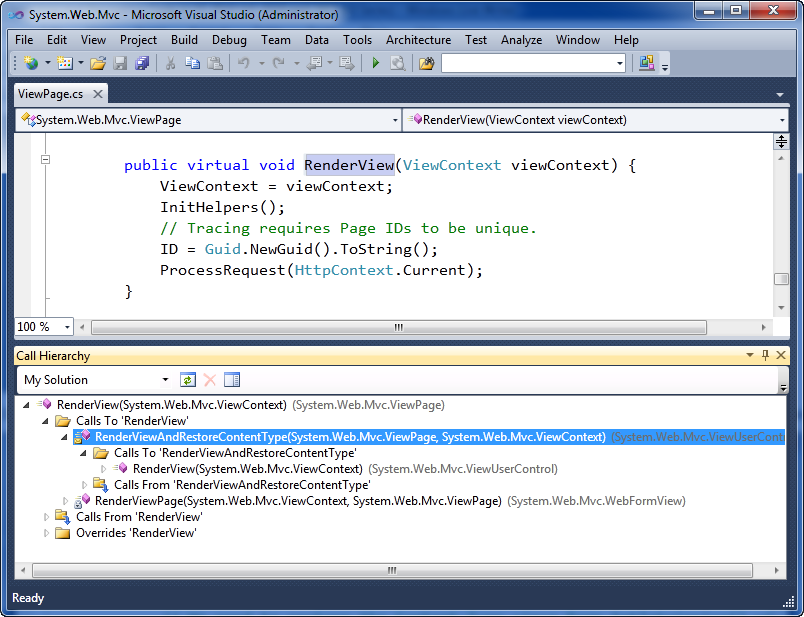
We can then optionally drill down hierarchically into the first “RenderViewAndRestoreContentType” method to see who in-turn calls it:
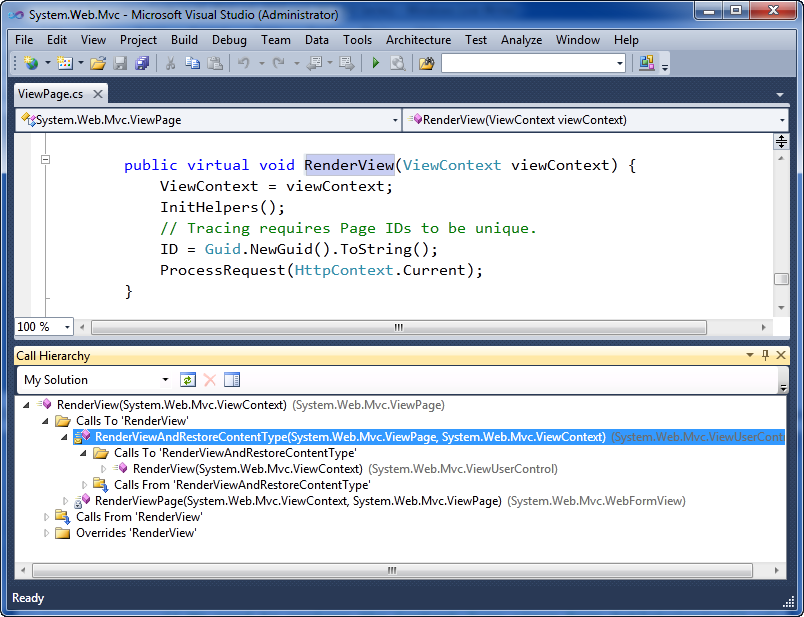
For virtual methods/properties you can also use the call hierarchy window to see what types sub-class and override them.
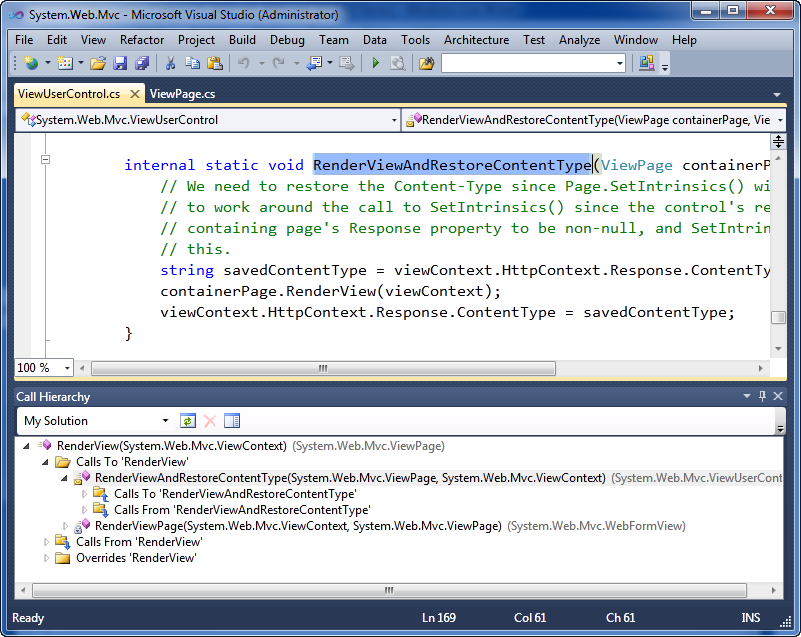
Double clicking any of the members within the “Call Hierarchy” window will open the appropriate source file and take you immediately to that source location:
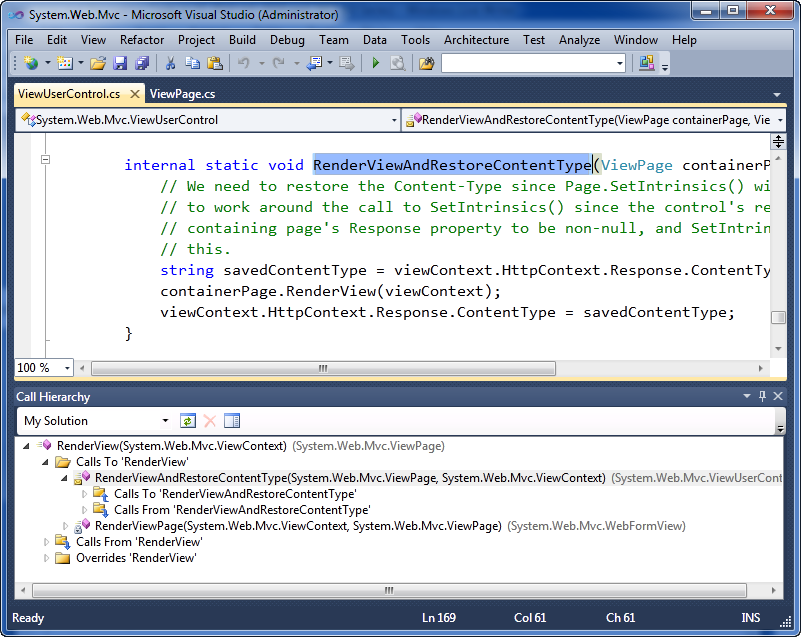
This allows you to quickly navigate throughout a code-base and better understand the relationships between classes and methods as you code.
Highlighted References
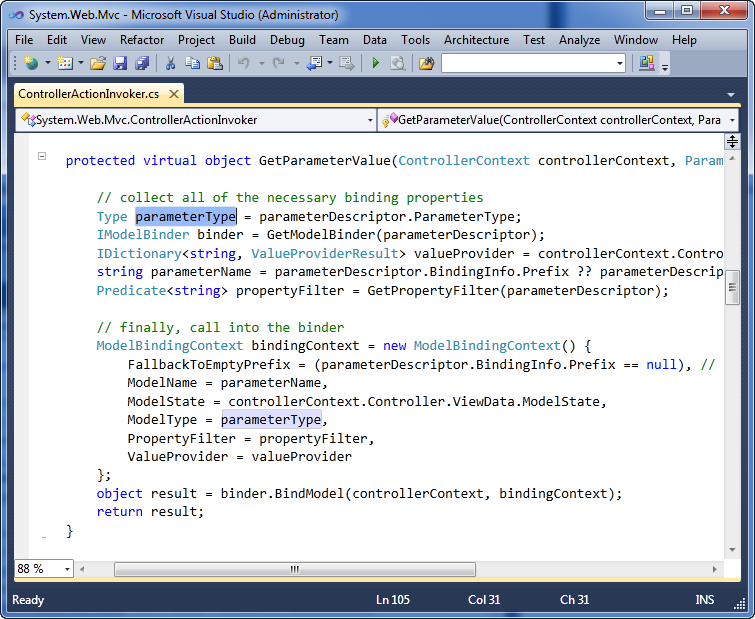
With VS 2010, when you select or highlight a variable / parameter / field declaration within the code-editor, all subsequent usages of it are now automatically highlighted for you within the editor. This makes it easy to quickly identify where and how a variable or parameter is being used.
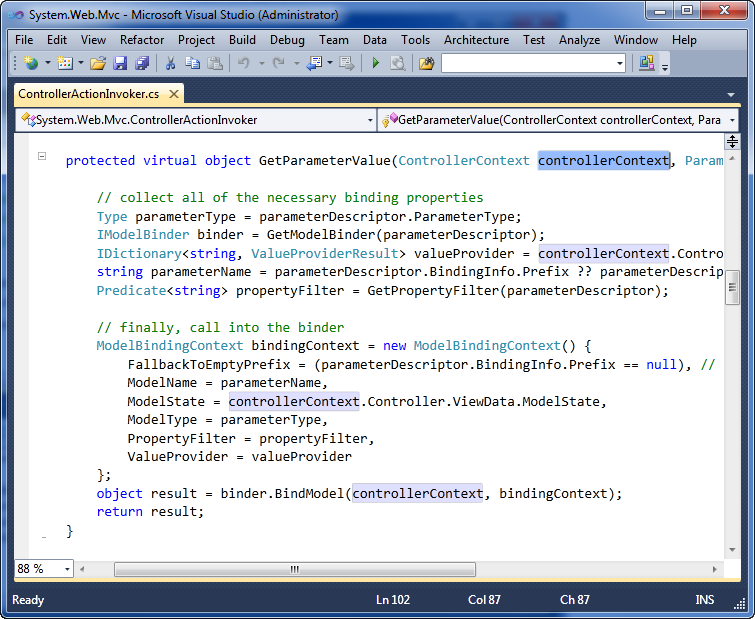
For example, when we select the “controllerContext” parameter passed to the ControllerActionInvoker.GetParameterValue() method in the editor below, notice how the 4 usages of it within that method are also now automatically highlighted:

If I select a local variable within the method, all the places it is used are also now automatically highlighted:

If multiple usages are highlighted, you can cycle through them using the (Ctrl-Shift-up arrow) and (Ctrl-Shift-Down arrow) keystrokes to quickly move the cursor to the previous or next highlighted symbol.
Summary
The new VS 2010 text editor makes it easy to quickly search, navigate and explore code within a project or solution. The performance of these operations is really fast (even with a large code-base) and are kept up to date as you work on the project and make changes to it. The end result enables you to be much more productive.
Hope this helps,
Scott
P.S. In addition to blogging, I have recently been using Twitter to-do quick posts and share links. You can follow me on Twitter at: www.twitter.com/scottgu (@scottgu is my twitter name)
by community-syndication | Oct 20, 2009 | BizTalk Community Blogs via Syndication
As the public launch of Visual Studio 2010 Beta 2 is probably old news in the BlogSphere by now, I thought I’d try and get an early webcast out. I spent about an hour playing with the new Workflow Foundation (WF) designer, and have to say it’s looking pretty good.
I didn’t think that much of it in the PDC bits or Beta 1, but both the Sequential and Flowchart workflow designers are now very nice to develop with. I’ve not has the chance to look at any complex problems or do any heavy lifting with them, but so far they are impressive.
I have a short webcast looking at the new designer, using sequential and flowchart workflows, and a simple custom activity.
The webcast is here.
by community-syndication | Oct 20, 2009 | BizTalk Community Blogs via Syndication
Now that Visual Studio 2010 Beta 2 is out, I’ve spent some time updating the editor extensions I created for VS2010 using the new extensibility model so that they work with Beta 2. The changes needed haven’t been very extensive, but they were not obvious at first.
Here’s a list of the most important changes that […]
by community-syndication | Oct 20, 2009 | BizTalk Community Blogs via Syndication
I run Windows Server 2008 Core in a VirtualBox virtual machine as my Active Directory Domain Controller for a small BizTalk test environment and I’ve discovered that it doesn’t take kindly to being ’saved’ – when the server is resumed my other servers seem to be unable to communicate with it and do AD type […]
by community-syndication | Oct 20, 2009 | BizTalk Community Blogs via Syndication
Hi all, I’m Matt Winkler, a PM on the WF team and occasional guest blogger here on the endpoint. I wanted to take a moment to highlight some of the interesting new things in WF4 in Beta 2. For more info on Beta 2, please check out this page.
The goals of a milestone like Beta 2 are two fold: 1.) to react to customer feedback that we’ve received on previous releases and 2.) stabilize and lock down the product to get ready to ship. While the items in #1 will be most visible, the team has done a lot of work stabilizing the product, and I feel pretty good about the Beta 2 release.
What are the big changes?
Activity Hierarchy Changes
For those of you who thought it was a little weird that we talked about writing activities, but having to derive (ultimately) from WorkflowElement in order to write them, this change is for you. Here’s a snapshot of the activity hierarchy in Beta 1:
We heard that feedback loud and clear and have made a few changes to how the activity hierarchy is factored:
The key changes are:
- WorkflowElement goes away, and is replaced with Activity. Activity is the root type for all units of execution within the world of WF
- Addition of ActivityWithResult which is the base for the Expression activities
- Addition of AsyncCodeActivity. We got a lot of feedback that people liked what we were doing integrating asynchronous programming within activities but that there was still a fair amount of work in order to hook those up. AsyncCodeActivity is some nice sugar that makes it pretty easy to write an activity that takes advantage APIs that surface a Begin/End pair using the asynchronous programming model.
Runtime and Hosting
Validation has been improved for activity authors to write code within CacheMetadata() to validate the activity tree. CacheMetadata() is also the one stop shop for customizing behaviors that were previously spread through methods like OnGetArguments(), GetConstraints(), and GetActivities()
Make it easier to use ActivityAction by introducing DelegateArguments to pass data into and out of an ActivityAction. In Beta 1, this required using an object of type Variable<T> that was assigned to a property named Argument.
In the ’under the hood’ category, the team has made improvements to Persistance, Durable timer and tracking which should provide a better runtime experience for the WF4 developer.
Last on the runtime front, dynamic update was a feature that had made its debut in Beta 1, but was removed again between Beta 1 and Beta 2 – and will not be present in the RTM release.
And, within hosting, WorkflowInstance was renamed to WorkflowApplication based on Beta 1 feedback from users.
Activities
The messaging activities are the key component for integrating WF and WCF together. Based on customer feedback we’ve made improvements to:
- Correlation
- XPath can now be generated from ParametersContent
- CorrelationQuery and AdditionalCorrelations have been merged into a collection called CorrelationInitializers. Also, we’ve reduced the need for CorrelationHandles all over the place by improving the CorrelationScope and having an implicit correlation handle.
- Parameters support
- We’ve removed the *Parameters activities and merged that into the Send and Receive activities. You can now use the Content property to support MessageContent (primarily for untyped Message or MessageContract ) and ParametersContent (which is for the more RPC style list of name value pairs).
We’ve also refactored the semantics around the error handling activities to behave similar to a “throw” in a C# catch block. The most visible aspect of this change is the addition of the Rethrow activity.
Lastly, the InvokePowershell activity is no longer shipped as part of the .NET Framework. Fear note, for it is not gone; it has been moved to the SDK samples, joining other quite useful activities.
Interop Activity
The Interop activity is a key component for WF4 workflows, allowing you to continue to leverage activities built in WF3. We’ve made improvements to the way that validations and transactions are handled within the Interop activity to more fully support WF3 activities.
Designer
I plan on having a whole post specifically around that, but we’ve done a fair bit of work to address feedback that we’ve received, namely:
- Expand in place support
- This makes it easy expand an activity within the canvas without having to drill into it. This also lets you collapse activities when you don’t want to see all of the detail
- Imports designer
- No more fully qualified type names within expressions
- Text of flowchart lines for FlowDecision and FlowSwitch
- This is a nice usability / readability fix for the Flowchart, making it easier to see which cases and conditions the lines leading from decision shapes are for.
We received a lot of great feedback from folks about Beta1, and we’ve had a few usability studies done here in Redmond which have provided additional feedback that have shaped the work that we’ve done on the designer. Additionally, we’ve done work to clean up the object model to make it easier to rehost and customize the design experience. There have also been a number of key stability improvements and bug fixes to the expression editing experience which was a little rough in Beta 1.
If there are other resources you are looking for, let us know!
by community-syndication | Oct 20, 2009 | BizTalk Community Blogs via Syndication
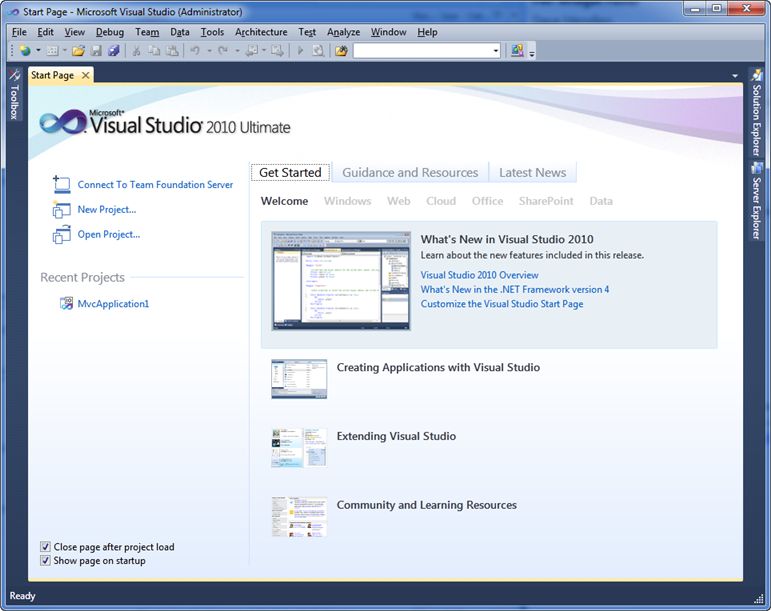
I’m happy to announce that today we shipped the Beta 2 release of Visual Studio 2010 and .NET 4.0. MSDN subscribers can download Beta 2 immediately. We will be opening up Beta 2 for everyone to download starting this Wednesday.
VS 2010 and .NET Improvements
VS 2010 and .NET 4 bring a huge number of improvements and additions. They include big advances for ASP.NET web development, WPF and WinForms client development, SharePoint development, Silverlight development, data development, parallel computing development, and cloud computing development. VS 2010 also delivers a ton of improvements in the core IDE, code editors, programming languages, and enterprise design, architect, and testing tools.
TFS 2010 is now easy to install (only 20 minutes to setup source control, bug and work item tracking, build automation, and continuous integration), can be installed on both servers as well as client OS and domain controller machines, and is now included with all MSDN subscriptions of Visual Studio.
I’ve started a series of blog posts that will cover some of the improvements and feature additions in VS 2010 and .NET 4. Stay tuned to my blog as I post many, many more posts over the coming months.
VS 2010 Product Line SKU Simplifications
With VS 2010 we are simplifying the product lineup and pricing options of Visual Studio, as well as adding new benefits for MSDN subscribers. With VS 2010 we will now ship a simpler set of SKU options:
- Visual Studio Express: Free Express SKUs for Web, VB, C#, and C++
- Visual Studio 2010 Professional with MSDN: Professional development tools as you are used to today with the addition of source control integration, bug tracking, build automation, and more. It also includes 50 hours/month of Azure cloud computing.
- Visual Studio 2010 Premium with MSDN: Premium has everything in Professional plus advanced development tools (including richer profiling and debugging, code coverage, code analysis and testing prioritization), advanced database support, UI testing, and more. Rather than buying multiple “Team” SKUs like you would with VS 2008, you can now get this combination of features in one box with VS 2010. It also includes 100 hours/month of Azure cloud computing.
- Visual Studio 2010 Ultimate with MSDN: Ultimate has everything in Premium plus additional advanced features for developers, testers, and architects including features like Intellitrace (formerly Historical Debugging), the new architecture tools (UML, discovery), test lab management, etc. It also includes 250 hours/month of Azure cloud computing.
Side by Side Support with VS 2008
VS 2010 and .NET 4.0 can be installed side-by-side on the same machine as VS 2008 and .NET 3.5. You can install the Beta 2 version on a machine and it will not impact your existing VS 2008 / .NET 3.5 development.
Go-Live License Available
.NET 4 and VS 2010 Beta 2 include a “go-live” license which means you can start using the products for production projects.
Summary
VS 2010 and .NET 4.0 deliver some significant new capabilities and improvements. The goal with today’s Beta 2 release was to work hard on performance, stability, and the integration of the overall feature set. The team’s focus is now transitioning to getting your feedback on the product and preparing for the final release candidate (RC) milestone. Please send us any feedback you have on the Beta 2 release.
Hope this helps,
Scott
P.S. In addition to blogging, I have recently been using Twitter to-do quick posts and share links. You can follow me on Twitter at: www.twitter.com/scottgu (@scottgu is my twitter name)