by community-syndication | Oct 27, 2009 | BizTalk Community Blogs via Syndication
I just finished delivering the last of the modules of 6461A: Visual Studio 2008: Windows Communication Foundation, through a mix of on-premises and distance delivery, for a group of roughly 30 people. All that’s left is a little wrap up. Previously on Windows Vista I’ve had my A2DP bluetooth headset working, but I just simply couldn’t get that to work on Windows 7. So I got a new toy, the LifeChat ZX-600.
I can recommend it for delivering LiveMeetings or Webcasts. The sound quality is good, the device is unobtrusive allowing movement (which is a problem with a non-portable microphone) and it works nicely for Windows 7 although the product info page doesn’t explicitly say so.
I use it together with my Presenter Mouse 8000 (which also works perfectly both on Windows 7 without its co-delivered USB transmitter) as the hardware part of the tools I use when delivering courses as an MCT or otherwise.
by community-syndication | Oct 27, 2009 | BizTalk Community Blogs via Syndication
[In addition to blogging, I am now using Twitter for quick updates and to share links. You can follow me on Twitter at: twitter.com/scottgu (@scottgu is my twitter name)]
This is the eleventh in a series of blog posts I’m doing on the upcoming VS 2010 and .NET 4 release. Today’s post covers WPF 4.
WPF 4 Improvements
WPF (Windows Presentation Foundation) is one of the core components of the .NET Framework, and enables developers to build rich, differentiated Windows client applications. WPF 4 includes major productivity, performance and capability improvements – in particular in the areas of Controls, XAML, Text, Graphics, Windows 7 integration (multitouch, taskbar integration, etc), Core Fundamentals, and Deployment. This is the first of several posts I’ll do over the coming months about some of the improvements and new features.
I will do a separate post soon that covers some of the major advances coming with VS 2010’s WPF and Silverlight Designer – which also includes a ton of improvements.
Controls
Controls for Building Rich Clients
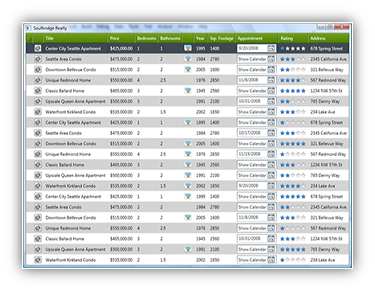
WPF 4 adds a variety of new controls that make building rich line-of-business applications for the client easier and faster. The new, richer control set includes LOB essentials such as DataGrid, DatePicker, and Calendar controls. These new controls are 99% API- and behaviorally-compatible with their Silverlight counterparts, enabling developers to create a consistent experience across the client and web while optimizing workflow by reusing code between Silverlight and WPF implementations.
Bag O’Tricks is back
We are also releasing an out-of-band collection of eight controls called the WPF Bag O’ Tricks download. It includes the following controls: AnimatingTilePanel, ColorPicker, InfoTextBox, ListPager, NumericUpDown, Reveal, TransitionsPresenter, TreeMapPanel.
Windows 7 & Office Ribbon Control
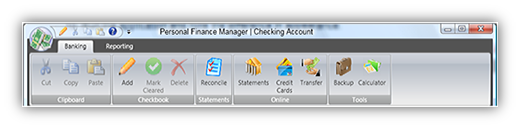
A new WPF Ribbon Control will be available for download shortly after the release of WPF 4. It features skins for Windows 7 and Office, as well as all the standard Ribbon features that end-users are familiar with, including tabs and groups, dynamic resizing, quick access toolbar, application menu, contextual tabs, key tips, and more.

The WPF Ribbon will be fully extensible to meet changing guidelines for future releases. A CTP with a limited feature set is available today here
 GRAPHICS
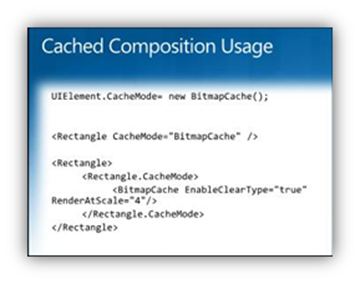
Cached Composition
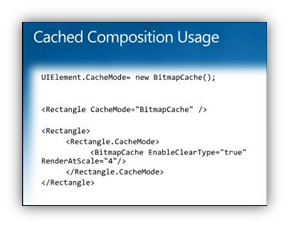
Massive performance wins are possible with the new Cached Composition feature in WPF 4, which allows applications to cache arbitrary content including live and fully-interactive controls, vector geometry, etc. as bitmaps which persist in video memory. Once cached, these elements can be arbitrarily transformed, animated, manipulated, and can have Effects applied, all without having to re-render the cached element.
This spares both the CPU and the GPU the cost of re-rendering content, and instead allows the GPU to render straight from the cache. The cache(s) understand dirty regions, so a blinking cursor in a cached textblock, for example, will only need to re-render the cursor between frames. There’s even a new Brush which specifically uses these intelligent caches – effectively a VisualBrush with vastly better performance.
Pixel Shader 3 Support
WPF 4 builds on top of the very popular ShaderEffect support first introduced in WPF 3.5 SP1 by allowing applications to now write Effects using Pixel Shader version 3.0. The PS 3.0 shader model is dramatically more sophisticated than PS 2.0, allowing for even more compelling Effects on supported hardware.
LayoutRounding
WPF 4 adopts the UseLayoutRounding property, originally introduced in Silverlight 2. WPF’s layout engine frequently calculates sub-pixel positioning coordinates. This can lead to rendering artifacts as elements positioned on sub-pixel boundaries are anti-aliased over multiple physical pixels.
UseLayoutRounding will force the layout engine to place elements on whole pixel boundaries, thus removing most of the rendering artifacts caused by this problem – which generates cleaner and crisper UI by default.
 Animation Easing Function
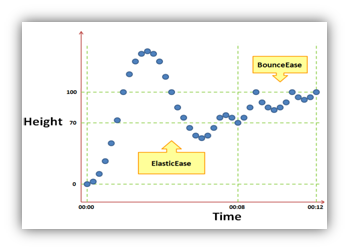
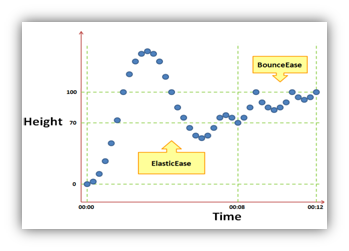
Discrete, linear, and spline animations were supported with previous versions of WPF. WPF 4 introduces a new concept of Easing Functions – which allows application authors to create fluid behavior using animations. This can be used in an infinite number of ways, such as creating a springy behavior, or adding anticipation to an animation. Easing Functions customize the manner in which animations progress from start to finish. The built-in easing functions provide a range of behaviors such as circular, exponential, elastic, and bouncy animation progress. The extensibility design also allows application authors to create custom easing functions to define the manner in which their animations progress. With this easy-to-use feature, designers can effortlessly create fluid, organic animations.
CleartypeHint
The new CleartypeHint attached property allows application authors to enable higher-quality Cleartyped text rendering in many situations where it would have previously been disabled. Such situations include text in layered windows, text in VisualBrushes, DrawingBrushes, BitmapCacheBrushes, and anywhere else where the introduction of an intermediate render target would have previously resulted in grayscale text rendering.
TEXT STACK
New Text Rendering Stack
The WPF text rendering stack has been completely replaced – a change that brings with it significant improvements to text rendering clarity, configurability, and support for international languages. The new text stack now supports display-optimized character layout, to produce text with comparable sharpness to Win32/GDI text:

WPF’s new text stack also now supports explicitly selecting aliased, grayscale, or ClearType rendering modes:
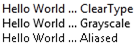
The new text stack allows optimizing text hinting and snapping for either animated or static text. Additionally, the new text stack now supports fonts with embedded bitmaps. This allows many East Asian fonts to render with the sharpness to which Win32 users have grown accustomed.
BindableRun
Since the initial release of WPF, Run.Text has been a normal CLR property. This has meant that Run.Text lacks all the benefits of the WPF dependency property system, most notably the ability to be bound. In WPF 4, we have converted Run.Text to a dependency property allowing developers to use the first WPF supplied bindable Run. More details can be found here.
Custom Dictionaries
WPF includes a spell checker which before WPF 4 only used the OS-provided dictionary for input validation. This has been a major issue for apps which target specific industries with specialized terminology, as those apps were plagued by misspelling notifications. WPF 4 has introduced an API to allow an application to add words to the dictionaries used by WPF for spell checking. More details can be found here.
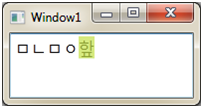
Selection and Caret Brush
In a push to allow rich customization of the look and feel of WPF apps, developers can also now change the brush used to paint WPF text selection and carets via two simple properties: SelectionBrush and CaretBrush:

 WINDOWS 7 LIGHT UP
Windows 7 Multitouch Support
With the introduction of multi-touch input and manipulation processing support, WPF 4 provides a great way to light up your client applications in Windows 7. Multiple finger input are exposed through existing and new input events in WPF 4, while new manipulation and inertia events are now available for developers to use. New features include:
- Multi-touch Manipulation, Inertia (Pan, Zoom, Rotate) events on UIElement
- Raw multi-touch events (Up, Move, Down) on UIElement, UIElement3D and ContentElement
- Multiple capture supporting multiple active controls
- ScrollViewer enhancement to support multi-touch panning
- Touch device extensibility
- Future Surface SDK compatibility
Windows 7 Shell Integration
WPF 4 also exposes several new and key Windows 7 Shell features to WPF developers. These Shell features enable a richer, integrated user experience. The new taskbar is less cluttered and can convey more information at a glance. The Aero thumbnails support user commands. Jump lists provide access to contextual startup tasks and files available to the application.
WPF 4 integrates Windows 7 Jump List functionality, including: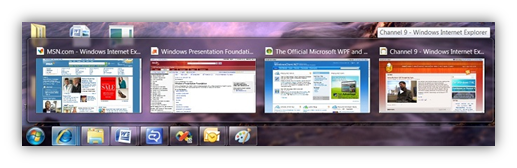
- Tasks
- Items
- Recent and Frequent Lists integration
- Custom Categories
Windows 7 Taskbar integration, including:
- Progress bar
- Overlay Icon
- Thumbnail buttons with commanding support
- Description Text DWM Thumbnail clipping
In Windows 7, the taskbar has been redesigned to be less cluttered and to help users perform tasks with fewer clicks. WPF 4 provides integration with the Windows 7 taskbar in XAML, allowing applications to surface useful information to the user from the application’s taskbar icon using icon overlays, progress bar, thumbnail toolbars, thumbnail description text, and thumbnail clipping.
There is also a new TaskbarItemInfo class in WPF 4 that is exposed as a dependency property. It encompasses all the new taskbar features introduced in Windows 7.
 Icon Overlays
Icon overlays allow an application to communicate certain notifications and status to the user through its taskbar button by display of small overlays which appear at the lower-right corner of the button.
Progress Bars
A taskbar button can be used to display simple progress information to the user without that user having to switch to the application window itself. Progress bars can be used to track file copies, downloads, installations, media burning, or any other operation that will take a period of time.
Thumbnail Toolbars
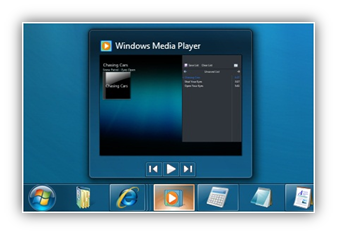
Thumbnail Toolbars provide access to the key commands for an application without the user having to restore or activate the window. This feature enables application authors to embed an active toolbar control in a window’s thumbnail preview. The application can show, enable, disable, or hide buttons from the thumbnail toolbar as required by its current state:
WPF FUNDAMENTALS
New XAML/BAML Parser Engine
WPF 4 has replaced its implementation of XamlReader.Load(), BAML loading, Control & DataTemplates functionality with a new engine built on top of the new System.Xaml.dll. As part of this effort, we’ve fixed many bugs and made many functionality improvements. Users of XamlReader.Load() can take advantage of several new language features in XAML2009 such as support for generic types. MarkupExtensions and TypeConverters can now get more services during object graph creation, enabling more scenarios, such as access to the Root object. Tools to analyze and manipulate XAML will also be much easier to create with many of the new low level APIs provided in System.Xaml.dll.
Data Binding Support for DLR
Unlike CLR classes, the members of dynamic objects are defined at runtime. DynamicObject is a new abstract class in the .NET Framework 4 that allows developers to easily implement IDynamicMetaObjectProvider. With C#’s new DLR support with the ’dynamic’ keyword, we are expecting some library implementations to switch to using DynamicObject and IDynamicMetaObjectProvider as a standard way to exposing runtime defined properties and members of objects. WPF 4 data binding support for IDynamicMetaObjectProvider will allow the use of natural property syntax to access dynamic properties.
This feature extends the WPF data binding engine to map the existing property and indexer access data binding syntax to support access to dynamic members offered by IDynamicMetaObjectProvider.
Visual State Manager (VSM)
Another new feature supporting the WPF-Silverlight continuum is the VisualStateManager, which introduces a simple new way to apply visual states to controls. This mechanism provides a way to easily customize both the look and feel of a control by providing the means to map the control logic to its respective start and end visual states.
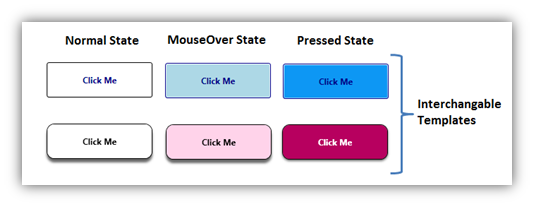
VSM is very flexible in that it automatically generates the transition animations in between the respective states, so the control author spends less time writing code and more time on the visual states that are defined in a control template. That means VSM can give a control author the ability to easily interchange the look and feel of controls, and VSM gives the control author a way to easily interchange how a control visually responds to user interaction. This is fully supported with Expression Blend.
HTML-XBAP Script Interop
WPF 4 provides the means for direct communication between an XBAP and script in the host HTML page (where the XBAP is loaded in an HTML frame or IFRAME element). The XBAP can get deep access to the HTML DOM, including to any ActiveX controls embedded in the containing HTML page and including handling of DOM events.
WPF exposes the main script object from the host frame. This is a dynamic object that represents the frame’s window object plus any custom script functions and global variables from script in the HTML page. From it, an application can invoke script functions directly or “dot into” the HTML DOM. The functionality is available in partial-trust XBAPs and under all supported versions of Internet Explorer and Firefox.
UIAutomation Virtualization
WPF has introduced virtualized controls in past releases; however there was never a standardized way for an automation client to interact with a virtualized control. Two control patterns, ItemsContainerPattern and VirtualizedItemPattern, have been added in WPF 4 to support access and interact with virtualized elements. ItemsContainerPattern is used to access the virtualized controls & find virtualized items and VirtualizedItemPattern is used to realize virtualized items.
SynchronizedInput Pattern
This is another UIA control pattern added in WPF 4. This pattern could be used by automation clients to track whether the given input event is routed to the correct element by WPF framework. This pattern has three associated automation events, viz. InputReachedTargetEvent, InputReachedOtherElementEvent and InputDiscardedEvent to indicate where the input is handled.
CLIENT DEPLOYMENT
.NET Framework 4 Client Profile
To improve deployment size, time and overall experience of the .NET Framework 4 deployment, there is now a more compact version of .NET that is a subset of the full .NET Framework 4 – called the .NET Framework 4 Client Profile. The current redistributable size of the .NET Framework 4 Client Profile is about 30MB. The full Microsoft .NET Framework 4 is a pure superset of the Client Profile.
The goal of the .NET Framework 4 Client Profile is to improve and help streamline the deployment size, time, reliability and overall deployment experience for client applications. The Client Profile contains the functionality that most common desktop client applications (including Windows Forms and WPF applications) would need so it is anticipated that the majority of client application developers will target it instead of the Full .NET Framework 4. For that reason, most Visual Studio 2010 Beta 2 client project templates target the .NET Framework 4 Beta 2 Client Profile by default.
Unlike the .NET Framework 3.5 SP1 Client Profile, an important enhancement in the NET Framework 4 Client Profile is its support on all platforms and OSs, including those supported by the Full Framework like Windows Vista, Windows XP, Windows Servers 2003 and 2008, Windows 7, all for both x86 and x64.
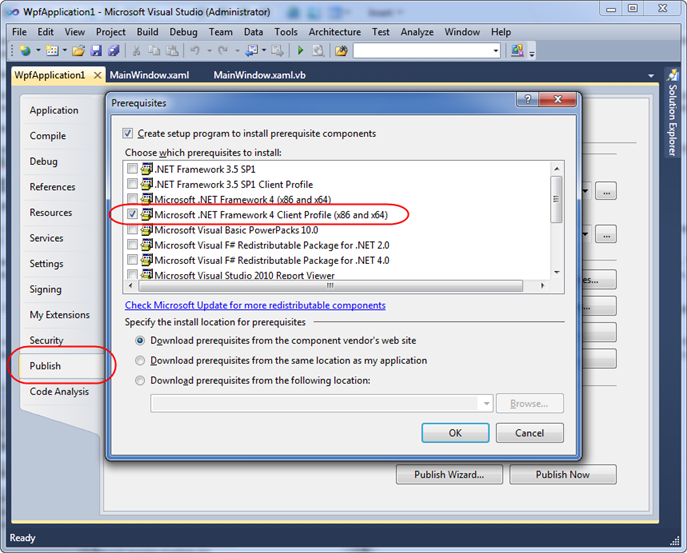
You can view or change the version of the framework that you target by opening your project’s properties window, and then select the "Application" page. You can then change the “Target framework” drop-down to either the full .NET Framework or the .NET Client Profile. The project Publish property page also allows you to select the prerequisite needed for your ClickOnce deployment. In Beta2, VS2010 automatically selects the correct profile (Client Profile or Full) depending on your primary project target:
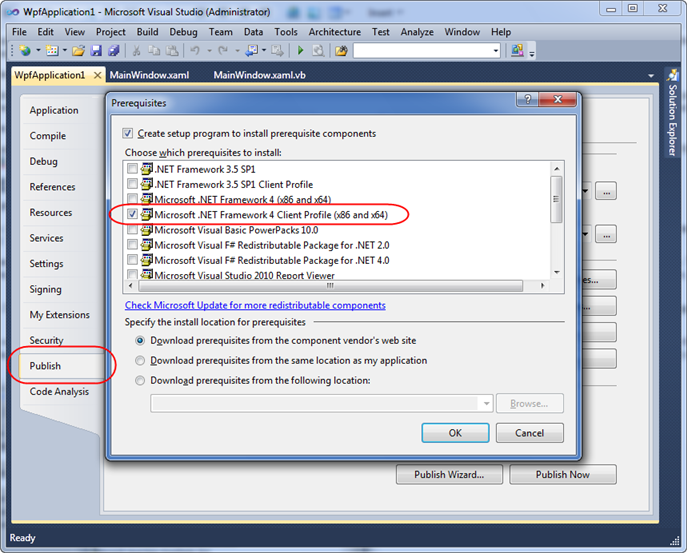
The same prerequisite dialog from above appears when you create “Setup and Deployment” projects (under “Add New Project”/“Other Project Types”). The NET4 Client Profile prerequisite entry is checked by default in this case.
Enhancements in NET4 Client Profile vs. NET 3.5 SP1 Client Profile
Although the concept of a Client Profile is not new and was introduced in .NET Framework 3.5 SP1, the .NET Framework 4 Client Profile contains several important improvements:
| |
.NET Framework 4 Client Profile (NEW)
|
.NET Framework 3.5 SP1 Client Profile
|
|
Supported OS
|
Supported on all platforms and OSs that are supported by the .NET Framework (excluding IA64 and the Server Core role in W2K8)
|
Supported only on Windows XP 32-bit machines that did not have any .NET Framework version installed.
(Client Profile setup silently installs the full 3.5 SP1 Framework otherwise)
|
|
Redistributable
|
Supports redistributable as well as web download
|
Supports web download only
|
|
Add Remove Programs entries
|
The full Framework comprises the Client Profile and another part called “Extended”. Thus it has two entries in the Add/Remove Programs dialog (or Programs and Features window).
If you installed the Full Framework, you can switch to the Client Profile by simply removing “Extended” from Add/Remove Programs.
|
Single entry in Add Remove Programs
|
|
Visual Studio
|
Improved support for Client Profile targeting in Visual Studio 2010.
By default many Visual Studio 2010 Beta2 Client project target the NET4 Client Profile.
|
Single checkbox in Visual Studio 2008 Service Pack 1 “Application” Project properties for .NET Framework 3.5 projects. Client Profile support unavailable in out-of-the-box VS 2008.
|
|
Features
|
Includes new .NET 4 features (such as Managed Extensibility Framework (MEF), C# 4 Dynamic Keyword, etc) as well as features previously included in NET 3.5 SP1 Full (Speech, WPF Spell Check, etc)
|
Subset of features in .NET 3.5 SP1 Full
|
Because .NET 4.0 is a side-by-side release from previous releases of the .NET Framework, installation of the .NET 4.0 Framework does not require that prior versions of .NET on the machine need to be serviced/patched. This means that the .NET 4.0 Client Profile installs much faster on a machine than the .NET 3.5 SP1 Client Profile.
Full Trust XBAP Deployment
Starting in WPF 4, the ClickOnce elevation prompt is also enabled for XAML Browser Applications (XBAPs) in Intranet and Trusted Zones, making it easier to deploy full-trust XBAPs. For XBAPs that require security permissions greater than the minimum code access security (CAS) permission grantset of the Intranet and Trusted Zones, the user will be able to click ‘Run’ on the ClickOnce elevation prompt when they navigate to the XBAP to allow the XBAP to run with the requested permissions.
Summary
As you can tell above – there is a bunch of great new functionality coming with WPF 4.0. Below are a few links and resources you can follow to learn more some of these features:
I’ll do more posts in the coming months that also highlight some of the new WPF 4 capabilities and how to take advantage of them. I’ll also be doing another post shortly that talks about the new VS 2010 WPF and Silverlight designer – which makes it possible to build great WPF and Silverlight applications using a WYSIWYG designer directly within Visual Studio 2010.
Hope this helps,
Scott
by community-syndication | Oct 26, 2009 | BizTalk Community Blogs via Syndication
I’ve been fooling around a bit with the new Beta 2 build of Visual Studio 2010, so I’d thought I’d share a few comments about my general experience with the IDE, focusing mostly on the code editor.
What I like
After fooling around with my Windows configuration, font rendering on beta 2 looks a bit better than […]
by community-syndication | Oct 26, 2009 | BizTalk Community Blogs via Syndication
3 weeks to go until PDC09; sessions are being reviewed, demos are being polished, schedules are being finalized, and the booth machines are being installed and packed up to go down to Los Angeles. Among the WCF, WF, and ’Dublin’ group, we have about 15 people who will be down at PDC to chat with you about what is coming out with the release of .NET Framework 4 and to discuss some of the thoughts around what might come afterwards.
With 15 people at the event, that provides about 40-ish opportunities to chat with folks over lunch at the event. With PDC 3 weeks out, we would like to offer up about 30-40 spots with the folks heading to PDC09. Attending the event this year are folks from the PG who write and design WCF and WF, as well as the folks behind the ’Dublin’ technologies. These are our architects, our program managers, our devs, and some folks from our business group.
If you have interest in catching up with one of us at the event
- Click the ’Email’ link in the header above (white text; lower left hand portion of the header), or drop us an email to the endpoint alias (at – of course – microsoft.com)
- Use the subject ’Meet at PDC’
- In the message/body, give us an idea of who you would like to catch up with (general role is fine; we’ll match folks up appropriately) and what you would like to discuss
- Don’t forget to use/specify the best email to reach you at
Starting next week (week of Nov 2nd), we’ll start matching up the top 20 submissions to folks – and connect you up someone from the team. You can then coordinate lunch or coffee/tea or whatever in advance of the event. We’ll then fill up the remaining spots in the week before PDC.
Topics can range from the technical (feedback on the product, suggestions about what you would like to see done differently, a discussion on issues you’re currently having (and how a change we might make would make it easier)) to business (potential case study, compelling partner product, would like to learn how to better partner) to how to get more involved with authoring tutorials/whitepapers to feedback on what could be done differently on the web properties.
That being said, the team will also be heavily representing the technologies at PDC – in sessions, at the booths, and in the lounge. Even if you don’t get selected (or even submit) for a slot, we’d love to meet you and learn more about how you’re using (or would like to use) our technologies!
See you at PDC!
– Cliff
by community-syndication | Oct 25, 2009 | BizTalk Community Blogs via Syndication
Hi all
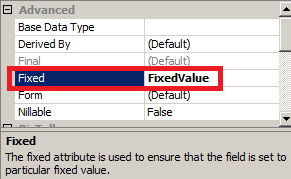
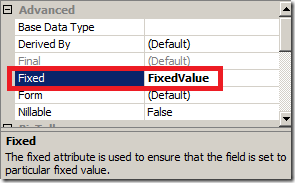
Today I tried playing with the “Fixed” property that can be set on an element or an
attribute in your schema. According to the documentation, this is then a value that
MUST be present in the element.
So the mapper is actually quite down with this – you cannot map anything to the field
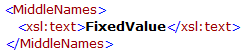
that has a value in the “Fixed” property. And when expecting the XSLT that is generated
by the mapper you will find, that the mapper simply inserts the correct and hard coded
value into the field.
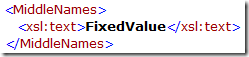
Great.
Now, I created some links in the map just to test it, and chose that the mapper should
validate the input for my map, but not the output, since I hadn’t bothered dragging
all the necessary links.
To my surprise I got this error:
 1: Output validation error: The value
of the 'MiddleNames' element does not equal its fixed value.
.csharpcode, .csharpcode pre
{
font-size: small;
color: black;
font-family: consolas, “Courier New”, courier, monospace;
background-color: #ffffff;
/*white-space: pre;*/
}
.csharpcode pre { margin: 0em; }
.csharpcode .rem { color: #008000; }
.csharpcode .kwrd { color: #0000ff; }
.csharpcode .str { color: #006080; }
.csharpcode .op { color: #0000c0; }
.csharpcode .preproc { color: #cc6633; }
.csharpcode .asp { background-color: #ffff00; }
.csharpcode .html { color: #800000; }
.csharpcode .attr { color: #ff0000; }
.csharpcode .alt
{
background-color: #f4f4f4;
width: 100%;
margin: 0em;
}
.csharpcode .lnum { color: #606060; }
An error validating the output of the map but this surely must be a mistake, because
I turned validation of the output from the map off and besides; the value in “MiddleNames”
cannot be wrong, because the mapper has put it there it self, taken from the schema.
Very weird indeed.
Only after quite a search, did I discover that the error was in validation of the
INPUT to the map and not the output. I had used the same schema as both input and
output, and my input instance did not have the correct value since it was an old test
instance.
But really Microsoft that error message could be better! 🙂
Hope this helps someone.
—
eliasen

by community-syndication | Oct 25, 2009 | BizTalk Community Blogs via Syndication
Last week – I had the privilege of speaking at Microsoft’s
SharePoint conference in Las Vegas. I had a talk about Workflows in SharePoint
2010 – and had a blast at the conference. Honestly probably the best technical
conference I’ve ever spoke at, certainly the best I’ve been to in at least 10 years.
I’m super excited about SharePoint 2010, expect more blog posts and other information
flowing from this blog RSN.
One thing I am really really excited about it is all the emphasis on REST in SharePoint
2010. Case in point – as you can read over at the ADO.NET Data Services team
blog = http://blogs.msdn.com/astoriateam/ –
SharePoint list data is going to be exposed via ADO.NET Data Services!
Just go to /_vti_bin/ListData.svc/ (note that you may have to install ADO.NET
Data Services 1.5 CTP2 if you haven’t already as you’ll get 404 – page not
found errors if you try to hit the ListData.svc URI without it installed).
Another really cool part of this integration between ADO.NET Data Services and SharePoint
2010 is that document libraries are exposed as well -and documents are exposed as
Atom pub media links (a standard way to expose binary data as part of an atom feed).
I was playing around with this today – and wanted to blog about how to use it through
the ADO.NET generated client. The DataServiceContext object you use to connect
to your list data has two methods : GetReadStream, and SetSaveStream.
When you want to retrieve the document from the document library associated with a
list item, you pass the list item to GetReadStream:
 1: var
uri = new Uri("http://flash/spc/_vti_bin/ListData.svc");
 2: var
ctx = new TwiddlerDataContext(uri);
 3: ctx.Credentials
= System.Net.CredentialCache.DefaultCredentials;
 4: var
extf = ctx.FlowTest.FirstOrDefault();
 5: var
stream = ctx.GetReadStream(extf);
You use SetSaveStream to associate a list item with a stream that will be save as
the document.

Check out my new book on REST.
by community-syndication | Oct 25, 2009 | BizTalk Community Blogs via Syndication
Social media is this year’s buzzword. But what is social media and how does it relate to your website?
Let’s have a closer look at the concept of social media. Social media is the common…
Daniel Berg’s blog about ASP.NET, EPiServer, SharePoint, BizTalk
by community-syndication | Oct 25, 2009 | BizTalk Community Blogs via Syndication
Hi all
As many have noticed, I am co-authoring a book and
right now I am writing all my stuff in Word 2007.
As you might have guessed, I have lots of sections, subsections, figures, tables and
other numbered items in my text, and naturally, they are there because I need to reference
them in my text.
In order to insert a cross reference from some text to a given numbered item, I found
two options:
-
Go to the “References” tab and click on “Cross-reference” in the “Captions” section.
-
Go to the “Insert” tab and click on “Cross-reference” in the “Links” section.
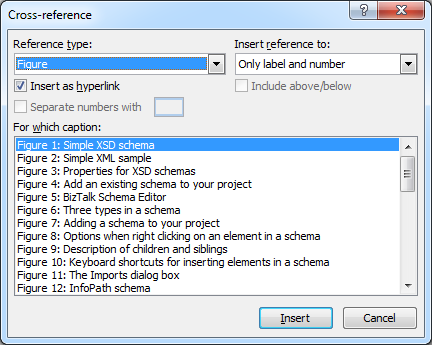
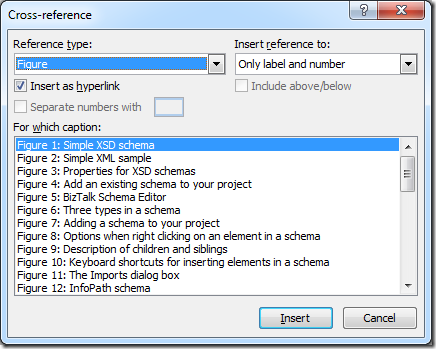
Both will give me this window:
This is all very fine, but I need a quicker access point, since it appears that I
most often need both clicks to get to the dialog box, since I am usually not on either
the “Insert” or the “References” tab.
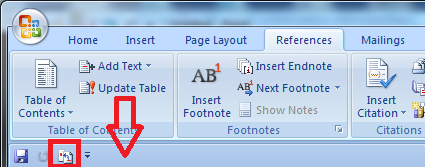
So I discovered the “Quick Access Toolbar” by chance. This happened when I accidentally
right-clicked on the “Cross-reference” in stead of clicking on it. Here I could add
the functionality to the “Quick Access Toolbar” and also choose to show the “Quick
Access Toolbar”, as seen here:
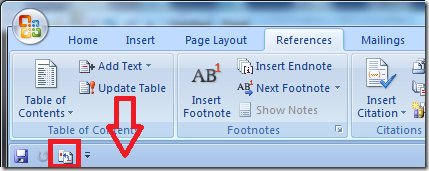
The arrow points to the “Quick Access Toolbar” and the red square is around the “Cross-reference”
functionality. So now I always only need one click, which made me happy for a while
🙂
Because once I could do it with just one click, I started wondering about a keyboard
shortcut for it. I couldn’t find one, and I searched and searched and finally just
after posting my question to a newsgroup, I found how to do it:
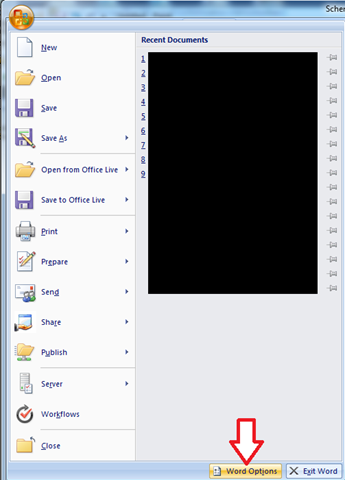
Go to “Word Options”, which is a button at the lower right when clicking on the Start
button at the upper left of Word:
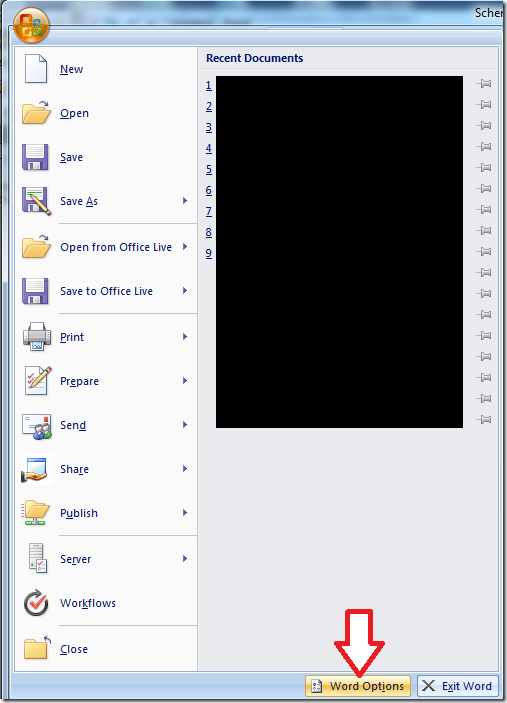
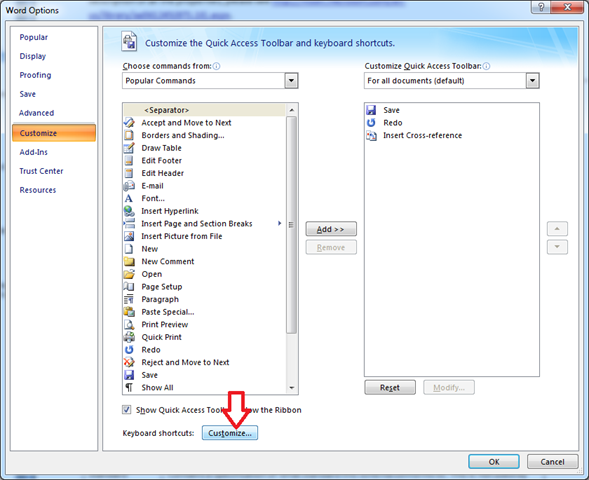
This will open up the Word Options. Go to “Customize” and click on “Customize” as
seen in the image below:
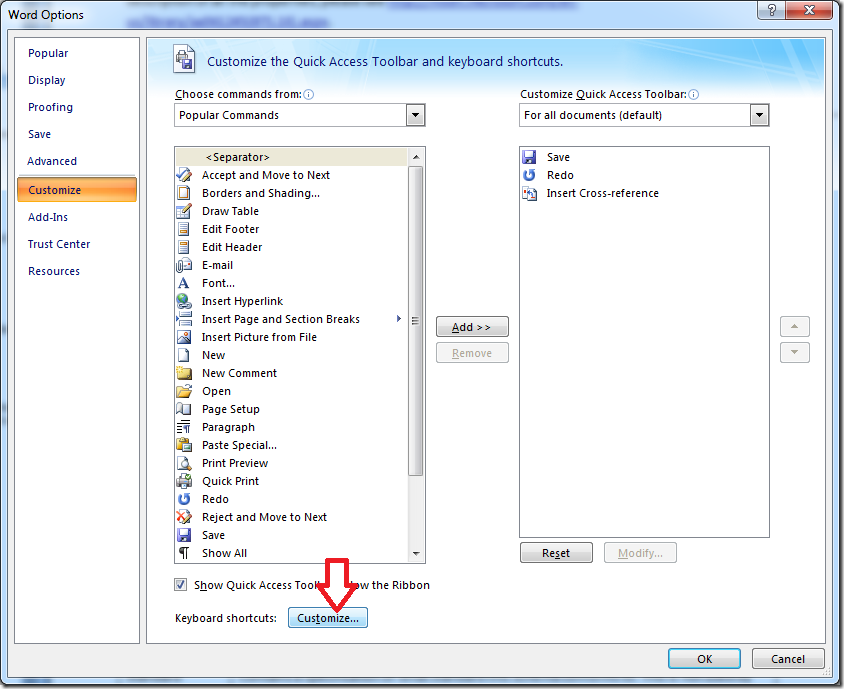
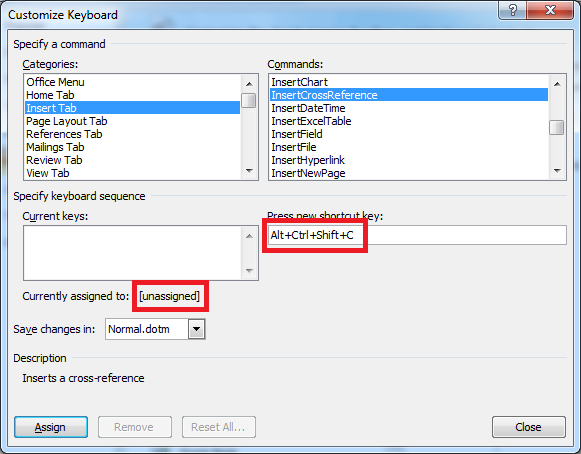
After this you get a screen where you can change short cuts, as seen here:
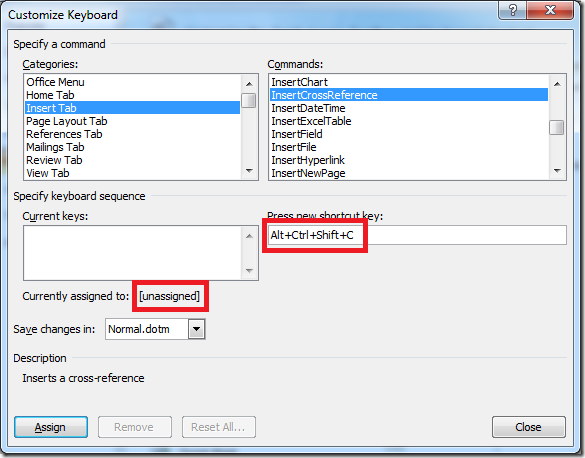
Choose “Insert Tab” and then “InsertCrossReference” and click in the “Press new shortcut
key:” box. Now enter the shortcut you want (I entered Alt+Ctrl+Shift+C). Word will
tell you if the shortcut you have chosen is all ready assigned to another function
(Mine is “Unassigned” as you can see) and then you can click on “Assign” to complete
the task.
So now, every time I need to insert a cross reference, I just pres Ctrl+Alt+Shift+C
and the dialog box comes up.
All that is left now is to get the “Only Label and number” as the default value for
the drop down that decides what to insert instead of “Entire Caption”, but a Word
MVP wrote in a post I found that this was not possible. Bummer. Keeping my fingers
crossed for Office 2010! 🙂
I hope this helps someone.
—
eliasen
by community-syndication | Oct 25, 2009 | BizTalk Community Blogs via Syndication
This week a co-worker raised an issue with a WMI query where he did a simple query for an orchestrations messages, and for some reason not all of them were returned. This behavior exists on both 2006 R2 and 2009, and thus most likely on 2006 as well. The query was simple:
select    *
from    MSBTS_MessageInstance
where    ServiceInstanceID = '{9DD50CE0-CC9C-478C-B19D-A3AAFD33ACA3}'
.csharpcode, .csharpcode pre
{
font-size: small;
color: black;
font-family: consolas, "Courier New", courier, monospace;
background-color: #ffffff;
/*white-space: pre;*/
}
.csharpcode pre { margin: 0em; }
.csharpcode .rem { color: #008000; }
.csharpcode .kwrd { color: #0000ff; }
.csharpcode .str { color: #006080; }
.csharpcode .op { color: #0000c0; }
.csharpcode .preproc { color: #cc6633; }
.csharpcode .asp { background-color: #ffff00; }
.csharpcode .html { color: #800000; }
.csharpcode .attr { color: #ff0000; }
.csharpcode .alt
{
background-color: #f4f4f4;
width: 100%;
margin: 0em;
}
.csharpcode .lnum { color: #606060; }This was supposed to return two messages, but only one was returned, illustrated below in WMIExplorer:
He came up with a solution where he could instead do a LIKE query and get both message instances returned:
select    *
from    MSBTS_MessageInstance
where    ServiceInstanceID LIKE '{9DD50CE0-CC9C-478C-B19D-A3AAFD33ACA3}'
.csharpcode, .csharpcode pre
{
font-size: small;
color: black;
font-family: consolas, "Courier New", courier, monospace;
background-color: #ffffff;
/*white-space: pre;*/
}
.csharpcode pre { margin: 0em; }
.csharpcode .rem { color: #008000; }
.csharpcode .kwrd { color: #0000ff; }
.csharpcode .str { color: #006080; }
.csharpcode .op { color: #0000c0; }
.csharpcode .preproc { color: #cc6633; }
.csharpcode .asp { background-color: #ffff00; }
.csharpcode .html { color: #800000; }
.csharpcode .attr { color: #ff0000; }
.csharpcode .alt
{
background-color: #f4f4f4;
width: 100%;
margin: 0em;
}
.csharpcode .lnum { color: #606060; }
Now I was ok with this as a solution, but I wanted to find out a bit about why this happened.
Using SQL Profiler to see what this WMI query meant I found a call that looked like this when I used ’=’:
exec BOM_LookupMessageReferences
  @nvcHost=NULL,@nServiceClass=127,@uidServiceType=NULL,%u00a8
  @uidInstanceId='9DD50CE0-CC9C-478C-B19D--3AAFD33ACA3',
  @uidMessageId=NULL,@snStatus=63,@nReferenceType=15,
  @dtFrom='Oct 25 3009 12:06:31:360PM',@dtUntil='Oct 25 1809 12:06:31:360PM',
  @nMaxMatches=200
.csharpcode, .csharpcode pre
{
font-size: small;
color: black;
font-family: consolas, "Courier New", courier, monospace;
background-color: #ffffff;
/*white-space: pre;*/
}
.csharpcode pre { margin: 0em; }
.csharpcode .rem { color: #008000; }
.csharpcode .kwrd { color: #0000ff; }
.csharpcode .str { color: #006080; }
.csharpcode .op { color: #0000c0; }
.csharpcode .preproc { color: #cc6633; }
.csharpcode .asp { background-color: #ffff00; }
.csharpcode .html { color: #800000; }
.csharpcode .attr { color: #ff0000; }
.csharpcode .alt
{
background-color: #f4f4f4;
width: 100%;
margin: 0em;
}
.csharpcode .lnum { color: #606060; }
and like this when using ’LIKE’:
exec MBOM_LookupMessageReferences
  @nvcHost=NULL,@nServiceClass=127,@uidServiceType=NULL,
  @uidInstanceId=NULL,
  @uidMessageId=NULL,@snStatus=63,@nReferenceType=15,
  @dtFrom='Oct 25 3009 12:06:42:867PM',@dtUntil='Oct 25 1809 12:06:42:867PM',
  @nMaxMatches=200
.csharpcode, .csharpcode pre
{
font-size: small;
color: black;
font-family: consolas, "Courier New", courier, monospace;
background-color: #ffffff;
/*white-space: pre;*/
}
.csharpcode pre { margin: 0em; }
.csharpcode .rem { color: #008000; }
.csharpcode .kwrd { color: #0000ff; }
.csharpcode .str { color: #006080; }
.csharpcode .op { color: #0000c0; }
.csharpcode .preproc { color: #cc6633; }
.csharpcode .asp { background-color: #ffff00; }
.csharpcode .html { color: #800000; }
.csharpcode .attr { color: #ff0000; }
.csharpcode .alt
{
background-color: #f4f4f4;
width: 100%;
margin: 0em;
}
.csharpcode .lnum { color: #606060; }
Spot the difference?
Sure enough in one case we send in the (service)instanceId and in the latter, we don’t. This in effect, causes the latter query to return all messages matching the other criteria, and filtering on the serviceInstanceId is made elsewhere, presumably in the code executed by the WMI call, although I haven’t investigated that further.
So what makes the first query return only one message? It’s got the service instance Id with it, and nothing else, so what’s causing it to filter out the single message.
Looking further into the call chain in SQL, the method MBOM_LookupMessageReferences uses methods named MBOM_LookupMessageReferences_<host>, for example MBOM_LookupMessageReferences_BizTalkServerApplication.
In this (these) procedures you can find the following code:
if (@uidInstanceId IS NOT NULL)
    set ROWCOUNT 1
else if (@nMaxMatches > 0)
    set ROWCOUNT @nMaxMatches
.csharpcode, .csharpcode pre
{
font-size: small;
color: black;
font-family: consolas, "Courier New", courier, monospace;
background-color: #ffffff;
/*white-space: pre;*/
}
.csharpcode pre { margin: 0em; }
.csharpcode .rem { color: #008000; }
.csharpcode .kwrd { color: #0000ff; }
.csharpcode .str { color: #006080; }
.csharpcode .op { color: #0000c0; }
.csharpcode .preproc { color: #cc6633; }
.csharpcode .asp { background-color: #ffff00; }
.csharpcode .html { color: #800000; }
.csharpcode .attr { color: #ff0000; }
.csharpcode .alt
{
background-color: #f4f4f4;
width: 100%;
margin: 0em;
}
.csharpcode .lnum { color: #606060; }
So if we send in a serviceInstanceId we will just get a single message instance returned. I’m not sure what the point of this is really, but it seems to be interfering with what we want.
It’s an universal truth that you do best to stay out of the BizTalk databases and their queries. I’m not going to suggest something that I will call a solution in this post, especially not since I haven’t done sufficient testing to see that this doesn’t interfere with something else.
However, from the test I have done, it seems as if the following code change might be what was intended:
if (@uidMessageId IS NOT NULL)
    set ROWCOUNT 1
else if (@nMaxMatches > 0)
    set ROWCOUNT @nMaxMatches
.csharpcode, .csharpcode pre
{
font-size: small;
color: black;
font-family: consolas, "Courier New", courier, monospace;
background-color: #ffffff;
/*white-space: pre;*/
}
.csharpcode pre { margin: 0em; }
.csharpcode .rem { color: #008000; }
.csharpcode .kwrd { color: #0000ff; }
.csharpcode .str { color: #006080; }
.csharpcode .op { color: #0000c0; }
.csharpcode .preproc { color: #cc6633; }
.csharpcode .asp { background-color: #ffff00; }
.csharpcode .html { color: #800000; }
.csharpcode .attr { color: #ff0000; }
.csharpcode .alt
{
background-color: #f4f4f4;
width: 100%;
margin: 0em;
}
.csharpcode .lnum { color: #606060; }
Which gives the result I want for a serviceInstanceId query:
as well as for a messageInstanceID query;
We are not likely to use this alteration, since I’m ok with the way that the LIKE query works, even though it takes a wider scope then necessary. But perhaps this might help or enlighten someone that finds themselves with a similar puzzle.
by community-syndication | Oct 24, 2009 | BizTalk Community Blogs via Syndication
Just a quick post. I hit this on my machine today whilst writing a quick sample. When creating a BizTalk Project I got Creating project ’project name’ project creation failed in the VIsual Studio dialog bottom left of the screen. Changing the reg key referenced by Guru/Vinay in the BizTalk CPR blog fixes it http://blogs.msdn.com/biztalkcrt/archive/2009/08/21/visual-studio-2008-fails-to-create-open-biztalk-projects.aspx
[HKEY_LOCAL_MACHINE\SOFTWARE\Microsoft\VisualStudio\9.0\Projects\{FAE04EC0-301F-11d3-BF4B-00C04F79EFBC}]
“PossibleProjectExtensions”=”csproj” – Original VS install reg value. “PossibleProjectExtensions”=”csproj;btproj” – Post Biztalk installation reg value