by community-syndication | Sep 10, 2007 | BizTalk Community Blogs via Syndication
I’ve been trying to withstand the temptation of getting an iPhone since the launch, and it’s been hard I must say, but this video by iJustine made it a bit easier, at least for a little bit…
Now, thanks to Justine’s video, AT&T has simplified their billing.
by community-syndication | Sep 10, 2007 | BizTalk Community Blogs via Syndication
I just created a Pluralsight group on Facebook — a place for Pluralsight instructors and students to connect with one another. If you’ve taken a course from us in the past, feel free to join now.
by community-syndication | Sep 10, 2007 | BizTalk Community Blogs via Syndication
I’ve been busy. One of my craziest summers ever. Now that it’s winding down, the kids are back in school, and I’m finding comfort in the routine, I figured it was time for an update. My summer was full of outdoor activities, sporting events, family projects and a big family reunion (in Island Park near West Yellowstone).
But the highlight was the 50-mile backpacking trip that I did with the scouts in the High Uintas. The trip was similar to the last one we did in 2005 but this time we had a much bigger group, and everyone without exception made it to the top of King’s Peak, the highest peak in Utah (~13,500 ft). Here’s the snapshot:
I’m not sure what compels us humans to climb mountains (in reality not metaphorically), but there’s nothing quite like the sense of accomplishment you feel when you get to the top.
Basic stats from the trip: 14 people, 50.32 miles, 252 fish, 49.5 lb pounds on my back (on day 1 at least), and 5 lbs less around my waist when I arrived back home. Here’s an example of one of many brookies we caught:
Work didn’t slow down one bit during all of this madness so that made for a blog-less summer. However, there’s a bunch of work-related stuff happening that I’m really excited about…and will be posting about later.
I hope your summer was equally exhilarating.

by community-syndication | Sep 10, 2007 | BizTalk Community Blogs via Syndication
Application Pages in SharePoint 2007 are a great way to extend SharePoint’s default user interface for your custom SharePoint solutions. An application page is deployed once per Web server and it’s not possible to customize these pages per site (like the normal Site Pages). A good example of an Application Page is the default Site Settings page: every site has one, and it’s not customizable on a per site basis (although the contents can be different for sites). A very basic application page could look like:
<%@ Page MasterPageFile=”~/_layouts/application.master”
Inherits=”Microsoft.SharePoint.WebControls.LayoutsPageBase”
Language=”C#”%>
<asp:Content
contentplaceholderid=”PlaceHolderPageTitle” runat=”server”>
Jan’s Page
</asp:Content>
<asp:Content
contentplaceholderid=”PlaceHolderPageTitleInTitleArea”
runat=”server”>
Jan’s Page
</asp:Content>
<asp:Content
contentplaceholderid=”PlaceHolderMain”
runat=”server”>
Jan’s fantastic Application Page content goes here!
</asp:Content>
When this ASPX page is saved in the C:\Program Files\Common Files\Microsoft Shared\web server extensions\12\TEMPLATE\LAYOUTS folder, it can be accessed from any site by making use of the following URL: http://siteurl/optionalsubsite/_layouts/pagename.aspx.

(More information about creating your own Application Pages can be found in Ted Pattison’s excellent Visual How-To) As you can see, this page resembles the Site Settings page (or any other default Application Page) quite well. But there is one important thing missing: the breadcrumbs above the page title! Check for example the default Site Settings page:

You can’t fix this by adding a breadcrumb control (aka SiteMapPath control) to the Application Page, actually there is already a breadcrumb on the page (defined in the default master page), the issue is that the new Application page is simply not known by the navigation infrastructure. Luckily this is quite easy to solve: SharePoint uses the ASP.NET 2.0 navigation functionality, so you just have to update the site’s sitemap. This is an XML file containing the navigation hierarchy and is located in C:\Inetpub\wwwroot\wss\VirtualDirectories\wss.u2ucourse.com\_app_bin\layouts.sitemap. If you want that your Application Page behaves as a sub page of the Site Settings page (a common scenario for Application Pages), look for the siteMapNode of the settings page:
<siteMapNode title=”$Resources:wss,settings_pagetitle” url=”/_layouts/settings.aspx”>
And add your own siteMapNode as a child element:
<siteMapNode title=”Jan’s Page” url=”/_layouts/jan.aspx”/>
Et voila, the custom Application Page’s breadcrumb control will automatically display the correct breadcrumb links. Of course modifying the layouts.sitemap file manually is not very nice since a SharePoint environment could have more than one web application (potentially on different servers), so you’d have to edit a couple of files. But of course you can automate this as well, I’ll go into the details in a follow-up post.

Technorati tags: sharepoint, sharepoint2007, application pages, navigation, breadcrumbs
by community-syndication | Sep 10, 2007 | BizTalk Community Blogs via Syndication
[Thanks Yves for the tip!] Last summer I delivered two presentations on the Dutch Developer Days in Amsterdam. You can see both sessions from the MSDN’s Showtime site:
Be aware that both sessions are in Dutch. I haven’t watched the recording yet completly, it’s really awkward to see yourself speaking in public… Anyway the recordings are very professional (multiple camera’s),just like the rest of the event, so kudos to the Dutch guys for organizing this event!
Technorati tags: sharepoint, sharepoint2007, web parts, develoment, devdays

by community-syndication | Sep 9, 2007 | BizTalk Community Blogs via Syndication
Twenty years ago I sat at Eden Park in Auckland and watched New Zealand win the first ever rugby world cup. At the time I didn’t appreciate what would become the enormity of the event over the next twenty years.
Last year I took Scott Guthrie and Rowan Simpson on an Eden Park vigil to see the AB’s destroy the Wallaby’s. And recently at a company kick off we heard from the NZRU on how they went about winning the hosting rights for the 2011 RWC in New Zealand. You can hear about that yourself by attending the partner conference in Auckland this month.
Last month the herald published the numbers for the event in France.
Approximately 4 billion people will watch some of the 2007 World Cup, according to corporate events organiser Sports World and 2.4 million tickets have been sold!
I watched a lot of the opening games over the weekend… I predicted that Argentina would trump France (I thought they would also beat Australia in the opener of the last world cup)… but I didn’t quite expect the complete dominance of the AB’s, Wallaby’s and South Africans and the downright awful performances of England, Ireland and Wales in the opening stages of their games against USA, Namibia and Canada respectively.
In the coming days the All Blacks will be releasing a Silverlight 1.0 mini application to help AB fans track the world cup matches from here on in (all the way to winning the final 😉
Why did Jay, Niall and the Mabode team choose to do this in Silverlight 1.0? Well a few reasons really…
1) Silverlight 1.0 is now released and ready for prime time
2) The UI looks Hot and the gadget is small to download (570kb all up)
2) It plays well as a Gadget technology in Vista
3) You get the added bonus of a browser based version that runs cross platform
Keep an eye on allblacks.com later this week (I’ll post an update link when it is live) so that you can track the AB’s in France over the coming weeks!
In the meantime take a look at this little screencast I made of the gadget in use that I recorded and put up on Silverlight Streaming this morning.

It is also good to see that the alternative rugby commentary and Inky is back as well.
by community-syndication | Sep 9, 2007 | BizTalk Community Blogs via Syndication
has created a couple of excellent articles about the future of BizTalk, WCF and WF.
http://www.winterdom.com/weblog/2007/08/25/WCFAndBizTalkMessaging.aspx
http://www.winterdom.com/weblog/CommentView,guid,54C51C66-96B9-435F-82CC-409CF88EFC6B.aspx

by community-syndication | Sep 9, 2007 | BizTalk Community Blogs via Syndication
(or how to do asynchronous processing of a synchronous request/response message)
[Note: this post follows on from my previous post How
to validate Xml Documents against schemas in BizTalk. For example, if you validate
a message in a pipeline and validation fails, how do you send a response back to a
waiting web service client.]
For a while now, people have been struggling with how to asynchronously process request/response
messages – basically, how to get away from having a request/response port in an orchestration
bound to a request/response receive location.
For example, Yossi Dohan blogged on this a while back, and came up with a solution
involving multiple orchestrations:
http://www.sabratech.co.uk/blogs/yossidahan/2006/06/sync-to-async-conversion.html
The problem revolves around the fact that BizTalk will always demote the EpmRRCorrelationToken context
property when your message leaves the orchestration if you try and manually set it
yourself.
There is a way around this, but it does involve you writing some code.
In fact, it involves writing a custom adapter and/or pipeline component. This is how
we solved it at one of my clients.
The trick is to promote the property outside of the orchestration – and that can only
be done in a send pipeline or send adapter.
If you’re not up to writing your own adapter, you can use the loopback
adapter and a custom pipeline component.
What you have to do is promote the EpmRRCorrelationToken context property in
your pipeline or your adapter.
Which means that with a custom pipeline/adapter, you can asynchronously process request/response
messages without even needing orchestrations (e.g. in high-perf situations where you
can do everything in pipelines).
The code to promote the property is very simple.
First of all (for those of you who haven’t come across this), let’s explain the issue
(skip this and go to after the primer if you wish):
<Begin Primer>
Take a typical example of BizTalk work: exposing an orchestration as a web service.
You have an orchestration which takes in a message, does some processing, and then
returns a response.
If you’ve used the Web Services Publishing Wizard, your orchestration will have s
request/response port which is used to receive messages from the web service, and
send a response.
When your request message is submitted to the BizTalk MessageBox (for pickup by the
Receive port on your orchestration) there needs to be some way to return the response
back to the same service instance which submitted the message in the first place.
This will make sure the response goes back out as a response to the HTTP POST which
submitted the request in the first place.
BizTalk achieves this by:
1. Creating a new subscription using the ID of the service instance
waiting for a response
2. Setting correlation properties on the Request message which match
this subscription
The two properties used are:
EpmRRCorrelationToken
RouteDirectToTP
When you send a message back through the Send port of your orchestration,
once of the things that happens internally is that these properties (from the request
message) are promoted onto the response message you’re sending.
The orchestration places the message in the MessageBox, and the waiting ServiceInstance
picks up the message as it has a matching subscription:
http://schemas.microsoft.com/BizTalk/2003/system-properties.EpmRRCorrelationToken
== Svr:DANIEL-PC;PID:836;RRUid:{C5120F0D-06F7-4BDF-8A45-79B391AF56A0} And
http://schemas.microsoft.com/BizTalk/2003/system-properties.RouteDirectToTP == True
Figure 1. The subscription for the ServiceInstance Response channel
Figure 2. The Context Properties on the Request message
So, if you want to create your own response message, all you have to do is promote
the same properties onto a message (note that you can’t just set them – they have
to be marked as Promoted as well)
In fact, as the subscription is not MessageType specific, you can return any message
you like back (as long as it deserialises into something expected by the web service
code).
Here’s an example of where you might want to do this: Failed Message Routing.
If the pipeline processing your request message throws an exception, and you have Enable
routing for failed messages switched on in your receive port, then your message
will be submitted to the message box, and a new Error Report message will be created
with all the original message properties demoted, and some new error properties promoted:
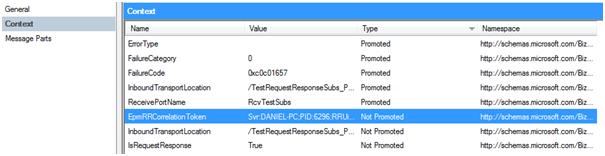
Figure 3. The Context Properties for an Error Report message
As you can see although the RouteDirectToTP property has disappeared, the EpmRRCorrelationToken property
(the one we need) is still there.
A new feature in BizTalk 2006 is that if a message fails in the pipeline, it is still
written to the MessageBox and an error report generated i.e. you still have access
to the original request message even if it’s not XML.
In BizTalk 2004, if a pipeline exception occurred you’d lose the message (without
writing a custom pipeline component).
If you subscribe to the Error Report, what you will receive is the original message
(as opposed to the error report message which has no actual data).
So if we wanted to send this original message back to the waiting service instance,
all we’d have to do is:
1. Add the RouteDirectToTP property
2. Promote both of these properties
And herein lies the problem that many people have discovered: orchestration send ports
contain specific code which will not promote any user-set instances of EpmRRCorrelationToken.
The only time this property is automatically promoted is when it’s part of a request/response
port bound to the actual ReceiveLocation.
So what this means is that you can’t promote this property in an orchestration.
<End Primer>
So how do you promote the EpmRRCorrelationToken property before the message
gets into the MessageBox? Easy – you have to execute the following code from a custom
adapter or pipeline component:
// Check if EpmRRCorrelationToken
is present in message context
object value = inmsg.Context.Read(“EpmRRCorrelationToken“,
“http://schemas.microsoft.com/BizTalk/2003/system-properties“);
if (value != null)
{
string empToken = (string)value;
bool directToTP = true;
inmsg.Context.Promote(“EpmRRCorrelationToken“,
“http://schemas.microsoft.com/BizTalk/2003/system-properties“,
empToken);
inmsg.Context.Promote(“RouteDirectToTP“,
“http://schemas.microsoft.com/BizTalk/2003/system-properties“,
directToTP);
}
(ideally, you’d use the Types from Microsoft.BizTalk.GlobalPropertySchemas to
obtain the context property names and namespaces, as this means you’ll always have
the correct namespace versions)
So all you have to do is create a SendPort which uses your custom adapter (or the
Loopback adapter and a custom pipeline component with the above code), connect the
SendPort to your orchestration (or create a filter on the SendPort if you’re not using
orchestrations) and the message will be submitted to the message box, to be picked
up by the waiting service instance.
Bear in mind that your service instance will attempt to deserialise the message received
into an appropriate response message – which means that if you’re using typed messages
(as opposed to XmlDocuments) you may need to run a map or create a new response message,
otherwise the service instance will barf.
I have a full sample showing how to do all this without needing any orchestrations
which I’ll post up if anyone asks.
Additionally, I should get round to posting up the code for the custom adapter we
use – it saves you having to write your own pipeline component.
by community-syndication | Sep 9, 2007 | BizTalk Community Blogs via Syndication
In a map, I forgot to set the attribute to <empty> and therefore could not assign a value to it after the map completed.
InfoMsg.MessagePart.FileName=System.IO.Path.GetFileName(TransmissionMsg(FILE.ReceivedFileName));
InfoMsg.MessagePart.Occurrence=System.Convert.ToString(ThisInterchange);
However the error that is displayed in the ‘Service Details’ is somewhat misleading:
Where is the XPATH expression that does not have a node?

by community-syndication | Sep 7, 2007 | BizTalk Community Blogs via Syndication
If you are coming to the SOA/BPI conference in
October – consider coming two days early and hearing Aaron, Matt, and I do a deep
technical presentation on all the cool new stuff coming out from the Connected Systems
Division at MS.
Details are here – http://www.pluralsight.com/courses/WhatsNewInCSD.aspx


Check out my BizTalk
R2 Training.