Old Skool Radio 1, NET Radio 0
I mentioned a while ago that I love Pandora and that I was stoked when MSN radio licensed their technology.
Unfortunately it looks now like Internet Radios Days are Numbered!
Digg

I mentioned a while ago that I love Pandora and that I was stoked when MSN radio licensed their technology.
Unfortunately it looks now like Internet Radios Days are Numbered!
Digg
The first CTP of the WS-BPEL 1.1 activities for Windows Workflow Foundation are now available . A later release plans to support WS-BPEL 2.0…(read more)

Great to see Peter wearing the shirt I gave him at Foo while he was presenting at Webstock Mini last week. Unfortunately I wasn’t there… hopefully he only had nice things to say about us 🙂

The MVP Summit finalized yesterday. I had a wonderful time and enjoyed the sessions. Was a good time to catch up with some friends and also the opportunity to finally met people like: Charles Young , Dr Nick among others. At the dinner my friend Harry…(read more)
When it comes to testing your BizTalk applications, NUnit and BizUnit are often used. Where NUnit is a unit-testing framework for .NET languages, BizUnit can be used for testing your BizTalk 2004/2006 solutions. This article describes which tools need to be installed and helps you to setup your first test project.
What is NUnit
As stated, NUnit is a unit-testing framework for .NET languages. The test cases you create with BizUnit are added to and executed from the NUnit user interface. The results from the test runs can be viewed in NUnit as well.
What is BizUnit
The test cases you need to test your BizTalk solutions are created with BizUnit. Although you need to create a Class library in Visual Studio to be able to have the test cases executed, most of the test case creation is done with XML files. With these XML files you can prepare your test environment, execute your tests and cleanup your test environment. You can setup tests for the following adapters: FILE, HTTP, SOAP, MSMQ, MQSeries and POP3. Further BizUnit allows you to perform multiple kinds of validation and load data in the context. It’s also possible to query the EventLog.
What do you need to install
The two most recent BizTalk versions are supported by NUnit and BizUnit.
For testing BizTalk 2004 applications you need to install:
For testing BizTalk 2006 applications you need:
Install both tools keeping the defaults for the installation directories.
The sample orchestration
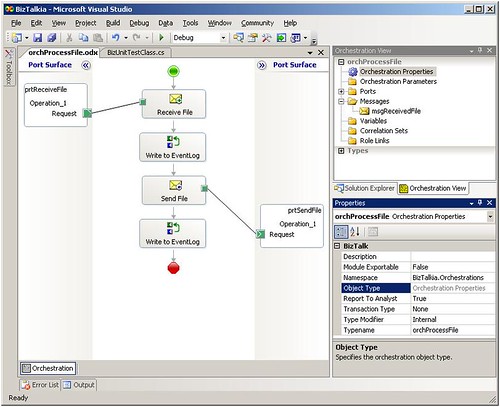
For this article I created an orchestration that will be tested. I have a simple scenario which contains the following steps:
The orchestration looks as follows:
Fig. 1 – The orchestration which will be tested
Setting up your test environment
During the setup of a test project a number of artifacts is created. Since it is convenient to have everything at one place, we need a folder structure which will contain all these artifacts. For this sample this structure looks as follows:
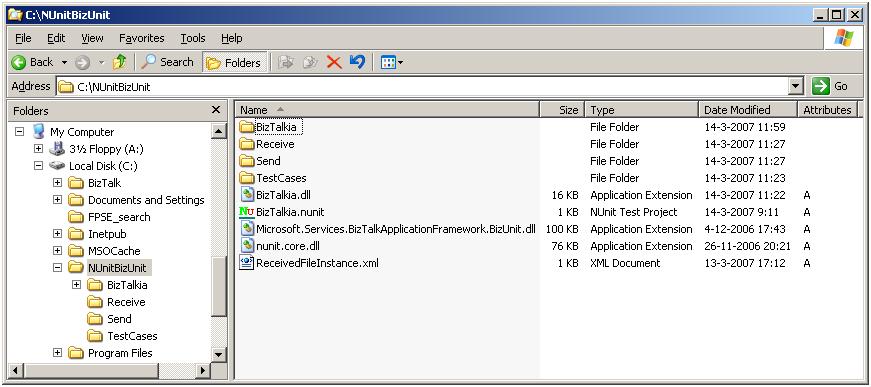
Fig. 2 – Folder structure of the test environment
The C:\NUnitBizUnit folder contains:
At this moment you might not yet be familiar with all the artifacts mentioned above, but most of them will be explained in this article.
Create a Test project in Visual Studio
We need a C# Class library project, which will contain the Test project. It must have references to the following binaries:
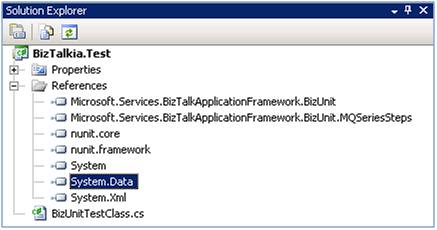
Fig. 3 – Solution Explorer with newly added references and class
The Class library has a class file which will hold the test code. The following code can be used as a template for the class file:
using NUnit.Framework;
using Microsoft.Services.BizTalkApplicationFramework.BizUnit;
namespace <namespace>
{
[TestFixture]
public class <class name>
{
[Test]
public void <method name>()
{
BizUnit bizunit = new BizUnit(@”<location/name configuration file>”);
bizunit.RunTest();
}
}
}
Replace <namespace> by a namespace that suits you. I add my test projects to the same solution which contains my BizTalk project(s). So I derive the namespace for my test project from the namespaces I use for my BizTalk project.
Also replace <class name> with a convenient and descriptive name. Both the class names and method names will show up in NUnit.
The code in my sample project looks as follows:
namespace BizTalkia.Test
{
using System;
using System.Collections.Generic;
using System.Text;
using NUnit.Framework;
using Microsoft.Services.BizTalkApplicationFramework.BizUnit;
[TestFixture]
public class BizUnitTestClass
{
[Test]
public void Test_01_SubmitFile()
{
BizUnit bizunit = new BizUnit(@”.\TestCases\BizTalkia.Test.SubmitFile.xml”);
bizunit.RunTest();
}
[Test]
public void Test_02_CheckFileReceived()
{
BizUnit bizunit = new BizUnit(@”.\TestCases\BizTalkia.Test.CheckFileReceived.xml”);
bizunit.RunTest();
}
[Test]
public void Test_03_CheckSentFileExists()
{
BizUnit bizunit = new BizUnit(@”.\TestCases\BizTalkia.Test.CheckSentFileExists.xml”);
bizunit.RunTest();
}
}
}
As you see there is one class with 3 methods. Each method defines a test case. These test cases are described below. You are free in creating more than one class, as long as each class is public and has the [TestFixture] attribute. Each method must be public as well and must have the attribute [Test]. The methods are numbered from 01 to 03. This is necessary, since otherwise in NUnit the methods will show up alphabetically, which will process your test cases in the wrong order. Further you see that each method refers to a test case configuration file of its own.
Build the test project
Now that we have described the class library the test project can be build.
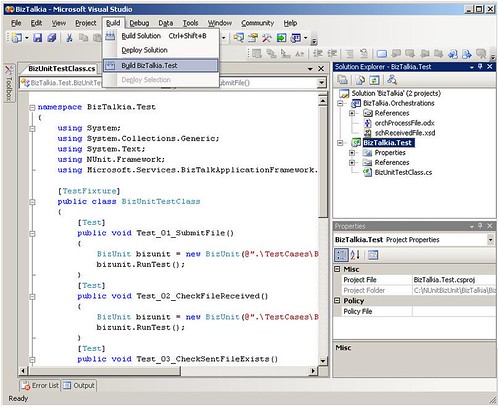
Fig. 4 – Build the test project
The assembly needs to be copied to the C:\NUnitBizUnit folder, along with its references.
Test case configuration files
The test case configuration files (which are stored in C:\NUnitBizUnit\TestCases) define the test cases. Before going into detail, first let’s have a look at the structure of the configuration files. We therefore use the first test case configuration file of this sample, namely BizTalkia.Test.SubmitFile.xml.
<TestCase testName=”BizTalkia.Test”>
<TestSetup>
<TestStep assemblyPath=”” typeName=”Microsoft.Services.BizTalkApplicationFramework.BizUnit.FileDeleteMultipleStep”> <Directory>C:\NUnitBizUnit\Send</Directory>
<SearchPattern>{*}.xml</SearchPattern>
</TestStep>
</TestSetup>
<TestExecution>
<TestStep assemblyPath=”” typeName=”Microsoft.Services.BizTalkApplicationFramework.BizUnit.FileCreateStep”> <SourcePath>C:\NUnitBizUnit\ReceivedFileInstance.xml</SourcePath> <CreationPath>C:\NUnitBizUnit\Receive\InFile.xml</CreationPath> </TestStep>
</TestExecution>
<!– Test cleanup: test cases should always leave the system in the state they found it –>
<TestCleanup>
</TestCleanup>
</TestCase>
This test case file has a TestSetup, TestExecution and a TestCleanup node. The goals of these nodes are obvious: the TestSetup node is used for setting/preparing up your test environment, the TestExecution node contains all your test steps and the TestCleanup node is used for cleaning up your test environment. The TestSetup and TestCleanup nodes are optional.
Each of the nodes can contain one or more test steps. Check the BizUnit documentation for the available test steps.
Submitting a file
Since SubmitFile is my first test case, inside the TestSetup node some cleanup of the test environment is done. In this case any existing files in a particular folder are deleted. Therefore the FileDeleteMultipleStep test step is used.
The sample orchestration is kicked off by submitting a file on a File Receive Location. In the TestExecution node I use the FileCreateStep test step to have a file created in a particular folder. The SourcePath node is used to determine which file is used as a template for the file that needs to be created. With the CreationPath node I determine where a copy of the file mentioned in the SourcePath node will be placed. So actually a file copy is done. The CreationPath node should contain the path to your Receive Location as it is configured in BizTalk.
Check if the file is received
Now that we have taken care of instantiating the orchestration, let’s check if the orchestration really has received the file. The orchestration writes an EventLog entry to confirm that a file is received. Therefore in the next test case we query the EventLog to check if the orchestration did write that EventLog entry. The code in the Expression shape that writes to the EventLog looks as follows:
// Write to EventLog
System.Diagnostics.EventLog.WriteEntry(“BizTalkia”, “File received”, System.Diagnostics.EventLogEntryType.Information, 1);
In test case file CheckFileReceived.xml we query the EventLog. Since this test case does not need setup or cleanup of the test environment, the nodes TestSetup and TestCleanup are left out. Quering of the EventLog is done with the EventLogCheckStep test step.
<TestCase testName=”BizTalkia.Test”>
<TestExecution>
<TestStep assemblyPath=”” typeName=”Microsoft.Services.BizTalkApplicationFramework.BizUnit.EventLogCheckStep”> <DelayBeforeCheck>10</DelayBeforeCheck> <!– Optional, seconds to delay performing check –>
<Machine>BIZTALK2006</Machine>
<EventLog>Application</EventLog>
<Source>BizTalkia</Source>
<Type>Information</Type>
<EventId>1</EventId>
<FailIfFound>True</FailIfFound>
</TestStep>
</TestExecution>
</TestCase>
The DelayBeforeCheck node is used to set the number of seconds to wait, before the EventLog is queried. This way you give BizTalk some time to retrieve the message and write to the EventLog. The FailIfFound node is used to determine if the test case should fail, in case that the EventLog entry is not found. The other nodes are used to query the EventLog.
Although the test case does not query the actual message which is written to the EventLog (“File received”), also this can be queried with a regular expression validation.
Check if the file is sent
The orchestration now should send the message to another file location. With BizUnit we can check if a file exists in a certain folder. This test is done in test case file CheckSentFileExists.xml.
<TestCase testName=”BizTalkia.Test”>
<TestExecution>
<TestStep assemblyPath=”” typeName=”Microsoft.Services.BizTalkApplicationFramework.BizUnit.FilesExistStep”> <Timeout>3000</Timeout>
<DirectoryPath>.\Send</DirectoryPath>
<SearchPattern>*.xml</SearchPattern>
<ExpectedNoOfFiles>1</ExpectedNoOfFiles>
</TestStep>
</TestExecution>
</TestCase>
In this test case BizTalk is given some time (by means of the Timeout node) to send out the message, before the existance of the file is checked.
With the DirectoryPath node and the SearchPattern node we determine where and what we are looking for.
So far the description of the test cases and steps.
Creating a NUnit project
Most of the work is done by now. NUnit works with project files which contain references to the assemblies which contain the test project.
The image below shows the NUnit interface with the dialog to create a new project file.
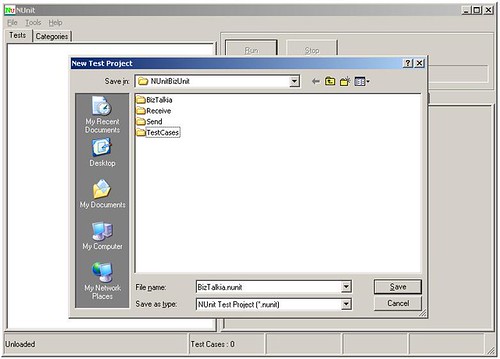
Fig. 5 – Create a new NUnit project
The NUnit project is stored in C:\NUnitBizUnit. Test projects assemblies must be added to the project. This can be done by navigating in the menu to Project, Edit In the dialog that appears select the Assemblies tab page, click Add Assembly to add the assembly.
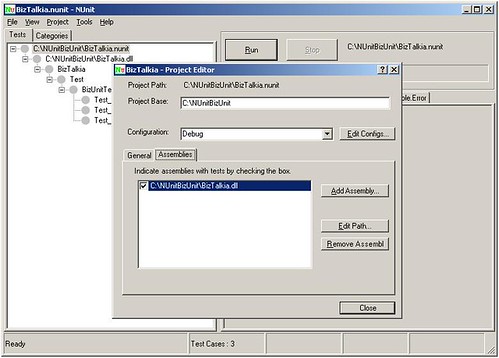
Fig. 6 – Add the assembly
Run the test
The test environment is now set up and ready to run the test! In the Tree view you see the structure of the assembly. By selecting (the class) BizUnitTestClass and clicking Run, all underlying tests are executed. The bullets can have the following colors:
The test results can be viewed on the tab pages.
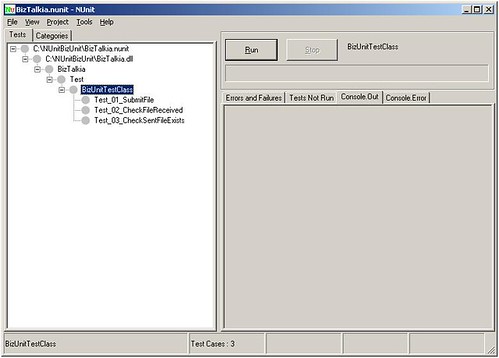
Fig. 7 – NUnit project before run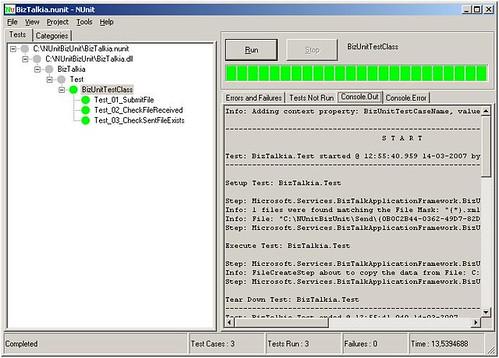
Fig. 8 – NUnit project after (successful) run
Conclusion
Both NUnit and BizUnit are still under development. So bugs become solved and functionality is added. In this article I wanted to give you a quick start with using NUnit and BizUnit.
Hopefully I succeeded in that goal. Please feel free to give any comments.
For my own conveniency I created a VS 2005 project template for BizUnit test projects.
The project already contains references to the NUnit and BizUnit assemblies. Also a class file is added with template code for BizUnit.
All you have to do is:
– download the Zip file here
– place it in your `My Documents\Visual Studio 2005\Templates\ProjectTemplates` folder
– start using it!
Well I’m making my way back from the MVP Summit and we got to spend nearly 2 days
bending the ears of the BizTalk product team – the correct term now is The
Connected Services Division (CSD) which includes todays technologies of: BizTalk,
WF, WCF, .NET Framework and Orcas – so all these things are just ‘going’
to work going forward.
Here’s the things that I’m allowed to talk about….
MVP Summit Day 1 – Registration
MVP Summit Day 2 – KeyNote + Joint Sessions
Gotta dash to catch a plane – more soon.
Today was the final day of the MVP summit. I had a great time! It’s always great to
meet a people face to face, and during the last couple of days I got to finally meet
in person Scott
Colestock, Harry
Pierson, Gregory
van der Wiele (the only other user of my PipelineTesting library I know of!), Alan
Smith, Jesus
Rodriguez, Mick
Badran, Abhilash
M.S., Steve Swartz and a lot of other people.
We also got the chance to interact a lot with the product teams; not only with the
BizTalk team but also from other teams within the Connected Systems Division, particularly
during last night’s dinner. I’d like to take the opportunity to publicly thank Marjan
Kalantar (Community Program Manager for BizTalk Server) and Clemens
Vasters for putting together a great set of sessions for us and taking fantastic
care of us while visiting at Microsoft!

The future is bright – setting up Tokens that are visible across ‘The Cloud’ is already done!
http://sts.labs.live.com – shared token
http://relay.labs.live.com – shared relay
services
We get access to these services typically through WCF and various channels and behavior
options going fwd.
What this means for us – less code and if your client and server application/service are
behind firewalls at different locations.
net.relay://…..
So I think in ‘yesterdays terms’ we called the relay service – http tunnelling 
With these services we get Policy and Metadata exchange such that if any settings
change on the service, then the client is automatically re-authed and prompted for
Tokens.
Go and check out the labs here – very cool stuff!
Microsoft have released a downloadable book for planning and architecting MOSS
http://technet2.microsoft.com/Office/en-us/library/64f7f9fb-3994-477f-9e6d-570812c3d5131033.mspx?mfr=true
Here’s a page snippet
Updated: December 14, 2006
This book provides information and guidelines to lead a team through the steps of
planning the deployment of a solution based on Microsoft Office SharePoint Server
2007. The audiences for this book are business application specialists, line-of-business
specialists, information architects, IT generalists, program managers, and infrastructure
specialists who are planning a solution based on Office SharePoint Server 2007. This
book also includes links to planning worksheets for recording information related
to your planning and deployment activities.
Click the following link to open a Microsoft Word .doc file that you download to your
computer and print. This document contains the same information as the “Planning and
architecture for Office SharePoint Server 2007” section of this TechNet Web site.
The size of this document is approximately 7 MB.
Planning and
architecture for Office SharePoint Server 2007 (http://go.microsoft.com/fwlink/?LinkId=79552&clcid=0x409)