
BizTalk Server and WinSCP Error: Could not load file or assembly ‘WinSCPnet, Version=1.12.0.12858, Culture=neutral, PublicKeyToken=2271ec4a3c56d0bf’ or one of its dependencies
It is always fun to return to one of my favorite topics: Errors and warnings, causes and solutions – aka Troubleshooting! Regardless of the technology, language, or service, we are using. In this case, this problem occurred when configuring the SFTP adapter in BizTalk Server 2020, which means BizTalk Server and WinSCP.
After installing and configuring the pre-requirements of the SFTP adapter according to the official documentation and using the BizTalk WinSCP PowerShell Installer, you can find it here. In our case, the latest official WinSCP version 5.19.2. We got the following error while trying to send a test message using the SFTP adapter:
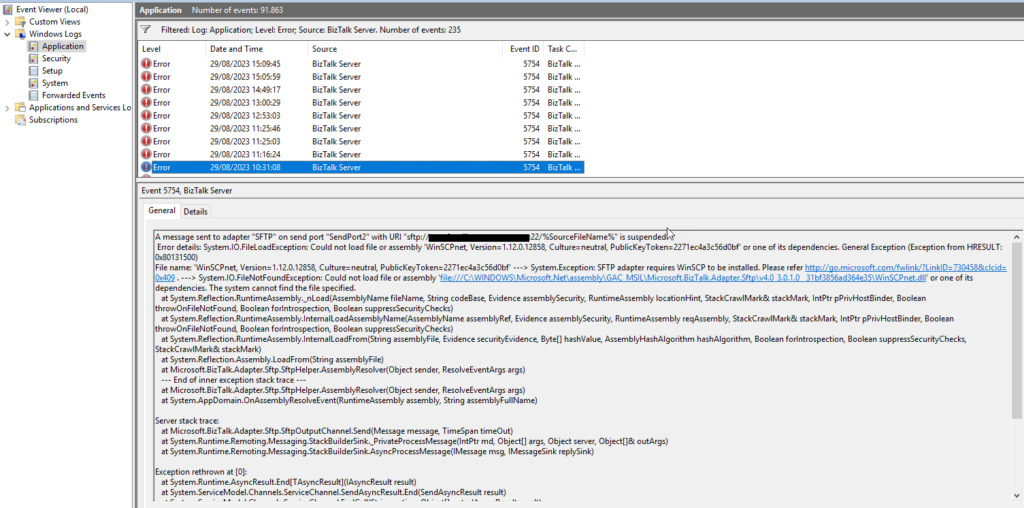
A message sent to adapter “SFTP” on send port “SendPort2” with URI “sftp:/FTP-SERVER:22/%SourceFileName%” is suspended.
Error details: System.IO.FileLoadException: Could not load file or assembly ‘WinSCPnet, Version=1.12.0.12858, Culture=neutral, PublicKeyToken=2271ec4a3c56d0bf’ or one of its dependencies. General Exception (Exception from HRESULT: 0x80131500)
File name: ‘WinSCPnet, Version=1.12.0.12858, Culture=neutral, PublicKeyToken=2271ec4a3c56d0bf’ —> System.Exception: SFTP adapter requires WinSCP to be installed. Please refer http://go.microsoft.com/fwlink/?LinkID=730458&clcid=0x409 . —> System.IO.FileNotFoundException: Could not load file or assembly ‘file:///C:WINDOWSMicrosoft.NetassemblyGAC_MSILMicrosoft.BizTalk.Adapter.Sftpv4.0_3.0.1.0__31bf3856ad364e35WinSCPnet.dll‘ or one of its dependencies. The system cannot find the file specified.
at System.Reflection.RuntimeAssembly._nLoad(AssemblyName fileName, String codeBase, Evidence assemblySecurity, RuntimeAssembly locationHint, StackCrawlMark& stackMark, IntPtr pPrivHostBinder, Boolean throwOnFileNotFound, Boolean forIntrospection, Boolean suppressSecurityChecks)
at System.Reflection.RuntimeAssembly.InternalLoadAssemblyName(AssemblyName assemblyRef, Evidence assemblySecurity, RuntimeAssembly reqAssembly, StackCrawlMark& stackMark, IntPtr pPrivHostBinder, Boolean throwOnFileNotFound, Boolean forIntrospection, Boolean suppressSecurityChecks)
at System.Reflection.RuntimeAssembly.InternalLoadFrom(String assemblyFile, Evidence securityEvidence, Byte[] hashValue, AssemblyHashAlgorithm hashAlgorithm, Boolean forIntrospection, Boolean suppressSecurityChecks, StackCrawlMark& stackMark)
at System.Reflection.Assembly.LoadFrom(String assemblyFile)
at Microsoft.BizTalk.Adapter.Sftp.SftpHelper.AssemblyResolver(Object sender, ResolveEventArgs args)
— End of inner exception stack trace —
at Microsoft.BizTalk.Adapter.Sftp.SftpHelper.AssemblyResolver(Object sender, ResolveEventArgs args)
at System.AppDomain.OnAssemblyResolveEvent(RuntimeAssembly assembly, String assemblyFullName)
Server stack trace:
at Microsoft.BizTalk.Adapter.Sftp.SftpOutputChannel.Send(Message message, TimeSpan timeOut)
at System.Runtime.Remoting.Messaging.StackBuilderSink._PrivateProcessMessage(IntPtr md, Object[] args, Object server, Object[]& outArgs)
at System.Runtime.Remoting.Messaging.StackBuilderSink.AsyncProcessMessage(IMessage msg, IMessageSink replySink)
Exception rethrown at [0]:
at System.Runtime.AsyncResult.End[TAsyncResult](IAsyncResult result)
at System.ServiceModel.Channels.ServiceChannel.SendAsyncResult.End(SendAsyncResult result)
at System.ServiceModel.Channels.ServiceChannel.EndCall(String action, Object[] outs, IAsyncResult result)
Exception rethrown at [1]:
at System.Runtime.Remoting.Proxies.RealProxy.HandleReturnMessage(IMessage reqMsg, IMessage retMsg)
at System.Runtime.Remoting.Proxies.RealProxy.PrivateInvoke(MessageData& msgData, Int32 type)
at System.ServiceModel.Channels.IOutputChannel.EndSend(IAsyncResult result)
at Microsoft.BizTalk.Adapter.Wcf.Runtime.WcfClient`2.SendCallback(IAsyncResult result)
I was surprised by the error because this wasn’t the first time I had installed the SFPT Adapter. I have successfully performed this configuration in many clients and never found myself in a WinSCP DLL version nightmare.
Cause
As mentioned, I never had a version issue with the WinSCP DLLs if I installed it according to the documentation. That means depending on the BizTalk Server version and cumulative we have installed, we have to select the proper WinSCP version, for example:
- With BizTalk Server 2020 (no CU installed), we need to use WinSCP 5.15.4
- With BizTalk Server 2020 with CU1 and/or CU2 we need to use WinSCP 5.17.6
- With BizTalk Server 2020 with CU3 and/or CU4 we need to use WinSCP 5.19.2
To put the SFTP Adapter, we need to copy the WinSCP.exe and WinSCPnet.dll to the BizTalk installation folder, normally C:Program Files (x86)Microsoft BizTalk Server. So, by the error description, this issue was clearly a DLL version issue.
In our case, we had BizTalk Server 2020 with CU4 and correctly installed the WinSCP 5.19.2. However, this version of WinSCP brings version 1.8.3.11614 of WinSCPnet.dll instead of version 1.12.0.12858, which is asking for. WinSCPnet.dll version 1.12.0.12858 is only available in WinSCP 5.21.5.
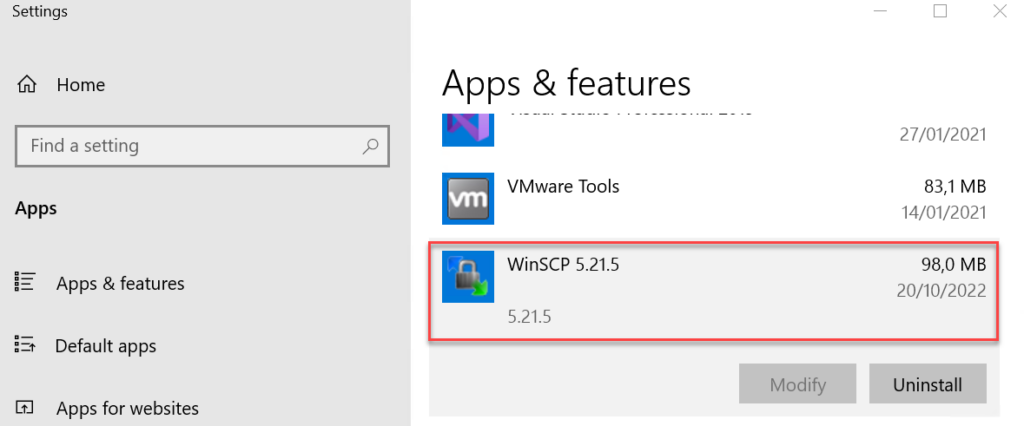
After some investigation, we detected that WinSCP version 5.21.5 was installed on the server, and because of that, the BizTalk Server SFTP adapter was trying to look for this version on C:WINDOWSMicrosoft.NetassemblyGAC_MSILMicrosoft.BizTalk.Adapter.Sftpv4.0_3.0.1.0__31bf3856ad364e35.
Notice that you don’t need to install any WinSCP software or GAC any WinSCP DLL on the BizTalk Server machine.
Solution
In the end, this is an issue that can be fixed easily. And there are many ways to solve this:
- First approach: This may be the correct approach, is to:
- Uninstall the WinSCP 5.21.5 version or any other version installed on the machine.
- Make sure that there aren’t any WinSCPnet.dll in the GAC.
- Download the WinSCP 5.19.2 – https://winscp.net/download/WinSCP-5.19.2-Automation.zip and copy the WinSCP.exe and WinSCPnet.dll to the BizTalk installation folder, normally C:Program Files (x86)Microsoft BizTalk Server.
Note: We didn’t apply this approach because we were unsure who and what was using this WinSCP version.
- Second approach: This second approach may not be 100% supported, but it still works like a charm.
We maybe also solve this problem by using an assembly redirect on the machine.config but I didn’t try it out.
Hope you find this helpful! So, if you liked the content or found it helpful and want to help me write more content, you can buy (or help buy) my son a Star Wars Lego!


