![BizTalk Server Configuration error: is invalid because it contains one or more of the following characters: `~!@#$^*()+=[]{}|;’”?.](https://www.biztalkgurus.com/wp-content/uploads/2017/10/blog.sandro-pereira.comBizTalk-Server-sql-server-ee32e9733971924894d10d679c378f6b431f2703-150x150.png)
by Sandro Pereira | Oct 6, 2017 | BizTalk Community Blogs via Syndication
One of the first steps, while you are trying to configure BizTalk Server, is to provide the “Database server name” on the BizTalk Server <version> Configuration page. So far nothing new. However, in one of my recent BizTalk Server installations where we were using a SQL Server that was configured with a non-default port (1433), we encountered this bizarre problem:
BTS2016LAB01, 3431 is invalid because it contains one or more of the following characters: `~!@#$^*()+=[]{}|;’”<>?.
Cause
Well, the reason is obvious for all but in this case, a little stupid considering the current days. Of course, we all can understand that the special characters are not allowed and we cannot use it.
But was not our case, we are not using any special characters in the Database server name and if you check carefully, we catch the error while configuring the Group, which means that we already were able to create the SSO database in the SQL Server – so the database name was valid/correct.
And if there were really special characters in the Database server name, then the configuration wizard should be smart to validate on the BizTalk Server <version> Configuration page and do not to continue with the configuration.
I personally consider this as a bug in the BizTalk Server Configuration Wizard tool because in our case the real problem and the cause of this error was that we had provided the database name with a space between the server and the port: “BTS2016LAB01, 3431”
Solution
The solution to this problem is simple, first of all, and obviously, you cannot use any of the following special characters: `~!@#$^*()+=[]{}|;’”<>?. under the Database Server Name.
In our case, the solution was simple also, we just need to remove the empty space on the Database Server Name: “BTS2016LAB01,3431”
Author: Sandro Pereira
Sandro Pereira lives in Portugal and works as a consultant at DevScope. In the past years, he has been working on implementing Integration scenarios both on-premises and cloud for various clients, each with different scenarios from a technical point of view, size, and criticality, using Microsoft Azure, Microsoft BizTalk Server and different technologies like AS2, EDI, RosettaNet, SAP, TIBCO etc. He is a regular blogger, international speaker, and technical reviewer of several BizTalk books all focused on Integration. He is also the author of the book “BizTalk Mapping Patterns & Best Practices”. He has been awarded MVP since 2011 for his contributions to the integration community. View all posts by Sandro Pereira
by Sowmiya Subramanian | Oct 5, 2017 | BizTalk Community Blogs via Syndication
This blog helps to perform various operations with BAM views using the command prompt such as:
- deploy BAM Views
- remove BAM definitions
- authorize user accounts for BAM View
First, I have created a BAM view named as “BAMOperation” with the Activities Order and Status with items as shown below.
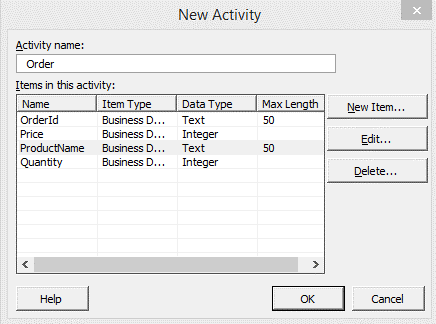
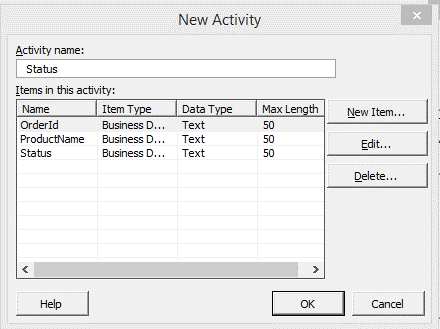
The BAM management utility deployment command line tool, bm.exe., allows to apply, modify, and remove BAM definitions. You can use, amongst others, below commands:
- deploy-all – Deploys a BAM definition
- remove-all – Removes a BAM definition
- update-all – Updates a BAM definition
- add-account – add accounts on BAM definition
Deploy a BAM View and Activities
The BAM Definition file (BAMOperation.xml) becomes deployed using the BAM Command line utility.
Deploying of BAM definition file will create corresponding database tables, views, etc., which will organize the data in a relational view. Follow the below steps to deploy a BAM View:
- Open Command Prompt as administrator
- Navigate to BizTalk Server Installation path/ Tracking folder and use the below command:
bm.exe deploy-all –DefinitionFile:” <<FileLocation>> BAMOperation.xml”
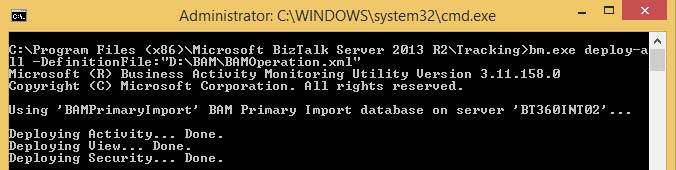
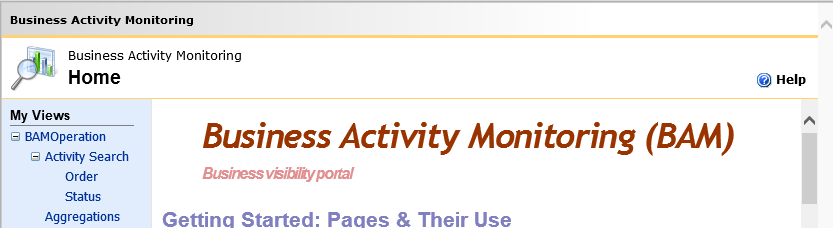
which will deploy a “BAMOperation” view in BAM Portal as shown below.
Remove a BAM Definition
Administrators can use the remove-view / remove-activity command to remove a view and Activity from the BAM Primary Import database. Follow the below steps to remove an existing activity/view:
- Open Command Prompt as administrator.
- Navigate to BizTalk Server Installation path/ Tracking folder and use the below command.
To Remove a BAM Definition File:
bm.exe deploy-all –DefinitionFile:” <<FileLocation>> BAMOperation.xml”
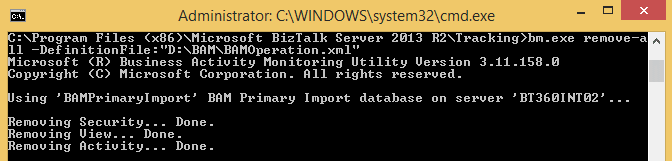
Removing a BAM definition file will remove the related tables, views, etc. which were deployed in the database and server.
Remove a BAM Activity
To remove a BAM Activity, the user needs to remove the BAM View first and then the BAM Activity they wanted to remove. Execute the below-shown command to remove the BAM View first and then the BAM Activity.
To remove a BAM View:
bm.exe remove-view -name: {view name}
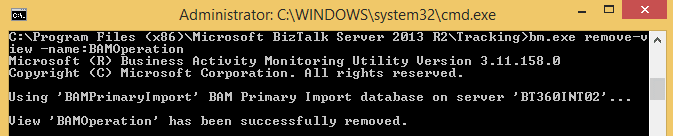
To remove a BAM Activity
bm.exe remove-activity -name: {activity name}
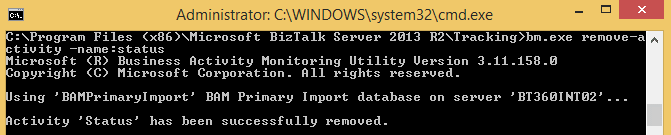
The above command which will remove the specified activity alone form the database.
Update a BAM Activity
The User is also able to update an existing View/Activity. To update an Activity/ View, the user should remove the activity/view first by using the above-mentioned commands and then follow the below steps to update any changes in the existing View /Activity.
For example, I have removed the above “Status” activity and I have updated the activity as shown below.
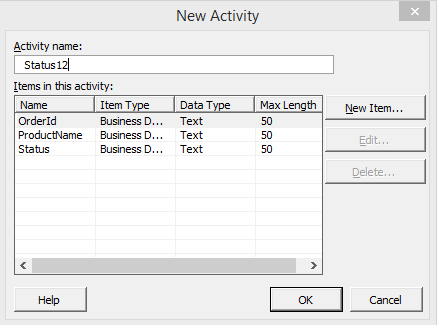
We then use the below command to update the changes to the existing view:
bm.exe update-all –DefinitionFile:” <<FileLocation>> BAMOperation.xml”
The above command will add a table, view in the database and it will update the previous activity in the BAM Portal as shown below.
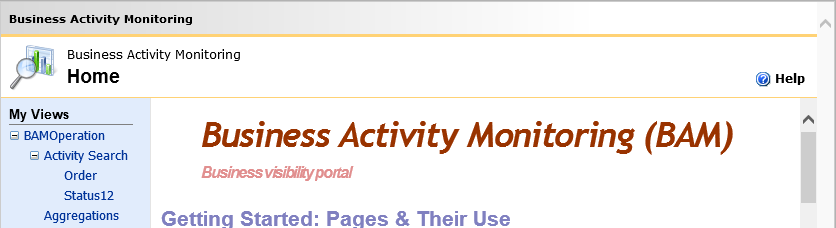
Add an Account to BAM Definition
Administrators use the add-account command to associate users with BAM views and protect the BAM Excel Spreadsheet views from unauthorized access. When users save BAM views, the views reference a SQL connection string that is hidden within the workbook. The workbook is protected, but you must also ensure that the document is protected.
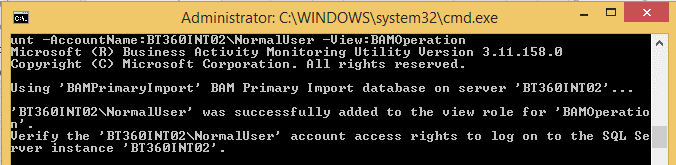
When you associate users with BAM views, you restrict access to the views to only the users or groups to whom you grant access by using the below command.
bm.exe add-account -AccountName: DomainName UserName -View:(viewname)
by Sandro Pereira | Oct 5, 2017 | BizTalk Community Blogs via Syndication
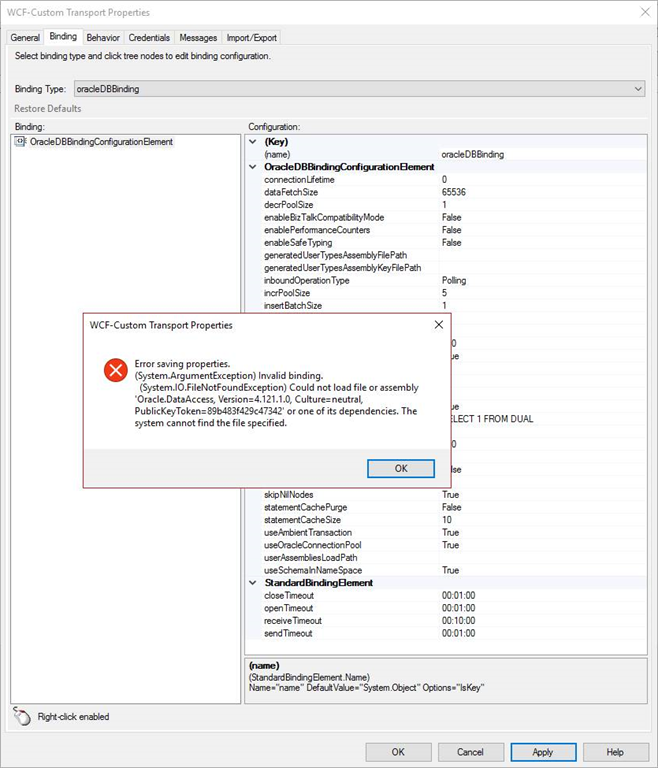
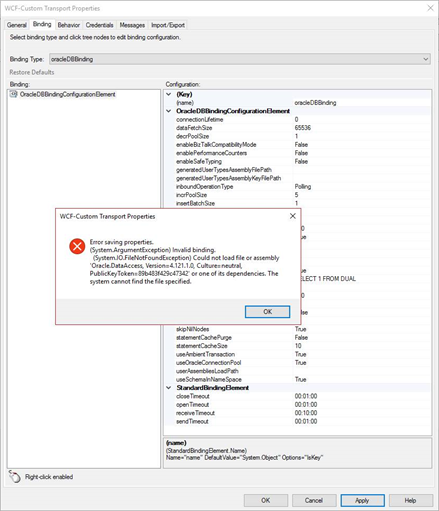
It is not the first time, neither will be the last that I encountered similar problems like this one or the same problem with earlier versions, we call it DLL hell (or nightmare) but I think that all BizTalk Administrator are familiar with it and vaccinated for the problem. Some months ago, while trying to communicate with an Oracle database within Visual Studio in a brand-new BizTalk Server 2016 Developer environment to generate the proper Schemas, we faced with the following Oracle.DataAccess problem:
Error saving properties.
(System.ArgumentException) Invalid binding.
(System.IO.FileNotFoundException) Could not load file or assembly ‘Oracle.DataAccess, Version=4.121.1.0, Culture=neutral, PublicKeyToken=89b483f429c47342’ or one of its dependencies. The system cannot find the file specified.
Cause
When installing the Oracle WCF Adapter for BizTalk Server 2016 there is a design-time requirement to use Oracle.DataAccess Version 4.121.1.0.
BizTalk Server 2016 requires that specific Oracle.DataAccess version, however, us we were able to very on the GAC, the DLL that existed in our environment had a different version.
Trying to find the correct ODP.NET 11.2.0.1.2 version under Oracle website can be a challenge
Note: depending on the BizTalk Server version that you are using, this the required Oracle.DataAccess version may change.
Solution
Trying to find the correct ODP.NET 11.2.0.1.2 version under Oracle website can be a challenge, so one of the easier and fast ways to solve this problem is using Assembly Binding Redirection in the machine configuration file (Machine.config):
- 32-bit: c:WindowsMicrosoft.NETFramework[version]configmachine.config
- 64-bit: c:WindowsMicrosoft.NETFramework64[version]configmachine.config
Note: You should apply this in both 32 and 64-bit machine configuration files.
By using the <assemblyBinding> Element for <runtime> that will contain all the information about assembly version redirection and the locations of assemblies.
In this case, you should apply the following configurations:
<runtime>
  <assemblyBinding xmlns="urn:schemas-microsoft-com:asm.v1">
    <dependentAssembly>
      <assemblyIdentity name="Oracle.DataAccess"
         publicKeyToken="89b483f429c47342" />
      <bindingRedirect oldVersion="4.121.1.0" newVersion="x.xxx.x.x" />
    </dependentAssembly>
  </assemblyBinding>
</runtime>
By doing this when BizTalk Server will look to the Oracle.DataAccess version which not exists in your environment, it will be redirected to the existing DLL version.
For example, in our case we used:
<!--<runtime />-->
  <runtime>
    <assemblyBinding xmlns="urn:schemas-microsoft-com:asm.v1">
      <dependentAssembly>
        <assemblyIdentity name="Oracle.DataAccess" publicKeyToken="89b483f429c47342" />
        <bindingRedirect oldVersion="4.121.1.0" newVersion="4.121.2.0" />
      </dependentAssembly>
   </assemblyBinding>
</runtime>
Just to be on the safe side, you should add this configuration in both 32 and 64-bit in .NET Framework 2.0 and 4.0 machine configuration files.
Author: Sandro Pereira
Sandro Pereira lives in Portugal and works as a consultant at DevScope. In the past years, he has been working on implementing Integration scenarios both on-premises and cloud for various clients, each with different scenarios from a technical point of view, size, and criticality, using Microsoft Azure, Microsoft BizTalk Server and different technologies like AS2, EDI, RosettaNet, SAP, TIBCO etc. He is a regular blogger, international speaker, and technical reviewer of several BizTalk books all focused on Integration. He is also the author of the book “BizTalk Mapping Patterns & Best Practices”. He has been awarded MVP since 2011 for his contributions to the integration community. View all posts by Sandro Pereira

by Sandro Pereira | Sep 29, 2017 | BizTalk Community Blogs via Syndication
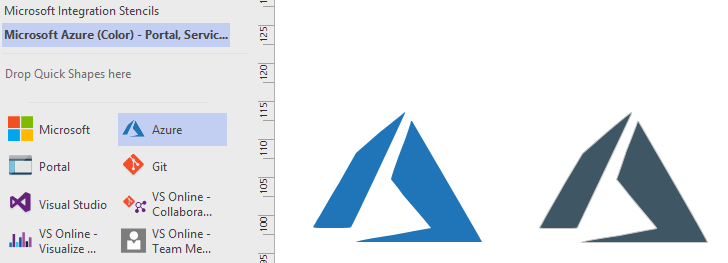
This is probably the quickest and smallest update that I made in my Microsoft Integration (Azure and much more) Stencils Pack: only 1 new stencil and I only do it for its importance, since it is definitely one of Microsoft’s fastest growing business these days, and the Ignite context: the new Azure logo.

This will be probably the first Visio pack containing this shape.
The Microsoft Integration (Azure and much more) Stencils Pack v2.6.1 is composed by 13 files:
- Microsoft Integration Stencils v2.6.1
- MIS Apps and Systems Logo Stencils v2.6.1
- MIS Azure Portal, Services and VSTS Stencils v2.6.1
- MIS Azure SDK and Tools Stencils v2.6.1
- MIS Azure Services Stencils v2.6.1
- MIS Deprecated Stencils v2.6.1
- MIS Developer v2.6.1
- MIS Devices Stencils v2.6.1
- MIS IoT Devices Stencils v2.6.1
- MIS Power BI v2.6.1
- MIS Servers and Hardware Stencils v2.6.1
- MIS Support Stencils v2.6.1
- MIS Users and Roles Stencils v2.6.1
That will help you visually represent Integration architectures (On-premise, Cloud or Hybrid scenarios) and Cloud solutions diagrams in Visio 2016/2013. It will provide symbols/icons to visually represent features, systems, processes and architectures that use BizTalk Server, API Management, Logic Apps, Microsoft Azure and related technologies.
- BizTalk Server
- Microsoft Azure
- · Azure App Service (API Apps, Web Apps, Mobile Apps and Logic Apps)
- API Management
- Event Hubs
- Service Bus
- Azure IoT and Docker
- SQL Server, DocumentDB, CosmosDB, MySQL, …
- Machine Learning, Stream Analytics, Data Factory, Data Pipelines
- and so on
- Microsoft Flow
- PowerApps
- Power BI
- Office365, SharePoint
- DevOpps: PowerShell, Containers
- And many more…
You can download Microsoft Integration (Azure and much more) Stencils Pack from:
 Microsoft Integration Stencils Pack for Visio 2016/2013 (11,4 MB)
Microsoft | TechNet Galler
Author: Sandro Pereira
Sandro Pereira lives in Portugal and works as a consultant at DevScope. In the past years, he has been working on implementing Integration scenarios both on-premises and cloud for various clients, each with different scenarios from a technical point of view, size, and criticality, using Microsoft Azure, Microsoft BizTalk Server and different technologies like AS2, EDI, RosettaNet, SAP, TIBCO etc. He is a regular blogger, international speaker, and technical reviewer of several BizTalk books all focused on Integration. He is also the author of the book “BizTalk Mapping Patterns & Best Practices”. He has been awarded MVP since 2011 for his contributions to the integration community. View all posts by Sandro Pereira

by Sandro Pereira | Sep 19, 2017 | BizTalk Community Blogs via Syndication
I decided to update my Microsoft Integration (Azure and much more) Stencils Pack with a set of 24 new shapes (maybe the smallest update I ever did to this package) mainly to add the Azure Event Grid shapes.
One of the main reasons for me to initially create the package was to have a nice set of Integration (Messaging) shapes that I could use in my diagrams, and during the time it scaled to a lot of other things.
With these new additions, this package now contains an astounding total of ~1311 shapes (symbols/icons) that will help you visually represent Integration architectures (On-premise, Cloud or Hybrid scenarios) and Cloud solutions diagrams in Visio 2016/2013. It will provide symbols/icons to visually represent features, systems, processes, and architectures that use BizTalk Server, API Management, Logic Apps, Microsoft Azure and related technologies.
- BizTalk Server
- Microsoft Azure
- Azure App Service (API Apps, Web Apps, Mobile Apps and Logic Apps)
- API Management
- Event Hubs & Event Grid
- Service Bus
- Azure IoT and Docker
- SQL Server, DocumentDB, CosmosDB, MySQL, …
- Machine Learning, Stream Analytics, Data Factory, Data Pipelines
- and so on
- Microsoft Flow
- PowerApps
- Power BI
- Office365, SharePoint
- DevOpps: PowerShell, Containers
- And much more…
The Microsoft Integration (Azure and much more) Stencils Pack v2.6 is composed by 13 files:
- Microsoft Integration Stencils v2.6
- MIS Apps and Systems Logo Stencils v2.6
- MIS Azure Portal, Services and VSTS Stencils v2.6
- MIS Azure SDK and Tools Stencils v2.6
- MIS Azure Services Stencils v2.6
- MIS Deprecated Stencils v2.6
- MIS Developer v2.6
- MIS Devices Stencils v2.6
- MIS IoT Devices Stencils v2.6
- MIS Power BI v2.6
- MIS Servers and Hardware Stencils v2.6
- MIS Support Stencils v2.6
- MIS Users and Roles Stencils v2.6
These are some of the new shapes you can find in this new version:

- Azure Event Grid
- Azure Event Subscriptions
- Azure Event Topics
- BizMan
- Integration Developer
- OpenAPI
- APIMATIC
- Load Testing
- API Testing
- Performance Testing
- Bot Services
- Azure Advisor
- Azure Monitoring
- Azure IoT Hub Device Provisioning Service
- Azure Time Series Insights
- And much more
You can download Microsoft Integration (Azure and much more) Stencils Pack from:
Microsoft Integration Stencils Pack for Visio 2016/2013 (11,4 MB)
Microsoft | TechNet Gallery
Author: Sandro Pereira
Sandro Pereira lives in Portugal and works as a consultant at DevScope. In the past years, he has been working on implementing Integration scenarios both on-premises and cloud for various clients, each with different scenarios from a technical point of view, size, and criticality, using Microsoft Azure, Microsoft BizTalk Server and different technologies like AS2, EDI, RosettaNet, SAP, TIBCO etc. He is a regular blogger, international speaker, and technical reviewer of several BizTalk books all focused on Integration. He is also the author of the book “BizTalk Mapping Patterns & Best Practices”. He has been awarded MVP since 2011 for his contributions to the integration community. View all posts by Sandro Pereira

by Gautam | Sep 17, 2017 | BizTalk Community Blogs via Syndication
Do you feel difficult to keep up to date on all the frequent updates and announcements in the Microsoft Integration platform?
Integration weekly update can be your solution. It’s a weekly update on the topics related to Integration – enterprise integration, robust & scalable messaging capabilities and Citizen Integration capabilities empowered by Microsoft platform to deliver value to the business.
If you want to receive these updates weekly, then don’t forget to Subscribe!
On-Premise Integration:
Cloud and Hybrid Integration:
Feedback
Hope this would be helpful. Please feel free to let me know your feedback on the Integration weekly series.
by Sandro Pereira | Sep 15, 2017 | BizTalk Community Blogs via Syndication
The funniest part of having an intern working and learning from you, especially for a person like me that really love to write about “Errors and Warnings, Causes and Solutions”, is that they are able to make the funniest and unexpected questions, they will find things that because we are so accustomed to doing the job and to avoiding them, that we do not even realize anymore that they exist and they are there.
So yesterday, after a solution deployment, my intern was complaining that he was always receiving the following error while creating a receive port:
TITLE: BizTalk Server Administration
——————————
Concurrency Violation encountered while Updating the ReceivePort ‘rprtReceive’. The local, cached version of the BizTalk Server group configuration is out of date. You must refresh the BizTalk Server group configuration before making further changes. (Microsoft.BizTalk.ExplorerOM)
For help, click: http://go.microsoft.com/fwlink/?LinkId=47400&ProdName=Microsoft+BizTalk+Server+2016&ProdVer=3.12.774.0&EvtSrc=Microsoft.BizTalk.ExplorerOM.Resources&EvtID=IDS_ERR_OBJECT_CONCURRENCY
——————————
BUTTONS:
OK
—————————–
Cause
While open and navigating in the BizTalk Administration Console you will notice that the first request on expanding the navigation tree or open a BizTalk Server Application or Host Instance will take longer time that further interactions, this because in the first request the Administration Console will query your BizTalk databases for information and after that in cache the result.
So, unless you force a refresh it will use that cache information, nevertheless it will have some kind of mechanism (like a hash) to verify if the cache is updated will the current BizTalk Server Configuration on the database when you try to perform an operation like create or change a Receive Location.
Assuming that you deploy a new version or new artifact to a BizTalk Application, you need to refresh that Application before you perform any kind of operations, otherwise, you will receive this or similar errors.
The reason for this error to happen was that my intern already had the BizTalk Administration Console running and he was already focused (selected) the Application in concern before he went and deploy a new version of the solution from Visual Studio. After he deploy
SOLUTION
This is, in fact, a simple problem to solve:
- Concurrency Violation encountered while Updating the ReceivePort – Option 1:
- Close the BizTalk Administration Console and open again (stupid and simple)
- Concurrency Violation encountered while Updating the ReceivePort – Option 2:
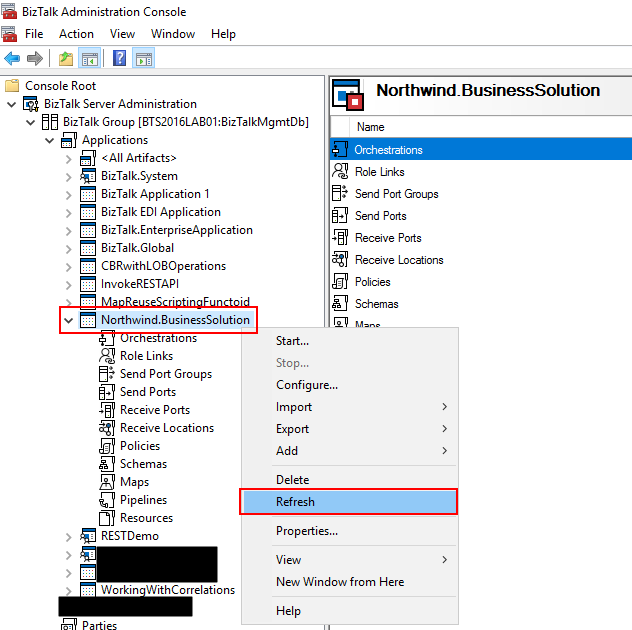
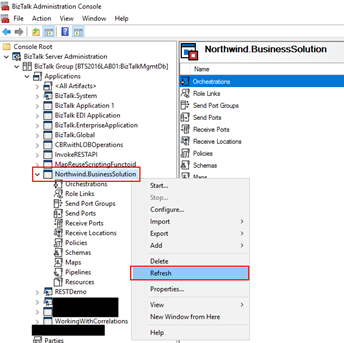
- Right-click on the BizTalk Application you want to refresh, and then select the “Refresh” option
- Concurrency Violation encountered while Updating the ReceivePort – Option 3:
- Select the resource inside your BizTalk Application you want to refresh, for example, “Receive Locations” and press F5
There are several alternatives. The important is to refresh the BizTalk Administration Console if something had changed in your BizTalk Server environment.
Author: Sandro Pereira
Sandro Pereira lives in Portugal and works as a consultant at DevScope. In the past years, he has been working on implementing Integration scenarios both on-premises and cloud for various clients, each with different scenarios from a technical point of view, size, and criticality, using Microsoft Azure, Microsoft BizTalk Server and different technologies like AS2, EDI, RosettaNet, SAP, TIBCO etc. He is a regular blogger, international speaker, and technical reviewer of several BizTalk books all focused on Integration. He is also the author of the book “BizTalk Mapping Patterns & Best Practices”. He has been awarded MVP since 2011 for his contributions to the integration community. View all posts by Sandro Pereira
by Sandro Pereira | Sep 14, 2017 | BizTalk Community Blogs via Syndication
BizTalk Server Administration Console cannot connect to WMI provider? The things I found from playing around with all kind of different environments from different clients and my personal ones (Hehe)… and I thought that I had already found all type of real or imaginary BizTalk errors, but once again I BizTalk Server prove me that I was wrong, this issue was new for me – who says that my BizTalk Consultant life is boring? (hehe).
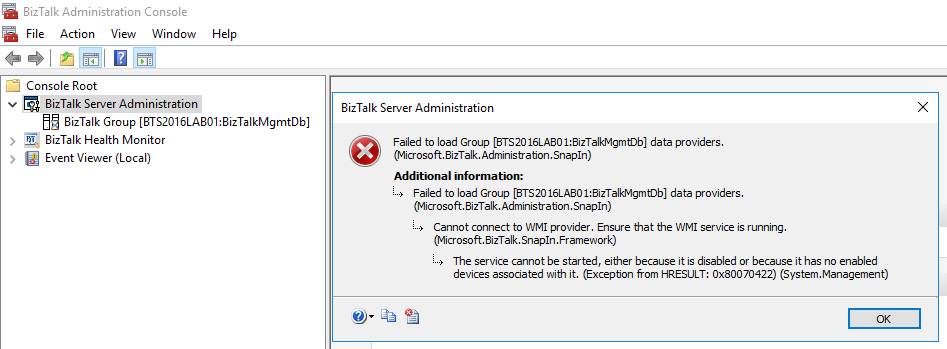
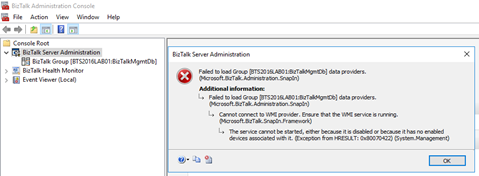
Joking apart, I got the following error while trying to navigate in the BizTalk Server Administration Console in one of my personal environments:
TITLE: BizTalk Server Administration
——————————
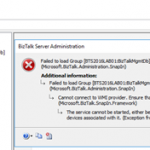
Failed to load Group [BTS2016LAB01:BizTalkMgmtDb] data providers. (Microsoft.BizTalk.Administration.SnapIn)
For help, click: http://go.microsoft.com/fwlink/?LinkId=47400&ProdName=Microsoft+BizTalk+Server+2016&ProdVer=3.12.774.0&EvtSrc=Microsoft.BizTalk.Administration.SnapIn.Properties.Errors&EvtID=FailedLoadingGroupProviders&EvtChain=Microsoft.BizTalk.Administration.SnapIn.Properties.Errors+%2cFailedLoadingGroupProviders%3bMicrosoft.BizTalk.SnapIn.Framework.Properties.ErrorMessages+%2cConnectToWMIProviderFailed
——————————
ADDITIONAL INFORMATION:
Failed to load Group [BTS2016LAB01:BizTalkMgmtDb] data providers. (Microsoft.BizTalk.Administration.SnapIn)
For help, click: http://go.microsoft.com/fwlink/?LinkId=47400&ProdName=Microsoft+BizTalk+Server+2016&ProdVer=3.12.774.0&EvtSrc=Microsoft.BizTalk.Administration.SnapIn.Properties.Errors&EvtID=FailedLoadingGroupProviders&EvtChain=Microsoft.BizTalk.SnapIn.Framework.Properties.ErrorMessages+%2cConnectToWMIProviderFailed
——————————
Cannot connect to WMI provider. Ensure that the WMI service is running. (Microsoft.BizTalk.SnapIn.Framework)
For help, click: http://go.microsoft.com/fwlink/?LinkId=47400&ProdName=Microsoft+BizTalk+Server+2016&ProdVer=3.12.774.0&EvtSrc=Microsoft.BizTalk.SnapIn.Framework.Properties.ErrorMessages&EvtID=ConnectToWMIProviderFailed
——————————
The service cannot be started, either because it is disabled or because it has no enabled devices associated with it. (Exception from HRESULT: 0x80070422) (System.Management)
——————————
BUTTONS:
OK
—————————–
Cause
The reason for the BizTalk Server Administration Console cannot connect to WMI provider is because the BTS Administration Console relies on Windows Management Instrumentation (WMI) service, more specifically, the BizTalk WMI Provider (BTSWMIProvider.dll) to perform all type of different queries into BizTalk Environment (or BizTalk databases)
And for that reason, Windows Management Instrumentation (Winmgmt) service need to be enabled and running on the server in which you are running the BizTalk Server Administration Console.
In my case, the problem was that while I was investigating the unnecessary services that I could disable to optimize BizTalk Server performance, I disable this important service.
Solution
As I mentioned above, the solution to this problem is to Enable and Start the Winmgmt service, you can accomplish that by:
- If the service is Disabled:
- Press the “Windows key” to open the Start menu, type “Services” and click on “View local services” option from the Search window.
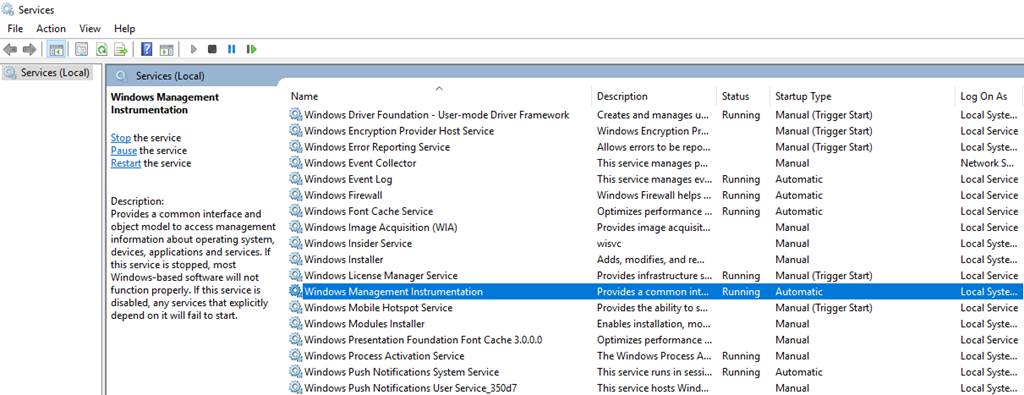
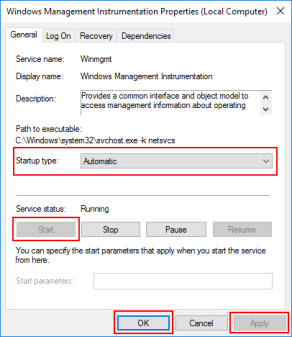
- In the Services window, on the Services (Local) panel select the Windows Management Instrumentation service, right click and select “Properties” option.
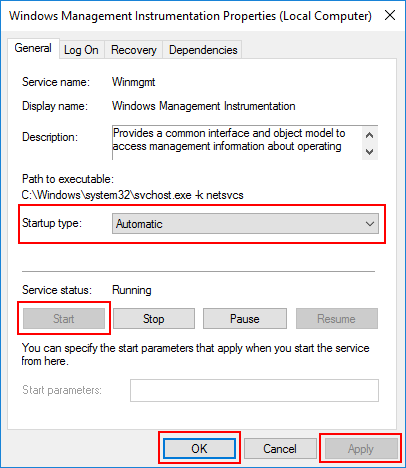
- On the Windows Management Instrumentation Properties (Local Computer) window:
- On the General tab apply the following configuration.
- Startup type: “Automatic”
- And then click “Start” and “Apply”.
- If the service is Enable, you can simply:
- Open a command prompt as administrator by pressing the “Windows key” to open the Start menu and type “cmd” in the Start Search box, right-click in “Command Prompt” and select from the context menu the “Run as administrator” option
- And type the following command: net stat winmgmt
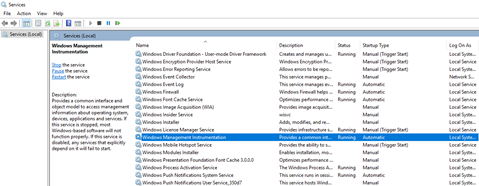
Once the Winmgmt service is running you will be able to use the BizTalk Server Administration Console without this error/problem happening.
Author: Sandro Pereira
Sandro Pereira lives in Portugal and works as a consultant at DevScope. In the past years, he has been working on implementing Integration scenarios both on-premises and cloud for various clients, each with different scenarios from a technical point of view, size, and criticality, using Microsoft Azure, Microsoft BizTalk Server and different technologies like AS2, EDI, RosettaNet, SAP, TIBCO etc. He is a regular blogger, international speaker, and technical reviewer of several BizTalk books all focused on Integration. He is also the author of the book “BizTalk Mapping Patterns & Best Practices”. He has been awarded MVP since 2011 for his contributions to the integration community. View all posts by Sandro Pereira
by Sandro Pereira | Sep 13, 2017 | BizTalk Community Blogs via Syndication
This strange error does not occur often, perhaps from time to time, or in different environments, but in reality, I already had the “privilege” of encountering it more than once while I was trying to open the SQL Server Management Studio (SSMS):
The Visual Studio component cache is out of date. Please restart Visual Studio.
Not really a BizTalk Server problem but you now that behind the curtains, BizTalk Server relies on SQL Server 
Cause
The cause of this problem is unclear, and I wish I could have a better explanation to provide and in fact, there is an issue active opened in MSFT about this (see here).
I just assume that something may have happened, maybe an update or something similar, that left something in a corrupt or incorrect state… but despite that, the resolution to this problem is quite simple.
Solution
As I said above, the resolution to this problem is quite simple and you may have several approaches to accomplish that. One of them is to manually remove all the temporary files from the Windows operating system by:
- Exit all programs and then hold down the WINDOWS key and then type R to open the “Run” windows.
- In the “Run” window, type “%TMP%” and then click “OK”
- This will open the TEMP directory that normally is: C:Users<your_user_name>AppDataLocalTemp
- Select and delete all the content of the TEMP folder
This approach always solved my problem.
But you can also try a different approach to do the same operations like:
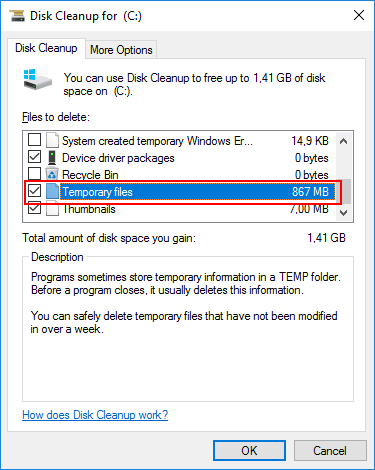
- Open the Disk Cleanup utility.
- Make sure that you select the “Temporary files” option and then click on “OK”.
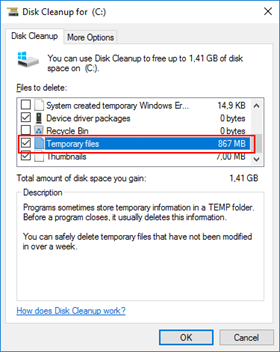
- When prompted up, select “Delete Files”
Again, if you now try to open Microsoft SQL Server Management Studio this The Visual Studio component cache is out of date. Please restart Visual Studio solution error message will have disappeared.
Author: Sandro Pereira
Sandro Pereira lives in Portugal and works as a consultant at DevScope. In the past years, he has been working on implementing Integration scenarios both on-premises and cloud for various clients, each with different scenarios from a technical point of view, size, and criticality, using Microsoft Azure, Microsoft BizTalk Server and different technologies like AS2, EDI, RosettaNet, SAP, TIBCO etc. He is a regular blogger, international speaker, and technical reviewer of several BizTalk books all focused on Integration. He is also the author of the book “BizTalk Mapping Patterns & Best Practices”. He has been awarded MVP since 2011 for his contributions to the integration community. View all posts by Sandro Pereira
by Sandro Pereira | Sep 12, 2017 | BizTalk Community Blogs via Syndication
Continuing the season topic: “BizTalk Server Tips and Tricks” I have to say this is one of my favorites, I simply love this tip…
If you followed the old BizTalk Innovation Day’s events, that lead to the current Integrate event in London, you may remember my dear friend Tord Glad Nordahl complaining every year in his sessions about Developers writing unnecessary information Application Log. Well, I partially agree with him, I agree in the first part: you shouldn’t write custom application errors, warnings of information in the Application Log!
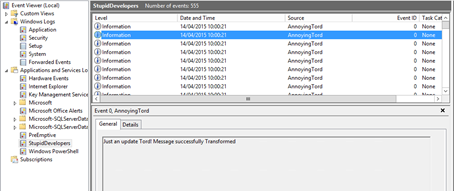
You need to realize that Application Event Log holds almost all the important information related to different aspects of BizTalk – SQL, IIS, BizTalk infrastructure and runtime problems – it is one of the main places that admins use to monitor “applications” installed on their server. This is the information that is extremely important for BizTalk Administrator in order to monitor the well-being of the platform and to diagnose problems. For that reason you don’t want to immerse the Application log with irrelevant and unnecessary information at the point to be almost impossible to find real problems – instead you, or in this case, the admins, should keep it clean.
Instead of using the Application Log, you can use a custom log for logging your custom application (integration) errors, warnings or information., So, in this way, I really don’t care if you are using the Event Viewer to log additional information’s about your integration processes.
What the Administrator does normally in these circumstances?
They tend to ask (argue) to the developer team to change their code, that already is deployed in several (or all) the environments, for not to write in the Application log this unnecessary information…
… they tend to receive the following response, “this information is critical for us to have visibility and track the processes (feeling surprised but I have heard enough times this statement), debugging and troubleshooting and so on”.
It’s basically a stupid and unnecessary battle where I can say that no one will be defeated or victorious.
What should the Administrator do?
Changing people’s behavior is hard, but I’m not saying that you should not try. You should, but getting others to change can be impossible, or a big challenge, it will definitely take time… especially developers who will try to find a thousand excuses for explaining why such information is important.
My advice for them take back the control of your environment by easily creating or using PowerShell (let the developer by happy by writing in the Event Viewer)
With this simple script, you can easily move an Event Source to a different Windows Event Log:
foreach ($LogSource in $LogSources) {

Remove-EventLog -Source $LogSource

}

$logFileExists = Get-EventLog -list | Where-Object {$_.logdisplayname -eq $LogName}

if (! $logFileExists) {

$LogSources | %{

New-EventLog -LogName $LogName -Source $_

}

# Compose Key:

$LogPath = 'HKLM:SYSTEMCurrentControlSetserviceseventlog'+$LogName;

if(Test-Path $LogPath)

{

$acl = Get-Acl $LogPath

$GpOrUsers | %{

$ace = New-Object System.Security.AccessControl.RegistryAccessRule $_,'WriteKey, ReadKey','allow'

$acl.AddAccessRule($ace)

#Set-Acl $LogPath $acl

}

}else{Write-Error "Cannot acesss log $LogName"}

}

else {

$LogSources | %{

New-EventLog -LogName $LogName -Source $_

}

}
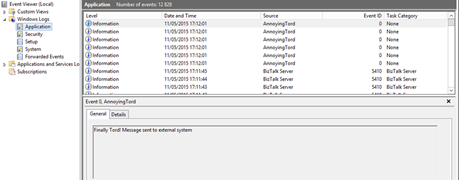
This way, you as an admin can take back the control of your environment and fix the developers madness.
The full script can be found and download here: BizTalk DevOps: Moving Event Source To a Different/Custom Windows Event Log
Stay tuned for new tips and tricks!
Author: Sandro Pereira
Sandro Pereira is an Azure MVP and works as an Integration consultant at DevScope. In the past years, he has been working on implementing Integration scenarios both on-premises and cloud for various clients, each with different scenarios from a technical point of view, size, and criticality, using Microsoft Azure, Microsoft BizTalk Server and different technologies like AS2, EDI, RosettaNet, SAP, TIBCO etc. View all posts by Sandro Pereira