Like the previous post, while trying to deploy an existing Logic App Consumption thru Visual Studio 2019 in our development environment, I got the following error message:
Template deployment returned the following errors:
Error: Code=InvalidTemplate;
Message=Deployment template validation failed: ‘The template parameters ‘name-of-the-parameter’ in the parameters file are not valid; they are not present in the original template and can therefore not be provided at deployment time. The only supported parameters for this template are ‘list-of-parameters-present-in-the-LogicApp’. Please see https://aka.ms/arm-pass-parameter-values for usage details.’.
The deployment validation failed.
Cause
The cause of the problem is once again quite simple, and the error description is really good, not only describing the problem but providing the solution also.
In my case, the error says that “arm_ServiceBus_Subscription_A” doesn’t exist – is not valid – in the template parameter file that I’m using to deploy the Logic App Consumption thru Visual Studio. And it also says that the only supported parameters for this template are:
arm_ServiceBus_Subscription_ABC
arm_ServiceBus_Connection_Name
arm_ServiceBus_Connection_DisplayName
arm_ServiceBus_Topic
arm_LA_InitialState
…
Solution
Fixing this issue is simple, and you have three options that you need to choose according to your scenario:
Remove/delete this template parameter from the parameters file.
Rename this parameter to a valid one.
Or add this ARM parameter in the LogicApp.json file
Perhaps this last option is the most unlikely to happen since this would mean that you would have to change the code to include this parameter in some content or configuration of the actions or settings of the Logic App – what is the point of having an ARM parameter defined if you don’t really need it.
Author: Sandro Pereira
Sandro Pereira lives in Portugal and works as a consultant at DevScope. In the past years, he has been working on implementing Integration scenarios both on-premises and cloud for various clients, each with different scenarios from a technical point of view, size, and criticality, using Microsoft Azure, Microsoft BizTalk Server and different technologies like AS2, EDI, RosettaNet, SAP, TIBCO etc.
He is a regular blogger, international speaker, and technical reviewer of several BizTalk books all focused on Integration. He is also the author of the book “BizTalk Mapping Patterns & Best Practices”. He has been awarded MVP since 2011 for his contributions to the integration community.
View all posts by Sandro Pereira
Today while trying to deploy an existing Logic App Consumption thru Visual Studio 2019 in our development environment, I got the following error message:
"error": {
     "code": "InvalidTemplate",
     "message": "The template validation failed: 'The inputs of template action 'name_of_the_action_with_error' at line '1 and column '5938' cannot reference action 'name_of_the_action_that_is_being_referenced'. Action 'name_of_the_action_that_is_being_referenced' must either be in 'runAfter' path or within a scope action on the 'runAfter' path of action 'name_of_the_action_with_error', or be a Trigger.'."
}
The template validation failed: ‘The inputs of template action ‘name_of_the_action_with_error’ at line ‘1 and column ‘5938’ cannot reference action ‘name_of_the_action_that_is_being_referenced’. Action ‘name_of_the_action_that_is_being_referenced’ must either be in ‘runAfter’ path or within a scope action on the ‘runAfter’ path of action ‘name_of_the_action_with_error’, or be a Trigger.
Cause
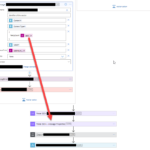
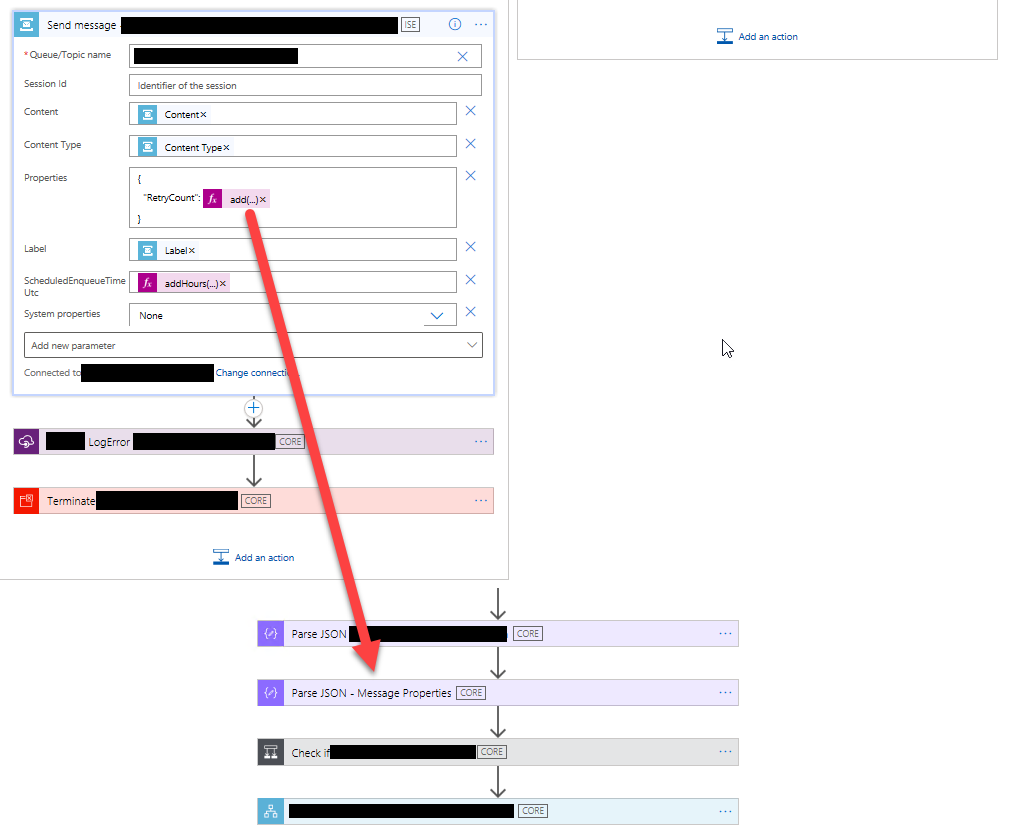
The cause of the problem is quite simple, once you check the underline code in your Logic App workflow. In my case, because I copied and pasted the properties from another action below into this one, I unintentionally was referring inside the add expression, an action that at that point didn’t exist in that workflow step – the action was only created four steps below as you see in the picture:
And indeed, the error message is correct. You can only reference actions that exist before the current action – within a scope action on the ‘runAfter’ path – or from the trigger.
Solution
Fixing this issue is simple. In my case, this Parse JSON – Message Properties action is trying to parse the existing Properties of the trigger – so I had two options:
Move the Parse JSON – Message Properties action just below the trigger or above the Send Message action.
Or modify the add expression to not reference the Parse JSON – Message Properties action.
Author: Sandro Pereira
Sandro Pereira lives in Portugal and works as a consultant at DevScope. In the past years, he has been working on implementing Integration scenarios both on-premises and cloud for various clients, each with different scenarios from a technical point of view, size, and criticality, using Microsoft Azure, Microsoft BizTalk Server and different technologies like AS2, EDI, RosettaNet, SAP, TIBCO etc.
He is a regular blogger, international speaker, and technical reviewer of several BizTalk books all focused on Integration. He is also the author of the book “BizTalk Mapping Patterns & Best Practices”. He has been awarded MVP since 2011 for his contributions to the integration community.
View all posts by Sandro Pereira
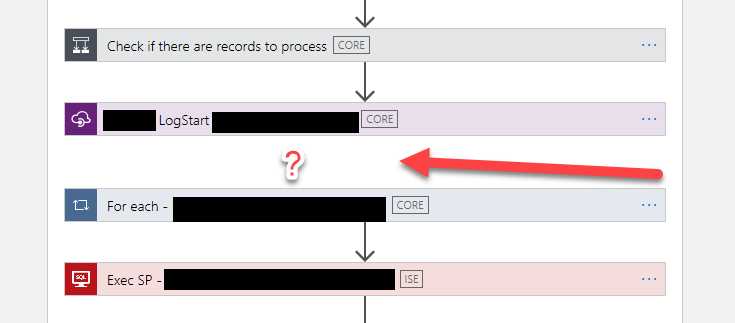
Today while developing an existing Logic App Consumption in Visual Studio 2019, yes, we still don’t have support for Visual Studio 2022, I realized that for some unknown reason, one of the actions, in my case a For each action, didn’t have the normal arrow – that indicates the precedence of the previous step in the Logic App designer as you can see in the picture above – for some unknown reason it evaporated:
I tried to re-order (or move) the For each action in the designer to see if I could fix this issue, without success. A good option that you should always try is to close that file and open it again to force a refresh on the designer – that solves many issues – but it didn’t do the trick on this issue.
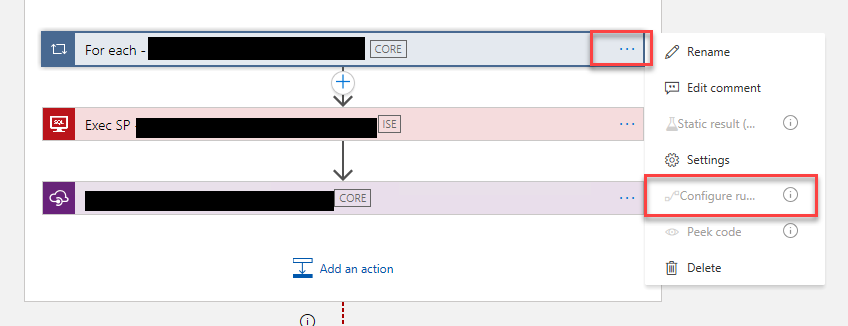
I couldn’t by Designer solve this issue because the property Configure run after settings were disabled:
I honestly don’t know what would happen if I tried to deploy this Logic App in this situation, but it shouldn’t be good. And this situation was causing me inconvenience when moving and reordering the actions. So I have no other option than try to fix it.
Cause
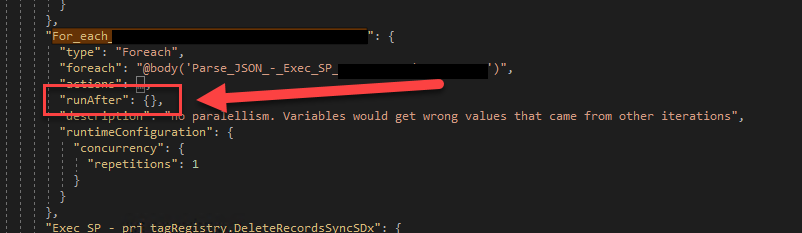
When inspecting the Code view, I realized that, again, for some unknown reason, the runAfter property was empty. The Logic App designer normally fills this value to run if the previous action Succeeded.
Solution
To fix this issue or behavior, we need to manually configure the runAfter property like:
Where the Name_Previous_Action is the name of the previous action on the workflow, the spaces in the action name are replaced by underscores.
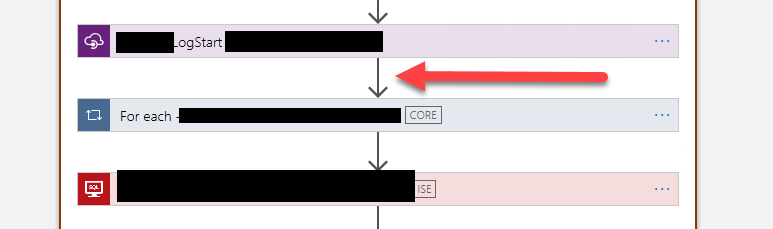
After that, if you return to the designer, you will see everything back to normality:
Hope you find this useful! So, if you liked the content or found it useful and want to help me write more content, you can buy (or help buy) my son a Star Wars Lego!
Author: Sandro Pereira
Sandro Pereira lives in Portugal and works as a consultant at DevScope. In the past years, he has been working on implementing Integration scenarios both on-premises and cloud for various clients, each with different scenarios from a technical point of view, size, and criticality, using Microsoft Azure, Microsoft BizTalk Server and different technologies like AS2, EDI, RosettaNet, SAP, TIBCO etc.
He is a regular blogger, international speaker, and technical reviewer of several BizTalk books all focused on Integration. He is also the author of the book “BizTalk Mapping Patterns & Best Practices”. He has been awarded MVP since 2011 for his contributions to the integration community.
View all posts by Sandro Pereira
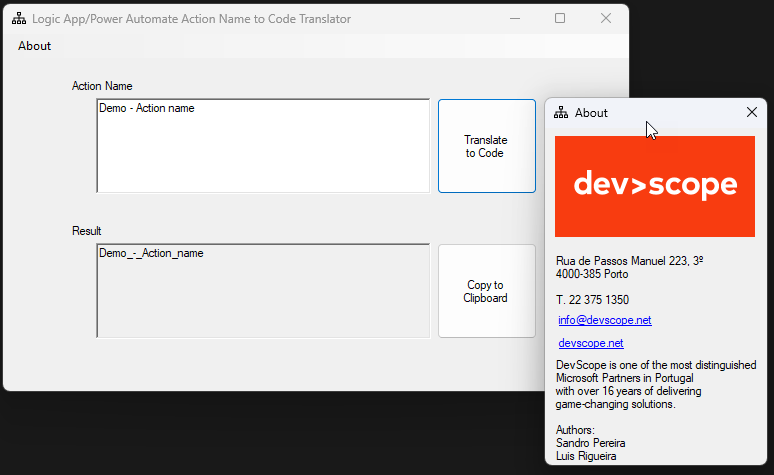
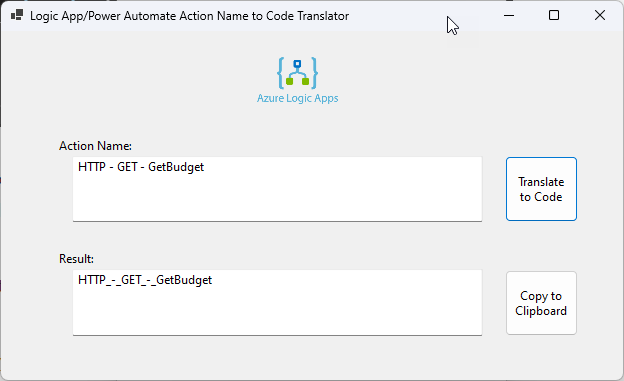
Yesterday I designed the idea and the main layout of a simple tool to translate Action Names or Trigger names from Logic App Design to Code View equivalent and gave free freedom to my team to implement it. Diogo Formosinho created a .NET Core application, the tool we published yesterday: Logic App/Power Automate Action Name to Code Translator Tool.
On the other hand, Luis Rigueira decided to go more old school and create a simple .NET Framework Windows Application. Both do the same and have almost the same look and feel. The main difference is that one is built on top of .NET Core, and the other on top of .NET Framework 4.7.2.
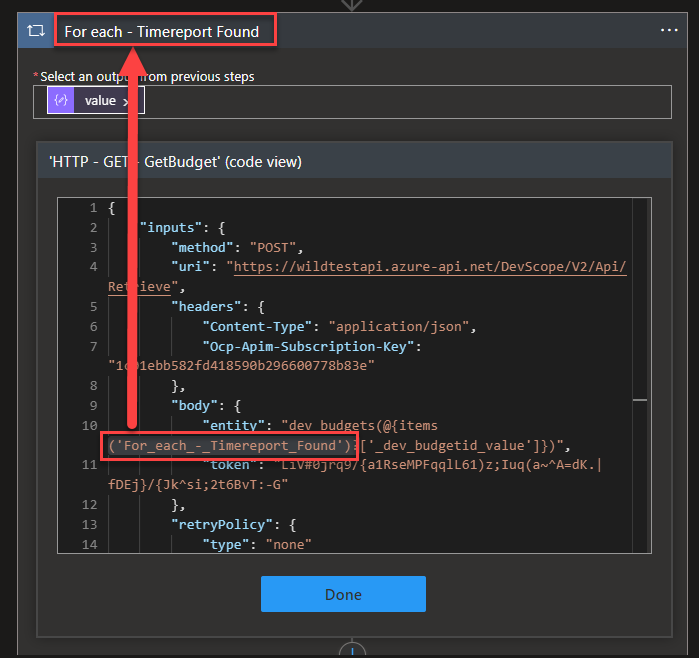
Once again, the major problem is that when we need to use the name of the Actions inside Expressions, many times, we need to replace the spaces of the action or trigger name with underscores. If we see the Code View or peek at the code of the action, we will see that all spaces are indeed replaced by _ (underscores). And this is sometimes a time-consuming and annoying task. This tool is so simple and stupid, and I love it! It is a tool that will improve productivity for Logic App Developers!
This second version of the tool is a Windows Application built in .NET Framework 4.7.2. and you can download, for free, the here:
Download
Hope you find this useful! So, if you liked the content or found it useful and want to help me write more content, you can buy (or help buy) my son a Star Wars Lego!
Author: Sandro Pereira
Sandro Pereira lives in Portugal and works as a consultant at DevScope. In the past years, he has been working on implementing Integration scenarios both on-premises and cloud for various clients, each with different scenarios from a technical point of view, size, and criticality, using Microsoft Azure, Microsoft BizTalk Server and different technologies like AS2, EDI, RosettaNet, SAP, TIBCO etc.
He is a regular blogger, international speaker, and technical reviewer of several BizTalk books all focused on Integration. He is also the author of the book “BizTalk Mapping Patterns & Best Practices”. He has been awarded MVP since 2011 for his contributions to the integration community.
View all posts by Sandro Pereira
This tool goes directly to my top favorite tools for a simple reason. It saves me from the annoying work of renaming the Action names every time I need to use them in an expression! It is a time saver!
The triggers or action names inside the Logic App or Power Automate workflow are not the same as we see in the Logic App Designer and behind the scenes on the code view. On the Logic App Designer, the trigger or action name allows you to provide a name between a minimum of 1 and a maximum of 80 characters. Contrary to what happens in Power Automates, you can use all types of characters. In the Logic App, the name of the actions (or triggers) cannot contain any control characters or any of the following symbols:
‘
<
>
%
&
?
/
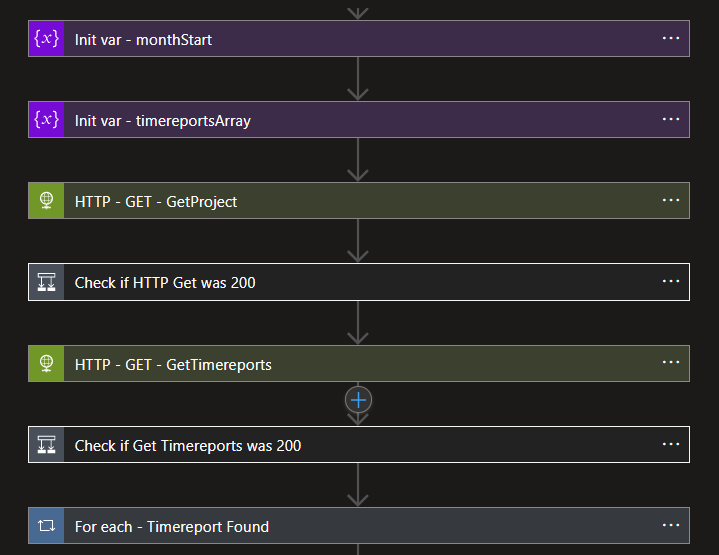
One of the characters you can use, both in Logic App and Power Automate, is the space as you can see in the picture:
HTTP – GET – GetProject
Check if HTTP Get was 200
HTTP – GET – GetTimereports
and many others
The problem is that when we need to use them inside Expressions, the spaces of the action or trigger name need to be replaced by underscores. If we see the Code View or peek at the code of the action, we will see that all spaces are indeed replaced by _ (underscores)
If we use the tokens (dynamic content window) to set up these values/configurations, the Logic App designer is smart enough to replace the spaces with underscores. However:
if we are using them inside Expressions, sometimes we need to set up these names manually.
If we go to Code View and try to search for an action, then we need to remember to replace the spaces with underscores.
Trust me that this is just an annoying and time-consuming task after a while. For this reason, my team and I decided to create a simple and basic tool that translates the action name that you provide by its equivalent in the Code View.
It is simple and stupid, and I love it!
Download
This first version of the tool is a Windows Application built in .NET Core. and you can download, for free, the here:
Hope you find this useful! So, if you liked the content or found it useful and want to help me write more content, you can buy (or help buy) my son a Star Wars Lego!
Author: Sandro Pereira
Sandro Pereira lives in Portugal and works as a consultant at DevScope. In the past years, he has been working on implementing Integration scenarios both on-premises and cloud for various clients, each with different scenarios from a technical point of view, size, and criticality, using Microsoft Azure, Microsoft BizTalk Server and different technologies like AS2, EDI, RosettaNet, SAP, TIBCO etc.
He is a regular blogger, international speaker, and technical reviewer of several BizTalk books all focused on Integration. He is also the author of the book “BizTalk Mapping Patterns & Best Practices”. He has been awarded MVP since 2011 for his contributions to the integration community.
View all posts by Sandro Pereira
This documentation is intended for clients considering or having already decided to move their entire BizTalk Server on-premises integration solution to Azure or parts of the solution into Azure, making some hybrid solutions and helping them with this process.
Now I had, once again, the honor of being invited a few weeks ago by my friend – and now Microsoft Principal Product Manager – Azure Logic Apps – Kent Weare to record a special episode on BizTalk Server to Azure Integration Services – Ask the Experts on his YouTube channel.
In this episode, we are going to discuss some important questions and concerns customers may have on this journey to migrate their BizTalk Server Solutions to Azure, like:
What are some examples of BizTalk migrations that I have been involved in? What is the biggest driver for these customers?
If I’m helping a customer migrate, what advice would I provide to the customer?
When considering BizTalk architectures, what is an anti-pattern or something that customers should avoid/re-think as they move to Azure?
And many other questions.
You can see the full episode here: https://www.youtube.com/watch?v=iYLFsUK5AmY
I hope you enjoy and find this topic interesting. Let me know what you think.
Author: Sandro Pereira
Sandro Pereira lives in Portugal and works as a consultant at DevScope. In the past years, he has been working on implementing Integration scenarios both on-premises and cloud for various clients, each with different scenarios from a technical point of view, size, and criticality, using Microsoft Azure, Microsoft BizTalk Server and different technologies like AS2, EDI, RosettaNet, SAP, TIBCO etc.
He is a regular blogger, international speaker, and technical reviewer of several BizTalk books all focused on Integration. He is also the author of the book “BizTalk Mapping Patterns & Best Practices”. He has been awarded MVP since 2011 for his contributions to the integration community.
View all posts by Sandro Pereira
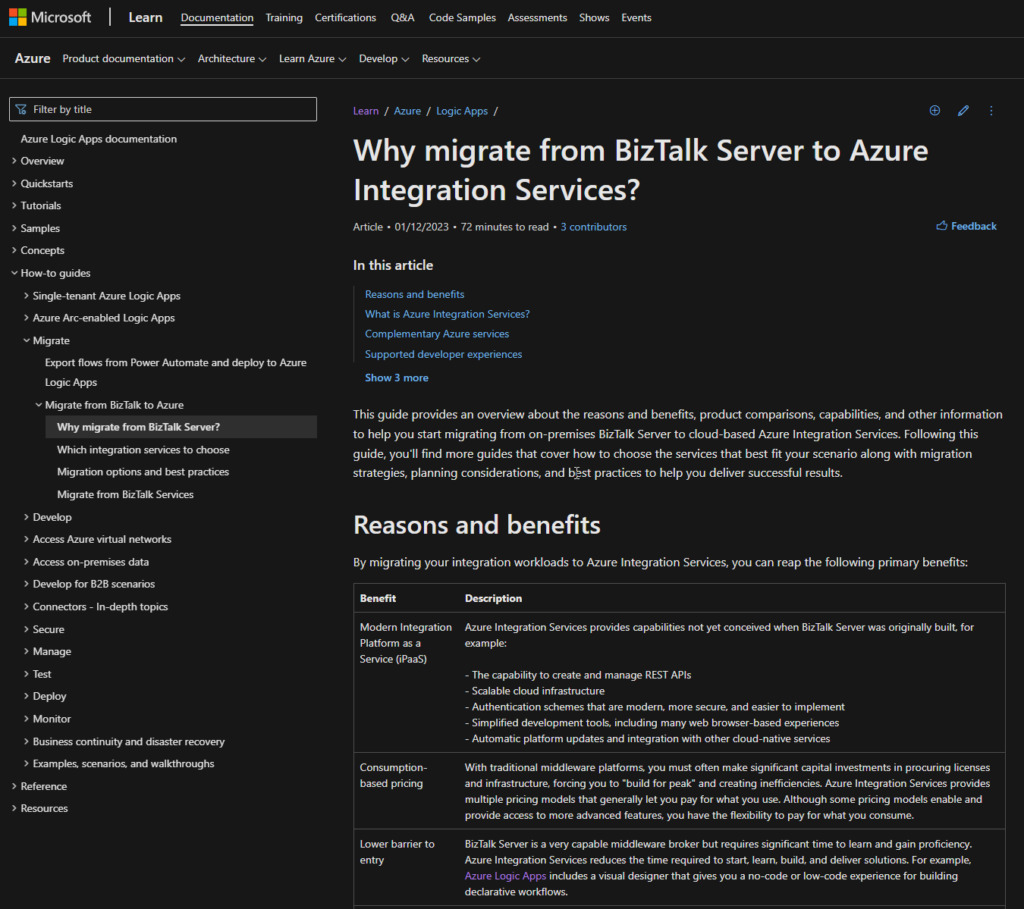
This guideline is focused on clients considering or having already decided to move their entire BizTalk Server on-premises integration solution to Azure or parts of the solution into Azure, therefore, making some hybrid solutions. Of course, in this process, many questions about best practices to use, what services to use, and others will be raised.
This guide provides an overview of the reasons and benefits, product comparisons, capabilities, and other information to help you start migrating from on-premises BizTalk Server solutions to cloud-based Azure Integration Services. Following this guide, you’ll find more guides that cover how to choose the services that best fit your scenario, along with migration strategies, planning considerations, and best practices to help you deliver successful results:
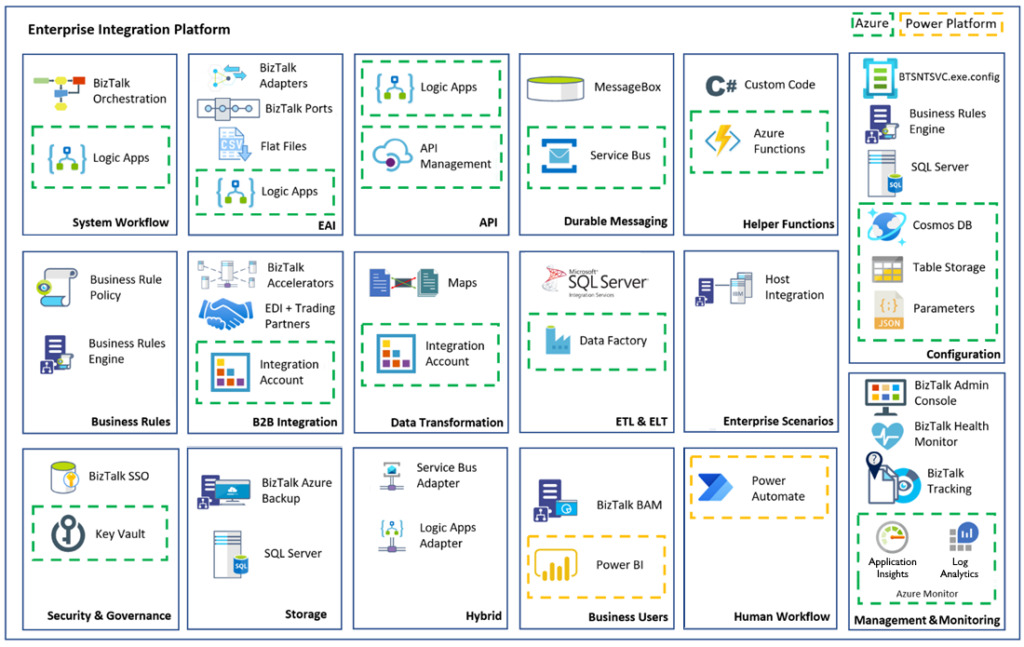
This is a simple feature matchup diagram that you will find in the guide:
Sandro Pereira lives in Portugal and works as a consultant at DevScope. In the past years, he has been working on implementing Integration scenarios both on-premises and cloud for various clients, each with different scenarios from a technical point of view, size, and criticality, using Microsoft Azure, Microsoft BizTalk Server and different technologies like AS2, EDI, RosettaNet, SAP, TIBCO etc.
He is a regular blogger, international speaker, and technical reviewer of several BizTalk books all focused on Integration. He is also the author of the book “BizTalk Mapping Patterns & Best Practices”. He has been awarded MVP since 2011 for his contributions to the integration community.
View all posts by Sandro Pereira
Today while my team and I were trying to do a small Logic App proof-of-concept using a Request – When a HTTP request is received trigger – something quite simple and basic – with a simple JSON payload like:
We were always getting the following error when we were trying to trigger the Logic App using Postman:
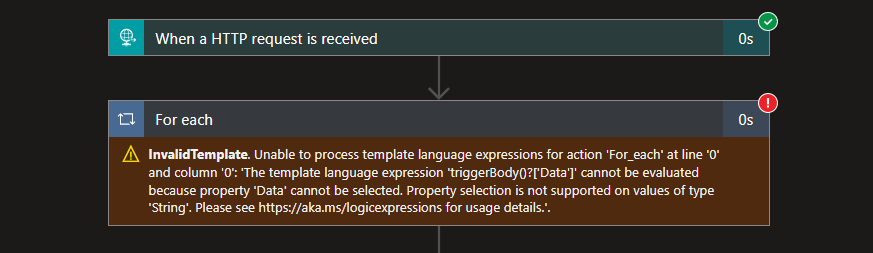
InvalidTemplate. Unable to process template language expressions for action ‘For_each’ at line ‘0’ and column ‘0’: ‘The template language expression ‘triggerBody()?[‘Data’]’ cannot be evaluated because property ‘Data’ cannot be selected. Property selection is not supported on values of type ‘String’. Please see https://aka.ms/logicexpressions for usage details.’.
To be honest, I was getting annoyed because this a simple stuff that I have done thousands of times!
Cause
Unfortunately, I cannot use the common excuse: “sorry, it is Friday!” because today is Tuesday :). But I can always say that most of the time the error resides between the chair and the keyboard! ?
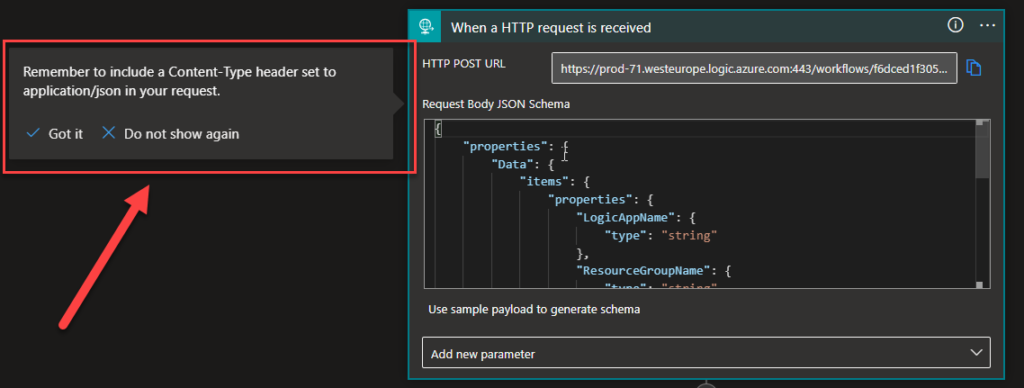
You may pay more attention to the Logic App designer when you define a JSON Schema in your When a HTTP request is received trigger. It will warn you not to forget to include a Content-Type header set to application/json in your request!
If you do not provide the Content-Type header, it will assume that is plain text, and it will not parse the JSON and render all the properties, so it will not going to be tokenized, and there you will get this or similar errors.
Solution
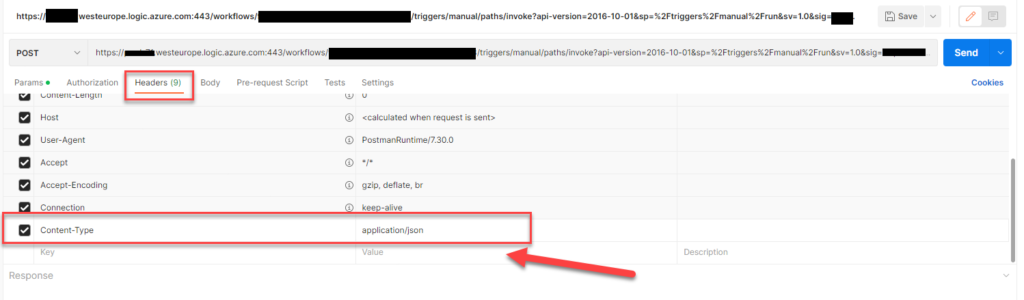
The solution is quite simple, on the Postman request add a Content-Type header and set it to application/json.
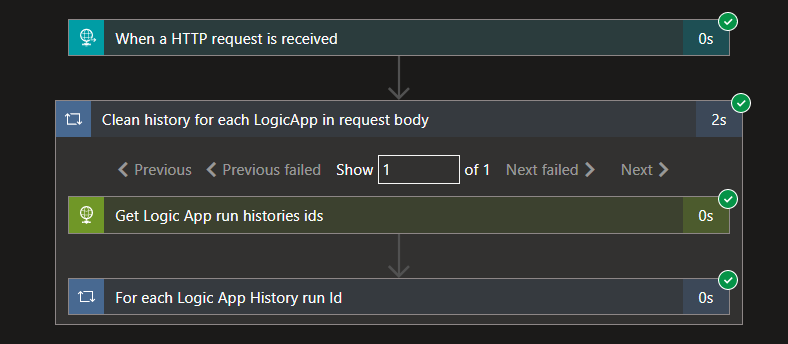
If you try again… problem is solved!
Hope you find this useful!
My youngest son (almost 5 years old) is a big Star Wars fan, and when I’m trying to write something, and he arrives home and want to play with me, I always say to him: Let the father finish work to earn some money so we can buy more toys… now I promise him that all contributions from my blog are going to be used for buying Star Wars Legos!
So, if you liked the content or found it useful and want to help me write more content, you can buy (or help buy) my son a Star Wars Lego! ?
Author: Sandro Pereira
Sandro Pereira lives in Portugal and works as a consultant at DevScope. In the past years, he has been working on implementing Integration scenarios both on-premises and cloud for various clients, each with different scenarios from a technical point of view, size, and criticality, using Microsoft Azure, Microsoft BizTalk Server and different technologies like AS2, EDI, RosettaNet, SAP, TIBCO etc.
He is a regular blogger, international speaker, and technical reviewer of several BizTalk books all focused on Integration. He is also the author of the book “BizTalk Mapping Patterns & Best Practices”. He has been awarded MVP since 2011 for his contributions to the integration community.
View all posts by Sandro Pereira
I had the pleasure of being invited a few weeks ago by my friend – and now Microsoft Principal Product Manager – Azure Logic Apps – Kent Weare to record a special episode on Logic Apps Development Tips and Tricks on his YouTube channel.
First of all, if you are unaware of his YouTube channel and you like or are interested in Azure Integration Services, I suggest you follow his channel, which is full of fantastic content. You can check and follow his channel here: https://www.youtube.com/@KentWeare
In this episode, we are going to discuss some of the most basic and important Logic Apps development best practices, tips, and tricks:
Naming Conventions, which will include Logic App, Action, and Connectors naming conventions
Error Handling and how to retrieve the error message inside Logic Apps
For Each Parallelism
Fixing API Connections and why you should care about this.
and comparing Logic Apps (Standard) and Azure Logic Apps (Consumption)
You can see the full episode here: https://www.youtube.com/watch?v=cLzplA1xVaM&t=479s
Let me know what you think about these Best practices, tips, and tricks or what you would like to be addressed in my series of blogs about this topic.
You can check all my tips and tricks here:
And of course, stay tuned for more Logic App Best practices, Tips, and Tricks.
Author: Sandro Pereira
Sandro Pereira lives in Portugal and works as a consultant at DevScope. In the past years, he has been working on implementing Integration scenarios both on-premises and cloud for various clients, each with different scenarios from a technical point of view, size, and criticality, using Microsoft Azure, Microsoft BizTalk Server and different technologies like AS2, EDI, RosettaNet, SAP, TIBCO etc.
He is a regular blogger, international speaker, and technical reviewer of several BizTalk books all focused on Integration. He is also the author of the book “BizTalk Mapping Patterns & Best Practices”. He has been awarded MVP since 2011 for his contributions to the integration community.
View all posts by Sandro Pereira
Workflow Triggers: Provides operations for listing and running workflow triggers.
Workflow Versions: Lists workflow versions.
Workflows: Provides operations for creating and managing workflows.
Today we are going to address the Workflow Trigger Histories REST APIs for Logic App Standard.
Workflow Trigger Histories
These are the available operations:
Get: Gets a workflow trigger history.
List: Gets a list of workflow trigger histories.
Resubmit: Resubmits a workflow run based on the trigger history.
This list may change since this is not the official list, and many things under the hood are different from Consumption to Standard.
Get
Request URL:
GET https://management.azure.com/subscriptions/{subscriptionId}/resourceGroups/{resourceGroupName}/providers/icrosoft.Web/sites/{logicAppStdName}/hostruntime/runtime/webhooks/workflow/api/management/workflows/{workflowName}/triggers/{triggerName}/histories/{historyName}?api-version=2018-11-01
URI Parameters:
Name
In
Required
Type
Description
subscriptionId
path
True
string
The subscription id.
resourceGroupName
path
True
string
The resource group name.
logicAppStdName
path
True
string
The Logic App Standard name.
workflowName
path
True
string
The workflow name.
triggerName
path
True
string
The workflow trigger name.
historyName
path
True
string
The workflow trigger history name. Corresponds to the run name for triggers that resulted in a run.
GET https://management.azure.com/subscriptions/{subscriptionId}/resourceGroups/{resourceGroupName}/providers/Microsoft.Web/sites/{logicAppStdName}/hostruntime/runtime/webhooks/workflow/api/management/workflows/{workflowName}/triggers/{triggerName}/histories?api-version=2018-11-01
URI Parameters:
Name
In
Required
Type
Description
subscriptionId
path
True
string
The subscription id.
resourceGroupName
path
True
string
The resource group name.
logicAppStdName
path
True
string
The Logic App Standard name.
workflowName
path
True
string
The workflow name.
triggerName
path
True
string
The workflow trigger name.
api-version
query
True
string
The API version.
$filter
query
False
string
The filter to apply on the operation. Options for filters include: Status, StartTime, and ClientTrackingId.
POST https://management.azure.com/subscriptions/{subscriptionId}/resourceGroups/{resourceGroupName}/providers/icrosoft.Web/sites/{logicAppStdName}/hostruntime/runtime/webhooks/workflow/api/management/workflows/{workflowName}/triggers/{triggerName}/histories/{historyName}/resubmit?api-version=2018-11-01
URI Parameters:
Name
In
Required
Type
Description
subscriptionId
path
True
string
The subscription id.
resourceGroupName
path
True
string
The resource group name.
logicAppStdName
path
True
string
The Logic App Standard name.
workflowName
path
True
string
The workflow name.
triggerName
path
True
string
The workflow trigger name.
historyName
path
True
string
The workflow trigger history name. Corresponds to the run name for triggers that resulted in a run.
We may also get some errors if you try to resume an invalid instance.
Stay tuned for the next Operation Group: Workflow Triggers.
Author: Sandro Pereira
Sandro Pereira lives in Portugal and works as a consultant at DevScope. In the past years, he has been working on implementing Integration scenarios both on-premises and cloud for various clients, each with different scenarios from a technical point of view, size, and criticality, using Microsoft Azure, Microsoft BizTalk Server and different technologies like AS2, EDI, RosettaNet, SAP, TIBCO etc.
He is a regular blogger, international speaker, and technical reviewer of several BizTalk books all focused on Integration. He is also the author of the book “BizTalk Mapping Patterns & Best Practices”. He has been awarded MVP since 2011 for his contributions to the integration community.
View all posts by Sandro Pereira






![Azure Logic App issues: The template language expression ‘triggerBody()?[‘…’]’ cannot be evaluated.](https://www.biztalkgurus.com/wp-content/uploads/2023/01/01-Azure-Logic-Apps-HTTP-Trigger-Evaluate-Properties-150x150.png)