by Sandro Pereira | May 15, 2017 | BizTalk Community Blogs via Syndication
We are 3-days away of Tuga IT 2017 to return to Lisbon! And you are still on time to register for this event here. This year, in addition to organizing the integration track, I will also present 2 sessions, one focused on PowerApps and Microsoft Flows on SharePoint/Office365 track, and the second focused on Azure Enterprise Integration features: Logic Apps.
You can check the full event agenda here.
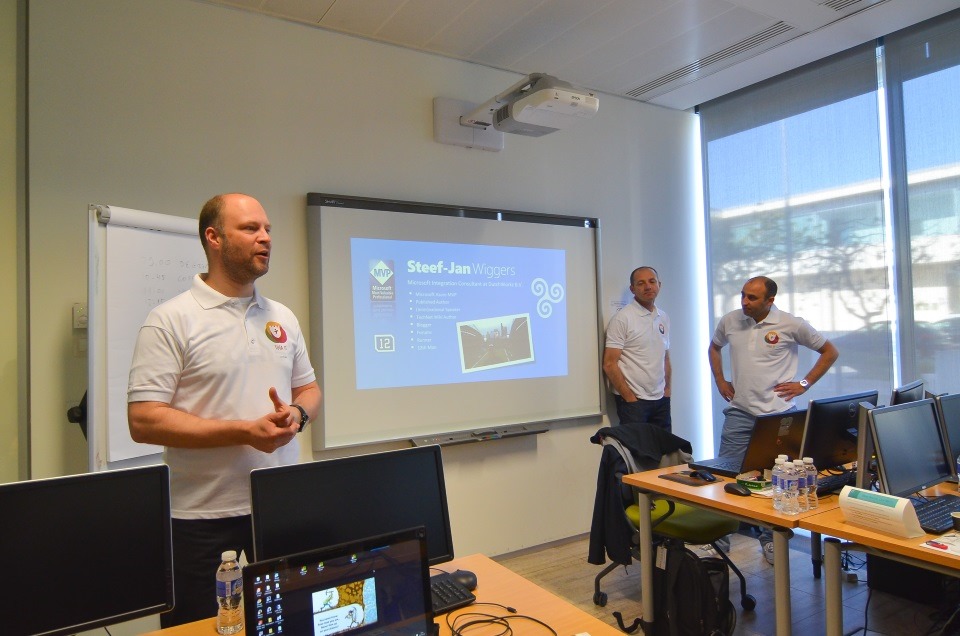

Here are the title and abstract of the sessions I will deliver at TUGA IT 2017
How can PowerApps and Microsoft Flow allows your power users to quickly build Enterprise Mobile Apps
How can PowerApps and Microsoft Flow allows your power users to quickly build Enterprise Mobile Apps will occur May, 19th at SharePoint/Office365 track between 9 AM to 10 AM.
Every organization faces constant pressure to do more with less. While technology is often the key to operating more effectively and efficiently, cost and complexity have often prevented organizations from taking maximum advantage of the potential benefits. The growth of SaaS (software as a service) has lowered barriers – no need to deploy servers or to install and configure complex software systems. Just sign up and go.
Microsoft Flow and Microsoft PowerApps will help these people (normally business users) achieve more.
We know not every business problem can be solved with off-the-shelf solutions. But developing custom solutions has traditionally been too costly and time-consuming for many of the needs teams and departments face, especially those projects that integrate across multiple data sources or require delivery across multiple devices from desktop to mobile. As a result, too many technology needs end up unsolved or under-optimized. We piece together spreadsheets, email chains, SharePoint or/and manual processes to fill in the gaps.
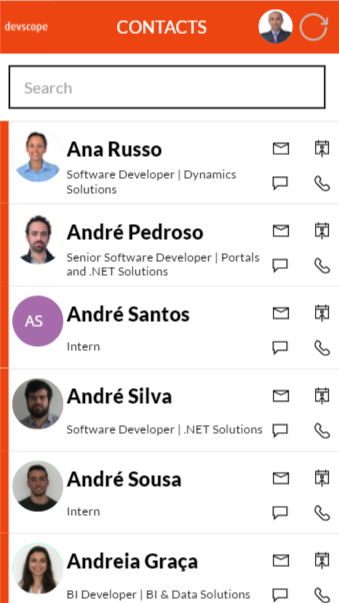
PowerApps and Microsoft Flow are both aimed squarely at these gaps. They give people who best understand their needs and challenges the power to quickly meet them, without the time, complexity and cost of custom software development.
In this session, we will look at these two new offering from Microsoft: PowerApps and Flow. What are they? How can I use it? But special we will walk through and create from scratch some live demos showing how to create Enterprise Mobile Application that easily connects with all your enterprise platforms like Office36, SharePoint Online, Dynamic CRM, on-premise SQL, Social Networks and much more and also how they can automate some common tasks using the new Microsoft Flow.
The Speaker Nightmare: Eval Forms, OCR, Logic Apps & Power BI
The Speaker Nightmare: Eval Forms, OCR, Logic Apps & Power BI will occur May, 20th at Enterprise Integration track between 10:20 AM to 11:30 AM
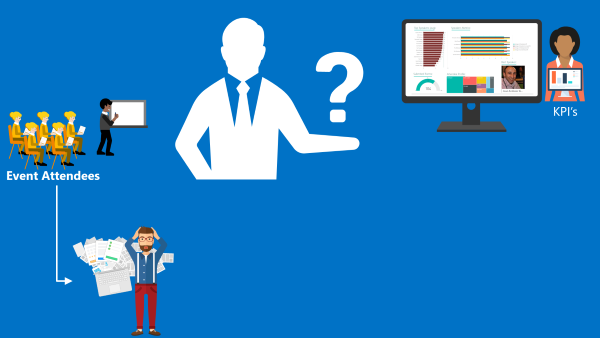
An evaluation form is something that a speaker love and hates, especially, if the results are processed in real-time and public available. If the result was excellent, then it is extremely rewarding, other times, it may “hurt” the speaker who has made himself available to share his knowledge and has been evaluated negatively. Sometimes the attendees are unfair in their evaluations, like, to basic in a 100-level session (these types of sessions are supposed to be basic or introductory) or sometimes the speaker had a bad day (it happens with everyone).
(this demo will be in real time)
I speak from personal experience, is these last 6 years that I have been doing speaking at community events, in Portugal and abroad, I already been evaluated in all ways: badly, reasonable, good and excellent, sometimes I saw in, the same sessions, attendees with different profiles evaluate me badly and excellent. The key point for the speaker is:
- All feedback is good, either negative or positive, he can learn to improve itself, if that’s the case, or that I specific topic is not good for a certain audience
- He only needs to give his best! We cannot please everyone, and the goal is to fill happy with yourself and your performance.
I love evaluation forms and I love for them to be public available, even better if they are public available during the event. Because, at least, it will give during the event a good topic of conversation for people that do not know each other and it will keep the conversation flowing (naturally), people normally are affray or shy to start a conversation between unfamiliar persons, this is a good ice break.
In this session, I will show and explain a real live demo on how we can easily build a robust solution for process evaluation forms, using an OCR software and easily integrate them with Power BI to present the results in an interactive and beautiful way. But most important: How you can educate your enterprise Developers and IT pros users to easily extend capabilities for power users, who understand their business challenges the best, and allow them to use their familiar tools like: OCR software (SmartDocumentor) to process Evaluation forms and quickly build and deliver Power BI solutions to build Interactive Data dashboards. And at the same time integrate these tools, platforms or systems and a very quick and robust way using integrate feature on Azure, like, Logic Apps, API Apps and Azure Functions. How to start from a simple solution and evolve them enabling new functionalities.
Registration For TUGA IT 2017
TUGA IT 2017 will take place in Microsoft Portugal’s offices, in Lisbon, on May 18-20, 2017. It will feature 3 days of breakout sessions and full-day workshops by world-class speakers where IT Professionals can spend 3 amazing days checking the future of IT and also take the time to network with top-level speakers and other IT Professionals.
Registration for TUGA IT 2017 is a few euro’s or even free if you do require lunch (the fee is there to reduce waste and prevent having an abundance of food).
You can register here and I will see you there in Lisbon!
Author: Sandro Pereira
Sandro Pereira lives in Portugal and works as a consultant at DevScope. In the past years, he has been working on implementing Integration scenarios both on-premises and cloud for various clients, each with different scenarios from a technical point of view, size, and criticality, using Microsoft Azure, Microsoft BizTalk Server and different technologies like AS2, EDI, RosettaNet, SAP, TIBCO etc. He is a regular blogger, international speaker, and technical reviewer of several BizTalk books all focused on Integration. He is also the author of the book “BizTalk Mapping Patterns & Best Practices”. He has been awarded MVP since 2011 for his contributions to the integration community. View all posts by Sandro Pereira

by Sandro Pereira | May 10, 2017 | BizTalk Community Blogs via Syndication
After the success of last year, Tuga IT 2017 is one week away from returning to Lisbon! From May 18th until the 20th, a variety of world class speakers (local and international) that will present a huge variety of “fresh” and “hot” topics about Microsoft Data Platform, SharePoint, Office 365, Enterprise Integration, Agile Methodologies, Open Source Technologies, Azure and much more. And this is only possible thank to the collaboration of all of the 9 communities taking part in Tuga IT 2017 event organizers or track owners.
Once again, I was invited to lead the Integration track and yes, we will once again have again a dedicated Enterprise Integration track! The integration track on Saturday the 20th will be packed with amazing sessions by Azure MVP’s Nino Crudele, Steef-Jan Wiggers, Eldert Grootenboer, Tomasso Groenendijk, myself and Ricardo Torre.
Enterprise Integration Track Agenda
8:30 Registration
9:00 How to face the integration challenges using the open source by Nino Crudele [Azure MVP]
“The open source space offers a lot of different options and opportunities in order to face the endless challenges that we normally need to face in the integration of technologies.
During this session, we will explore all the best open source options to cover the most advanced and complex requirements.
We will explore new options to extend the actual technologies and how to use the open source in conjunction with technology stacks like, pure .Net Framework, BizTalk Server and Microsoft Azure to solve complex integration scenarios.
During the session, we will also examine the best options available in the market and in the open source space.”
10:10 Coffe break
10:30 The speaker nightmare: Eval Forms & OCR & Logic Apps & Power BI by Sandro Pereira [Azure MVP]
“An evaluation form is something that a speaker love and hates, especially, if the results are processed in real-time and public available. If the result was excellent, then it is extremely rewarding, other times, it may “”hurt”” the speaker who has made himself available to share his knowledge and has been evaluated negatively. Sometimes the attendees are unfair in their evaluations, like, to basic in a 100-level session (these types of sessions are supposed to be basic or introductory) or sometimes the speaker had a bad day (it happens with everyone).
I speak from personal experience, is these last 6 years that I have been doing speaking at community events, in Portugal and abroad, I already been evaluated in all ways: badly, reasonable, good and excellent, sometimes I saw in, the same sessions, attendees with different profiles evaluate me badly and excellent. The key point for the speaker is:
- All feedback is good, either negative or positive, he can learn to improve itself, if that’s the case, or that I specific topic is not good for a certain audience
- He only needs to give his best! We cannot please everyone, and the goal is to fill happy with yourself and your performance.
I love evaluation forms and I love for them to be public available, even better if they are public available during the event. Because, at least, it will give during the event a good topic of conversation for people that do not know each other and it will keep the conversation flowing (naturally), people normally are affray or shy to start a conversation between unfamiliar persons, this is a good ice break.
In this session, I will show and explain a real live demo on how we can easily build a robust solution for process evaluation forms, using an OCR software and easily integrate them with Power BI to present the results in an interactive and beautiful way. But most important: How you can educate your enterprise Developers and IT pros users to easily extend capabilities for power users, who understand their business challenges the best and allowing them to use their familiar tools like OCR software to process Evaluation forms and quickly build and deliver Power BI solutions to build Interactive Data dashboards. And at the same time integrate these tools, platforms or systems and a very quick and robust way using integrate feature on Azure, like, Logic Apps, API Apps and Azure Functions. How to start from a simple solution and evolve them enabling new functionalities.”
11:50 Cloud Integration: so many options! by Steef-Jan Wiggers [Azure MVP]
Traditional integration has changed with the rise and evolution of cloud computing. And connectivity between systems on premise will evolve to connections with services and solutions in the cloud. Data is everywhere, applications are everywhere and people are everywhere with their devices always connected. In this world integration is key. Azure offers us various ways to implement integration solutions to provide connectivity to the business to their data. This talk will be a journey of options you have when building these types of solutions!
13:00 Lunch
14:00 Using DocumentDB to make your API App high performant and secure it with API Management by Tomasso Groenendijk [Azure MVP]
APIs are becoming more important for organizations and people even talk about the API economy but how can you create your own API, expose it globally and make a profit with it? In this session, Tomasso is going to show how you can use API Apps and DocumentDB to create a high performant API and how to use API Management in combination with Web Apps to expose the API.
15:10 Sponsor Session
15:30 Cofee Break
15:50 BizTalk 2016 in a hybrid world by Ricardo Torre
The integration landscape has definitely evolved to be a hybrid, significant on-premise investment has been accumulated over the years while at the same time cloud computing brought new challenges and new ways of implementing integration. Let’s navigate through the innovations in both worlds and how BizTalk and the cloud currently live together.
17:10 Azure IoT Hub Deep Dive by Eldert Grootenboer [Azure MVP]
Azure IoT Hub gives us the possibility to manage and secure and do bi-directional communication with billions of IoT devices. In this session, we will dive into all these possibilities, to show how you can easily set up a robust and hyper-scalable solution for your IoT needs.
18:20 Closing
More information on the official website: http://tugait.pt/2017.
Invitation for a social game.
A social SPEAKER game… there might be other games (and awards) but that is still under NDA!
Speaker game has 1 objective: getting you the MAXIMUM social experience, getting you to LEARN about your fellow speakers, about the event and about THE ATTENDEES.
The winner/s will be determined by the collection of the maximum number of points and we shall determine the winner on Saturday evening … (the prize, again, is still under NDA) and here is how you can start collecting points on the game card will receive at the airport/event:
- Get to know 5 people at the event and write down their name, company, it area & specialty: 5 points
- Vote your favorite Tuga IT 2017 speaker (you will need to attend that session): 1 point
- Write down the number of countries that Tuga IT 2017 speakers represent: 1 point
- Write down the number of countries that Tuga IT 2017 attendees represent: 1 point
- Name all Tuga IT 2016 sponsors: 1 point
- Name the person who was the most influential in your career: 1 point
- Name 3 IT Celebrities (MVPs/Speakers/PMs) who started outside of IT: 1 point
- Name the creation dates of the involved User Groups: 1 point per correct answer (there are 9 groups in total)
- Name the youngest speaker of Tuga IT 2017: 1 point
- Discover how many MVPs/Microsoft MVPs/Oracle Aces do we have at the Tuga IT 2017? 1 point
And even more for the social part:
It might be worth playing… you know… you never lose in trying.
Registration For TUGA IT 2017
TUGA IT 2017 will take place in Microsoft Portugal’s offices, in Lisbon, on May 18-20, 2017. It will feature 3 days of breakout sessions and full-day workshops by world-class speakers where IT Professionals can spend 3 amazing days checking the future of IT and also take the time to network with top-level speakers and other IT Professionals.
Registration for TUGA IT 2017 is a few euro’s or even free if you do require lunch (the fee is there to reduce waste and prevent having an abundance of food).
You can register here and I will see you there in Lisbon!
Author: Sandro Pereira
Sandro Pereira lives in Portugal and works as a consultant at DevScope. In the past years, he has been working on implementing Integration scenarios both on-premises and cloud for various clients, each with different scenarios from a technical point of view, size, and criticality, using Microsoft Azure, Microsoft BizTalk Server and different technologies like AS2, EDI, RosettaNet, SAP, TIBCO etc. He is a regular blogger, international speaker, and technical reviewer of several BizTalk books all focused on Integration. He is also the author of the book “BizTalk Mapping Patterns & Best Practices”. He has been awarded MVP since 2011 for his contributions to the integration community. View all posts by Sandro Pereira
by Sandro Pereira | May 7, 2017 | BizTalk Community Blogs via Syndication
To close this sequence of posts about BizTalk Server 2016 Feature Pack 1: How to publish BizTalk operational data on Power BI – Step-by-step configuration, in this post we will see how we can connect Power BI BizTalkOperationalData dataset with our on-premise BizTalk environment.
Step-by-step Configuration to Enable BizTalk Server 2016 Operational Data Feed
Fourth step: Connect Power BI BizTalkOperationalData dataset with your on-premise BizTalk environment
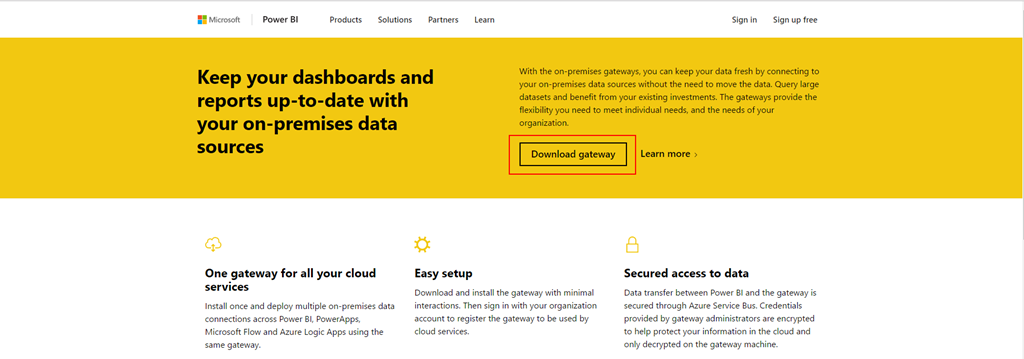
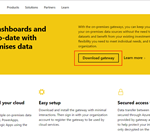
The final step is to install and configure a Power BI Gateway to connect your on-premise BizTalk Server environment.
With the On-premises data gateway, you can keep your data fresh by connecting to your on-premises data sources without the need to move the data. Because it installs and runs on your computer, it is best to install it on a machine that can be left running all the time.
Here are a few things to consider before installing the gateway.
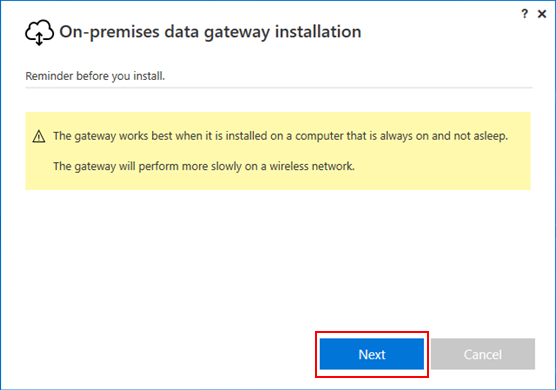
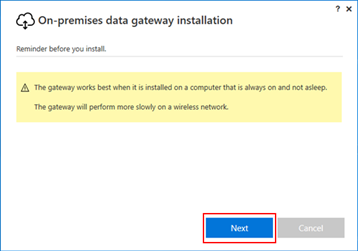
- If you are installing on a laptop, and your laptop is turned off, not connected to the internet, or asleep the gateway won’t work and the data in the cloud service will not be synchronized with your on-premises data.
- If your machine is connected to a wireless network, the gateway may perform more slowly which will cause it to take longer to synchronize the data in the cloud service with your on-premises data.
(source: https://powerbi.microsoft.com/en-us/documentation/powerbi-gateway-onprem/)
To do that we need to:
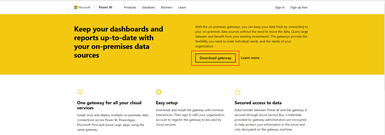
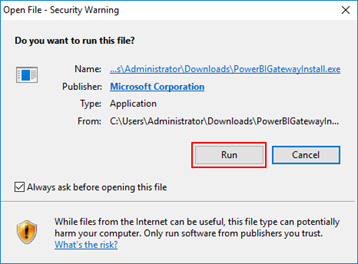
- Run the downloaded .EXE file – PowerBIGatewayInstall.exe – from your hard drive.
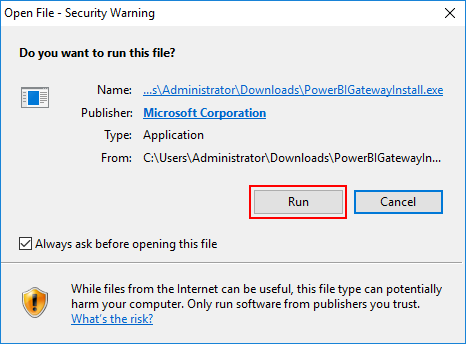
- In the “Security Warning” screen, click “Run”
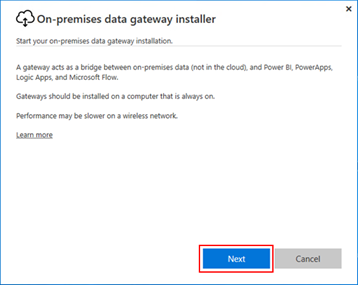
- In the “Start your on-premises data gateway installation” screen, click “Next”
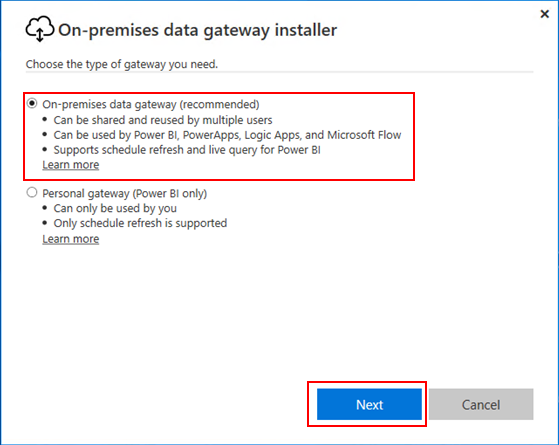
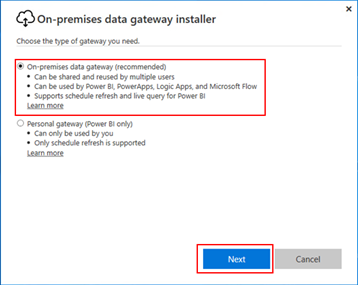
- · In the “Choose the type of gateway you need” screen, select “On-premises date gateway (recommended)” and then click “Next”
- On-premises data gateway: Multiple users can share and reuse a gateway in this mode. This gateway can be used by Power BI, PowerApps, Flow or Logic Apps. For Power BI, this includes support for both schedule refresh and DirectQuery
- Personal: This is for Power BI only and can be used as an individual without any administrator configuration. This can only be used for on-demand refresh and schedule refresh. This will launch the installation of the personal gateway.
- In the “Reminder before you install” screen, click “Next”
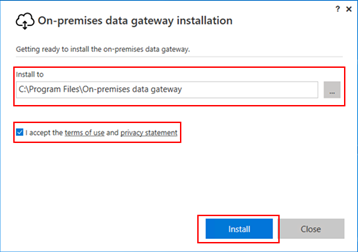
- In the “Getting ready to install the on-premises data gateway” screen, review or change the installation path, select the option “I accept the terms of use and privacy statement” and then click “Install”
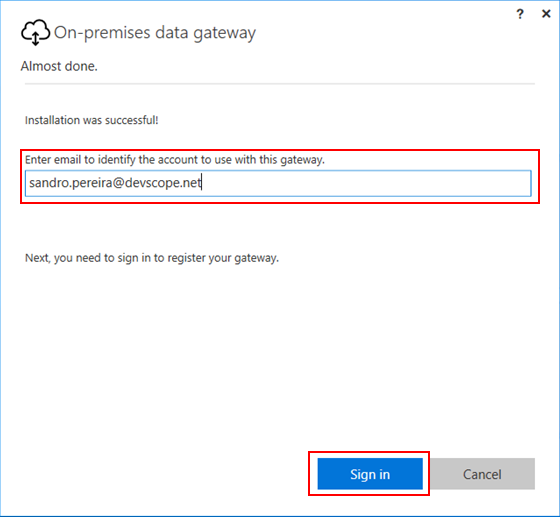
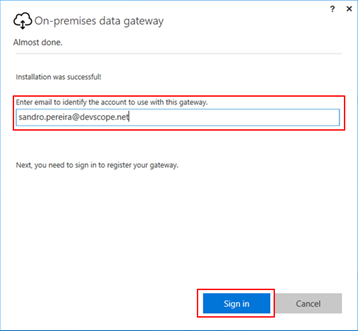
- If the install is successful, then the “Almost done” screen will appear. The next step is to sign into your Power BI account to finish the configuration of the gateway. Enter your email account and then click “Sign in”
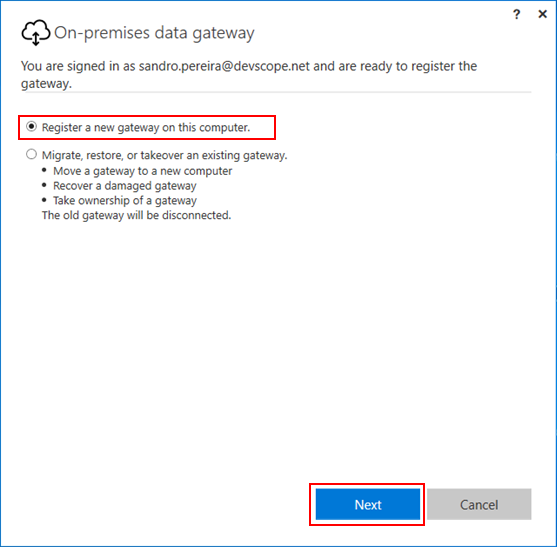
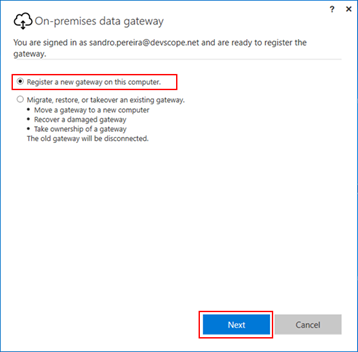
- The next step is to specify that we want to register a new gateway on our environment.
- Select the option “Register a new gateway on this computer” and then click “Next”
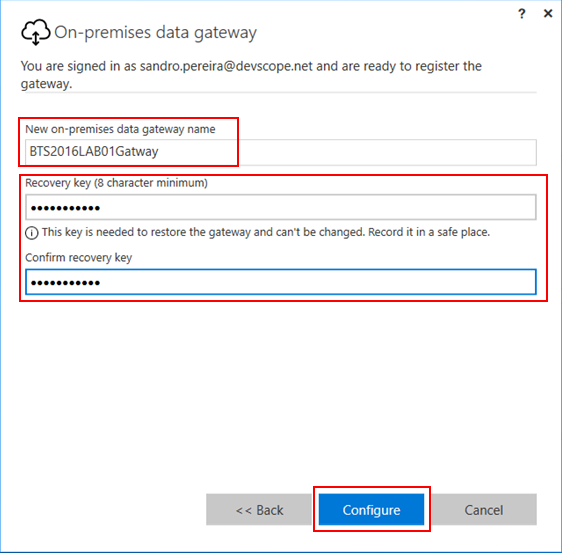
- Finally, the last step is to configure the Gateway settings by defining a Gateway name and recovery key. To finalize the configuration, click “Configure”
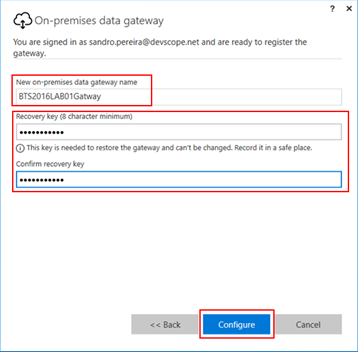
When we click configure, the Gateway is confirmed and added to the PowerBI setup for our account.
The only thing the is missing to finalize the process is to add a data source to the gateway that we just created previously on https://app.powerbi.com portal. For that we need to:
- Login in https://app.powerbi.com portal
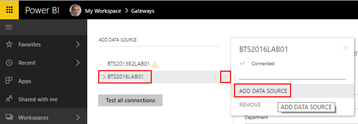
- Select the gear icon in the upper-right corner and then click “Manage gateways”.
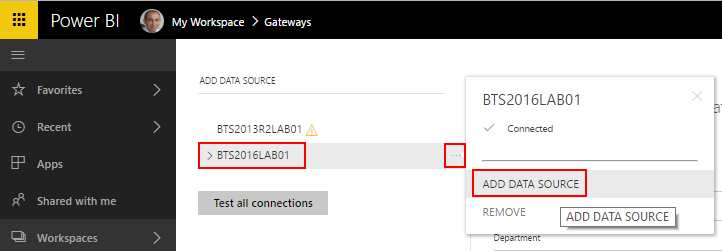
- You can add a new data source by selecting a gateway and click “…” (3 dots) button and then click “Add data source”.
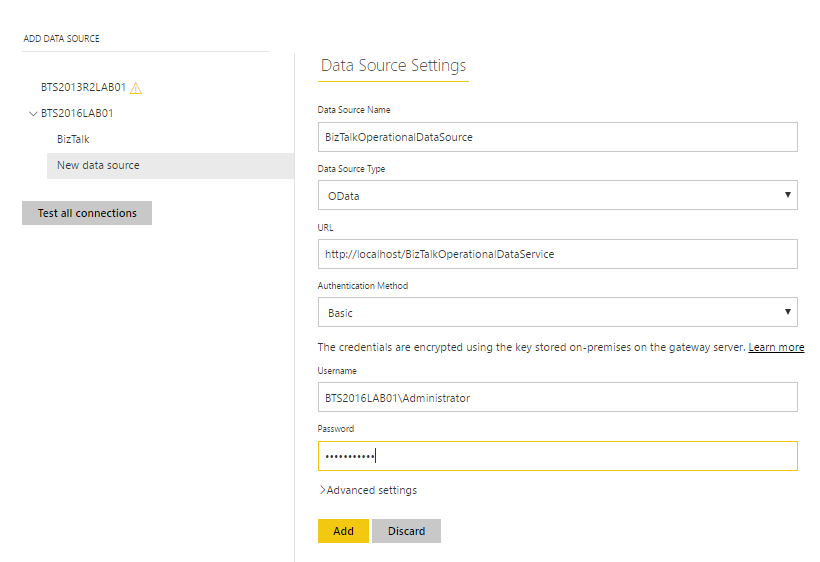
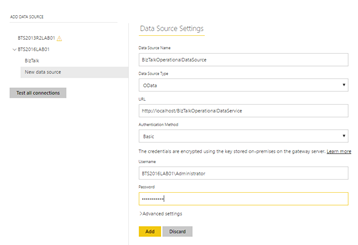
- In the “Data Source Setting” panel set the following configuration:
- Data Source Name: set a name for your data source, example: BizTalkOperationalDataSource
- Data Source Type: From the Data Source Type list, you must select “OData”.
- URL: set the URL that we defined on the “BizTalkOperationalData.pbit” template:
- http://localhost/BizTalkOperationalDataService
- Authentication Method: This can either be Windows or Basic. You would want to choose Basic if you are going to use SQL Authentication instead of Windows Authentication. Then enter the credentials that will be used for this data source.
Now let’s associate this gateway and data source with our BizTalkOperationalData dataset. To do that you need to:
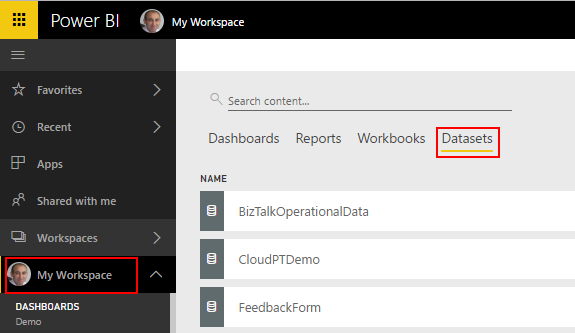
- Select your Workspace, in my case “My workspace” and then select the tab “dataset”
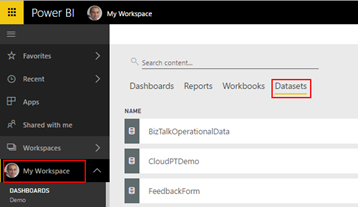
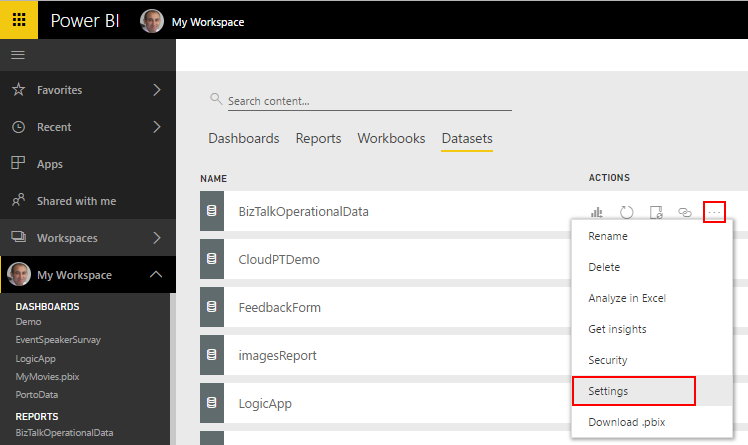
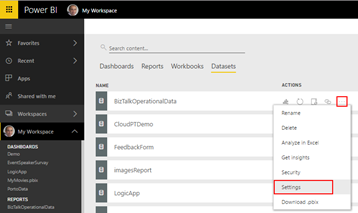
- On our BizTalkOperationalData dataset, click “…” (3 dots) button and then select “Settings”
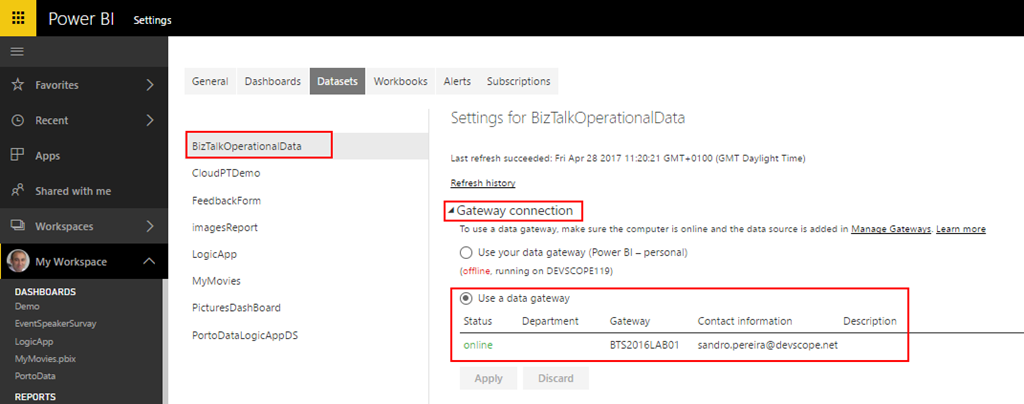
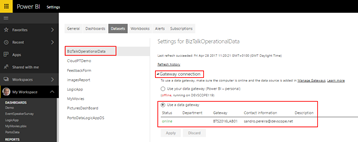
- On our BizTalkOperationalData dataset, expand the tab “gateway connection”. There you will be able to already see a gateway available under “Use a data gateway”.
- Select the option “Use a data gateway” and click “Apply”.
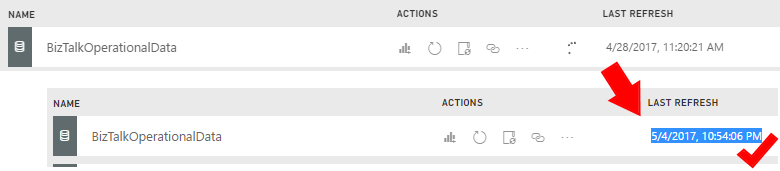
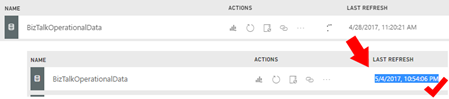
And now you will be able to successfully refresh manual your dataset or specify a scheduling refresh mechanism.
Related Links
Author: Sandro Pereira
Sandro Pereira lives in Portugal and works as a consultant at DevScope. In the past years, he has been working on implementing Integration scenarios both on-premises and cloud for various clients, each with different scenarios from a technical point of view, size, and criticality, using Microsoft Azure, Microsoft BizTalk Server and different technologies like AS2, EDI, RosettaNet, SAP, TIBCO etc. He is a regular blogger, international speaker, and technical reviewer of several BizTalk books all focused on Integration. He is also the author of the book “BizTalk Mapping Patterns & Best Practices”. He has been awarded MVP since 2011 for his contributions to the integration community. View all posts by Sandro Pereira
by Sandro Pereira | May 5, 2017 | BizTalk Community Blogs via Syndication
Following the sequence of my last post: BizTalk Server 2016 Feature Pack 1: How to publish BizTalk operational data on Power BI – Step-by-step configuration (Part 1), here we will see how we can enable BizTalk operational data feed and how we can use the BizTalk Server Operational Data Power BI template provided by Microsoft to easily publish the report to Power BI.
Step-by-step Configuration to Enable BizTalk Server 2016 Operational Data Feed
Second step: Enable BizTalk operational data feed
To enable BizTalk Server 2016 operational data feed, you should:
- Run Windows PowerShell as Administrator by:
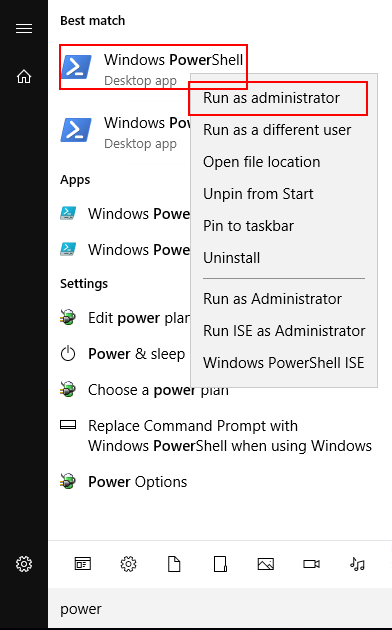
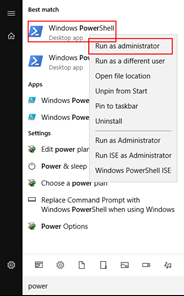
- Press the “Windows key” to open the Start menu and type “PowerShell”
- Right click on “Windows PowerShell” option and select “Run as administrator”.
- Browse to the BizTalk Server 2016 is installation folder, normally:
- C:Program Files (x86)Microsoft BizTalk Server 2016
- And run the following command. Be sure to update your website, domainuser, password, and domaingroup with your values:
- Service: The service to be configured: “Management” or “OperationalData”.
- WebSiteName: The existing Web Site where the service will be configured. The default value is “Default Web Site”
- ApplicationPool: The Application Pool to be used by the service. If exists, will not be created. The default value is “DefaultAppPool”
- ApplicationPoolUser: Configures the application pool to run as this user identity. Must have BizTalk Server Operator or higher privileges.
- ApplicationPoolUserPassword: Password for the ApplicationPoolUser
- AuthorizationAccount: List of authorized Groups or Users to use this service
FeaturePack.ConfigureServices.ps1 -Service operationaldata -WebSiteName ‘<Default Web Site>’ -ApplicationPool <operationalDataServiceAppPool> -ApplicationPoolUser <domain><user> -ApplicationPoolUserPassword <password> -AuthorizationRoles ‘<domain><group>, <domain><user>’
If everything go well, after you run the script, if you browse the new IIS Application by:
- Open your web browser
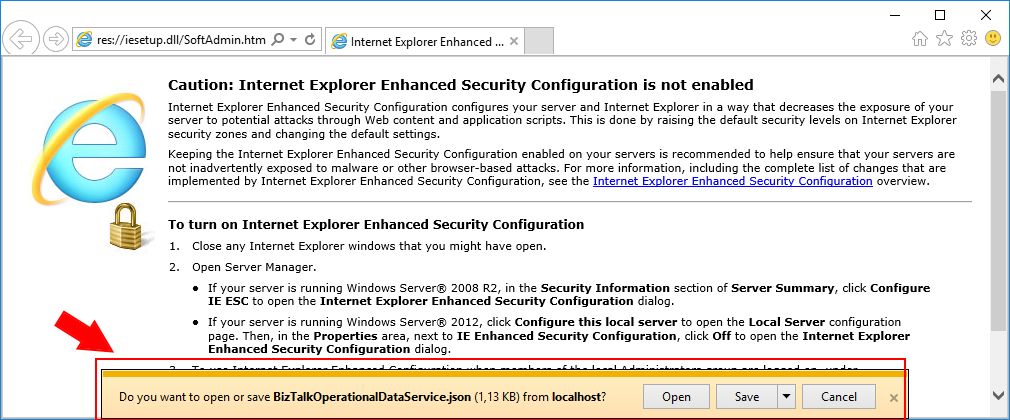
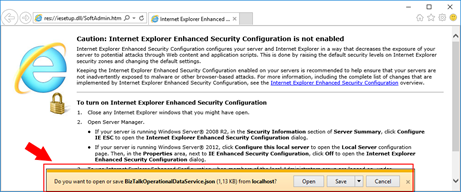
- Go to http://localhost/BizTalkOperationalDataService
You will see a JSON file – BizTalkOperationDataService.json – being download.
Third step: Use the BizTalk Server Operational Data Power BI template to publish the report to Power BI
To access the Power BI Template file, and use the provided visualization from Microsoft, use the following steps:
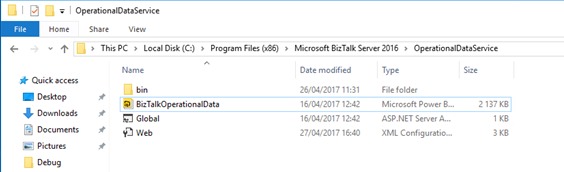
- Browse to “OperationalDataService” folder under the BizTalk Server 2016 is installation folder, normally:
- C:Program Files (x86)Microsoft BizTalk Server 2016OperationalDataService
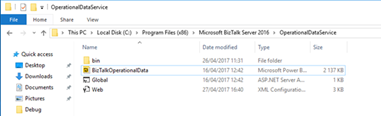
- And double click to open the “BizTalkOperationalData.pbit” file.
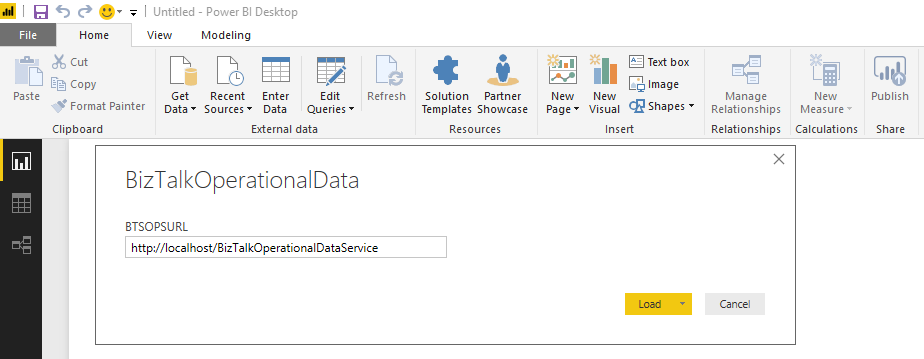
- When prompted from Power BI Desktop, paste the http://<BizTalkServer>/BizTalkOperationalDataService URL that you created for your OData feed.
- Normally: http://localhost/BizTalkOperationalDataService
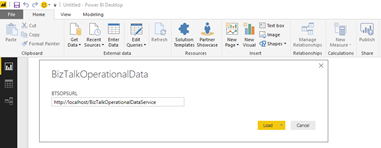
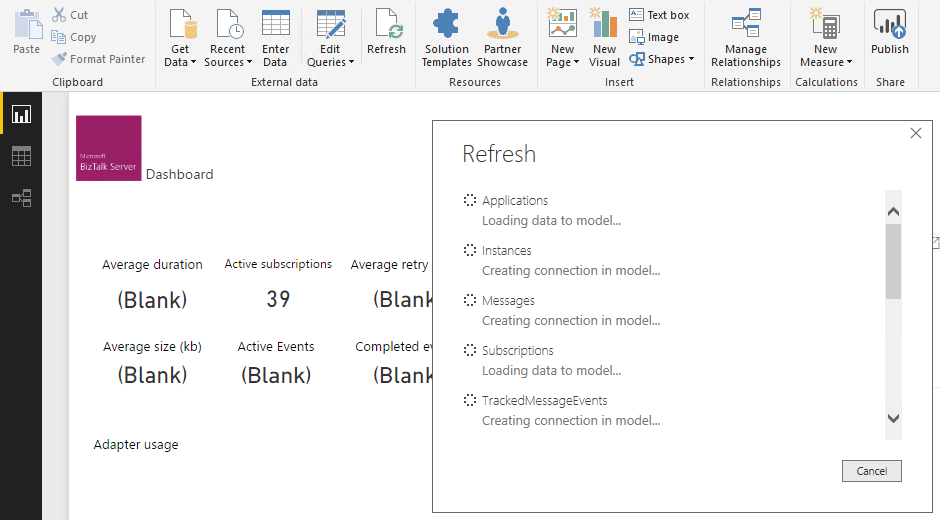
- And then click “Load” to populate the fields in your Power BI report.
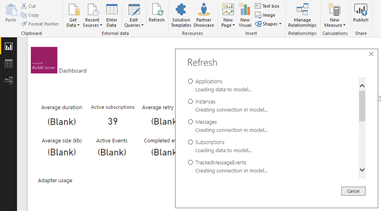
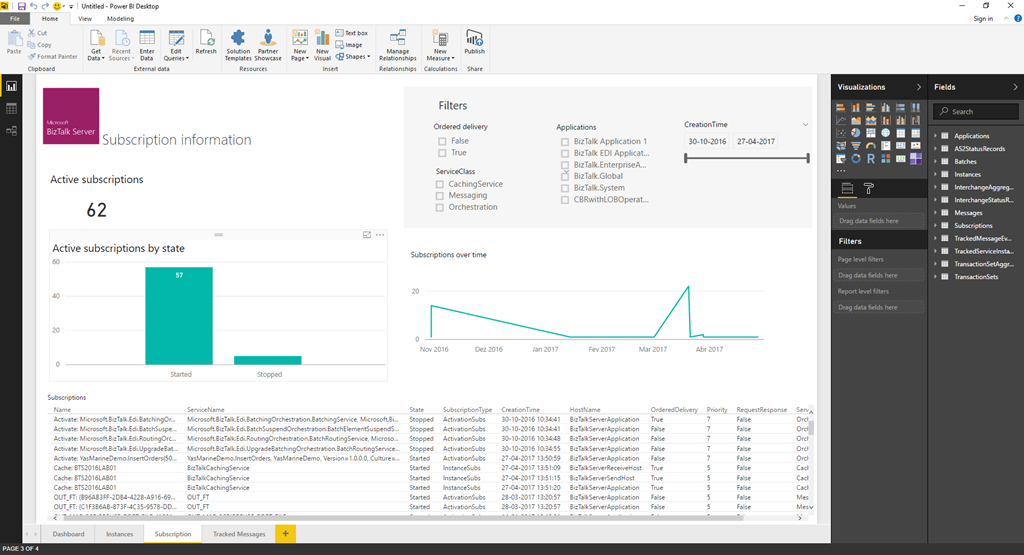
The Template file automatically generates the information and tables available from the OData feed.
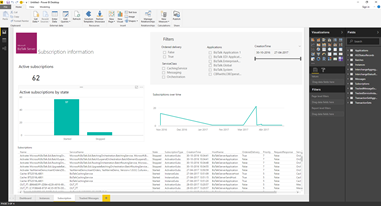
The operational data is exposed through the computer and can be accessed and executed by other applications based on permissions.
Publishing your reports to the Power BI service is fast and easy. Once the data have been load you need to:
- Save the file by selecting the menu “File” and click “Save”
- And then select the “Publish” button on the Home tab in Power BI Desktop, and the process begins.

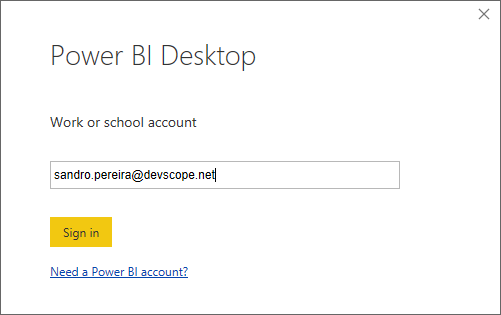
- The first step, of course, is to provide your Power BI account
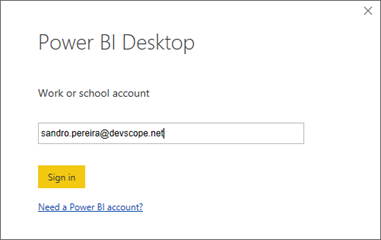
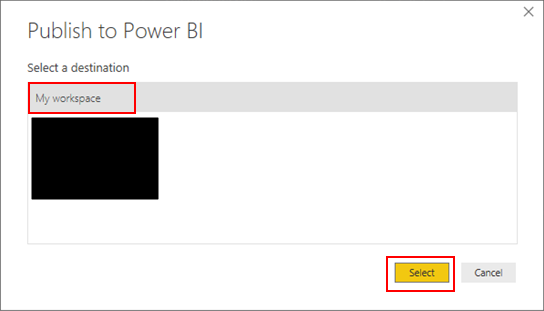
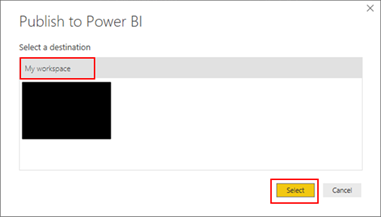
- After you authenticate on Power BI, a list of destinations that you have access will be presented so you can select the destination to where you want to publish BizTalk Operational Data report.
- Select your destination, in my case, “My workspace”
- and then click “Select”
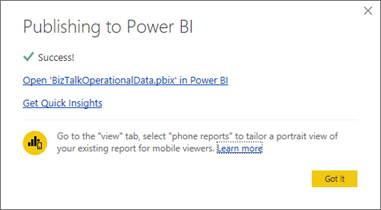
- The then the publishing process will start
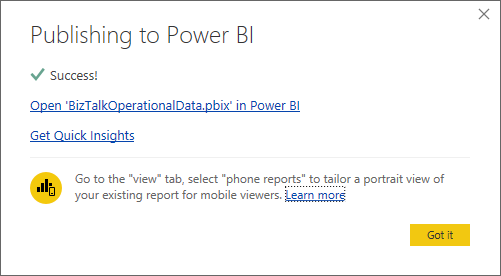
- Once the upload is complete, a dialog box tells you the publishing process succeeded and a link is provided in that dialog to take you directly to your report in the Power BI service, in a web browser.
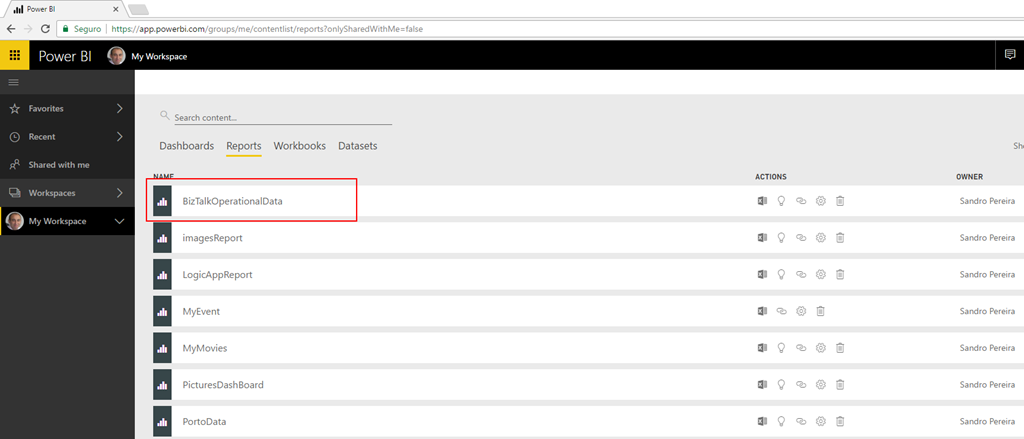
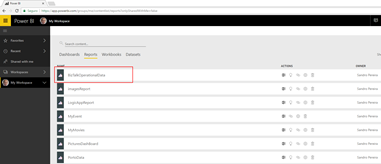
- If you access to PowerBI.com you will see that you will have BizTalk Operational Data (BizTalk Operational Data report) report available.
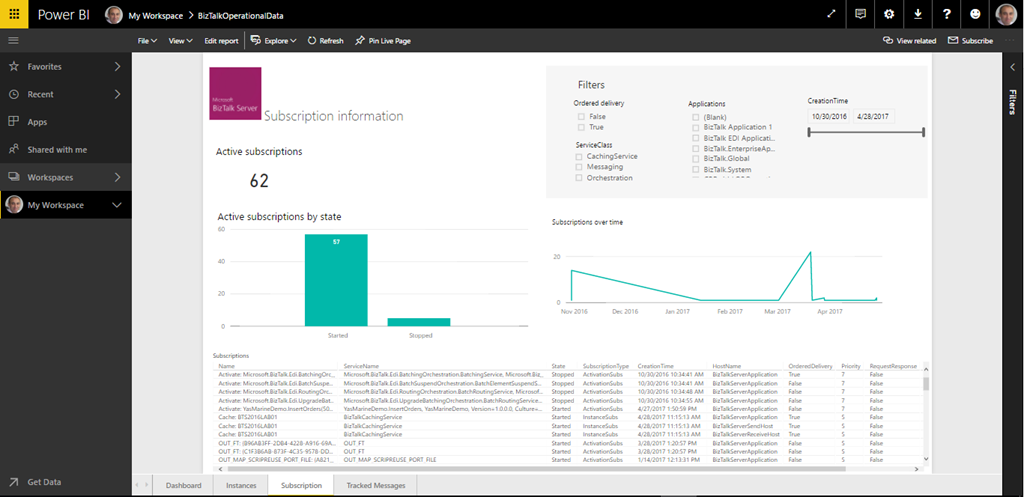
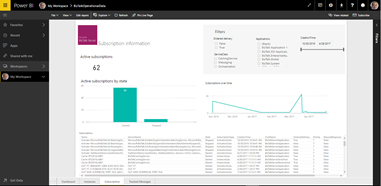
And if you click on it, you will be able to see the data that was load and publish by the Power BI desktop.
But the most important question is: Are this data being updated?
And the answer is: No. For that, you will need additional steps.
Related Links
Author: Sandro Pereira
Sandro Pereira lives in Portugal and works as a consultant at DevScope. In the past years, he has been working on implementing Integration scenarios both on-premises and cloud for various clients, each with different scenarios from a technical point of view, size, and criticality, using Microsoft Azure, Microsoft BizTalk Server and different technologies like AS2, EDI, RosettaNet, SAP, TIBCO etc. He is a regular blogger, international speaker, and technical reviewer of several BizTalk books all focused on Integration. He is also the author of the book “BizTalk Mapping Patterns & Best Practices”. He has been awarded MVP since 2011 for his contributions to the integration community. View all posts by Sandro Pereira
by Sandro Pereira | May 5, 2017 | BizTalk Community Blogs via Syndication
I have been writing a blog post series in BizTalk360 Blog called “Thinking outside the box (or not)” and I will continue to do that in the future. In the meanwhile, I thought of creating another blog post series about one of my favorites topics: “BizTalk Server Tips and Tricks” where I will address some common, and (I hope!) useful BizTalk Server Tips and Tricks (and Workarounds) for developers, administrators or business users. In this blog, let’s get started with “How can we enable BAM Add-In for Excel 2016?”
Add-ins provide optional commands and features for Microsoft Excel. In this case, the BAM Add-In for Excel 2016 provides the tools that you need to create a BAM observation model. In other words, it will allow you to define what data to collect from business processes and to define the way in which business users will view the collected data. A BAM observation model consists of:
- BAM activities: a BAM activity defines milestones and data of interest.
- BAM views: a BAM view defines the dimensions and measures based on the data of interest and milestones that present information to a particular audience.
By default, add-ins are not immediately available in Excel, so you must first install and (in some cases) activate/enable these add-ins to be able to use them.
Assuming that you already have BAM and Excel installed, for enabling the BizTalk Server 2016 BAM Add-In for Excel 2016, we need to:
- Open Excel 2016, click the “Customize Quick Access Toolbar” button present in the Quick Access Toolbar and then click the “More Commands…” option near the bottom of the drop-down menu.
- Alternatively, you can also click the “File” tab and then click “Options”.
- This will open the Excel options dialog box and from there you can select the Add-Ins category. From the Add-ins list, you should select “Business Activity Monitoring”
- Note: Do not yet exit the “Excel Options” box by clicking “OK”
- After selecting “Business Activity Monitoring”, in the bottom of the window in the “Manage: Excel Add-Ins” section, click “Go…”.
- This will bring up an “Add-Ins” dialog box where you need to check the “Business Activity Monitoring” Add-In option.
Having done this, the BAM Add-In will now be accessible through the “Add-ins” tab and you can edit your BAM Activities and Views.
Stay tuned for new tips and tricks!
Author: Sandro Pereira
Sandro Pereira is an Azure MVP and works as an Integration consultant at DevScope. In the past years, he has been working on implementing Integration scenarios both on-premises and cloud for various clients, each with different scenarios from a technical point of view, size, and criticality, using Microsoft Azure, Microsoft BizTalk Server and different technologies like AS2, EDI, RosettaNet, SAP, TIBCO etc. View all posts by Sandro Pereira
by Sandro Pereira | May 5, 2017 | BizTalk Community Blogs via Syndication
I have been writing a blog post series in BizTalk360 Blog called “Thinking outside the box (or not)” and I will continue to do that in the future. In the meanwhile, I thought of creating another blog post series about one of my favorites topics: “BizTalk Server Tips and Tricks” where I will address some common, and (I hope!) useful BizTalk Server Tips and Tricks (and Workarounds) for developers, administrators or business users. In this blog, let’s get started with “How can we enable BAM Add-In for Excel 2016?”
Add-ins provide optional commands and features for Microsoft Excel. In this case, the BAM Add-In for Excel 2016 provides the tools that you need to create a BAM observation model. In other words, it will allow you to define what data to collect from business processes and to define the way in which business users will view the collected data. A BAM observation model consists of:
- BAM activities: a BAM activity defines milestones and data of interest.
- BAM views: a BAM view defines the dimensions and measures based on the data of interest and milestones that present information to a particular audience.
By default, add-ins are not immediately available in Excel, so you must first install and (in some cases) activate/enable these add-ins to be able to use them.
Assuming that you already have BAM and Excel installed, for enabling the BizTalk Server 2016 BAM Add-In for Excel 2016, we need to:
- Open Excel 2016, click the “Customize Quick Access Toolbar” button present in the Quick Access Toolbar and then click the “More Commands…” option near the bottom of the drop-down menu.
- Alternatively, you can also click the “File” tab and then click “Options”.
- This will open the Excel options dialog box and from there you can select the Add-Ins category. From the Add-ins list, you should select “Business Activity Monitoring”
- Note: Do not yet exit the “Excel Options” box by clicking “OK”
- After selecting “Business Activity Monitoring”, in the bottom of the window in the “Manage: Excel Add-Ins” section, click “Go…”.
- This will bring up an “Add-Ins” dialog box where you need to check the “Business Activity Monitoring” Add-In option.
Having done this, the BAM Add-In will now be accessible through the “Add-ins” tab and you can edit your BAM Activities and Views.
Stay tuned for new tips and tricks!
Author: Sandro Pereira
Sandro Pereira is an Azure MVP and works as an Integration consultant at DevScope. In the past years, he has been working on implementing Integration scenarios both on-premises and cloud for various clients, each with different scenarios from a technical point of view, size, and criticality, using Microsoft Azure, Microsoft BizTalk Server and different technologies like AS2, EDI, RosettaNet, SAP, TIBCO etc. View all posts by Sandro Pereira
by Sandro Pereira | May 4, 2017 | BizTalk Community Blogs via Syndication
Recently, the product team released a first feature pack for BizTalk Server 2016 (only available for Enterprise and Developer edition) and I am trying all these features and at the same time trying to help a little Microsoft BizTalk team improving their documentation, special regarding to these new features that appear with BizTalk Server 2016 Feature Pack 1. In this post, we will address the new Analytics feature of BizTalk Server 2016 associated with BizTalk operational data:
- Leverage operational data – View BizTalk operational data from anywhere and with any device using Power BI.
What is BizTalk Operational Data?
Operational data, as you can read on Microsoft official documentation here, is all the information on the instances and messages flowing through your BizTalk Server environment. The operational data feed is the same data you get looking at Group Hub in the BizTalk Server Administration console. The feed includes the following data tables:
- Application data
- AS2 Status Records
- Batching information
- Instance information
- Interchange Aggregations Records
- Interchange Status Records
- Messages
- Subscriptions
- Tracked Events
- Transaction reports
- Transaction sets
These data can be accessed and queried using visualization tools, including Power BI.
System Requirements to Enable BizTalk Server 2016 Operational Data
For enable BizTalk Server 2016 Operational Data feature available in Feature Pack, you need:
- Download and install Power BI Desktop on any computer that has network access to your BizTalk Server
- Install and configure a Power BI Gateway to connect your on-premise BizTalk Server environment. (optional)
- Install Feature Pack 1 on your BizTalk Server 2016 Developer or Enterprise Edition
- Install IIS on the BizTalk Server 2016.
Important note: is required to restart BizTalk Server machine to finish the FP1 installation process.
Note: Feature Packs are not supported in BizTalk Server 2016 Standard Edition.
Step-by-step Configuration to Enable BizTalk Server 2016 Operational Data Feed
First step: Install Microsoft Power BI Desktop
So, the first “new thing” here that we need to install, assuming that we already have Feature Pack 1 and IIS installed, is Power BI Desktop tool. After you download the version of Power BI Desktop that matches the architecture (x86 or x64) of your Windows OS, you should:
- Run the downloaded .MIS file – in my case: PBIDesktop_x64.msi – from your hard drive.
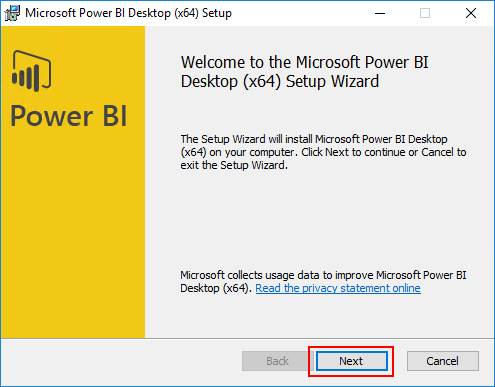
- In the “Welcome to the Microsoft Power BI Desktop Setup Wizard” screen, click “Next”
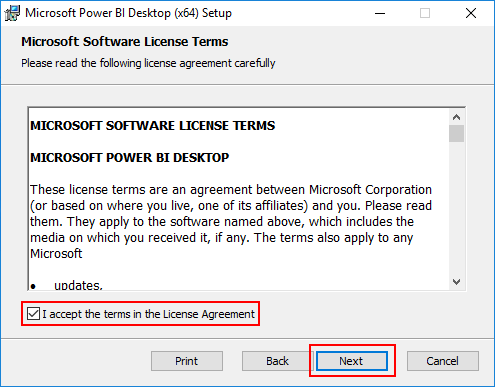
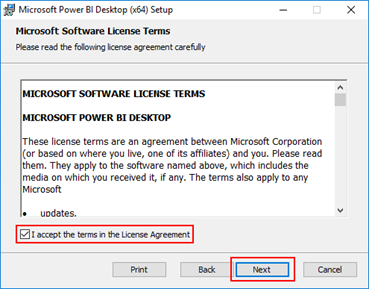
- In the “License agreement” screen, select the option “I accept the terms in the License Agreement” and then click “Next”
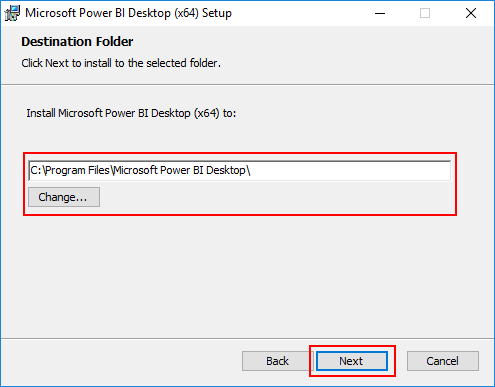
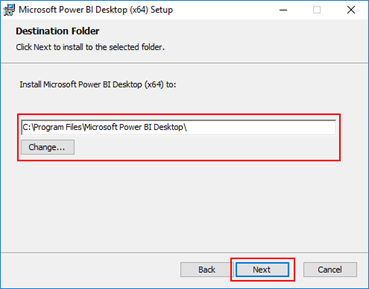
- In the “Destination Folder” screen, review or change the installation path and then click “Next”
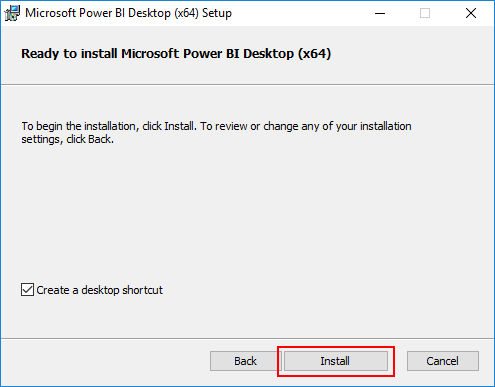
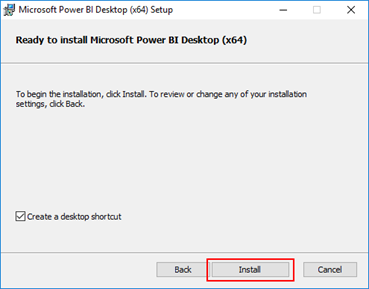
- In the “Ready to Install Microsoft Power BI Desktop” screen, click “Install” to continue with the installation.
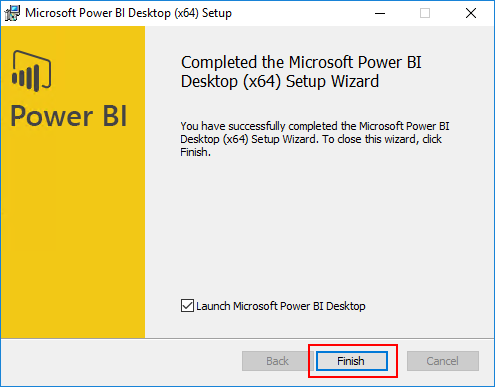
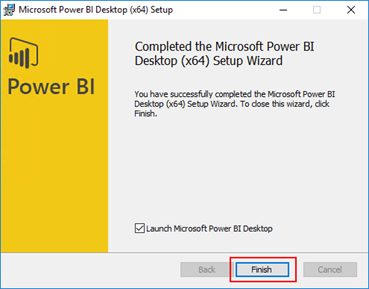
- In the “Completed the Microsoft Power BI Desktop Setup Wizard” screen, click “Finish”

For more information about Power BI check https://powerbi.microsoft.com/en-us/.
Related Links
Author: Sandro Pereira
Sandro Pereira lives in Portugal and works as a consultant at DevScope. In the past years, he has been working on implementing Integration scenarios both on-premises and cloud for various clients, each with different scenarios from a technical point of view, size, and criticality, using Microsoft Azure, Microsoft BizTalk Server and different technologies like AS2, EDI, RosettaNet, SAP, TIBCO etc. He is a regular blogger, international speaker, and technical reviewer of several BizTalk books all focused on Integration. He is also the author of the book “BizTalk Mapping Patterns & Best Practices”. He has been awarded MVP since 2011 for his contributions to the integration community. View all posts by Sandro Pereira
by Sandro Pereira | Apr 27, 2017 | BizTalk Community Blogs via Syndication
We are used to having Service Pack (I think the last one was in 2006 R2) and Cumulative Updates for BizTalk Server (see the full list here) that basically brings hotfixes for BizTalk Server and adapter pack issues that were resolved after the release of that specific BizTalk Server version. Now Microsoft introduces a new concept in BizTalk Server 2016: Feature Packs.
BizTalk Server 2016 will use feature pack approach to providing new functionalities to the product at a faster pace. Now new features (or at least non-breaking features) will be delivered when they’re ready we no longer need to wait 2 years for the next major release of the product to have new features!
BizTalk Server uses the feature pack to provide improvements, features, and closer integration with Azure. Feature Pack 1 extends functionality in key areas, such as deployment, analytics, and runtime. – https://msdn.microsoft.com/en-us/library/mt800834.aspx
Feature Pack’s will be available for Software Assurance customers running BizTalk Server 2016 Developer and Enterprise editions or customers running BizTalk Server 2016 in Azure under an Enterprise Agreement
Should we expect new BizTalk Server Cumulative Updates?
Yes, Microsoft will continue to release CU to provide hotfixes for issues that were resolved in the same cadence as they have done in the past
Microsoft BizTalk Server 2016 Feature Pack 1: System Requirements
BizTalk Server 2016 Feature Pack 1 requirements:
- Microsoft BizTalk Server 2016 Enterprise Edition
- Microsoft BizTalk Server 2016 Developer Edition
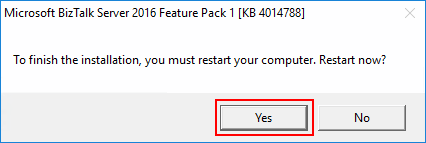
Important note: is required to restart BizTalk Server machine to finish the FP1 installation process.
Note: Feature Packs are not supported in BizTalk Server 2016 Standard Edition.
Microsoft BizTalk Server 2016 Feature Pack 1: Step-by-step Installation Instructions
After you download the Microsoft BizTalk Server 2016 Feature Pack 1 You should:
- Run the downloaded .EXE file – BTS2016-KB4014788-ENU.exe – from your hard drive.
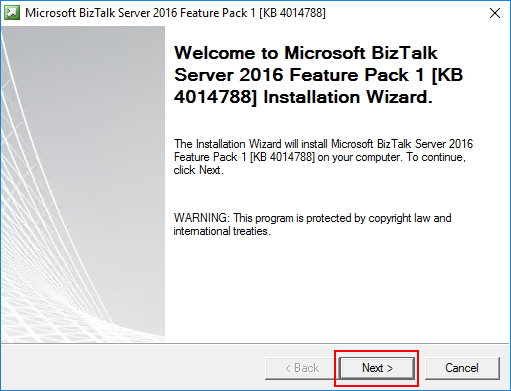
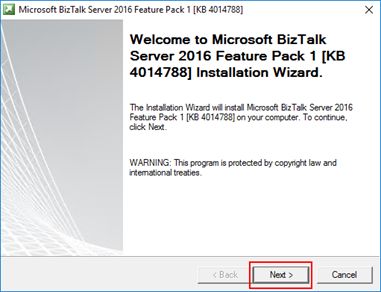
- In the “Welcome to Microsoft BizTalk Server Feature Pack 1 Installation Wizard” screen, click “Next”
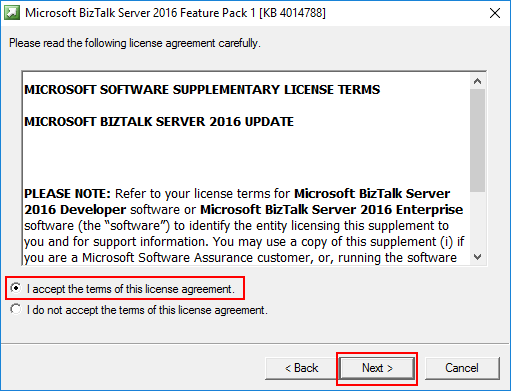
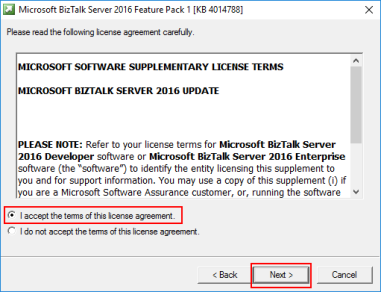
- In the “License agreement” screen, select the option “I accept the terms of this license agreement” and then click “Next”
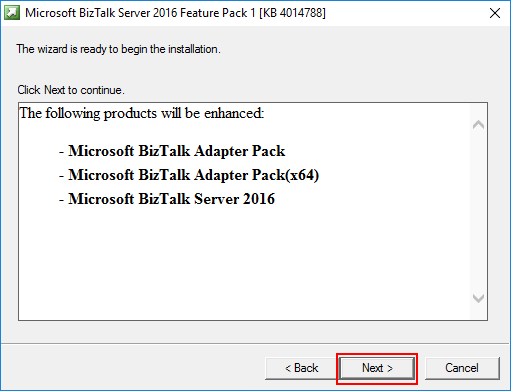
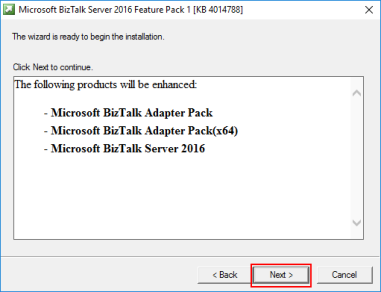
- In the “Ready to Install”, it will be provided a list of products that will be enhanced, you should click “Next” to continue with the installation.
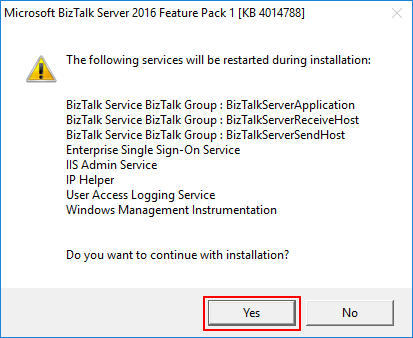
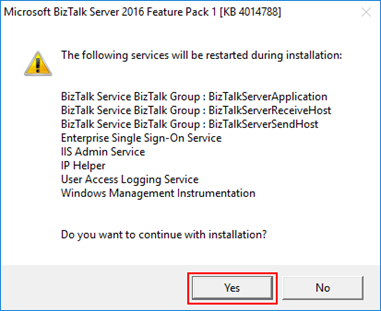
- The FP1 installation will prompt a window with the list of services that will be restarted during the installation process, click “Yes” to continue with the installation.
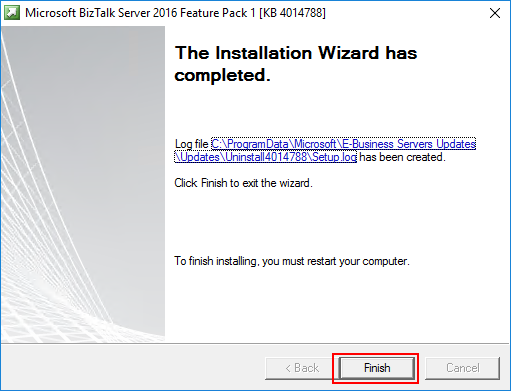
- The installation process may take some minutes to complete, and you probably see some “background” windows to appear and to be completed, you should wait until the “Installation Wizard has completed” screen to appear
- In the “Installation Wizard has completed” screen, click “Finish”
-
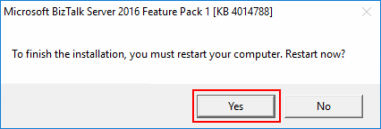
- Note: that you must restart BizTalk Server machine to finish the FP1 installation process. Click “Yes” to restart the server.
Once the restart is complete, you will be able to see and use the new following features:
- Deployment:
- Deploy with VSTS – Enable Continuous Integration to automatically deploy and update applications using Visual Studio Team Services (VSTS)
- New management APIs – Manage your environment remotely using the new REST APIs with full Swagger support
- Analytics:
- Application Insights – Tap into the power of Azure for tracking valuable application performance and to better understand your workflow
- Leverage operational data – View operational data from anywhere and with any device using Power BI
- Runtime:
- Support for Always Encrypted – Use the WCF-SQL adapter to connect to SQL Server secure Always Encrypted columns
- Advanced Scheduling – Set up advanced schedules using the new capabilities with Feature Pack 1
Author: Sandro Pereira
Sandro Pereira lives in Portugal and works as a consultant at DevScope. In the past years, he has been working on implementing Integration scenarios both on-premises and cloud for various clients, each with different scenarios from a technical point of view, size, and criticality, using Microsoft Azure, Microsoft BizTalk Server and different technologies like AS2, EDI, RosettaNet, SAP, TIBCO etc. He is a regular blogger, international speaker, and technical reviewer of several BizTalk books all focused on Integration. He is also the author of the book “BizTalk Mapping Patterns & Best Practices”. He has been awarded MVP since 2011 for his contributions to the integration community. View all posts by Sandro Pereira
by Sandro Pereira | Apr 21, 2017 | BizTalk Community Blogs via Syndication
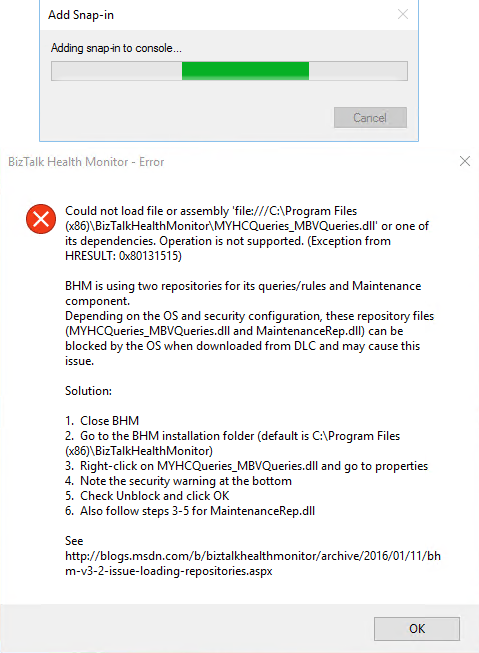
This BHM load error regarding to MYHCQueries_MBVQueries.dll, that can may also occurs with MaintenanceRep.dll, is a very well-known problem/annoying issue that occurs after we install BizTalk Health Monitor or update it to a new version that will apply in all BizTalk versions (BizTalk Server 2016, 2013 R2, 2013 or 2010) and SO (Windows 10, Windows Server 2016, 2012 R2, 2012 and so on):
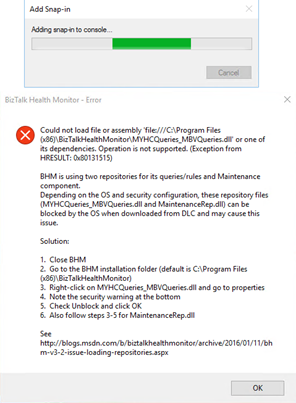
Could not load assembly file ‘file:///C:Program files (x86)BizTalkHealthMonitorMYHCQueries_MBVQueries.dll’ or one of its dependencies. Operation is not supported. (Exception from HRESULT: 0x80131515)
CAUSE
That is one of that times that BizTalk Server team did a great job. Not only throw the error but they also explain the problem and the solution to solve it.
This error when BHM tries to load the repository files downloaded from the Microsoft Download Center (DLC). BHM is using two repositories for this configuration, these repository files (MYHCQueries_MBVQueries.dll and MaintenanceRep.dll) can be blocked by OS when downloading from DLC and may cause this issue.
Solution
Again, the solution to this problem is also explained in the error window:
- Close BHM
- Go to BHM installation folder
- The default path is C:Program files (x86)BizTalkHealthMonitor
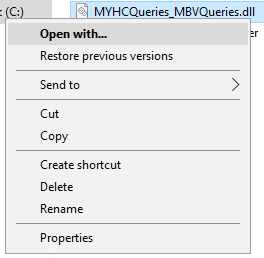
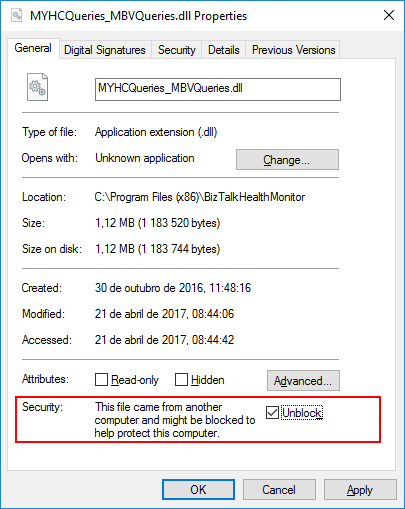
- Right-click in MYHCQueries_MBVQueries.dll and select “Properties” option
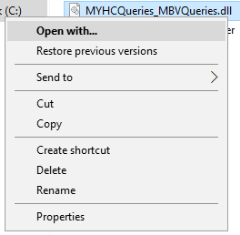
- You may see that the security warning at the bottom of the windows saying: “The file came from another computer and might be blocked to help protect this computer”
- Check “Unblock” option and click “OK”

- Do the same steps for “MaintenanceRep.dll”
Once you have unblocked both files, you should no longer see the security warning when you go back into their properties and if you try to execute BHM again all the above-mentioned errors related to loading repositories should be resolved.
You may also find more details about this issue directly from BizTalk Health Monitor blog: BHM v3.2 – Errors While Loading Repositories.
Note:
- If you have not yet installed BHM, you can also follow the above steps on the unzipped package prior to installing BHM.
Author: Sandro Pereira
Sandro Pereira lives in Portugal and works as a consultant at DevScope. In the past years, he has been working on implementing Integration scenarios both on-premises and cloud for various clients, each with different scenarios from a technical point of view, size, and criticality, using Microsoft Azure, Microsoft BizTalk Server and different technologies like AS2, EDI, RosettaNet, SAP, TIBCO etc. He is a regular blogger, international speaker, and technical reviewer of several BizTalk books all focused on Integration. He is also the author of the book “BizTalk Mapping Patterns & Best Practices”. He has been awarded MVP since 2011 for his contributions to the integration community. View all posts by Sandro Pereira

by Sandro Pereira | Apr 20, 2017 | BizTalk Community Blogs via Syndication
This post is for the BizTalk Server and Microsoft Azure Portuguese Community, will be held on April 22, 2017 – between 9:00 AM – 6:00 PM the Global Azure Bootcamp 2017 – Lisboa at Microsoft Portugal in Lisbon.
In April of 2013, the first Global Windows Azure Bootcamp has held in more than 90 locations around the globe. And each year number is increasing! This year it is expected the event will be hosted in 244 cities worldwide!

O Global Azure Bootcamp (#GlobalAzure) está de regresso a Lisboa no próximo dia 22 de Abril para a edição de 2017!
No maior evento de Azure do planeta, a comunidade vai ter a oportunidade de experimentar as últimas novidades da plataforma e entrar em contacto com os maiores especialistas portugueses na plataforma.
Junta-te a nós a partir das 9h00 para um dia repleto de coisas interessantes para fazer/assistir:
- Sessões técnicas
- Global Science Lab
- Intro & Advanced Labs
Traz o teu portátil e aproveita para experimentar alguns dos desafios que temos para ti!
Além das sessões técnicas teremos vários labs à disposição dos participantes. Existirão labs mais introdutórios para quem quer ganhar conhecimentos e labs mais avançados para quem pretende aprofundar o know-how em Azure.
Sobre a minha sessão – Halt and Catch Fire: Azure Functions
“Halt and Catch Fire: Azure Functions” – No início dos anos 1980, o espírito de inovação na computação pessoal estava a iniciar-se, podemos mesmo dizer “catching fire”. Hoje vivemos numa era semelhante na inovação de Serverless computing, também conhecido como function as a service (FaaS), um modelo de execução de código na Cloud no qual o fornecedor de serviços Cloud gere todos os recursos necessários para a execução das funções como um serviço (PaaS).
Nesta deep-dive sessão, iremos ver como Azure Functions podem ser uma ferramenta poderosa no seu toolkit de desenvolvimento, saber quais os seus benefícios e desafios que poderemos encontrar. Onde iremos abordar temas como:
- Usar Azure Functions juntamente com Logic Apps: onde mostrarei um cenário de reconhecimento de formulários e interligá-los com Power BI
- Usar Azure Functions juntamente com Microsoft Flow
- HTTP e Event Hubs triggers em Azure Functions
- Ou Usar Azure Functions juntamente com PowerApps
(ainda a trabalhar noutras demos por isso poderão aparecer novas surpresas (tópicos)

Data Evento: 22 Abril 2017 – 09:00H
Local do Evento: Microsoft Portugal | Rua do Fogo de Santelmo Lote 2.07.02 | Lisboa 1990-110 | Portugal
O evento é gratuito! De que está à espera? Reserve já o seu lugar aqui e participe: Global Azure Bootcamp 2017 – Lisboa
Estamos a sua espera!
Author: Sandro Pereira
Sandro Pereira lives in Portugal and works as a consultant at DevScope. In the past years, he has been working on implementing Integration scenarios both on-premises and cloud for various clients, each with different scenarios from a technical point of view, size, and criticality, using Microsoft Azure, Microsoft BizTalk Server and different technologies like AS2, EDI, RosettaNet, SAP, TIBCO etc. He is a regular blogger, international speaker, and technical reviewer of several BizTalk books all focused on Integration. He is also the author of the book “BizTalk Mapping Patterns & Best Practices”. He has been awarded MVP since 2011 for his contributions to the integration community. View all posts by Sandro Pereira