
by Saravana Kumar | May 3, 2017 | BizTalk Community Blogs via Syndication
We are continuing our tradition of one new release every 3-4 months once continuously for the past 6 years. In every release, we wanted to make sure we add 5-6 meaningful features that will help BizTalk Server administrators with Operations, Monitoring and Analytics capabilities. In BizTalk360 version 8.4, we added some exciting new features.
- BizTalk Server Licensing Widget
- Data Monitoring for Azure Logic Apps
- Folder Monitoring
- FTP/FTPS/SFTP Monitoring
- IBM MQ Monitoring
- BizTalk Health Monitoring (BHM) Integration
- Manage NT Services directly in the Web Console
- Manage SQL Jobs directly in the Web Console
- Few enhancements/bug fixes
BizTalk Server Licensing Widget
From our experience dealing with 100’s of BizTalk Server customers, we noticed that a lot of them struggle to understand how many BizTalk Server licenses are required for their servers. About 4 years ago I wrote an article called Understanding BizTalk Server Licensing and that’s one of the popular articles on our blog. We just thought it will be a good idea to transform that knowledge into a small widget in BizTalk360 so that people will easily understand how many licenses are required for your BizTalk Server.
Out of the box we ship this new widget in BizTalk360 version 8.4 called “BizTalk Server License” as shown below. This widget will display key information like BizTalk edition, server type, processor type, number of cores, processor manufacturer, retail license cost per server, how many servers to be licensed and total cost for the environment.
Data Monitoring for Azure Logic Apps
Data monitoring in BizTalk360 is one of the key capabilities that allows you to monitor and trigger alerts based on historical events. Some of the common use cases of data monitoring include “No Event Alerting”. Ex: If you are expected to process 5 purchase orders from an FTP location every hour and you haven’t received the expected volume, then BizTalk360 can alert you with a message.
We are taking the exact same concept to Azure Logic Apps to alert you based on historical transactions within a time window.
There are various interesting use cases. For example, as shown above, you may want to get alerted if one of your Logic App has gone crazy and firing thousands of executions and costing so many $$$. We will cover in detail about this feature in a separate blog article.
Here is the detailed list of metrics you can set data monitoring on.
Folder Monitoring
Sometimes as the product matures and you look at adding more features, you tend to miss out on the basic things. Folder monitoring is one such thing we left for so long! It’s better late than never. In BizTalk360 version 8.4 we are bringing the capability of folder monitoring. The technology might have improved significantly like Micro Services, REST API’s etc, however, file based integration is there to stay. It’s very common in the integration world where you drop a file (purchase order, batch file, EDI transactions etc) and the integration kicks in. One of the common challenges in such integration is that what happens when the integration is broken and the files started to pile up in the pickup folder.
We solve the exact problem using the folder monitoring capability.
One of the core values of BizTalk360 is to make monitoring configuration seamless and that’s how we differentiate ourselves from general purpose monitoring products. In the folder monitoring case, we automatically list down all the receive locations and send ports that use BizTalk FILE adapter and allow the user to configure in pretty much 2-3 clicks, we pick up all the values like folder location from existing configuration as shown above.
FTP/FTPS/SFTP
On the similar lines of normal Folder monitoring, FTP based integrations are key in most of the enterprise integration scenarios. BizTalk Server comes with three different adapters FTP, FTPs and SFTP to tackle FTP scenarios where the variations are mainly around the security capabilities of the FTP server.
With BizTalk360 version 8.4, you can monitor FTP locations for data pile up. We put a lot of efforts to make the configuration experience as seamless as possible, the screens will automatically list all the FTP based send ports/receive locations and all the available values like location, username etc are automatically picked up from those configurations.
IBM MQ Monitoring
For the past few releases, we are slowly bringing in the capability of Queue monitoring into BizTalk360. Queues play a vital role in enterprise integration especially for robustness, store, and forward patterns. In the previous releases, we introduced MSMQ and Azure Service Bus Queue. In BizTalk360 version 8.4, we are bringing in support for IBM MQ. We support both MQSC and MQS based configurations.
In any IBM MQ queues, you can monitor for the following 4 parameters – queue depth, backout queue depth, queue usage % and backout queue usage %.
BizTalk Health Monitoring Integration
For many years, we had support for Message Box Viewer inside BizTalk360. We periodically run MBV in configured environments, parse and store the result and display it in the BizTalk360 web console. We also got the ability to monitor and alert users based on Message Box Viewer raised errors and warning. Two years ago, Microsoft made some major changes to Message Box Viewer, re-branded it as BizTalk Health Monitor with few additional functionalities and deprecated MBV.
Support for BHM is one of the top requested features on our feedback portal. In BizTalk360 version 8.4 we introduced support for BHM and deprecated MBV support.
NT Services Operation in BizTalk and SQL Servers
One of the main objective for us from the security perspective is to stop people logging on/off into production BizTalk and SQL servers during business hours. We also wanted to audit any activities performed by BizTalk support people. Even though you shouldn’t start/stop services in your environment, we noticed in some cases NT services like world wide web, enterprise single sign on, BizTalk host instances, SQL Agent, etc needs to be started/stopped for the variety of reasons. Currently, users will RDP or have remote MMC snap-in to manage NT services in BizTalk and SQL servers. With BizTalk360 version 8.4 you can manage them directly in the web console. In addition, the activities will be audited by BizTalk360.
Manage SQL Jobs Operation from web console
In a similar concept to managing NT Services in both BizTalk and SQL Servers, SQL jobs play a vital role in a BizTalk Server environment. SQL Jobs are responsible for keeping your BizTalk environment healthy. They take care of routine housekeeping activities like moving data from Message Box database to Tracking database, purging/archiving tracked data, backup/disaster log shipping etc.
In BizTalk360 version 8.4, we brought in capabilities to manage SQL jobs directly from the web console. This functionality of monitoring SQL Jobs has been in the product for a very long time.
Few Enhancements and Bug Fixes
This article mainly covers all the new and exciting features we shipped in BizTalk360 version 8.4. In every release, we also allocate time to enhance current features and to address any top priority bugs we received from our existing customers. Here are some of the key enhancements and bug fixes
Alarm Management Improvements: Now you have the ability to bulk enable/disable monitoring alarms. You can also rename the alarms (again, one of the most requested features on our feedback portal.)
Webhook Notification Channel: Now you have the ability to specify (override) a new endpoint URL at the alarm level.
Logic Apps Monitoring Performance Improvement: Few critical updates been made to improve the performance of monitoring Azure Logic Apps
Get started today
Author: Saravana Kumar
Saravana Kumar is the Founder and CTO of BizTalk360, an enterprise software that acts as an all-in-one solution for better administration, operation, support and monitoring of Microsoft BizTalk Server environments. View all posts by Saravana Kumar
by Saravana Kumar | May 3, 2017 | BizTalk Community Blogs via Syndication
We are continuing our tradition of one new release every 3-4 months once continuously for the past 6 years. In every release, we wanted to make sure we add 5-6 meaningful features that will help BizTalk Server administrators with Operations, Monitoring and Analytics capabilities. In BizTalk360 version 8.4, we added some exciting new features.
- BizTalk Server Licensing Widget
- Data Monitoring for Azure Logic Apps
- Folder Monitoring
- FTP/FTPS/SFTP Monitoring
- IBM MQ Monitoring
- BizTalk Health Monitoring (BHM) Integration
- Manage NT Services directly in the Web Console
- Manage SQL Jobs directly in the Web Console
- Few enhancements/bug fixes
BizTalk Server Licensing Widget
From our experience dealing with 100’s of BizTalk Server customers, we noticed that a lot of them struggle to understand how many BizTalk Server licenses are required for their servers. About 4 years ago I wrote an article called Understanding BizTalk Server Licensing and that’s one of the popular articles on our blog. We just thought it will be a good idea to transform that knowledge into a small widget in BizTalk360 so that people will easily understand how many licenses are required for your BizTalk Server.
Out of the box we ship this new widget in BizTalk360 version 8.4 called “BizTalk Server License” as shown below. This widget will display key information like BizTalk edition, server type, processor type, number of cores, processor manufacturer, retail license cost per server, how many servers to be licensed and total cost for the environment.
Data Monitoring for Azure Logic Apps
Data monitoring in BizTalk360 is one of the key capabilities that allows you to monitor and trigger alerts based on historical events. Some of the common use cases of data monitoring include “No Event Alerting”. Ex: If you are expected to process 5 purchase orders from an FTP location every hour and you haven’t received the expected volume, then BizTalk360 can alert you with a message.
We are taking the exact same concept to Azure Logic Apps to alert you based on historical transactions within a time window.
There are various interesting use cases. For example, as shown above, you may want to get alerted if one of your Logic App has gone crazy and firing thousands of executions and costing so many $$$. We will cover in detail about this feature in a separate blog article.
Here is the detailed list of metrics you can set data monitoring on.
Folder Monitoring
Sometimes as the product matures and you look at adding more features, you tend to miss out on the basic things. Folder monitoring is one such thing we left for so long! It’s better late than never. In BizTalk360 version 8.4 we are bringing the capability of folder monitoring. The technology might have improved significantly like Micro Services, REST API’s etc, however, file based integration is there to stay. It’s very common in the integration world where you drop a file (purchase order, batch file, EDI transactions etc) and the integration kicks in. One of the common challenges in such integration is that what happens when the integration is broken and the files started to pile up in the pickup folder.
We solve the exact problem using the folder monitoring capability.
One of the core values of BizTalk360 is to make monitoring configuration seamless and that’s how we differentiate ourselves from general purpose monitoring products. In the folder monitoring case, we automatically list down all the receive locations and send ports that use BizTalk FILE adapter and allow the user to configure in pretty much 2-3 clicks, we pick up all the values like folder location from existing configuration as shown above.
FTP/FTPS/SFTP
On the similar lines of normal Folder monitoring, FTP based integrations are key in most of the enterprise integration scenarios. BizTalk Server comes with three different adapters FTP, FTPs and SFTP to tackle FTP scenarios where the variations are mainly around the security capabilities of the FTP server.
With BizTalk360 version 8.4, you can monitor FTP locations for data pile up. We put a lot of efforts to make the configuration experience as seamless as possible, the screens will automatically list all the FTP based send ports/receive locations and all the available values like location, username etc are automatically picked up from those configurations.
IBM MQ Monitoring
For the past few releases, we are slowly bringing in the capability of Queue monitoring into BizTalk360. Queues play a vital role in enterprise integration especially for robustness, store, and forward patterns. In the previous releases, we introduced MSMQ and Azure Service Bus Queue. In BizTalk360 version 8.4, we are bringing in support for IBM MQ. We support both MQSC and MQS based configurations.
In any IBM MQ queues, you can monitor for the following 4 parameters – queue depth, backout queue depth, queue usage % and backout queue usage %.
BizTalk Health Monitoring Integration
For many years, we had support for Message Box Viewer inside BizTalk360. We periodically run MBV in configured environments, parse and store the result and display it in the BizTalk360 web console. We also got the ability to monitor and alert users based on Message Box Viewer raised errors and warning. Two years ago, Microsoft made some major changes to Message Box Viewer, re-branded it as BizTalk Health Monitor with few additional functionalities and deprecated MBV.
Support for BHM is one of the top requested features on our feedback portal. In BizTalk360 version 8.4 we introduced support for BHM and deprecated MBV support.
NT Services Operation in BizTalk and SQL Servers
One of the main objective for us from the security perspective is to stop people logging on/off into production BizTalk and SQL servers during business hours. We also wanted to audit any activities performed by BizTalk support people. Even though you shouldn’t start/stop services in your environment, we noticed in some cases NT services like world wide web, enterprise single sign on, BizTalk host instances, SQL Agent, etc needs to be started/stopped for the variety of reasons. Currently, users will RDP or have remote MMC snap-in to manage NT services in BizTalk and SQL servers. With BizTalk360 version 8.4 you can manage them directly in the web console. In addition, the activities will be audited by BizTalk360.
Manage SQL Jobs Operation from web console
In a similar concept to managing NT Services in both BizTalk and SQL Servers, SQL jobs play a vital role in a BizTalk Server environment. SQL Jobs are responsible for keeping your BizTalk environment healthy. They take care of routine housekeeping activities like moving data from Message Box database to Tracking database, purging/archiving tracked data, backup/disaster log shipping etc.
In BizTalk360 version 8.4, we brought in capabilities to manage SQL jobs directly from the web console. This functionality of monitoring SQL Jobs has been in the product for a very long time.
Few Enhancements and Bug Fixes
This article mainly covers all the new and exciting features we shipped in BizTalk360 version 8.4. In every release, we also allocate time to enhance current features and to address any top priority bugs we received from our existing customers. Here are some of the key enhancements and bug fixes
Alarm Management Improvements: Now you have the ability to bulk enable/disable monitoring alarms. You can also rename the alarms (again, one of the most requested features on our feedback portal.)
Webhook Notification Channel: Now you have the ability to specify (override) a new endpoint URL at the alarm level.
Logic Apps Monitoring Performance Improvement: Few critical updates been made to improve the performance of monitoring Azure Logic Apps
Get started today
Author: Saravana Kumar
Saravana Kumar is the Founder and CTO of BizTalk360, an enterprise software that acts as an all-in-one solution for better administration, operation, support and monitoring of Microsoft BizTalk Server environments. View all posts by Saravana Kumar

by Praveena Jayanarayanan | May 3, 2017 | BizTalk Community Blogs via Syndication
In my previous blog, I have explained about the BizTalk360 support process and the different steps we have taken to resolve the ticket raised by the customer. It includes sending emails, getting into calls with the customer with screen sharing sessions, internal tracking of the tickets in case of a bug and escalating to the next level senior technical members.
In this blog, I will explain about the responsibilities of the support engineers, different levels of Support and how we are working hard to extend the support journey to the next level by making it happen 24 x 7.
Let’s get the real picture of support. Here we go!!!
The BizTalk360 Support team:
We have two teams working in support, one from India office and the other from UK office. This way we make sure that the customer tickets are taken care, irrespective of time and time zone.
We receive support tickets through many channels.
- Directly from BizTalk360 application. We have the question mark icon on the top right corner of the application UI. In case of any issues, the customer can directly create support tickets by clicking on that link.
- Through feedback forums. The customers can post their valuable suggestions and feedback in that forum. Also, for any enhancements, which are required from customer end, we do have an option of posting enhancements/ feature requests in our user-voice portal http://feedback.biztalk360.com/ where we collect all requirements in a single place and we pick the popular features to be implemented based on the voting done by various customers.
- The sales and marketing teams also get queries and issues that the customer raise through a mailing to them. They can also create support tickets and assign to us.
- Finally, we get the support tickets directly through our support channel.
When a customer finds an issue with BizTalk360, they can either send an email to [email protected] or log in to the Support portal and create the ticket. Our support engineers will get an email notification for the same. The support assist portal gives a clear picture of the number of tickets raised and which agent is working on which ticket. So, once an email notification is received by the agent, they go to the portal and check the ticket.
Escalation Levels:
There are three levels of the support team at BizTalk360. The ticket once raised gets assigned to a level 1 (L1) support engineer. They do the first level of analysis and respond to the customer if the resolution is available. BizTalk360 Support Portal consists of more than 500 articles explaining about the functionality of each module. We also forward articles to customers, if they are relevant to the issue. The conversations move between the support engineer and the customer till the issue is resolved and the ticket is closed after customer’s confirmation.
We will segregate the ticket as clarification, bug and feature request.
What if the case is clarification?
If the customer has raised a ticket asking for some clarification regarding the functionality of a feature, or some issues in loading the application, we ask for the setup details from the customer, like the environment configuration. There may be back and forth communication happening with the details. Our support portal consists of numerous articles with detailed steps for resolving certain issues and details about the functionality of each module. Hence we also point to the relevant assist document that may resolve the issue reported.
What if the case raised is a bug?
We test the cases raised and if we can reproduce them, then they are considered as bugs which need to be fixed in the releases, based on the severity and priority. We have an internal tracking system to take care of the bugs with the defined workflow. You might have already guessed it: Yes, it’s JIRA! Some cases may be issues, but not reproducible. In that scenario, we ask for the web meeting with the customer and check it at their environment with the screen sharing session.
After the first step analysis of the L1 team, what if they are not able to find the cause of the issue? Here comes the L2 team for support!!!! We would escalate the issue to the L2 team which consists of the technical team. They would analyze the case and provide their inputs as a reply to the ticket. From the start of the ticket raised, till it’s getting closed, is taken care by the L1 team. We send the meeting invite on behalf of the L2 team in case a call is required with the customer. From the ticket raised till it’s getting closed, it’s the responsibility of the L1 support engineer to see if the ticket is properly followed up and getting closed. This prevents that the customer gets confused as otherwise, they would have to deal with different support agents.
What if the case raised is a feature request?
Most of the customers give their valuable suggestions and feedback regarding the features in BizTalk360. They may also request for additional features to be included. The ideas are collected and posted in the feedback portal and later taken into development based on the priority of voting by the customers.
Handover process:
As mentioned earlier, we have two support teams working in different time zones. To keep track of the tickets and to see that they are responded in time, we have a handover process maintained in our support. We send the handover mail from one to another at the end of the day. The mail will contain the details of the ticket number, the agent working on, the status of the ticket and the instructions to be followed during the follow-up. So, the agent following the ticket will take necessary action based on the comments.
Since about half a year we started using Microsoft Teams as an alternative to Skype and Outlook. This creates a clear visibility to all the team members about the tasks we do and the tickets worked upon. The handover process is also continued in the Teams. During the end of the day, each team will be sending the details of the follow-up tickets.
We do conduct catch up meetings twice a day to discuss the tickets that require technical assistance. This is also posted in Teams. This way we make sure that the tickets are responded with the relevant details and properly tracked.
Conclusion
We are aiming to extend the support to make it 24/7 so that the tickets raised by all our customers over the globe are tracked and responded appropriately. This way we can achieve 100% customer satisfaction and contribute to the growth of the company.
Author: Praveena Jayanarayanan
I am working as Senior Support Engineer at BizTalk360. I always believe in team work leading to success because “We all cannot do everything or solve every issue. ‘It’s impossible’. However, if we each simply do our part, make our own contribution, regardless of how small we may think it is…. together it adds up and great things get accomplished.” View all posts by Praveena Jayanarayanan
by michaelstephensonuk | May 3, 2017 | BizTalk Community Blogs via Syndication
Recently at the Global Integration Bootcamp I talked about a BizTalk 2016 migration and discussed some of the architecture and technical considerations that you might have to consider.
The slides from this are here
by Kishorekumar Ashok | May 2, 2017 | BizTalk Community Blogs via Syndication
Introduction
File Locations Monitoring is one of the new Monitoring capabilities introduced in BizTalk360 v8.4. From our customers, we received many requests to introduce the ability to monitor Folder Level into BizTalk360. We are happy to announce that in BizTalk360’s upcoming release 8.4, we are bringing a feature to monitor file count for File Locations (File, FTP and SFTP), configured in BizTalk receive locations and send ports.
Need for File Locations Monitoring
Messaging or data exchange between business can be done in various ways. Frequent data communication process is done through for example File and FTP with XML or EDI as the message format. From BizTalk 2013 onwards, SFTP is also included in BizTalk Server which was available as Out-of-box feature in prior versions. Even though BizTalk works seamlessly with File Adapters, it has some known issues which occur due to incorrect configurations.
The BizTalk File Location Adapters (File, FTP, SFTP) fail to perform the operations on following scenarios:
- The File receive adapter cannot access the receive location on the file system or network share because the specified path does not exist. For a network share, the File receive adapter disables the receive location after all retry attempts have been exhausted.
- The File receive adapter cannot access the receive location on the file system or network share because the account used by the associated host instance does not have read-write permission for that location. For a network share, the File receive adapter disables the receive location after all retry attempts have been exhausted
- Files with names longer than 256 characters are encountered in the receive location
To resolve the above issues, we need to ensure that the specified path or share exists and the account used as the Logon should have read-write access. Additional to this, if you configure schedule/service window for your receive locations, messages will be accepted only during that time window, all other times BizTalk won’t pick up messages. Any violation to this scenario also needs to be monitored.
We often experience that organizations facing these kinds of challenges used custom solutions for this kind of monitoring. To overcome this, BizTalk360 added the File Locations Monitoring capabilities out of the box.
File Locations (File, FTP, SFTP)
In BizTalk360 v8.4, we are introducing support to monitor the File, FTP and SFTP servers under File Location Monitoring Section. File Location Monitoring will list all the locations configured in the BizTalk Artifacts (Send Ports and Receive Locations) for the Transport Types (File, FTP, SFTP) respectively, which helps users to monitor all the File Locations mapped with Receive Locations/Send Ports.
File Monitoring
To get familiar with File Adapter configuration, kindly refer below link:
https://msdn.microsoft.com/en-us/library/aa559105.aspx
In BizTalk360 File Monitoring Configuration contains three sections: Basic Information, Authentication, and File Monitoring Configurations.
- The Basic Information Section contains Folder Location and File Mask configured in BizTalk.
- The Authentication section is Optional. By default, authentication could be processed by the BizTalk360 Monitoring Service account, when credentials are not given.
- In the File Configurations Section, we can configure the Thresholds with the metric File Count to monitor
When a File Location is in the Orphaned State, BizTalk360 would let the users know about the cause of the failure on hovering the warning icon
FTP Monitoring:
To get familiar with FTP Adapter configuration, kindly refer to below link:
https://msdn.microsoft.com/en-us/library/aa561032.aspx
The FTP Configuration UI is categorized into three sections: FTP Details, Firewall Details and FTP Monitoring Configurations
- The FTP Details Section contains the details about the FTP Location, Authentication, and SSL
- The Firewall Details contains the configurations to connect FTP Server through a Firewall
- In the FTP Monitoring Config section, we can configure the monitor with Threshold Conditions for the metric File Count
SFTP Monitoring:
To get familiar with the SFTP Adapter Configuration in BizTalk, kindly refer the below link
https://msdn.microsoft.com/en-us/library/jj684551.aspx
The SFTP Monitor Tab in BizTalk360 lists the SFTP Locations which are configured in BizTalk. It contains four sections:
- SSH Server Section has the details about the SFTP Location
- The Proxy Details Section is optional to connect SFTP Server behind a firewall
Note: In BizTalk, Proxy details are available from BizTalk 2013 R2
- Security Details Section has the authentication details
- In the SFTP Monitoring Config Section, we can configure the monitor with threshold conditions for the metric File Count
Conclusion
With this latest release 8.4, BizTalk360 brings the File Locations Monitoring with the ability to monitor the File Count. In the future, we will be adding support to monitor Folder Size and Access permissions. If you have any feedback or suggestions, please write to us at [email protected].
by Kishorekumar Ashok | May 2, 2017 | BizTalk Community Blogs via Syndication
Introduction
File Locations Monitoring is one of the new Monitoring capabilities introduced in BizTalk360 v8.4. From our customers, we received many requests to introduce the ability to monitor Folder Level into BizTalk360. We are happy to announce that in BizTalk360’s upcoming release 8.4, we are bringing a feature to monitor file count for File Locations (File, FTP and SFTP), configured in BizTalk receive locations and send ports.
Need for File Locations Monitoring
Messaging or data exchange between business can be done in various ways. Frequent data communication process is done through for example File and FTP with XML or EDI as the message format. From BizTalk 2013 onwards, SFTP is also included in BizTalk Server which was available as Out-of-box feature in prior versions. Even though BizTalk works seamlessly with File Adapters, it has some known issues which occur due to incorrect configurations.
The BizTalk File Location Adapters (File, FTP, SFTP) fail to perform the operations on following scenarios:
- The File receive adapter cannot access the receive location on the file system or network share because the specified path does not exist. For a network share, the File receive adapter disables the receive location after all retry attempts have been exhausted.
- The File receive adapter cannot access the receive location on the file system or network share because the account used by the associated host instance does not have read-write permission for that location. For a network share, the File receive adapter disables the receive location after all retry attempts have been exhausted
- Files with names longer than 256 characters are encountered in the receive location
To resolve the above issues, we need to ensure that the specified path or share exists and the account used as the Logon should have read-write access. Additional to this, if you configure schedule/service window for your receive locations, messages will be accepted only during that time window, all other times BizTalk won’t pick up messages. Any violation to this scenario also needs to be monitored.
We often experience that organizations facing these kinds of challenges used custom solutions for this kind of monitoring. To overcome this, BizTalk360 added the File Locations Monitoring capabilities out of the box.
File Locations (File, FTP, SFTP)
In BizTalk360 v8.4, we are introducing support to monitor the File, FTP and SFTP servers under File Location Monitoring Section. File Location Monitoring will list all the locations configured in the BizTalk Artifacts (Send Ports and Receive Locations) for the Transport Types (File, FTP, SFTP) respectively, which helps users to monitor all the File Locations mapped with Receive Locations/Send Ports.
File Monitoring
To get familiar with File Adapter configuration, kindly refer below link:
https://msdn.microsoft.com/en-us/library/aa559105.aspx
In BizTalk360 File Monitoring Configuration contains three sections: Basic Information, Authentication, and File Monitoring Configurations.
- The Basic Information Section contains Folder Location and File Mask configured in BizTalk.
- The Authentication section is Optional. By default, authentication could be processed by the BizTalk360 Monitoring Service account, when credentials are not given.
- In the File Configurations Section, we can configure the Thresholds with the metric File Count to monitor
When a File Location is in the Orphaned State, BizTalk360 would let the users know about the cause of the failure on hovering the warning icon
FTP Monitoring:
To get familiar with FTP Adapter configuration, kindly refer to below link:
https://msdn.microsoft.com/en-us/library/aa561032.aspx
The FTP Configuration UI is categorized into three sections: FTP Details, Firewall Details and FTP Monitoring Configurations
- The FTP Details Section contains the details about the FTP Location, Authentication, and SSL
- The Firewall Details contains the configurations to connect FTP Server through a Firewall
- In the FTP Monitoring Config section, we can configure the monitor with Threshold Conditions for the metric File Count
SFTP Monitoring:
To get familiar with the SFTP Adapter Configuration in BizTalk, kindly refer the below link
https://msdn.microsoft.com/en-us/library/jj684551.aspx
The SFTP Monitor Tab in BizTalk360 lists the SFTP Locations which are configured in BizTalk. It contains four sections:
- SSH Server Section has the details about the SFTP Location
- The Proxy Details Section is optional to connect SFTP Server behind a firewall
Note: In BizTalk, Proxy details are available from BizTalk 2013 R2
- Security Details Section has the authentication details
- In the SFTP Monitoring Config Section, we can configure the monitor with threshold conditions for the metric File Count
Conclusion
With this latest release 8.4, BizTalk360 brings the File Locations Monitoring with the ability to monitor the File Count. In the future, we will be adding support to monitor Folder Size and Access permissions. If you have any feedback or suggestions, please write to us at [email protected].
by michaelstephensonuk | May 1, 2017 | BizTalk Community Blogs via Syndication
In todays organisations there is a massive theme that API’s and iPaaS are the keys to building modern applications because these technologies simplify the integration experience. While this is true I think one of the things that is regularly forgotten is the power of a well thought out messaging element within your architecture. When building solutions with API’s and iPaaS we are often implementing patterns where an action in one application will result in an RPC call to another application to get some data or do something. This does not cover the scenarios where applications need a relatively up to date synchronised copy of certain data so that various actions and transactions can be performed.
While data can be moved around behind the scenes with these technologies I believe there is a big opportunity in looking at evolving your architecture to make your key data entities available on service bus in a messaging solution so you can plug and play applications into this rather than having to rebuild entire application to application interfaces each time.
When working on one project last year this was one of the solutions we implemented and it has been really interesting to see the customer reap the benefits and repeat the pattern over and over.
The initial project we were working on was about implementing Dynamics CRM as a system of engagement in a higher education establishment to engage with students and to provide a great support experience for students. For pretty much any IT project in an education setting there are certain data entities you probably need your application to be able to access:
- Students
- Staff
- Courses
- Course Modules
- Course Timetable
- Which student is on which course
- Marks and Grades
In the project initial discussions talked about using SSIS and some CRM add-ons for SSIS to do ETL style integration with Dynamics CRM to send it the latest staff, student and course information on a daily basis. While this would work, there is little strategic value in this because the next project is likely to come along and implement the same interfaces again and again and before you know it all systems have point to point integrations passing this data around.
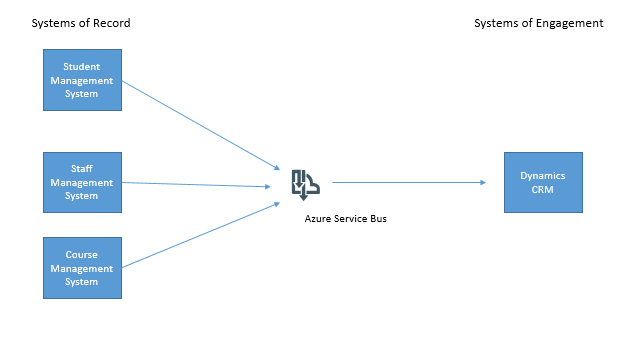
Our preferred approach however was to use Azure Service Bus as an intermediary and to publish data from the system of record for each key data entity to Service Bus then we could subscribe to this data and send it to CRM. In the next project another subscriber could subscribe to data on service bus and take what it needs.
The below diagram shows the initial concept for our project.
Rather than try to solve all possible problems in day one we chose to use this approach as a pattern but to implement it in a just in time fashion alongside our main business project so that eventually we would make all key data entities available on service bus.
One of the key things we thought about was the idea of sending to topics and receiving from queues. This is really the best practice way to use service bus in my opinion anyway. Think of a topic as a virtual queue and we had 1 topic per type of entity.
We also extended this so that for each entity we would have 1 topic for all instances of the entity and one topic just for changes. We had 2 types of system of record for our main data entities, some applications would be able to publish events in a near real time fashion (for example CRM would be capable of doing this for any data entities it was determined to be the master system for) and other applications were only able to have information published if an Integration technology pulled out data and published it. Any system publishing events would be using a delta topic and any system publishing in “batches” would use a topic for delta changes and a topic for all elements. To elaborate on this with an example, imagine the student records system has a SQL table of students. We might have a process with BizTalk that took all students from the table and published them to the “all” topic. We would then have another BizTalk process which would use a last modified field on the table and publish just the records that had changed to the “delta” topic. This means that receiving applications could take messages from either topic depending on the scenarios:
- They always want all records
- They want all records the first time and then after initial sync they only want changes
- The application only ever wants changes
This approach would give us a really rich hub of data and changes which applications could take what they needed. In the diagram below you can see how we created a worker queue for CRM to be fed messages and we had many more topics which applications were publishing data to. Using Azure Service Bus we can define subscriptions to create rules on which applications want which messages. We then use the Forward To property to forward messages from the subscription to the worker queue for CRM.
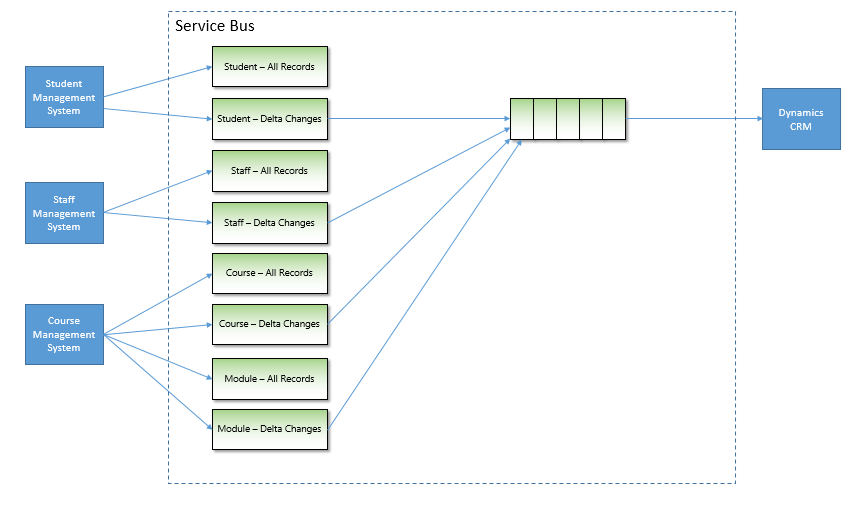
Just a quick point to note, we never receive messages directly from a subscription, we always use forward to and send the messages to a queue. The reason for this is:
- You cant define fine granular security for a topic
- Forward To allows the worker queue to process many different kinds of messages
- Its easier to see which applications are receiving which messages
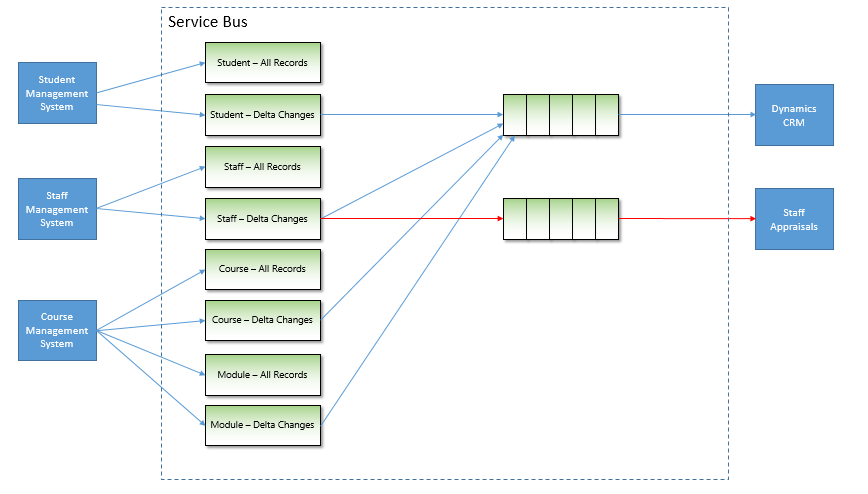
Once we had done our initial project where we had the core data entities available on Service Bus when the next project came along and they wanted staff information then we could simply add a subscription and routing to forward staff messages to a queue for this new application. The below diagram shows how a staff appraisal application was easily able to be fed staff information without having to care about the staff system of record. That problem had already been solved.
If you notice the staff appraisal application was getting all staff information every time it was published, when the project got to a more stable point we modified the routing rules so that the staff appraisal application was only sent staff records which are changing. To do this we just modified the subscription rules like in the diagram below:
In the next project we had a similar scenario where this time the virtual learning environment needed course data. This data was already available in service bus so we could create subscriptions and start sending this information with a significant reduction in the effort required. The below diagram illustrates the extension to the architecture:
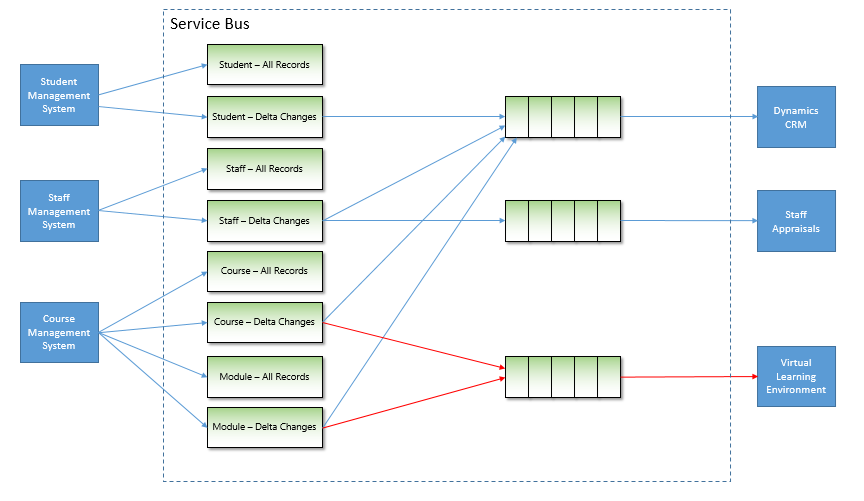
After a number of iterations of our platform with various projects adding more key data entities to the platform we now have most of the key organisational data available in a plug and play architecture. While this may sound a bit like the ESB pattern to some, the key thing to remember is that the challenges of ESB were that they combined messaging alongside logical processing and business process to make things very complex. In Service Bus the focus is purely on messaging, this keeps things very simple and allows you to build the architecture up with the right technologies for each application scenario. For example in one scenario I might have a Logic App which processes a queue and sends messages to Salesforce. We might have a BizTalk Server which converts a message to HL7 and sends it to a healthcare app or I might do things in .net code with a Web Job. I have lots of choices on how to process the messages. The only real coupling in this architecture is the coupling of an application to a queue and some message formats.
There are still some challenges you may come across in this architecture, mainly it will be in cases where an application needs more information than the core message provides. Lots of applications have slightly different views on data entities and different attributes. One of the possibilities is to use something like a Logic App so that when you process a message you may make an API call and look up additional data to help with message processing. This would be a typical enrichment pattern.
The key thing I wanted to get across in this article is that in a time where we are being told API and iPaaS are simplifying integration, messaging as an architecture pattern still has a very valuable and effective place and if done well can really empower your business rather than building the same interface over and over again but in slightly different forms.
by Gautam | May 1, 2017 | BizTalk Community Blogs via Syndication
Do you feel difficult to keep up to date on all the frequent updates and announcements in the Microsoft Integration platform?
Integration weekly update can be your solution. It’s a weekly update on the topics related to Integration – enterprise integration, robust & scalable messaging capabilities and Citizen Integration capabilities empowered by Microsoft platform to deliver value to the business.
If you want to receive these updates weekly, then don’t forget to Subscribe!
On-Premise Integration:
Cloud and Hybrid Integration:
Feedback
Hope this would be helpful. Please feel free to let me know your feedback on the Integration weekly series.
by Gautam | May 1, 2017 | BizTalk Community Blogs via Syndication
Do you feel difficult to keep up to date on all the frequent updates and announcements in the Microsoft Integration platform?
Integration weekly update can be your solution. It’s a weekly update on the topics related to Integration – enterprise integration, robust & scalable messaging capabilities and Citizen Integration capabilities empowered by Microsoft platform to deliver value to the business.
If you want to receive these updates weekly, then don’t forget to Subscribe!
On-Premise Integration:
Cloud and Hybrid Integration:
Feedback
Hope this would be helpful. Please feel free to let me know your feedback on the Integration weekly series.


